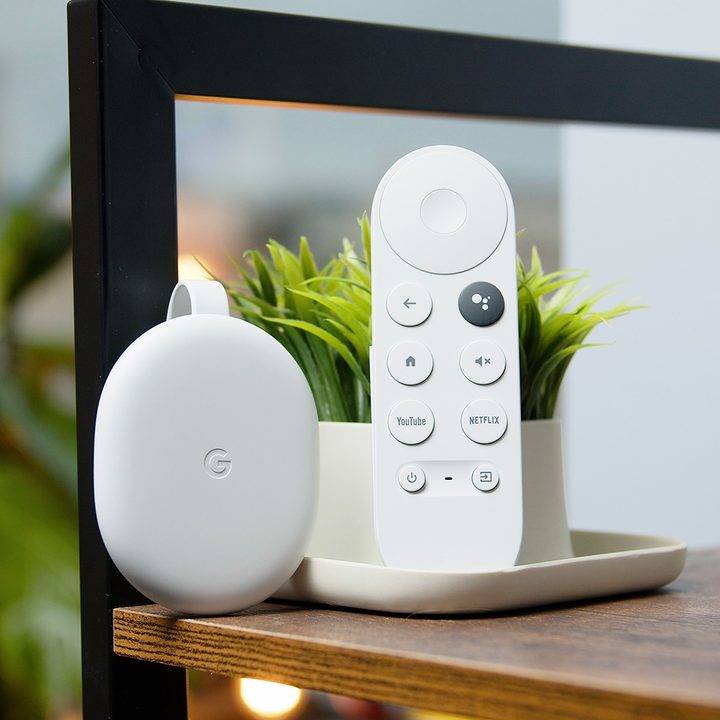
While some hotels offer complimentary HBO and other viewing packages, others only allow for limited options. But it doesn't have to be this way. If you're a Chromecast user, and remember to pack your device, you can get back to watching Netflix or Hulu easily. All you need to do is connect your Chromecast to a hotel TV. Here's how you can start streaming while away from home.
And note that this should also work for the new Google TV Streamer, which is replacing Chromecast. And be sure to read our full Google TV Streamer review for more.

Connect the Chromecast to the TV
This first step is critical. The TV in your hotel room has to have an open HDMI port that you can access (many of them don't). Otherwise, it's game over. While you're looking, take note to see if there's already an HDMI cable plugged into the TV. If there is, you might need to unplug it in one of the next steps. Once a free port has been found, plug your Chromecast in.
Step 1: Check the sides of the TV, or if you can access it, around the back. The inputs should be clearly labeled as HDMI 1, HDMI 2, etc.
Step 2: Plug your Chromecast into the HDMI port. It doesn't really matter which one — just make a note of whether it's HDMI 1, HDMI 2, etc.
Step 3: Plug the power cable into your Chromecast and the other end into the wall plug. (It's possible the TV's USB port may work to power the Chromecast. It may not if it doesn't provide the Chromecast enough juice, so it is best to use a wall plug if possible.)
Pro tip: Bring an extra-long USB power cable in case there isn't a free wall outlet near the TV.
Step 4: Change the input on the TV to match the one you plugged the Chromecast into. (You remembered to remember, right? HDMI 1, HDMI 2, etc.)
If you're successful, you should see the default Chromecast setup screen. If you can't find an open HDMI port, try the next step.
If there is no open HDMI port
If there isn't a free HDMI port or you have trouble switching inputs (maybe because the TV simply won't allow it), it's time to try plan B. If you found a cable already plugged into an HDMI port in step 1, unplug it, and swap in your Chromecast. Of course, this means you'll lose your hotel TV channels, but you can always swap it back once you've finished bingeing the latest hot shows on Netflix.
Keep in mind that many hotel chains will purchase HDTVs that are connected to the hotel's own media servers. In many cases, this means that the HDMI ports on the TV may be locked.
So even if there are one or two ports available to connect your Chromecast to, the inputs themselves may not work. If you run into this issue, there's a quick workaround you can try.
Look at the back of the TV. If you see a cable that looks like an Ethernet wire connected to the TV, go ahead and disconnect it. This is the data stream wire (or RJ11 cable) that the hotel uses to deliver cable streams to each TV. Once this wire is disconnected, you should be able to use the TV's HDMI inputs.

Connect to the internet
If you've gotten this far, this is (hopefully) the last step.
Step 1: Connect your phone or tablet to the hotel's Wi-Fi. This may be done through an open connection or via a password setup that is provided to you at check-in. Check with the front desk if you need help getting your phone connected to hotel Wi-Fi.
Step 2: Now that you are connected to the Internet, if you haven't done so already, download the free Google Home app from Google Play or the Apple App Store. Then, launch the app and follow the on-screen instructions for setting up your Chromecast on the same Wi-Fi network.
If you need more help setting up your Chromecast, check out our detailed set up your Chromecast guide.
Congrats, you're ready to start casting!
Common issues when connecting Chromecast to hotel TVs
If you are still not able to get the Chromecast set up and working, you've got some other things to try.
Step 1: Set up a Wi-Fi hotspot.
If you cannot connect the Chromecast to the hotel Wi-Fi, you can set up your own Wi-Fi hotspot instead.
If you have a Windows laptop, you can share its Wi-Fi connection with both your smartphone and Chromecast.
You can do the same thing on a MacOS laptop, but only if you can connect the laptop to an Ethernet connection in the hotel room, and these are becoming increasingly rare.
The same goes for using your phone as a hotspot. Remember that if you've got limited data, you'll eat through it quickly when streaming video.
Step 2: Bring a travel router.
A travel router offers the most reliable way to create a Wi-Fi access point you can then share with devices in your hotel room, including the Chromecast.
There are plenty of these to be found on Amazon and elsewhere, and they usually cost less than $75. Some require access to an Ethernet jack, however — as we mentioned above, that can be hard to find. A model that can run in Wireless Internet Service Provider (WISP) mode (or bridge mode) will let you sign in to your hotel's Wi-Fi and then make that connection shareable as a regular Wi-Fi network, with a name and password of your choosing.
One last thing
If none of these options work for you, or you simply don't want to be bothered messing around with HDMI ports and Wi-Fi hot spots, you may not need to bring your Chromecast at all. More and more hotels are beginning to install Chromecast-compatible systems like RoomCast. If your hotel has this, all you need is your phone, tablet, or laptop, and you're all set.
Travel locations may only offer you basic cable, so bringing your Chromecast and connecting your Chromecast to a hotel TV is a great option. If your hotel's TV allows it, you will be able to stay up to date on all your favorite shows by following the above steps. Just remember to unplug your Chromecast when you leave, and replug anything you may have changed on the TV.