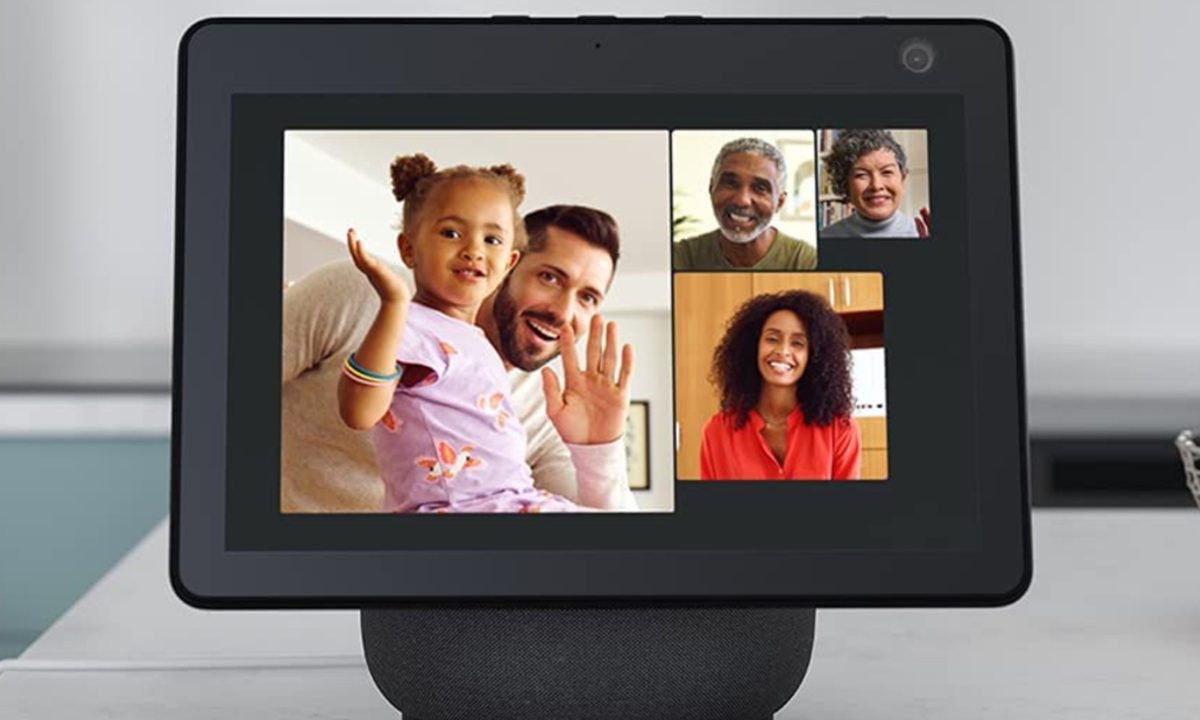
There's a lot to love about Echo devices like the Echo Show 8 and Echo Dot, including their support for Alexa and impressive audio capabilities. But one of their lesser-known features is called Drop In — and when used properly, it's an easy way for extended families to stay connected. Essentially, it allows you to use your smart speaker or display as a makeshift intercom, communicating with friends and families around the world.
Here's everything you need to know about Drop In, including how to use it and how to disable it.

Download the app
Step 1: First, ensure you have the Alexa app downloaded on your Android or iOS device (and that it is the latest version). You will need two different Echo devices for Drop In to work: With the app, you can drop in on other Echo devices, but you can’t receive a Drop In call via the app.
Step 2: Once you’ve downloaded and launched the app, you should be prompted to set up Alexa Calling and Messaging. If you aren’t, tap the speech bubble at the bottom of the screen to sign up and fill out your contact information.
Enable Drop In on devices
The Drop In feature might be turned off in the app, so you may have to opt in to use it.
Step 1: Head to the icon at the bottom of the Alexa app that says Devices.
Step 2: In the devices menu, choose the device on which you want to enable the Drop In feature.
Step 3: With Drop In enabled on all your Echo devices, you should be able to initiate household drop-ins just by saying, “Alexa, drop in on,” and then saying the specific name of the Echo device. If this is all you want to do, then you’re good to go.
However, you can also enable drop-ins outside your house if you want to, and permitted contacts will be able to drop in on your Echo.

Enable Drop In on your profile
To make Drop In calls via the Alexa app and have others do the same, you’ll need to enable Drop In on your profile. Fortunately, this is very easy to do.
Step 1: Select the More button at the bottom of the Alexa app, then click on Communicate. From there, you'll see an icon for the Drop-In feature. Click on this to get an alert about setting up the feature on your profile.
Step 2: Once there, make sure the Drop In section is enabled, and if it isn’t, select it to enable it.

Enable contact’s Drop In and ask them to do the same
Now, it’s time to enable Drop In for other contacts you may have.
Step 1: Select the Communicate icon again, choose the person icon in the upper-right corner to go to your contacts, and choose the contacts you want to talk to. You will notice they have Alexa Calling & Messaging under their name if they have an Echo device or Alexa account, signifying you can enable Drop In for them.
Step 2: Under Permissions, make sure the Allow Drop In option is chosen for the contacts you want to have Drop In enabled for on your device.
However, it’s important to call up your contact and have them do the same for your contact info unless you only want the Drop In option to be a one-way communication tool. If you want to set up drop-ins for your kids or other family members instead of just devices, you can create contacts for them here, and enable those drop-ins as well, so you can call them by name when giving commands.

Begin calling
After the setup is complete, you’re ready to try out a call. You activate the feature by speaking the word you’ve chosen to enable its capabilities, then you say, “drop in on [person’s name],” and your device should ring that person. You can also go directly to the Contact page and select the person you want to call.
When someone drops in on you, the light ring on your Echo will pulse green, a tone will sound, and they will be connected automatically, allowing them to hear anything that is within range of your device. If you and your contact are using devices equipped with a screen, the video will appear somewhat distorted for several seconds, so you have an opportunity to get ready. There are verbal and tactile options to leave a video while remaining on the call, namely by saying “Video off” or pressing the onscreen Video Off button.
How to disable Drop In
While Drop In is great for chatting with friends or making announcements throughout your home, you might not like the idea of folks jumping into your Echo device unannounced. If you’re looking to turn off Drop In, here’s what you'll need to do.
Step 1: In the Alexa app, open the Devices menu.
Step 2: Head to the Echo & Alexa menu.
Step 3: Find the device you’d like to disable Drop In.
Step 4: Click Communications.
Step 5: Finally, select Drop In. From here, you’ll have the option to disable the service.
Step 6: Alternatively, you can open the Alexa app, click the More button, then navigate to Communicate. From here, you'll then be able to change your Drop In options by selecting the Drop In menu. You can also click on your contacts to manage My Communication Settings.