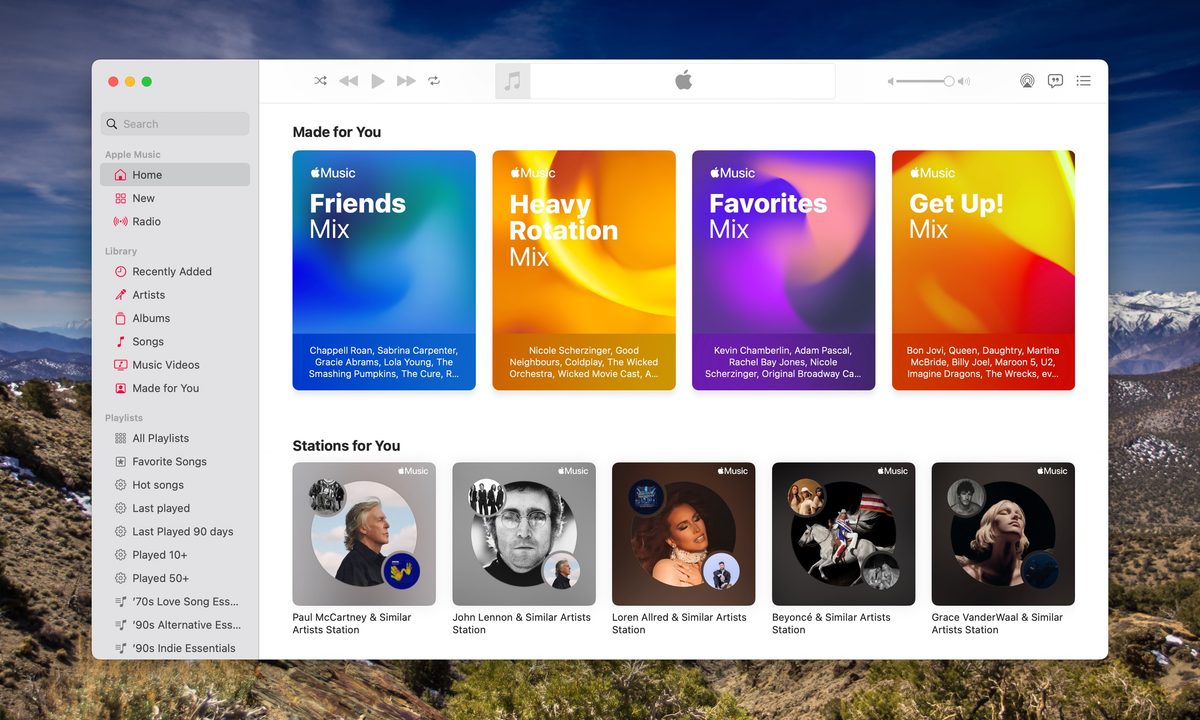
Apple Music is among the top streaming services known for its extensive collection of melodic content. With over 88 million subscribers worldwide and a catalog featuring more than 100 million tracks from today’s leading artists, it positions itself as a strong competitor to Spotify, the top music streaming service on the planet.
For those who are new to Apple Music, the service offers a one-month free trial, allowing you to explore its features and vast library without any cost. Following the trial, you can choose between monthly or annual membership plans. The most popular Individual plan is available for $11 per month or $109 per year. This pricing is competitive within the industry, providing a solid value for access to high-quality music and exclusive content.
If you’re a college student, you can take advantage of a discounted rate of just $6 per month, making it an attractive option for those on a budget. Additionally, Apple Music offers a Family Plan for $17 per month, which allows up to six family members to share a single subscription. This means that you can enjoy music together while sharing the cost, making it a great option for families who want to save money.
In this guide, we will walk you through the process of setting up Apple's Family Sharing feature, which allows you to share your subscription with family members. We will also cover how to add users to your account step by step. By the end of this guide, you'll have multiple family members streaming their favorite tunes under one roof, all while making the most of your Apple Music subscription.

Before you get started
In order to follow the instructions in this guide, you’re going to need a few things, some of which are more obvious than others. First off, you’ll need an Apple ID, which anyone with at least one iOS or macOS device or other Apple service should have.
You’ll also need an Apple Music Family subscription, of course. If you’re setting up Apple Music from scratch, be sure to choose a Family subscription instead of an Individual one. If you'd like to change an Individual Apple Music subscription to a Family subscription, it’s a fairly quick process, and detailed instructions are available via the support section of the Apple website.
What is Family Sharing?
Family Sharing is a convenient way to share content across a number of Apple services, including movies, iCloud storage, apps, and our focus today, Apple Music. For only $17 per month, account administrators can host up to six Apple Music users under one family subscription. Since everyone under Family Sharing uses their own Apple IDs, everyone gets their own preferences and recommendations.
Best of all: When you enable purchase sharing with Family Sharing, the entire family can swap movies, shows, books, and music — just as long as the purchasing user approves sharing for the other group members.
Setting up Family Sharing
Instead of functioning independently, Apple Music’s Family plan piggybacks on Apple’s Family Sharing infrastructure. If you already have Family Sharing set up and are just looking to add new family members, skip to the next section. If you’re setting up your Family subscription for the first time and have never used Family Sharing, read on.

Setting up Family Sharing on iOS
If you’re reading this article on your iPhone or iPad, you’re in luck: You can set up Family Sharing right now in a few simple steps.
Step 1: Open the Settings app and either choose your name at the very top, or on older iOS devices, scroll down and open the iCloud settings.
Step 2: Choose Family Sharing: Then select Set Up Your Family. From here, follow the prompts to invite and add family members until setup is completed.
Step 3: Now all you have to to is invite family member. If you’re using iOS 16 or later, go to Settings and then Family.
Step 4: From here, choose the Add Member icon in the top right.
Follow the instructions to invite family members via Messages. Here you can also create a Child account for sharing as well, if your child doesn't have an Apple ID. You can also set up parental controls for them as well.

Setting up Family Sharing on Mac
If you’re using a Mac, setting up Family Sharing is as easy or perhaps even easier than using an iOS device. The steps are just a little different and are just slightly different depending on your version of macOS.
Step 1: Find your way to your Mac's System Settings (Ventura or later) or System Preferences (Monterey or earlier). You can find either by clicking the Apple logo in the top left corner.
Open the Settings app or click on the ever-present Apple logo in the top left of the screen, then select System Settings. Once the preferences window is open, click on your name or Family or Family Sharing, depending on your version of macOS. For devices running macOS Mojave or earlier, you’ll click iCloud instead of Family.
Step 2: Now, find the Family Sharing option — it's either through clicking your name or there will be a Family Sharing menu right there. Either way, select it.
Step 3: If you're setting it up for the first time, click Set Up Family and follow the on-screen instructions.
Step 4: Now you have to add members. Simply click Add member (Ventura) or Add Family Member (Monterey) then follow the onscreen instructions to invite members and select the services you'd like to share. Like with the iOS steps, you can also create Apple IDs for children here, too.
Step 5: All that's left to do is invite your family members to join your family. They will have to accept the invitation to start sharing your Apple Music and other subscriptions.

Start using Apple Music
Now, you should be all set on your end. All that’s left is for your family members to actually start using Apple Music. All they need to do is log into Apple Music with the same credentials they use for Family Sharing, and they’ll be ready to start listening. That said, every once in a while, things don’t go as smoothly as you hoped.
Troubleshooting
A common issue within families using shared subscriptions like Apple Music or iCloud (especially when utilizing Family Sharing) is confusion caused by a family member logging in with the wrong account. This mix-up can lead to difficulties accessing music or other services, so it's crucial to verify which account each member is using initially.
If someone encounters issues accessing Apple Music, the first step is to confirm that they are logged into the correct account associated with your Family Sharing plan. This can often be resolved simply by logging out and back into the Apple Music app. To do this, open the settings on your device, scroll to your Apple ID, and sign out from Apple Music. After a moment, sign back in to see if access issues persist.
If logging out and back in does not resolve the problem, repeating the process for all Apple services linked to the account may be beneficial. This includes iCloud, Apple Store, and any other relevant apps. Sometimes, a session conflict between services can create access issues.
If problems continue after these steps, a more thorough solution is to reorganize your Family Sharing setup. This involves removing all family members from your Family Sharing group and re-adding them individually. While this may seem tedious, it often resolves persistent issues by refreshing account access and ensuring everyone is correctly linked to the family subscription.
Remember, communication among family members is key. Ensure everyone knows which account to use, as this can prevent confusion and ensure seamless access to the family subscription services.