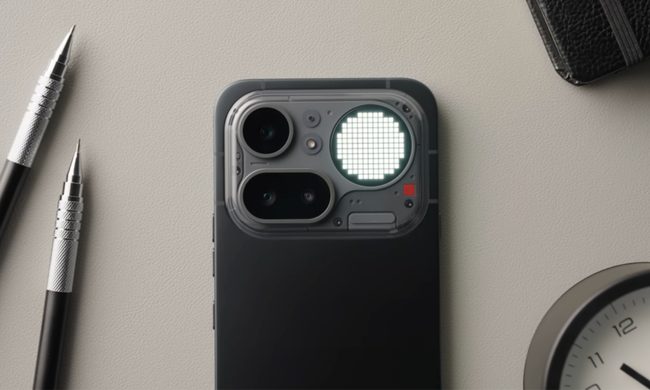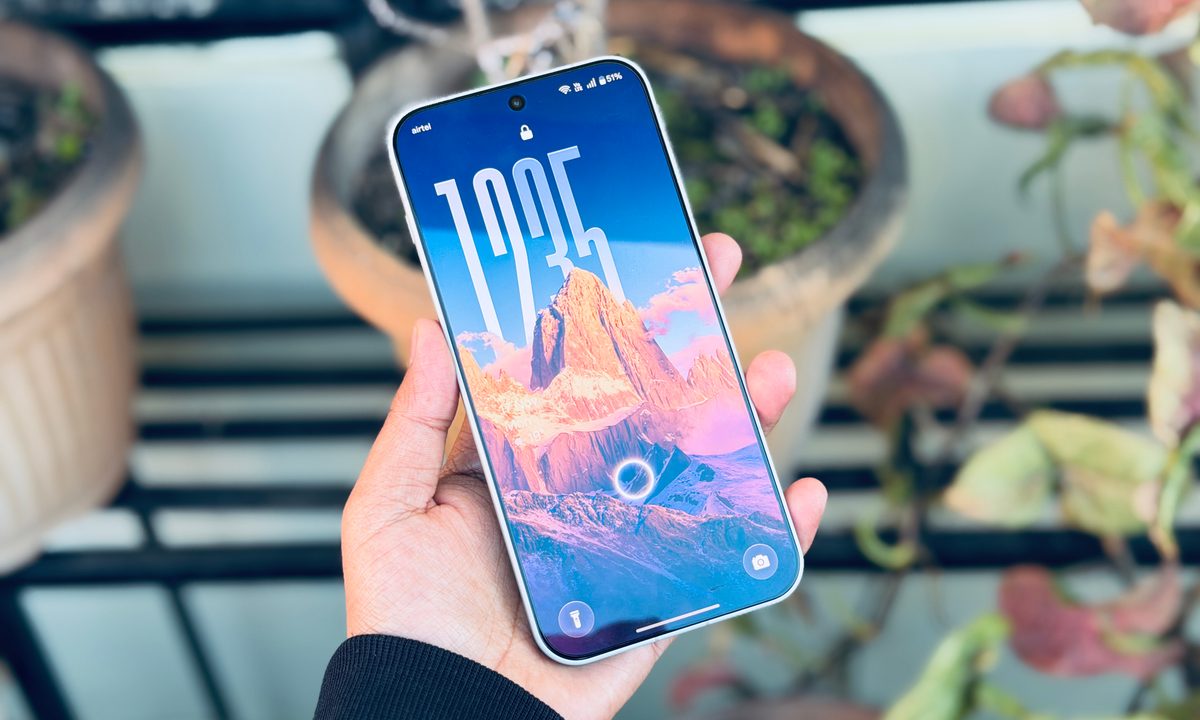
Over the course of the past two weeks, the OnePlus 15 has served as a faithful companion of mine across four state borders. It has proved to be a surprising package so far. The performance blazes a hot trail, in quite the literal sense, while the all-big camera sensor array has its own ups and downs.
Overall, I’ve enjoyed the device more than I expected. Partly, it has to do with the lovely build married to ultra-slim bezels on a fast screen, and partly owing to the massive battery and 120W charging that have liberated me from the proverbial charging anxiety.
If you’ve been eyeing the OnePlus 15, it will most likely impress you. And once you’ve plonked your cash on the device, you must enable a few features to get the most out of its standout software experience.
Mind Space with Gemini

One of the most impressive – and convenient — features on the OnePlus 15 is Mind Space. It is essentially a memory vault where you can save whatever looks important to you — from web pages to pictures. With a single click on the dedicated Plus Key, the AI saves a snapshot of the whole page.
Next, it contextually analyzes the text and visual content of the snapshot, and creates a brief summary of it on a dedicated card. Additionally, it also adds hashtags that help with contextual search in the Mind Space app, and it can even create one-click actionable tasks if you are saving something that is time-sensitive.
But the real gem is its integration with Gemini. Simply put, Gemini can now take a peek at what you have stored in the Mind Space, just the way it can extract information from your calendar, drive, or inbox. All you need to do is use the “@Mind Space” shortcut in the Gemini text field or invoke Mind Space in the voice command.
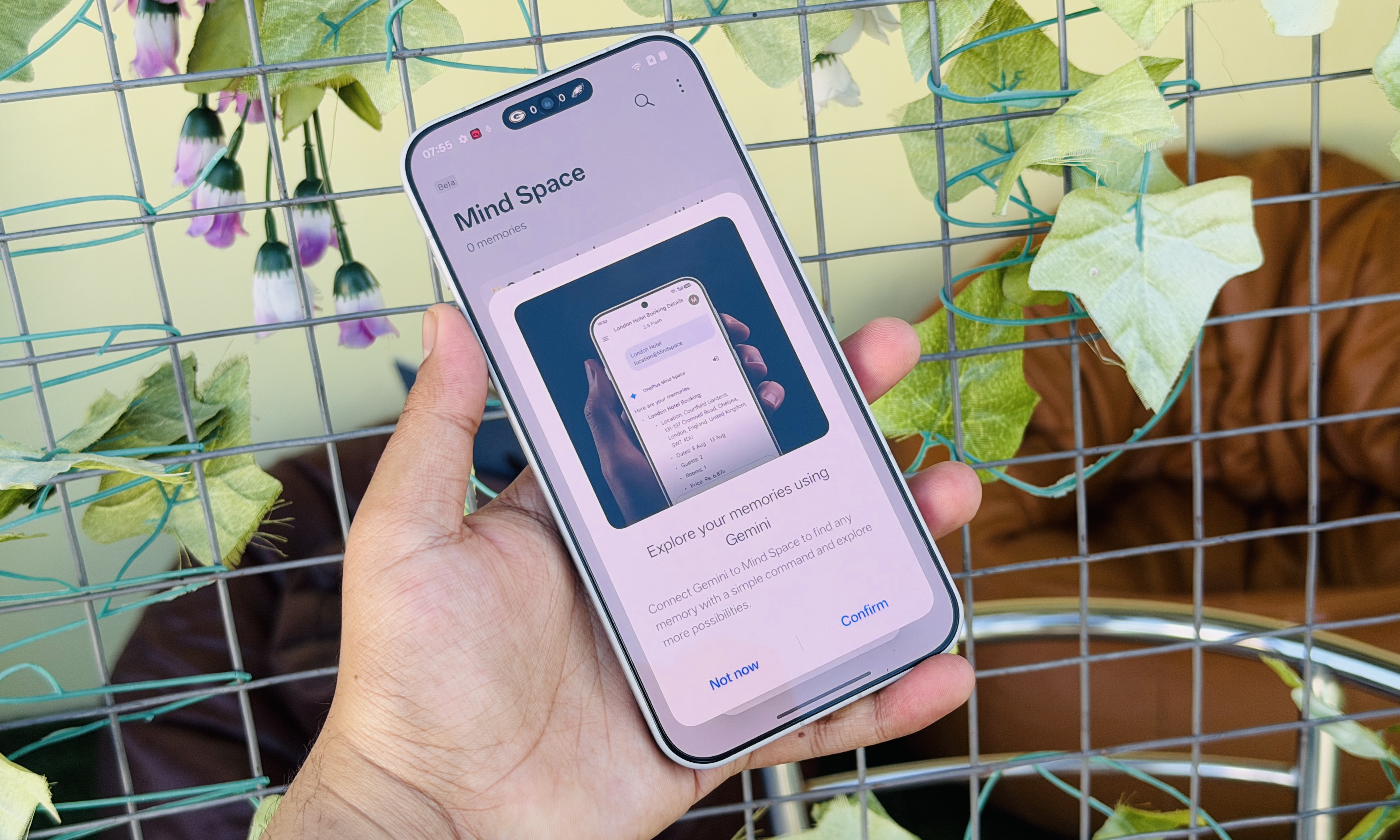
Thanks to its vast knowledge base and connection to Google Search, Gemini can offer a lot more information about the content you have stored in Mind Space. From asking about landmarks to creating a travel guide after looking at a picture, you can do a lot with Gemini.
In case you couldn’t enable it during the setup, just go to the Gemini app on the OnePlus 15, tap on the profile icon, select Connected Apps, and enable the toggle corresponding to Mind Space. Once it’s active, you can seamlessly ask Gemini to answer queries and handle tasks based on memories you have saved in Mind Space.
Screen health
OnePlus made an odd choice by downgrading the resolution on its latest flagship. It’s not a deal-breaker by any stretch of the imagination. It’s sharp, saturated, and above all, faster than any other mainstream phone out there, thanks to support for 165Hz refresh rate.
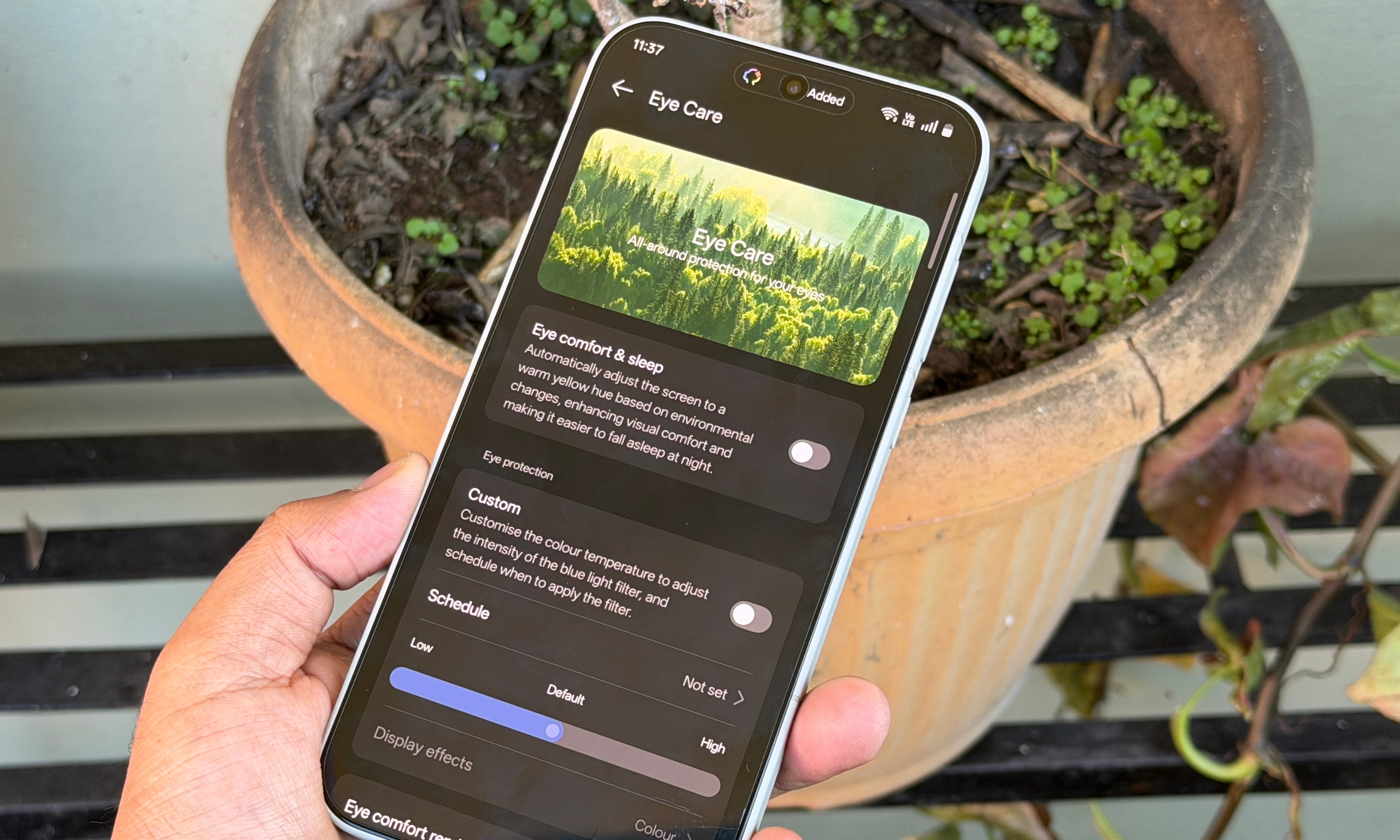
But apart from the usual settings, OnePlus had also pushed a few AI-powered display experiences on the device that make it stand out from the crowd. In the Settings app, buried within the Display tools, there’s an Eye Care mode dashboard.
On this page, you will find a new setting called Eye Comfort Reminders. When you enable it, a trio of features is activated in one go. The first one will nudge you when it detects signs of eye fatigue.
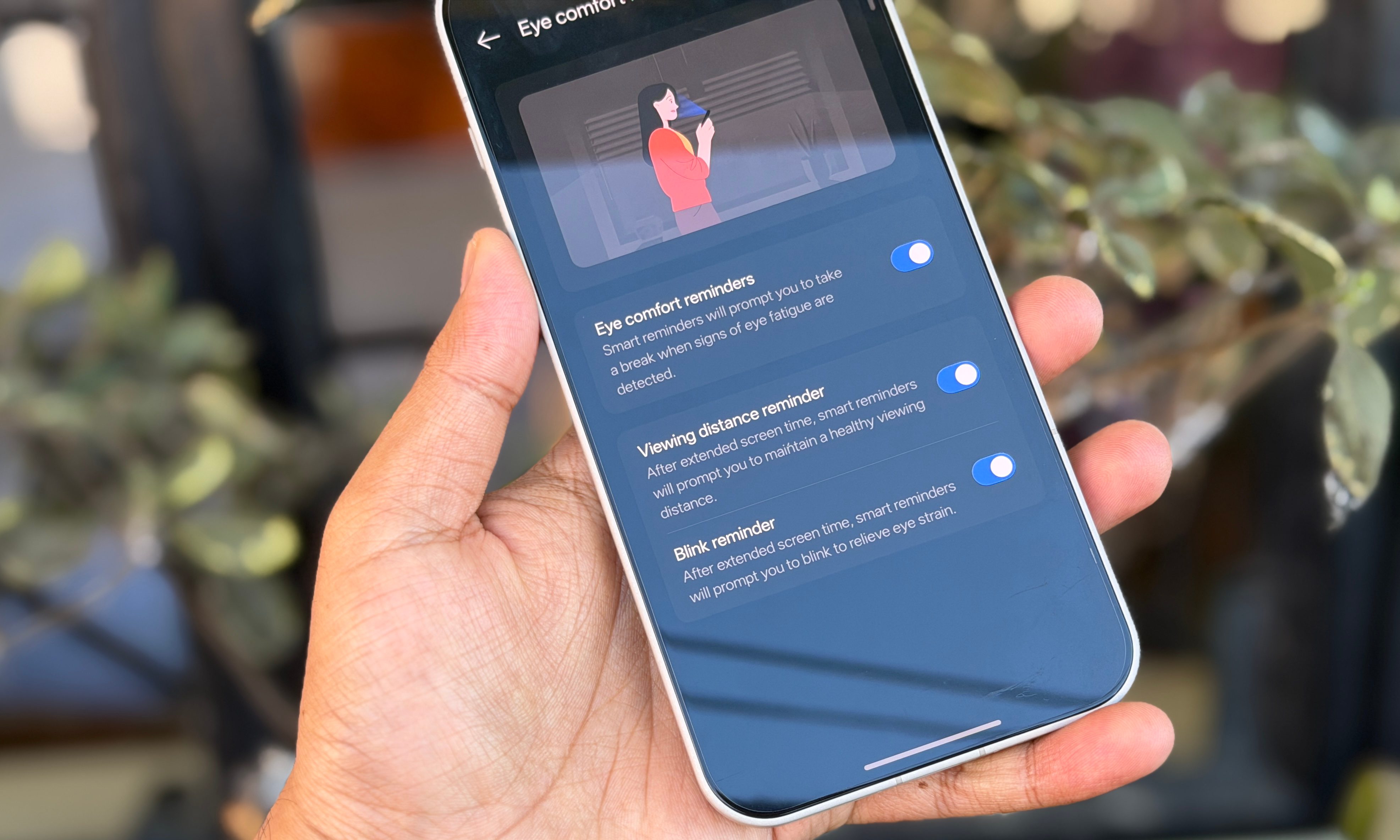
The second one will show a pill-shaped alert at the top, when the system detects that the display has been held too close to the eyes for a while. And finally, we have a dedicated toggle that sends blink reminders if you’ve been staring at the screen without blinking.
The system works fairly well. Over the past few days, every time I have taken the phone to my bed for some mindless doomscrolling, I’ve seen the viewing distance reminder pop up from time to time.
The mighty sidebar
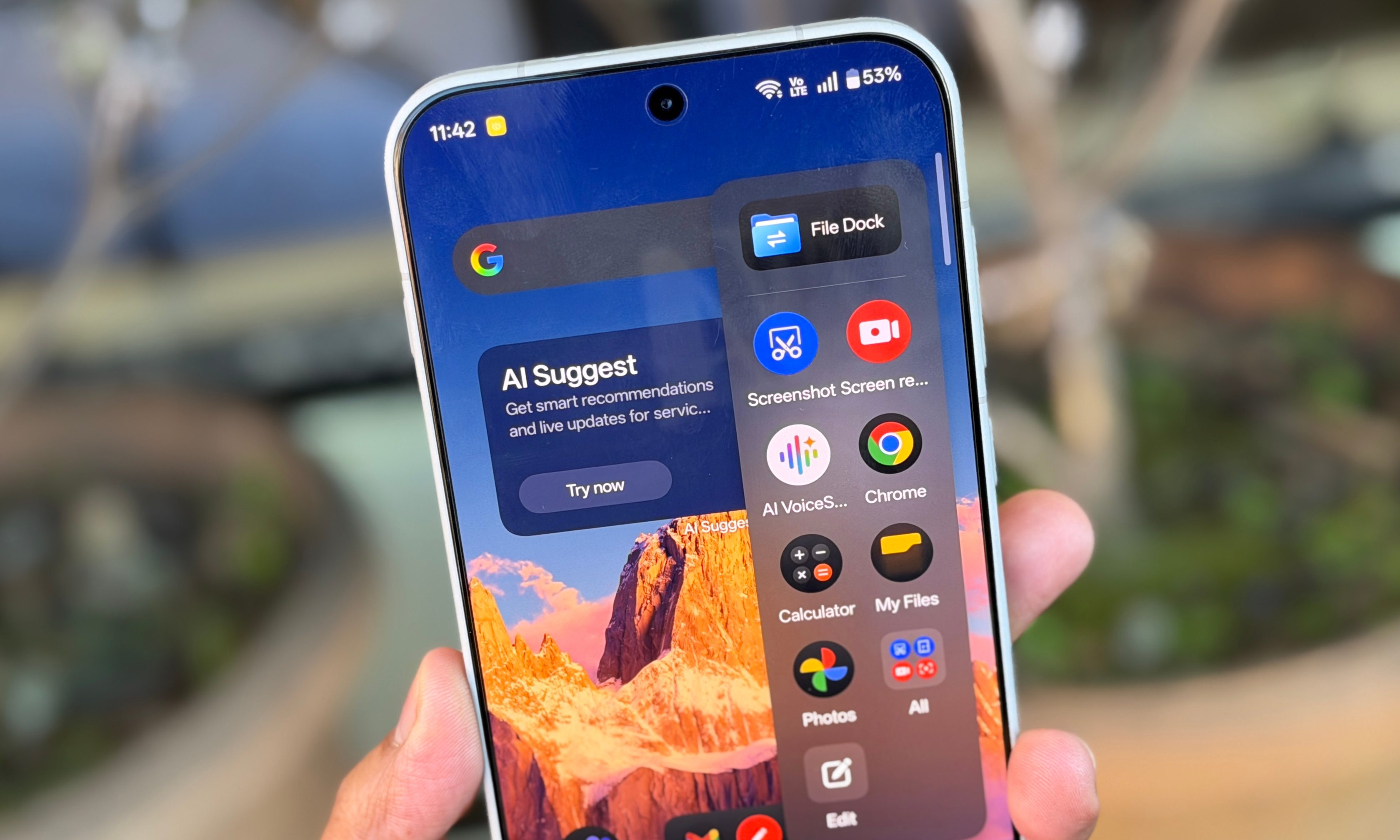
One of the most underrated features on Oxygen OS 16 is the sidebar. It exists as a thin pillar alongside the right edge of the screen. With an inward swipe, it opens out as a small window that gives you access to frequently used apps and system utilities.
It’s fully customizable in terms of what apps and tools you want to put here. Moreover, you can even adjust aspects such as size, transparency, edge side, vertical position of this sidebar on the screen, and even pick between one or two-row layout.
It’s extremely convenient, especially if you frequently use utilities such as AI-powered screen translation, screen capture, and summarization. But the real gem is the File Dock, which is essentially a clipboard that can sync across other devices, as well.
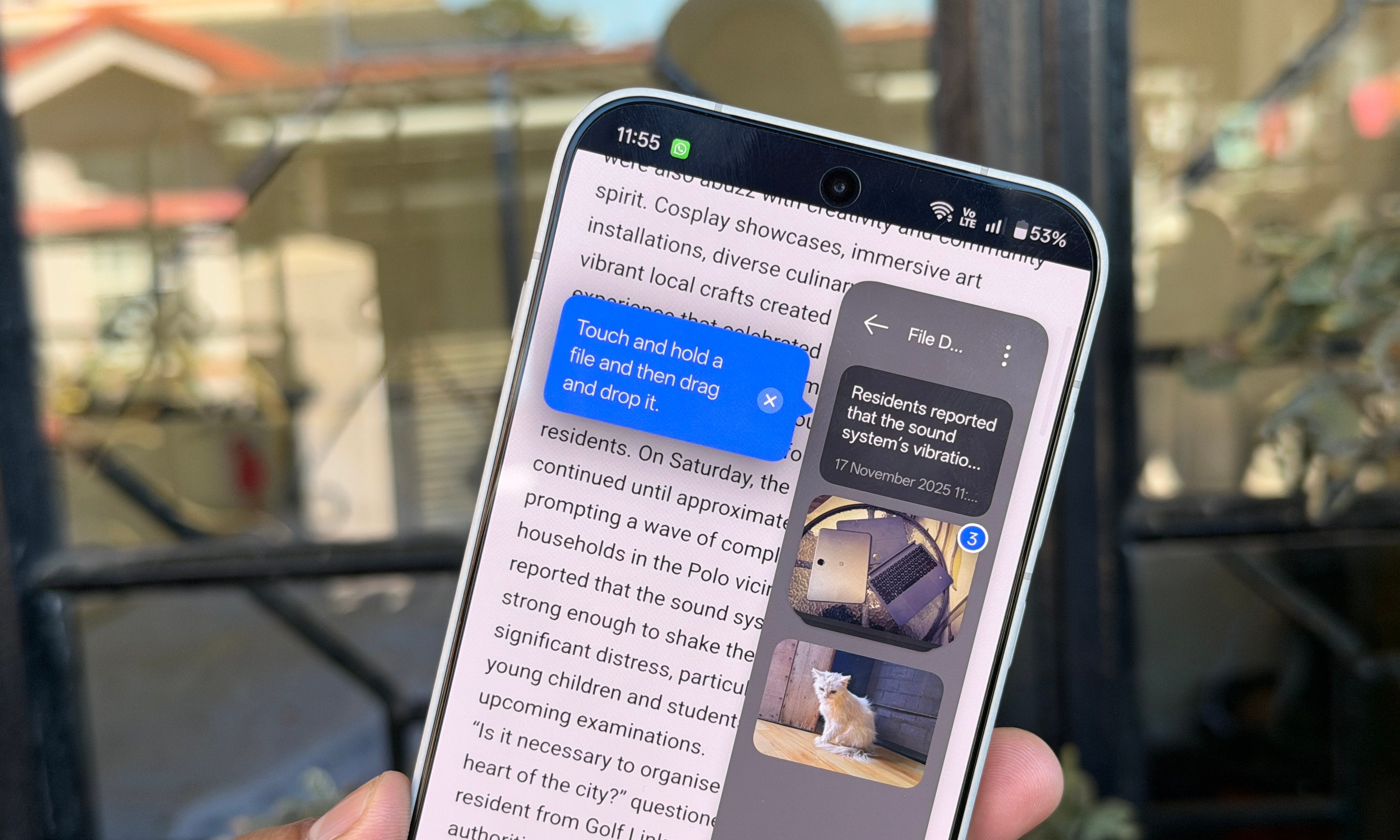
All you need to do is select the text or image and drag it to the sidebar floating pillar. The content will be automatically saved, and whenever you need to paste it in a note, email, or doc, you just have to tap on it. You don’t need to dig into any deep settings because it’s enabled by default, but you can customize it to your liking.
App windowing perks
I’ve been a fan of OnePlus’ Open Canvas system for split-screen multitasking on foldable phones and tablets. Due to screen constraints, it’s not quite feasible to implement on a regular phone, but OxygenOS 16 makes up for it with deep floating window controls.
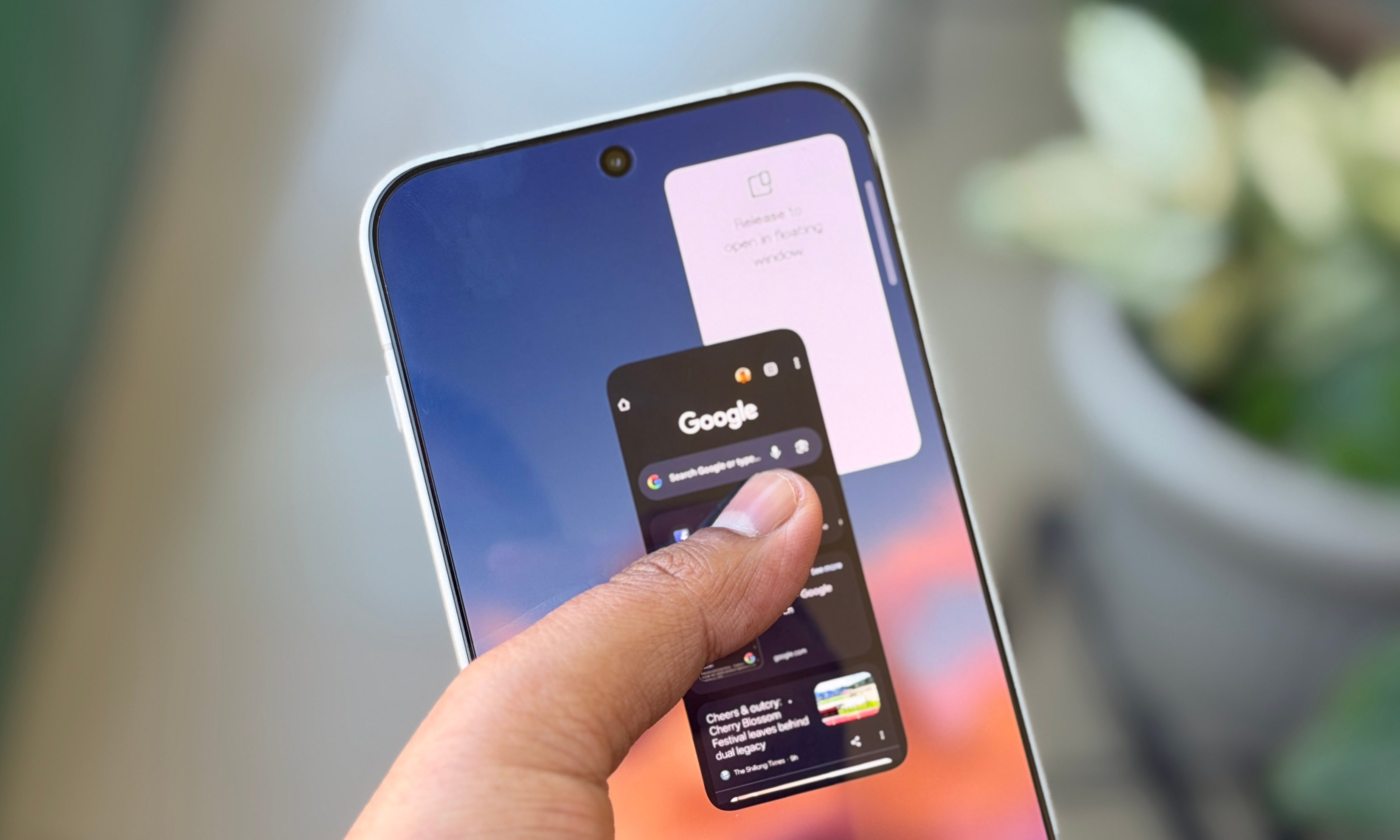
These controls are hidden within the Accessibility & convenience section of the Settings app. Once there, scroll down and tap on the Floating Window option. I suggest picking up the gesture option instead of buttons, as it makes the whole process extremely slick.
All you need to do is swipe up from the bottom and drag the app window to the upper right corner of the screen. You can adjust the transparency of this floating window, and there’s even a hot swap option available, as well.
So, let’s say you are looking at notes of your grocery spending and need the calculator handy. You can launch the calculator in floating window mode while the Notes app is open in the background. With a double-tap, you can pull the calculator app into full-screen mode while the Notes app is shifted to floating window mode.
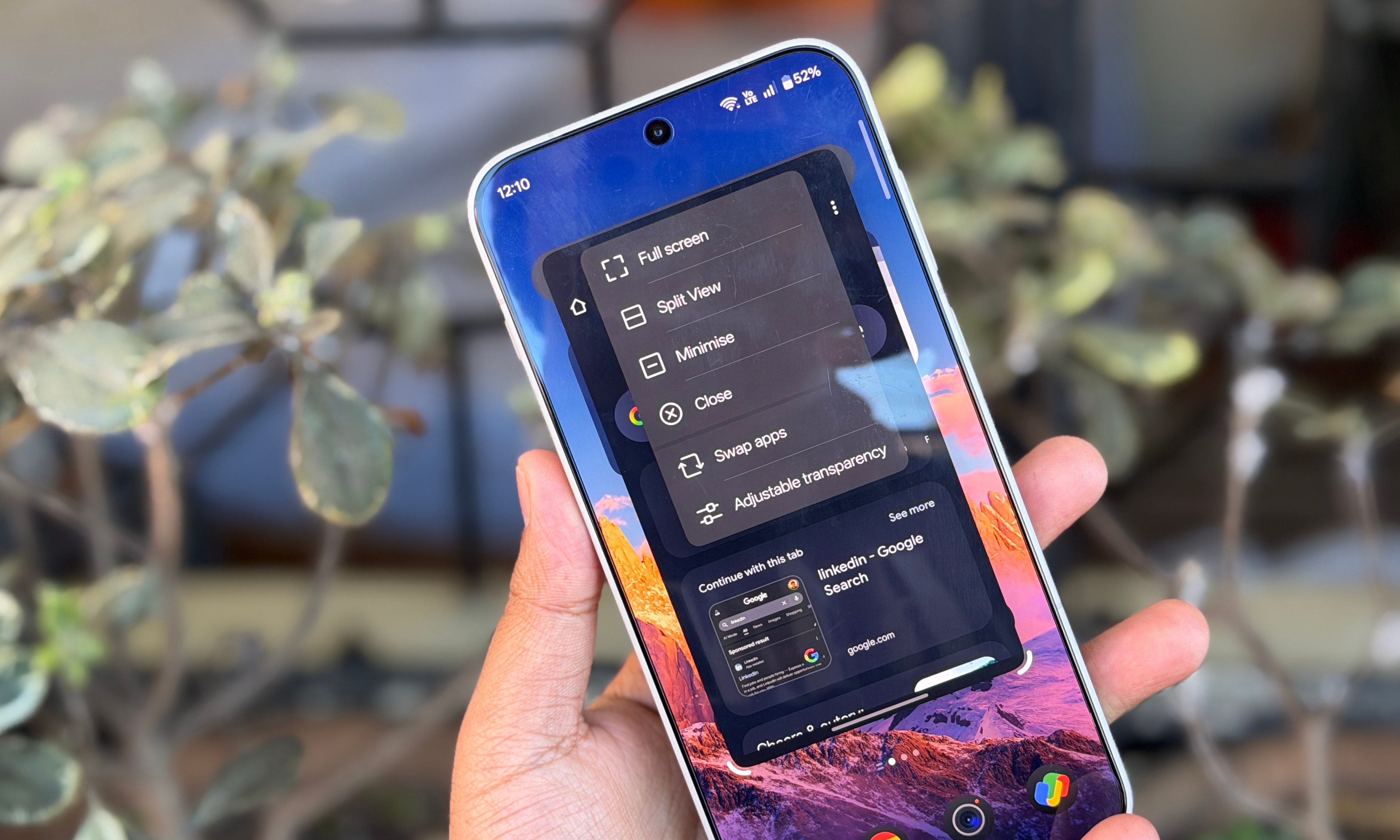
The size of this floating window is fully adjustable using hot corners on the bottom. The floating window system also supports cross-app content sharing, just the way you pull it off for desktop apps.
This gesture system also ties into another form of multitasking. Instead of dragging the app window to the top-right corner, if you park it towards the left corner, you enter split-view mode with vertical resizing controls, app swap, and more useful controls using the three-dot menu at the window divider.
Oxygen OS 16 also offers deep home and lock screen customization, plenty of performance tuning options for games, and a useful shelf, among other utilities. The only caveat is that the phone’s US launch status is uncertain, but the company says it should happen sooner than later.