
Deleting a Skype account isn’t as simple as it was when the service was just a stand-alone VoIP tool. Today, under the Microsoft umbrella, you can’t delete your Skype account without deleting its parent Microsoft Account. If you don’t use any other Microsoft service, then move on to the instructions for deleting the account. If you use Microsoft Word or own an Xbox, your only option is to delete the apps.
Looking for a new VoIP or messaging client? Here are our favorite chat apps.
Delete Skype conversations
If you are abandoning Skype for good but don’t want to delete your Microsoft account, it’s a good idea to delete all saved conversations. This prevents hackers from reading conversations should they somehow gain access.

Deleting conversations is easy. Here how:
- Desktop software: Right-click on the conversation and select Delete Conversation on the pop-up menu.
- Windows 10 app: Right-click on the conversation and select Delete Conversation on the pop-up menu.
- Mobile: Long-press on the conversation and select Delete Conversation on the roll-up menu.
With all messages deleted, skip ahead to deleting the app from your device(s).
Delete a Microsoft Account

To be rid of Skype, you’ll need to delete the parent Microsoft Account. The good news is that the deletion isn’t immediate: You have 60 days to change your mind.
Step 1: Open a browser and go to the Microsoft Account Closure page.
Step 2: Sign in to your Microsoft Account.
Step 3: Select the Next button after reading the overview.
Step 4: As shown above, check all the boxes, confirming that you understand what happens when an account is closed.
Step 5: Click the arrow next to Select a Reason and select a response on the drop-down menu.
Step 6: Click the Mark Account for Closure button.
Remove Skype in Windows 10
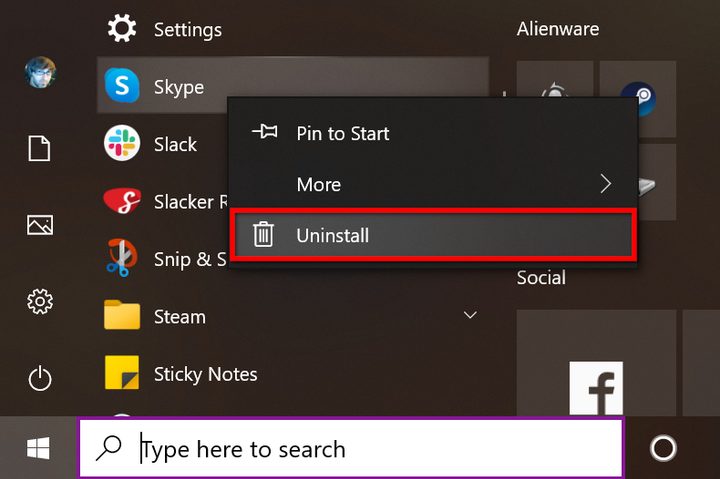
This applies to the desktop software and the Microsoft Store app
Step 1: Click the Start button.
Step 2: Scroll down on the Start Menu, right-click on the app or program (the latter will be in a Skype folder), and select Uninstall on the pop-up menu.
Step 3: If you’re removing the Microsoft Store app, click the Uninstall button on the pop-up window. No other steps are needed.
If you’re removing the desktop software, continue to Step 4.

Step 4: The Control Panel appears. Select Skype on the Uninstall or Change a Program list.
Step 5: Select Uninstall next to Organize.
Step 6: Click Yes when prompted to uninstall the software.
Step 7: Click OK to complete.
Remove Skype on MacOS Big Sur
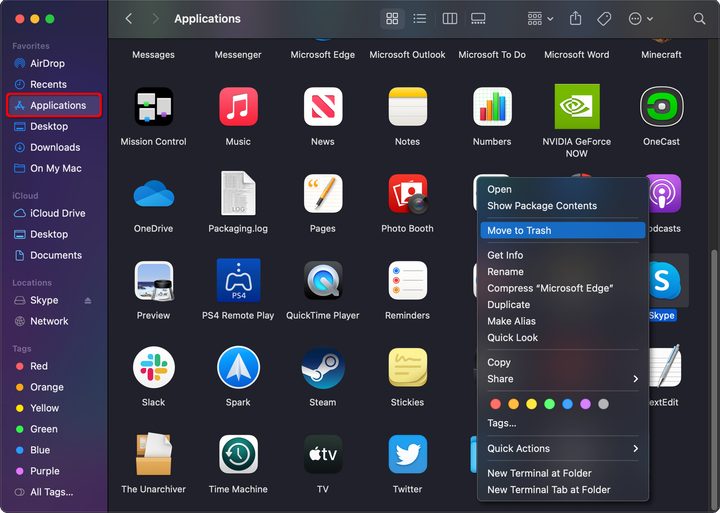
Step 1: Open Finder and select Applications listed on the left.
Step 2: Right-click on Skype and select Move to Trash on the pop-up menu. Alternatively, drag Skype to the Trash icon on the Dock.
Step 3: Right-click on the Trash icon and select Empty Trash on the pop-up menu.
Remove Skype on iOS 14 / iPadOS 14

Step 1: Long-press on the app icon.
Step 2: Tap Delete App on the pop-up menu.
Remove Skype on Android 10

Step 1: Long-press on the app.
Step 2: Tap the “i” icon on the bottom right of the pop-up menu.
Step 3: Tap Uninstall on the App Info screen.


