
Downloaded files are easy to lose track of. One minute you’re saving a PDF, photo, menu, meme, or attachment. The next, it feels like your phone swallowed it whole. Even the best smartphones can feel like stuffed briefcases.
The good news is that most downloads still land in a few predictable places in 2026. On an iPhone, that usually means the Files app. On Android, it usually means Files by Google, Samsung’s My Files app, or your phone’s built-in file manager. The tricky part is that browsers and apps can also save files in their own folders, which is why one download may be easy to find while another seems to vanish.
Here’s where to look first, followed by device-specific steps for iPhone, Samsung Galaxy, Google Pixel, and other Android phones.
Where to look first for downloaded files
Before digging through every folder on your phone, check these places first.
- iPhone: Open Files > Browse > iCloud Drive > Downloads.
- Samsung Galaxy: Open My Files > Downloads.
- Google Pixel or other Android phone: Open Files by Google > Downloads.
- Safari or Chrome: Open the browser’s downloads list if you downloaded the file from the web.
- Photos and videos: Check the Photos app on iPhone or Google Photos/Gallery on Android.
- App downloads: Check the app you used to download the file, especially streaming, messaging, cloud storage, and email apps.
If you know the file name, use search inside the Files or My Files app. Even typing the first few letters can save you from folder-diving like it’s 2009.
Difficulty
Duration
What You Need
-
iPhone or Android smartphone

How to find downloaded files on an iPhone
If you own an iPhone, start with the Files app. It stores many files downloaded from the internet, email, and other apps.
Step 1: On your home screen, tap Files. If you don’t see it, swipe down from the middle of the home screen and search for Files.
Step 2: Tap Browse at the bottom of the screen.
Step 3: Under Locations, tap iCloud Drive.
Step 4: Tap Downloads to see your downloaded files.
Step 5: If you don’t see the file there, go back to Browse and check On My iPhone. Some apps and browsers may save downloads locally instead of in iCloud Drive.
Step 6: If you downloaded an image, check the Photos app. Photos and videos may be saved to your photo library instead of the Downloads folder.
Step 7: If you still can’t find the file, tap the search bar in the Files app and enter the file name. If you don’t remember the full name, try the first few letters.

How to find downloaded files on Samsung Galaxy phones
Samsung Galaxy phones use the My Files app for downloaded files, documents, images, videos, audio, and other file types.
Step 1: Swipe up from the home screen to open the app drawer.
Step 2: Tap My Files. If you don’t see it, open the Samsung folder or use the search bar at the top of the app drawer to search for My Files.
Step 3: Under Categories, tap Downloads.
Step 4: If the file isn’t there, check other categories such as Images, Videos, Audio, Documents, or Installation files.
Step 5: Use the search icon in My Files if you know the file name or file type.
Some apps save downloads inside their own app storage instead of the standard Downloads folder. If you downloaded something from Netflix, Spotify, WhatsApp, Gmail, Google Drive, or another app, open that app and check its downloads, attachments, or offline files section.

How to find downloaded files on Google Pixel phones
Google Pixel phones use the Files by Google app. The same app can also be installed on many other Android phones, so these steps are useful even if you’re not using a Pixel.
Step 1: Swipe up from the home screen to open the app drawer.
Step 2: Tap Files or Files by Google.
Step 3: Tap Browse if it isn’t already open.
Step 4: Under Categories, tap Downloads.
Step 5: If you’re looking for a specific type of file, check categories such as Images, Videos, Audio, or Documents.
Step 6: Use the search bar at the top of the Files app if you know part of the file name.
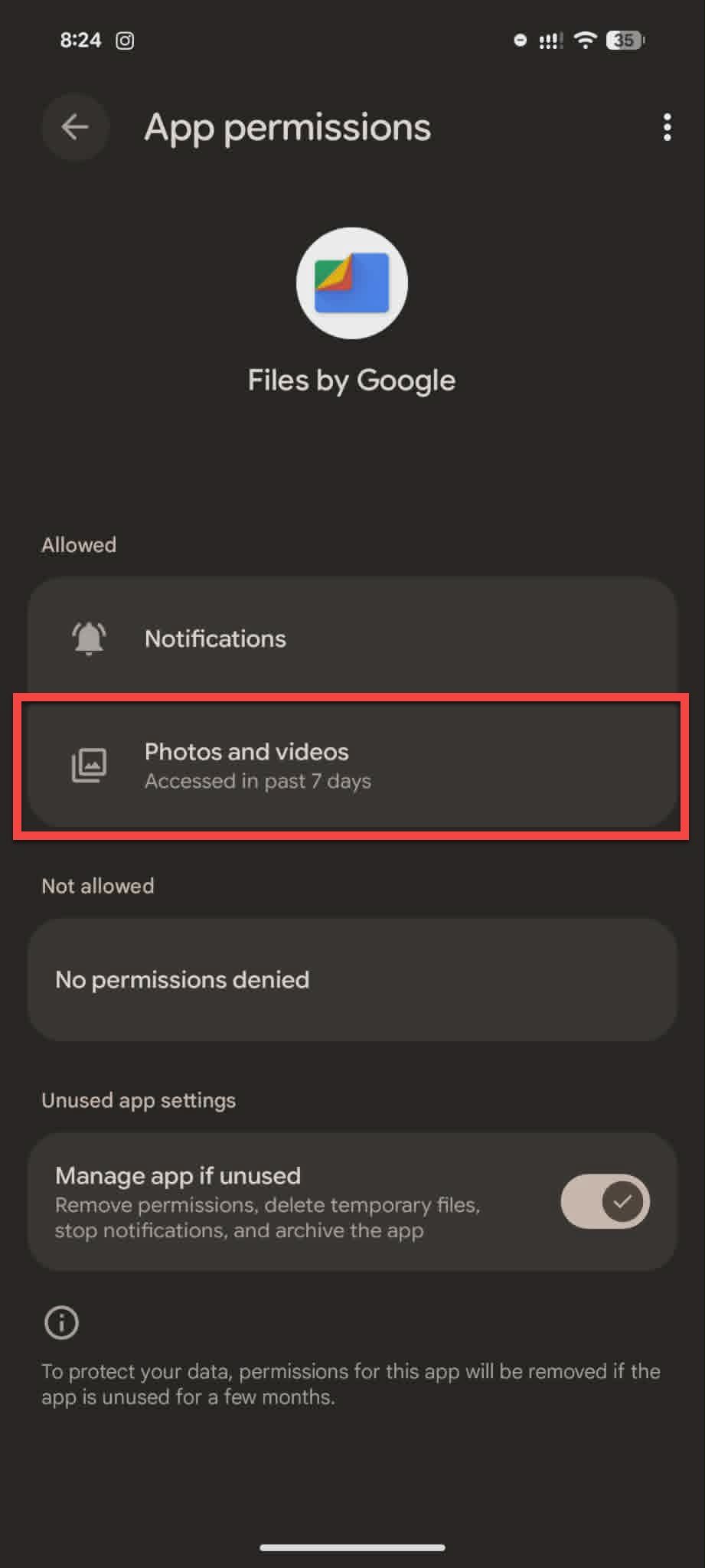
Step 7: If a downloaded photo or file doesn’t appear, check whether Files by Google has the right permissions. Go to Settings > Apps > Files by Google > Permissions, then make sure the app has access to the file types you’re trying to view.

How to find downloaded files on other Android phones
Most Android phones follow the same general pattern, though the file manager app may have a different name depending on the manufacturer.
Step 1: Open your app drawer.
Step 2: Look for an app called Files, File Manager, My Files, Downloads, or something similar.
Step 3: Open the app and tap Downloads.
Step 4: If you don’t see a Downloads category, tap Internal storage and look for the Download or Downloads folder.
Step 5: Use the file manager’s search bar to look for the file name, file type, or date.
If your phone doesn’t have a file manager you like, you can install Files by Google from the Google Play Store and use it to browse downloads, recent files, documents, images, videos, and other categories.
Don’t forget to check for downloads in third-party apps
Some downloads never show up in your main Downloads folder because they’re stored inside the app that downloaded them. This is common with streaming apps, messaging apps, cloud storage apps, and email apps.
For example, Netflix downloads are managed inside the Netflix app. To find them, open Netflix, tap My Netflix, Downloads, or the down arrow then look for your saved shows and movies. You can also delete downloads from inside the app.
The same basic idea applies to other apps. If you downloaded a file from WhatsApp, Gmail, Google Drive, Dropbox, Spotify, or another app, open that app first and check its downloads, attachments, offline files, or saved media section.

Check your browser downloads
If you downloaded the file from a website, your browser can often point you back to it.
On iPhone, Safari downloads usually appear in the Files app, but you can also tap the downloads icon in Safari after downloading a file. If the download is no longer shown there, check Files > Browse > iCloud Drive > Downloads.
In Chrome, tap the three-dot menu and look for Downloads. This works on both iPhone and Android, though the exact menu placement can vary slightly by version and device.
Browser download lists are useful when you know you downloaded something recently but don’t remember the file name.
What to do if you still can’t find the file
If your download still isn’t showing up, try these checks.
Step 1: Search for the file name in your phone’s file manager.
Step 2: Check your browser’s downloads list.
Step 3: Look in Photos, Google Photos, or Gallery if the file was an image or video.
Step 4: Open the app you used to download the file.
Step 5: Check Internal storage > Download or Downloads on Android.
Step 6: Sort your files by date so the newest downloads appear first.
Step 7: Download the file again and watch where your phone says it is saving the file.
Most missing downloads aren’t actually gone. They’re usually sitting in a browser list, an app folder, a cloud folder, or a file manager category with a slightly different name. Annoying? Yes. Lost forever? Usually not.


