
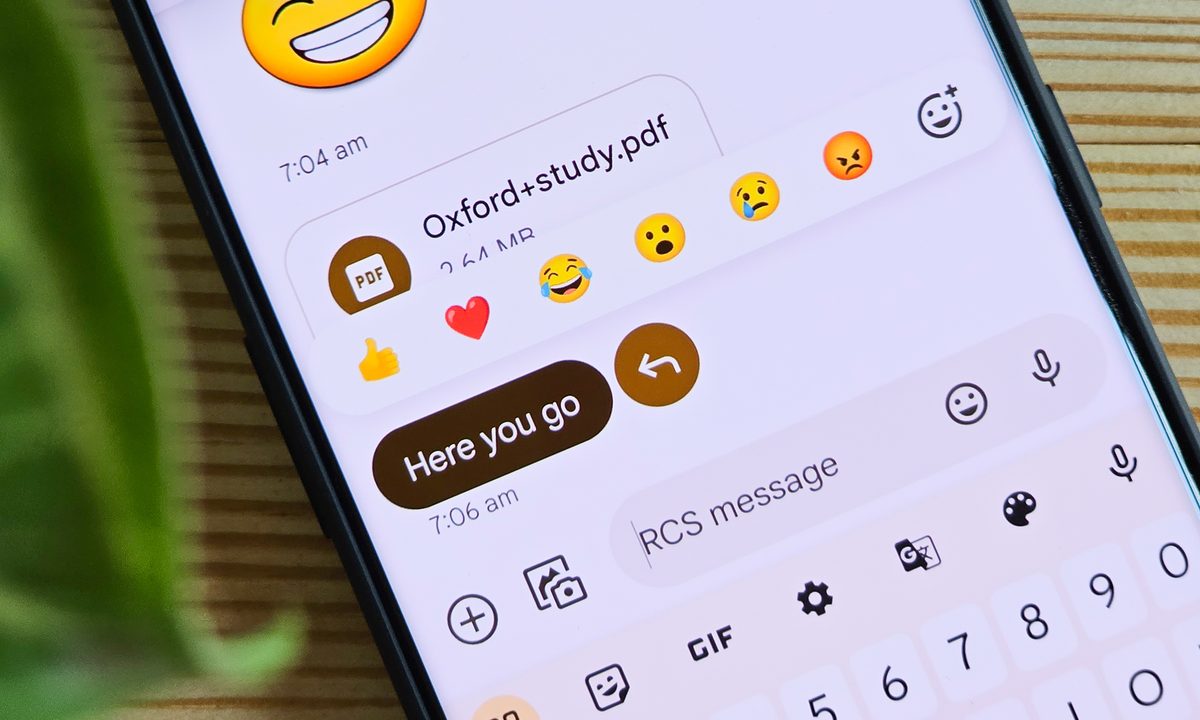
Text messaging has quickly become the default form of communication on smartphones. Sure, you can give your buddy a call to update them on your plans for the weekend, but it's not quite as quick and streamlined as a simple text. And combined with the ever-growing library of emojis available on iPhone and Android, it's easier than ever to ensure your tone and true meaning are received loud and clear by your recipient.
Emojis have been around for decades, and they've only grown more popular throughout 2024. Most smartphones come with their own catalog of default emojis, letting you quickly send a smiley face or thumbs up with just a few taps of your screen. Better yet, new emojis seem to be released regularly — giving you exciting ways to chat with friends.
Companies like Apple tend to push these new emojis directly to your device, but they're not the only way to get new emojis on your phone. From checking for software updates to installing secondary apps, here's how to get new emojis on your iPhone or Android device.
How to get new emojis on an iPhone
The easiest way to get new emojis is to wait for them to land via a software update on your iPhone. Most of the time, software updates arrive without you needing to do anything, but just in case you want to kick-start an update, or check to see if one is available, here's what you have to do.
Step 1: Head to your Settings app.
Step 2: Select General > Software update.

Step 3: Wait while the system checks for updates.
Step 4: If one is available, choose Download and install to get the update moving.

How to get new emojis on an Android phone
If you're using an Android phone, then you'll often get new updates through software updates too.
Step 1: Open your Settings app.

Step 2: Select System > System update.

Step 3: If there's an update available, you can download and install it from here.
Step 4: Once installed, if there are any new emojis available, they will be on your phone.

Make new emojis with Emoji Kitchen
Software updates aren't the only way to get new emojis. Google's Gboard keyboard does something interesting with emojis. It doesn't add new emojis; instead, it remixes existing ones. Ever wanted a ghost emoji with dollar-sign eyes? Or an alien spaceship with love hearts above it? Probably not, but admit it, you're now thinking about ways you'd use that, aren't you?
It all takes place in Gboard, and is only available on Android phones. If you're using a Google Pixel smartphone, you probably already have it, but you may need to switch it on. We'll show you how to turn the feature on and how it works. Make sure to download and enable Gboard before starting this process.
Step 1: Open a messaging app of your choice and tap a text field to open your keyboard.
Step 2: Select the Options button in the top-left and then choose Settings.


Step 3: Select Emojis, stickers and GIFs.

Step 4: Make sure Emoji stickers is turned on.

Step 5: Head back to your messaging app, and select an emoji from the Emoji category.

Step 6: When it appears in your text box, Gboard will create some remixed emojis based on that initial emoji.

Step 7: Choose one to send it as a sticker.


Install third-party keyboards and apps
Emojis are available on both iPhone and Android now, so there's no need to download a new keyboard just to get emojis. However, you can download some apps, which will give you more emojis to play with, as well as some other bonuses.
Bitmoji (also available on Android) is perfect if you want to create personalized emojis. Just download it and you can create your very own Bitmoji version of yourself, which will pose in a number of different ways, adding a personal twist on classic emojis.
Another option is Facemoji (also available on Android), which has over 5,000 emojis, a built-in meme creator, and a fully customizable keyboard.
There are other options out there, but be aware that downloading a completely strange keyboard can be a dangerous thing to do. While emojis rarely hurt anyone, key trackers can, and your keyboard knows everything you type. So be careful when it comes to downloading new keyboards for emojis. When in doubt, don't download it.


