
Earlier this year Apple announced that it would be rolling out Spatial Audio capabilities for music on its devices. Enabled by Dolby Atmos coding, Spatial Audio uses iOS to give songs additional depth, extra compatibility with dynamic head tracking, and other advantages that have arrived with iOS 15.
If you’re interested in spatial audio, here’s how to check if it’s enabled, and what you need to enjoy it!
Step 1: Update your device and make sure you have Apple Music

Get out your iPhone or iPad and check that you have the latest updates. This is particularly important if you haven’t upgraded to iOS 15 yet: Apple has only added full Spatial Audio benefits like dynamic head tracking (which can assign a fixed audio source based on — literally — where your head’s at) with iOS 15. On iOS 14, the audio will be downgraded.
Oh, and if you want to listen to Spatial Audio on your Mac, you’ll also want to upgrade to the latest MacOS while you’re at it.
Next, check that your Apple Music subscription is current. You need an Apple Music subscription to enable any Dolby Atmos-related capabilities. Without a subscription, none of them will be available to you.
Step 2: Make sure you have the right kind of headphones
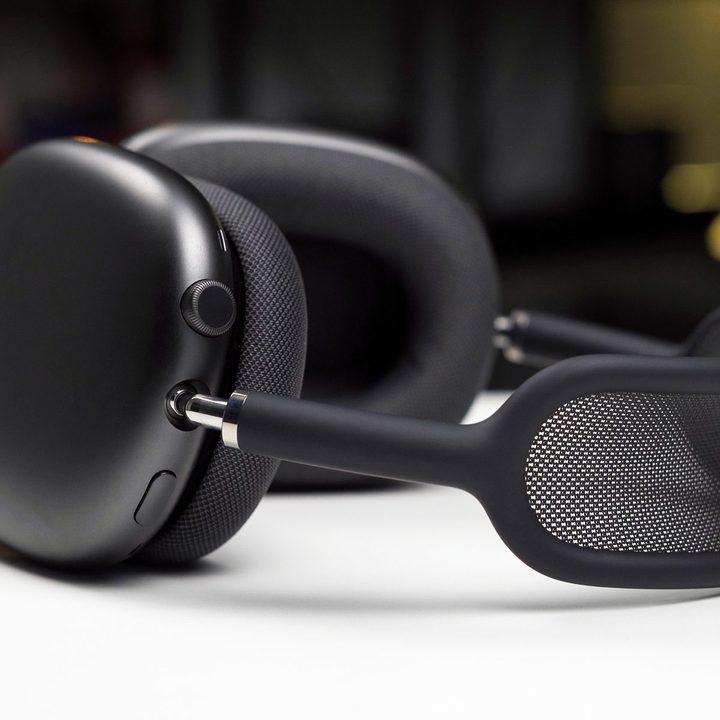
Any headphones that support Dolby Atmos can have at least some Spatial Audio benefits, so check your headphones or earbuds for Dolby Atmos compatibility before you begin. This has become a popular audio standard, but older headphones may not support it. Older AirPods will have some Dolby Atmos optimization as well, along with A variety of Beats headphones.
However, to get the full roster of Spatial Audio features, you will need one of Apple’s newer headphone products, like the AirPods Pro, AirPods Max, or third-generation AirPods.
Note that you don’t need headphones to enjoy some Spatial Audio benefits, as the built-in speakers on newer iPhones and iPads also support it. But the difference is much, much more noticeable with headphones than on external speakers.
Step 3: Choose your Spatial Audio Settings

Here’s the good news: You don’t have to pay anything extra for Spatial Audio if you have Apple Music. But you do need to make sure the settings match your headphones and are enabled correctly.
To start, head to Settings on your Apple device. Scroll until you reach Music, and select it.
In Music, look for the Audio section. Here, you should see the Dolby Atmos section. If you do not see this section, make sure your device has the latest iOS/iPadOS updates. If you are on Android, head to the Apple Music app and go to Settings there to find the same options.

When you select Dolby Atmos, you will notice two key choices, Automatic or Always On (or Off, if you don’t want to use Dolby Atmos at all). If you have one of the Apple products we mentioned above, like any of the AirPods or some newer Beats headphones, then you can put the setting on Automatic, and Spatial Audio should switch on when possible.
If you are using other headphones that support Dolby Atmos, you should switch this setting to Always On, which ensures you get Spatial Audio benefits without Apple headphones.
You’re not quite done yet. Back in the Music section, look for the option to enable Download in Dolby Atmos and enable it. That way, if you purchase and download new compatible songs, they’ll download with Dolby Atmos capabilities.
Step 4: Find Spatial Audio music

Now you need songs that also support Dolby Atmos for Spatial Audio to work. There are a couple of ways to find them. First, if you look up a specific song or album and visit the download window to purchase and download it on your device, you will see a number of logos above the tracklist. There’s a logo for Lossless audio, as well as one for Apple Digital Master that may show up. But you are looking for the specific logo for Dolby Atmos. If an album has that logo, you know you can download it and it will play with Spatial Audio enabled.
If you’re interested in streaming music, just visit the Apple Music app and go to Browse. Apple’s suggestions are currently packed full of Spatial Audio playlists and recommendations, so they are easy to find. Apple Music will likely always have at least a list or two devoted to Spatial Audio, making this a quick way to find compatible music.
When playing a track, you will be able to see a small icon by the playback controls that let you know the song is playing with Dolby Atmos features like Spatial Audio.
Final note
Spatial Audio on iOS 15 is a new capability, and has been prone to a couple of bugs. If songs are refusing to play with Dolby Atmos enabled, try deleting them and downloading them again with Dolby Atmos.



