Did you know your Android phone can double as a high-quality webcam? In Android 14, Google introduced a brilliant feature that allows you to use your phone's powerful camera as a webcam for video calls and meetings on your computer.
No more grainy, low-quality webcam footage! With just a few taps, you can easily connect your Android phone to your PC via USB and access features like autofocus, zoom, and high-resolution video capture — taking your video call experience to the next level.
Things got even better with Android 15. That update introduces an enhanced "HQ" mode for its built-in webcam feature, boosting video quality to Full HD (1080p) resolution at 30 frames per second. This upgrade aims to provide clearer, sharper video output when using your Android device as a webcam for video calls or recordings.
To make your Android-based phone a webcam with your computer, you should follow these steps. The basic webcam feature is available on Android 14 and later. You'll need Android 15 to use the high quality "HQ" mode.

How to turn your Android phone into a webcam
What really shines about Android 14’s new feature is how well Google has executed it. Or, to put it more accurately, how darn easy it is. All you need to do is find a cable, change the USB connection behavior from the notification shade, and you’re good to go in a few clicks. There’s no complex trickery involved here, and the entire UI is also fairly straightforward. The only prerequisite is that your smartphone is running Android 14.
Step 1: Connect your phone running Android 14 or Android 15 via a USB cable to your computer.
Step 2: As soon as you hook up your phone, a notification for USB contact appears at the top. By default, it is set to charging mode.
Step 3: Select the notification to expand it and open the USB preferences page. Under the header titled Use USB for, you will come across a new option called Webcam.

Step 4: As soon as you select Webcam, a new alert titled Device as webcam appears in the notification shade.
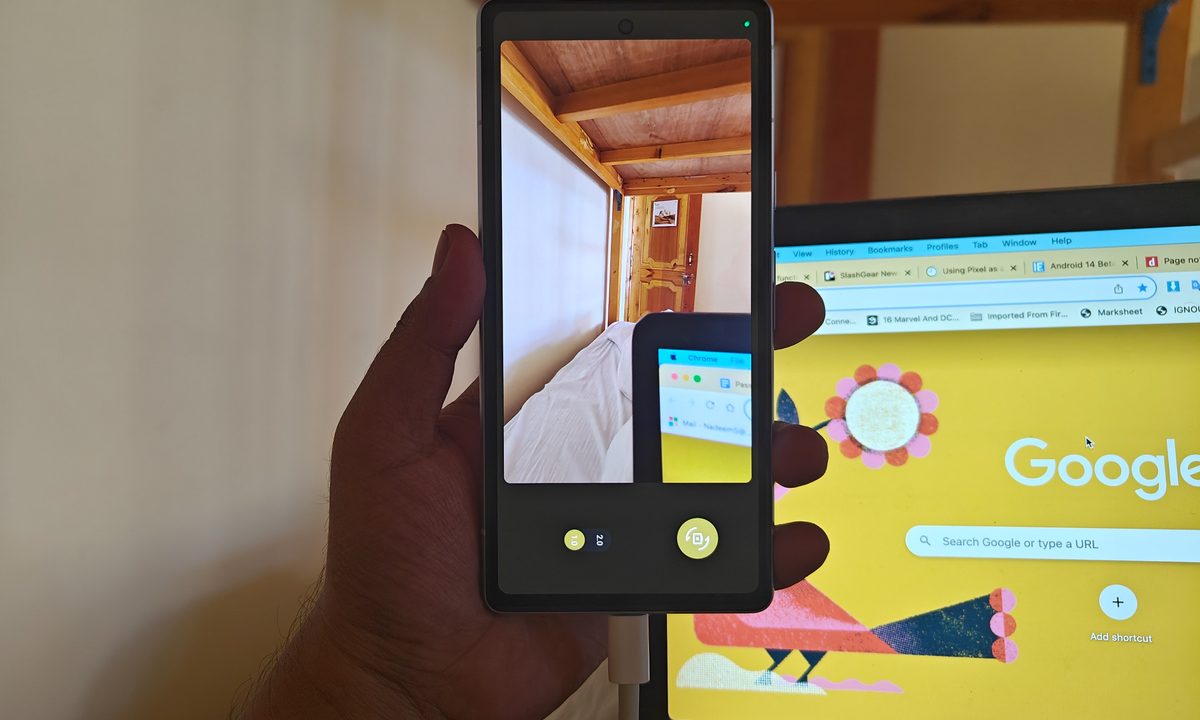
Step 5: Tapping on the notification opens a full-screen viewfinder view where you see what your phone’s camera is capturing from either side. The same view will be routed to the PC, where you are tethered to a video call.

Step 6: If you have a suitable stand or tethering device, you can mount the phone and use the more powerful rear cameras for enhanced visual clarity.
About "HQ" mode
Android 15 significantly upgrades its built-in webcam feature with a new "HQ" mode, addressing a key shortcoming from its Android 14 debut. While the initial release offered a convenient way to use your phone as a webcam, the video quality left much to be desired. Now, with a simple tap of the "HQ" toggle in the webcam viewfinder, you can unlock a dramatic improvement in resolution and detail, rivaling the performance of dedicated webcams or third-party apps.
This boost in clarity comes from disabling power optimization processes that previously limited video quality. However, it's worth noting that enabling "HQ" mode may increase power consumption and generate more heat, especially during longer sessions.
This enhancement transforms the Android webcam from a convenient but compromised option into a truly viable solution for video calls, online meetings, and even content creation.

It just works
The entire process is fairly straightforward and works like a charm. All you need to do is follow the notifications. But there are a few more benefits to using your Android phone as a webcam with a native approach. First, you have access to the ever-important trick called autofocus. Second, depending on the network bandwidth, you can increase or decrease the video resolution, but still get sharper visuals.
There is also this neat little trick where you can zoom in closer to your face almost seamlessly. Unfortunately, the Pixel phone we used lacks a dedicated zoom camera, so we couldn’t test if a 3x or 5x optical zoom would let the person on the other end of the call get a clear view.
This plug-and-play approach, with its own set of niceties, is nothing short of a revelation. Yes, there are apps that can pull the same phone-as-a-webcam trick, but it’s still a third-party solution. And that still can create functional friction. Being able to do it natively is simply magnificent. This is the kind of convenience that every stakeholder should target. Yes, Apple did it first, but that’s a debate for another day.
What matters is that Google now offers the convenience. It would be nice if there was an option to deploy the phone’s own mic as the audio capture method, but we suspect it’s already on the developer team’s bucket list. If you have a phone running Android 14 and want to take your webcam game to the next level, this is how to do it.