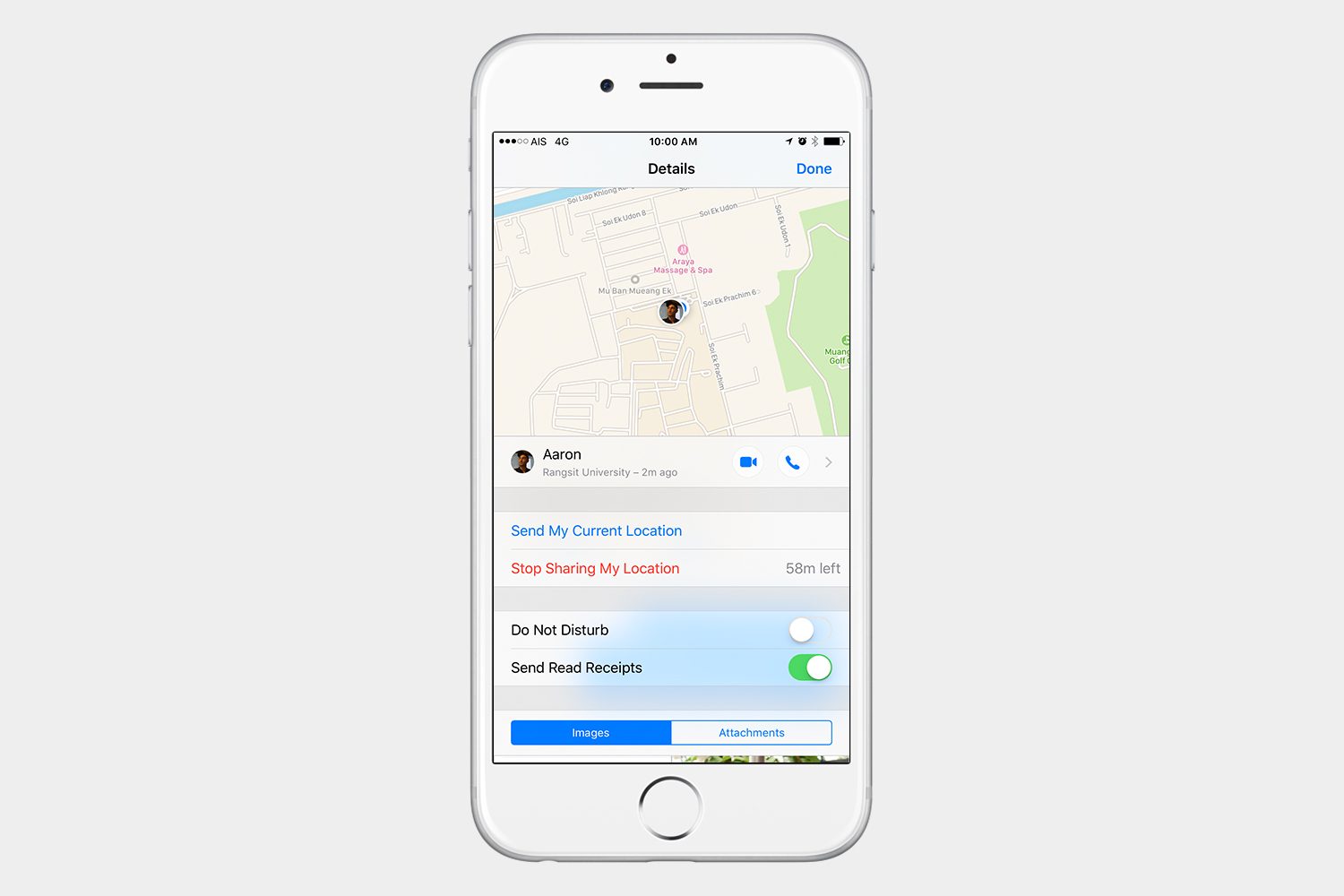
It’s easy to find your friends and family with Find My Friends in iOS. Parents and co-workers alike will find this app very useful to coordinate meetings or just to keep track of their kids. Location sharing may be a scary thought for some, but Apple gives you a lot of control over who you can locate and who can locate you. It’s quick and easy to start or stop sharing your location, you can specify restrictions, and you can even set a time frame when it’s okay for your location to be shared with someone. For those worried about sending this sort of information to Apple — the location information is encrypted, it’s only kept on Apple servers for two hours, and then it’s permanently deleted.
Setting up this app is easy, so let’s take a look at how to use Find My Friends in iOS with some very simple steps to get you started.
The setup


- Go to Settings > Privacy > Location Services, and make sure it’s turned on.
- Go to Find Friends in the list of apps under Location Services, and select While Using.
- Go back to your home screen by pressing the Home button, and tap the Find My Friends app.
Once you’ve located and opened the app, you may find some of your favorite contacts have already been added. If not, you can add users by following these steps:
How to add friends, and share your location
- In the Find My Friends app, tap Add in the upper right corner.
- Type the name of the person, select the contact, and tap send.
- Select how long you would like to share your location with your friend for.
- You will see a notification that you are now sharing your location with your friend. Tap OK.
How to follow your friends
- Tap the name of the person you want to follow, or you can ask after you add the person.
- Select Ask to Follow.
- You will see a notification that the request has been sent. Tap OK.
How to manage contacts
Swipe left on a contact to favorite or delete them.
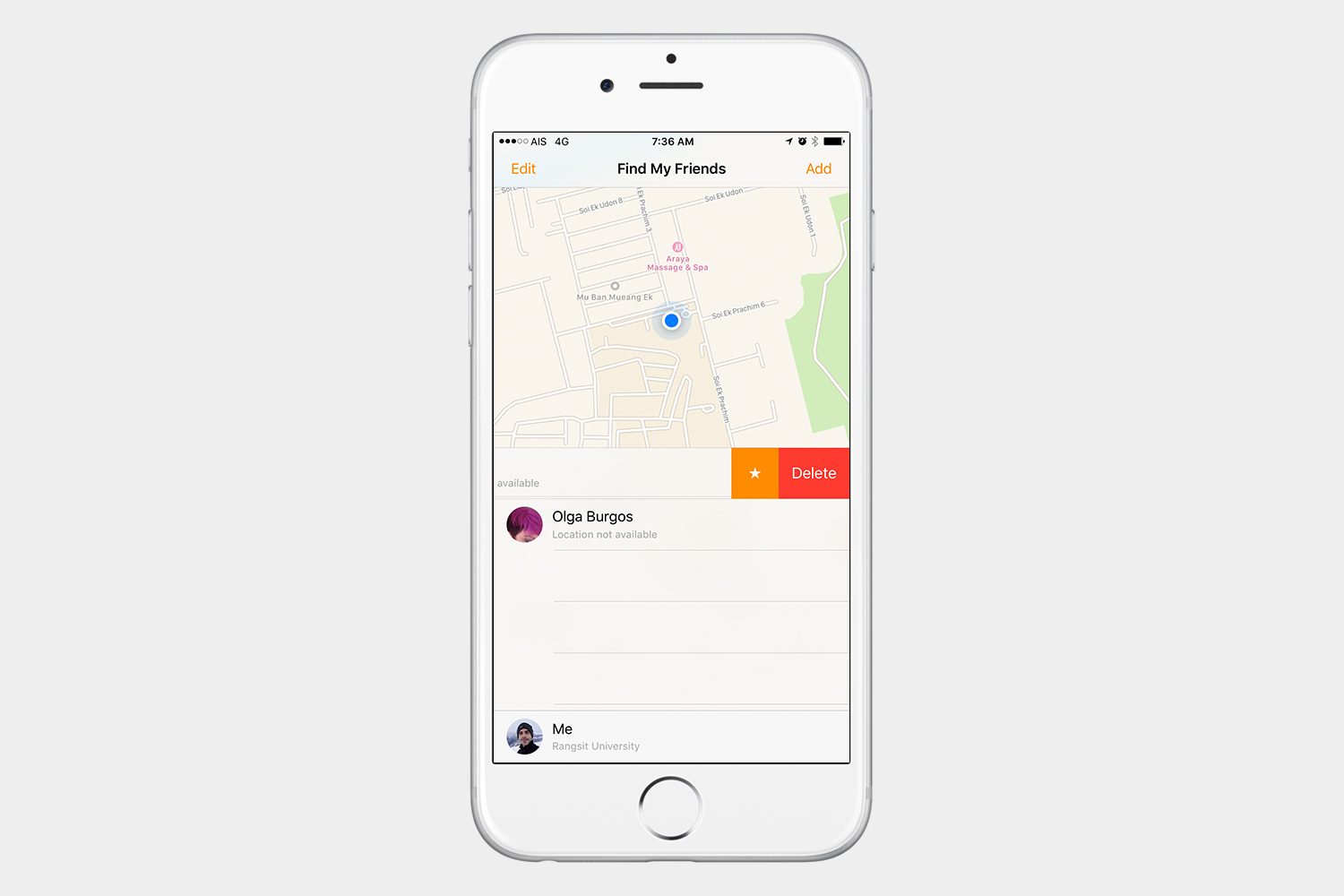
Tap a contact to Stop Sharing your location with them, or Remove them. You can also tap More in the upper right corner to get more information.


You can also manage a contact by going to Settings > Privacy > Location Services > Share My Location, and tapping a contact. Select Stop Sharing My Location.


Using 3D Touch
You can use 3D touch on the Find My Friends widget to find a favorite quickly. Use 3D Touch on a contact’s picture to send them an email, start a FaceTime video call, start a voice call, or message them, or 3D Touch on the name of the contact to quickly see their location.


How to set restrictions for children


You may want to use Find My Friends to locate your children. This is a great tool for parents, but it can be dangerous for minors to allow others to find them using this app. To disable this follow these steps:
- Go to Settings > General > Restrictions, and tap Enable Restrictions.
- Set a passcode, and don’t share this passcode with anyone.
- Scroll down to Share My Location, select it, and tap Don’t Allow Changes.
How to set up notifications
- Go to Settings > Notifications > Find Friends, and make sure Allow Notifications is turned on.
- In the Find My Friends app, tap the name of a friend, and select Notify Me at the top center.
- Select whether you want the app to notify you if the contact Leaves or Arrives.
- Select the location by tapping Other.
Once you have it set up, all you have to do is open the app and tap the person that you want to locate. You can even share your location with someone right from the messages app by tapping the “i” in the upper right corner.