

Apple iOS 17 brought FaceTime gestures to the iPhone last year, livening up the FaceTime experience for all users. FaceTime gestures are even more useful now with iOS 18 and Apple Intelligence. Once it’s set up correctly, you’ll be able to send 3D animations to your friends and family during FaceTime video calls. You’ll even be able to trigger the animations with physical gestures.
Getting your phone ready for action doesn’t take much time or effort, but we put this guide together to walk you through the process nonetheless.
How to make a FaceTime gesture in iOS 18
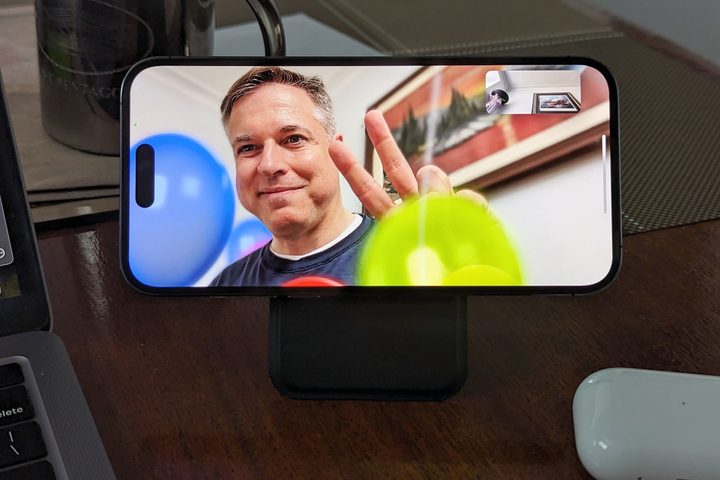
For the most part, Apple’s gesture-based video reactions just work — and not only as FaceTime gestures; you can trigger them in almost any video conferencing app that supports the standard iPhone camera APIs, including Microsoft Teams, Google Meet, and Zoom. It’s not even necessary for the other party (or parties) to be running iOS 18 or even using an iPhone or other Apple device, as all the effects are generated on your own iPhone and sent over as part of the video stream.
This means you’ll need an iPhone 12 or newer model to use FaceTime gestures and video reactions. That’s not merely a function of the more powerful A14 chip used in that model but also the TrueDepth camera that gained some significant improvements over the iPhone 11 and those that came before. It’s no coincidence that the iPhone 12 is also the oldest model that supports mask-aware Face ID.
This is because the video reaction effects triggered by FaceTime gestures aren’t just overlaid in front of your face. Instead, they’re immersive three-dimensional effects that use the same kind of depth measurements as Portrait Mode photos to put you in the middle of the action. Balloons will float up around your head, fireworks will explode behind you, and confetti will drop surrounding you.
If you have an iPhone 12 or later (excluding the iPhone SE), and you’ve upgraded to iOS 18, there’s one more thing you need to check to ensure that FaceTime gestures are enabled.
- While on a video call in FaceTime or another compatible video conferencing app, swipe down from the top-right corner of your screen to open Control Center.
- You should see two extra buttons at the top, above the normal controls for Airplane mode and Now Playing. Select Video Effects
- Under your camera preview, ensure that the Reactions button is enabled.
- Swipe up to dismiss Control Center.
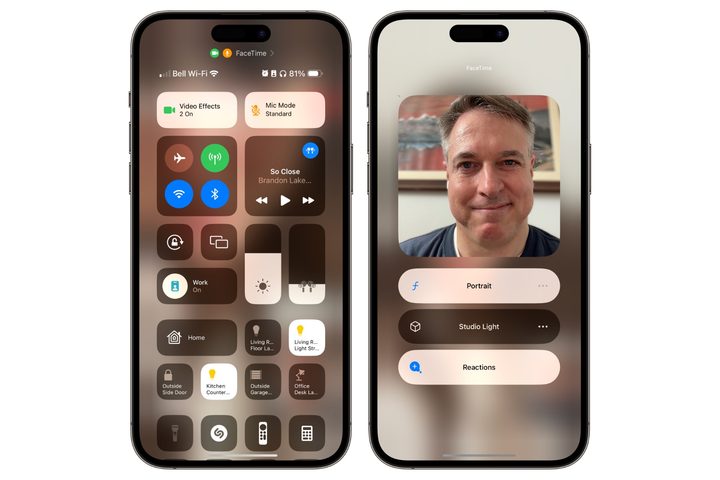
Note that these steps are only needed to enable the recognition of hand gestures. You can turn Reactions off in step 3 instead if you find they’re getting in the way; you’ll still be able to send video reactions in FaceTime manually even when this is off, although you won’t be able to trigger them in other video conferencing apps like Teams and Zoom.
What FaceTime gestures can you make in iOS 18?

If you’re using FaceTime, you can manually trigger video reactions by long-pressing your video preview tile in the call. A list of buttons will pop up showing all eight possible reactions. Select any one of these to activate it.
However, the real fun part of video reactions comes from using FaceTime gestures, which allow you to add animated effects more naturally without touching your iPhone. They’re also the only way to trigger these video reaction effects when using third-party video conferencing apps.
Here are the eight possible effects and the gestures you can use to trigger them. Note that you’ll need to hold your hands at least a few inches away from your face and pause for a moment or two to activate the reaction effect. This ensures it’s only triggered by a relatively deliberate attempt. However, you don’t have to jerk your hands into position or make any other rapid movements, as it’s not the motion your iPhone is looking for, merely the gesture.
Thumbs-up
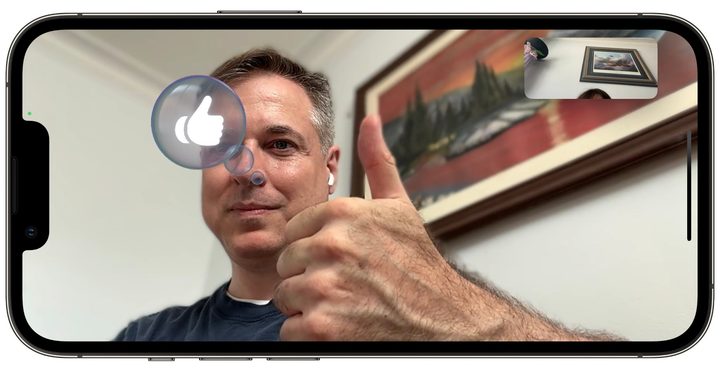
The first gesture is very intuitive. Just stick up your thumb with your hand a few inches away from your face and leave it there for a second or two, and you’ll see a thumbs-up bubble animate beside your head.
Thumbs-down

Like the thumbs-up, the thumbs-down is easier to figure out and works the same way.
Hearts

This one is easy to figure out once you know it’s there. Take two hands and make a heart gesture with the thumbs at the bottom point, and floating red hearts will emanate from the center of your hands.
Fireworks

A single thumbs up is a “like,” but if you’re excited enough to put two thumbs up at the same time, you’ll get a burst of fireworks going off behind your head.
Rain

While it’s not the first thing that comes to mind if you really disapprove of an idea, two thumbs down will cast down some rain on your parade.
Balloons

The next few gestures get a bit more obscure as there’s no apparent relationship between the gesture and the effect. The first of these is a two-fingered “peace” sign that triggers colored balloons floating up around you. Note that your hand needs to be facing palm-forward to start this one, with the back of your hand toward your face. Your thumb must also be folded in.
Confetti
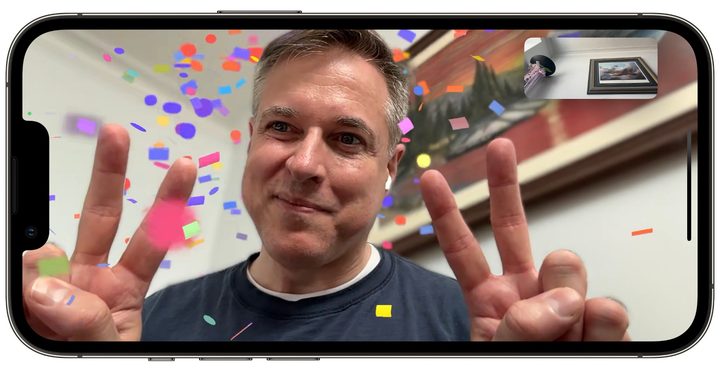
Think of this one as “balloons times two,” as it’s essentially the same two-fingered gesture, but now done with both hands.
Laser Burst

The last and perhaps most challenging to figure out of Apple’s FaceTime gestures is the Laser Burst, which is triggered by holding up two hands palm-forward with the index finger and little finger up in a “sign of the horns” rock-n’-roll salute. As with the two-finger gestures, your thumbs must also be tucked in for your iPhone to recognize this one.
FaceTime gestures can also be recognized and used on supported iPad models running iPadOS 18 and Apple silicon Macs running macOS Sequoia. Any video reactions you send will be visible to everybody in the call, regardless of the platform they’re using. However, they’ll only be able to respond with a FaceTime gesture if they’re using a supported iPhone, iPad, or Mac.


