
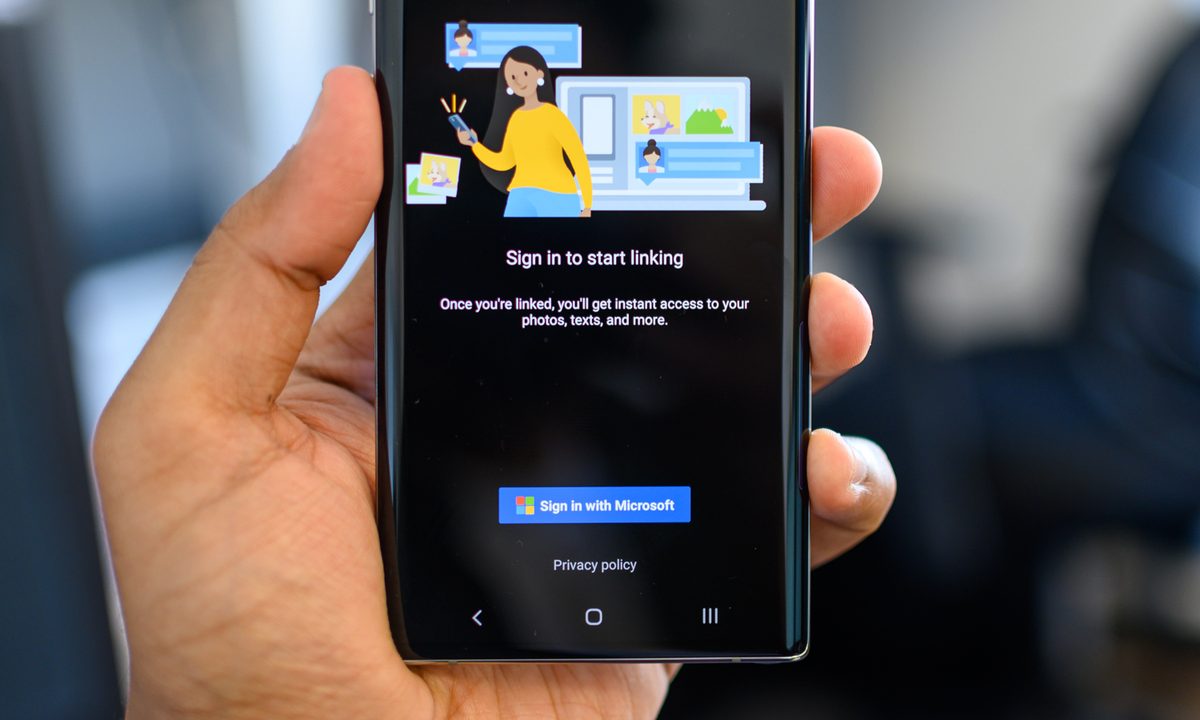
Thanks to efforts from the biggest smartphone manufacturers in the world, the gap between smartphones and computers has grown ever smaller. These days, you can get a desktop-like experience by booting up your iPad or by plugging your Samsung or Huawei phone into a spare monitor. But efforts to bridge the gap between phones and computers haven't begun and ended with the desktop-like DeX mode, and if you own a compatible Samsung or Microsoft smartphone, you can use Link to Windows to connect your phone and your computer.
Using Link to Windows allows you to see your most recent photos, reply to messages, see notifications, and mirror your smartphone's screen from your PC. Whether you're a power user or more casual, it's safe to say connecting your smartphone to your computer is useful. Here's how to use Link to Windows to connect your Android phone to a PC.

Which phones and computers are compatible?
Of course, you first need a phone and computer that are compatible with Link to Windows. Link to Windows requires a Windows PC running Windows 10 and the May 10, 2019, update at the earliest. It also requires a compatible Android phone. The full compatibility list is available from Microsoft, but basically, you're looking at most phones released by Samsung in the last three years, including Galaxy flagship devices back to the Galaxy S9 and the Microsoft Surface Duo and Surface Duo 2.
If you have one of those phones and a Windows 10 PC that meets the requirements, then move on to the next step, because we're ready to start.

How to set up Link to Windows
You won't need to download a new app on a Samsung phone to use Link to Windows, but you will need an app on your PC. Here's how to link your phone and computer, and how to turn on notifications, too.
Step 1: Open the Windows Store by searching for it in your taskbar, and then search for Your Phone in the store.
Step 2: Install the app and tap Launch to open it. The app will ask you to choose between iPhone and Android. Since this guide concerns itself with Android phones, select Android, and move on to the next step.

Step 3: Next, you'll need to link your phone to your PC. Go to your browser on your phone and type in the URL displayed on your PC. If you're using a non-Samsung phone, you'll need to download a companion app, but a Samsung phone will go straight to the linking process without an additional app download.

Step 4: Click Generate QR Code on your PC and scan the QR code using the screen that pops up on your phone. You may need to allow Phone Companion Permission to access your camera.
Step 5: The next step takes place on your phone. You'll need to set up app permissions first to let your phone and PC play well together. Tap Continue and allow access to your contacts, phone, files, and SMS messages in order to turn on all of the features.
Step 6: Now shift back to your computer and click Get Started to open up the main Your Phone window.
Step 7: Make sure each section is set up correctly by clicking on each tab and following the tutorials to set up full access. For instance, for the Messages section, you'll need to click See Texts, followed by Send Notification. If you've already allowed access to your phone, your messages should pop up in a few moments.
Step 8: Turning on notifications does require a few more steps to set up. Click Open Settings on Phone to open a list of apps. Scroll down the list until you find Your Phone Companion, and then tap the slider to turn it on.

Step 9: Tap Allow to allow access to notifications. This allows future notifications to pop up on your PC as well as your smartphone.

How to use Link to Windows
Now you’ve set up Link to Windows, you might be wondering what you can do with it. Here’s a brief explainer of each section and what you can get from each.
Receiving and customizing notifications
Any new phone notifications will pop up on your PC as they arrive, keeping you up to date without unlocking your phone. But if you’re getting overwhelmed with notifications, you can easily change your settings to exclude certain apps. Open Notifications and click Customize at the top right. From there, you can turn off notification banners, badges in the taskbar, and notifications from individual apps.
You can also click on a notification to open your phone screen on your PC. You’ll be able to control your phone through this window, allowing you to respond to messages on social media.
Receiving and answering messages
Clicking on Messages will open up a list of your most recent text messages. You can reply to messages from within the apps, and there’s no need to launch a screen mirror to reply or receive new messages. Essentially a beefed-up version of Android Messages’ web service, this is probably the simplest but most useful aspect of this app.
View and download recent photos
Photos is another simple and fairly self-evident tab. Here you’ll find your most recent photos, downloads, and screenshots. You can click on them to view them in your PC’s gallery app, share them through various messaging platforms, and save them directly to your computer.
Open and use apps without picking up your phone
One of the more interesting features of Link to Windows is the ability to launch and use any app on your phone through your PC. Open the Apps section to see a list of the apps currently installed on your phone. You can mark certain apps as favorites to see them above the list, and launch them by clicking on them. Your Phone will connect to your phone and open a window that mirrors your phone’s screen. Unlock your phone, and you’ll be able to use your phone as you would normally, but with a keyboard and mouse. This ability also extends to any games you might have installed, so you can explore New Eden in EvE Echoes without needing to pick up your phone.
Receive and place phone calls
If your PC has Bluetooth capabilities, then you can even use your PC to take and receive calls — which some may find a little more useful than playing Candy Crush. Simply select Calls to make and receive phone calls and hear them through your speakers and microphone or headset.


