
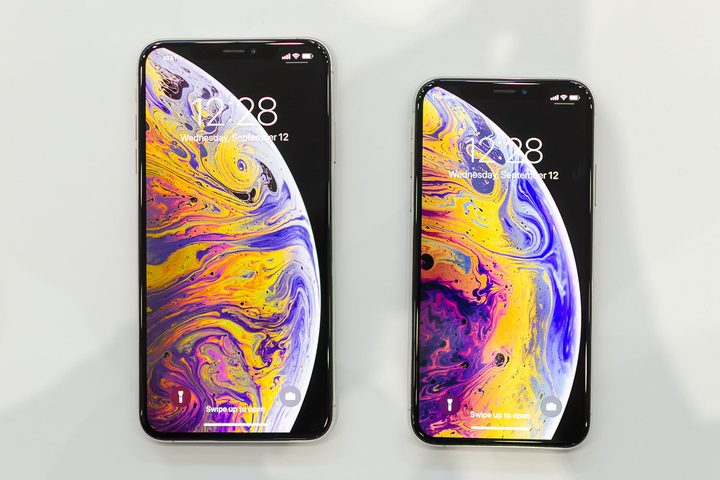
This year, it’s out with the old and in with the new for Apple’s latest iPhones. Following the iPhone X, the company made a permanent switch to the same design for all its iPhones — an edge-to-edge display, notch at the top, and the removal of the Home button. While the updated design is a refreshing change, it might take some time to adjust to the new gestures and functions. To make the transition easier, we’ve put together a guide on how to navigate iOS 12 with the iPhone XS, iPhone XS Max, and iPhone XR.
How to unlock the screen
Rather than using your fingerprint to unlock the device, now all you have to do is look at the screen. On the iPhone XS, XS Max, and XR, Touch ID has been replaced with Face ID thanks to Apple’s TrueDepth technology.
You can set up your Face ID profile by going into your settings. It will then ask you to complete a series of movements, like rotating your head in a circular motion to capture all the angles of your face. Once it’s set up, you’ll be able to unlock your iPhone XS or XR by simply looking at the screen. With iOS 12, you can now add two different Face ID profiles to unlock your phone — for those who want to add another appearance.
How to switch between apps
Rather than double tapping on the home button to pull up all your open apps, you now have to use gestures. Prior to iOS 12, accessing the App Switcher required swiping up from the bottom edge of the device. Then, to close the apps you had to hold down on a specific app until the red minus appeared on the top left corner. Now, all you have to do is swipe up from the bottom of the screen to access all your open apps and switch between them. You can close apps by swiping up on each one.
How to activate Siri and open Apple Pay
To enable Siri, tap and hold the power button until you see the voice assistant appear on your display. Whenever you’re at the store and ready to pay for your items, you can conveniently pull up Apple Pay by double-tapping the power button.
How to take a screenshot
Taking a screenshot with the iPhone XS, XS Max, and XR is easy — even with the absence of the Home button. Simply hold the power and volume up buttons at the same time. But make sure to only quickly tap the buttons — holding them down will pull up a window with options to power off your iPhone or use the Emergency SOS features. After taking the screenshot, you’re then able to mark up or edit the image before sending it.
How to open the Control Center and Notification Center
Getting used to the gestures on your new iPhone might be a little tricky, especially for those switching from any model that’s older than the iPhone X. For starters, accessing the Control Center requires swiping down from the top right corner on both the lock screen and home screen — rather than swiping up from the bottom as you normally would. The same goes for the Notification Center, but in this case you’ll have to swipe down from underneath the notch in the center or from the top left corner.
How to turn off the iPhone
Turning off the iPhone can be done by holding down the power button and the volume up or down button simultaneously. Don’t let go until you see the option to turn off the phone. You’re also provided with quick access to your Medical ID and Emergency SOS here.
How to use reachability
To use reachability on an older model of the iPhone, you’d normally tap the Home button twice, and this would allow you to pull the apps down from the top to the middle of the display — making it easy to tap on them.
With the iPhone XR’s 6.1-inch display and the 6.5-inch display on the XS Max, it might be even harder for those with smaller hands to reach certain apps. To use the reachability feature, you’ll have to make sure it’s turned on first. Go to Settings > General > Accessibility > Reachability and toggle the feature on. To access apps, swipe down on the horizontal bar at the bottom of the screen. To bring everything back into its place, swipe up about an inch above the bar or tap anywhere on the display.


