
For a lot of us, Apple’s iPhone is one of the best digital cameras that we own. Each year, Apple always improves the camera capabilities of the iPhone through both hardware and software. Even though this year we got the iPhone 14 Pro with a 48MP main camera, I want to put the spotlight on one of the more underrated software features that you may not be aware of.
Photographic Styles was a feature that was introduced with the iPhone 13 lineup, and it’s a great addition to an iPhone photographer’s arsenal of tools. It’s probably one of the more underrated camera features, and there’s plenty of reason to use it.
What are Photographic Styles?
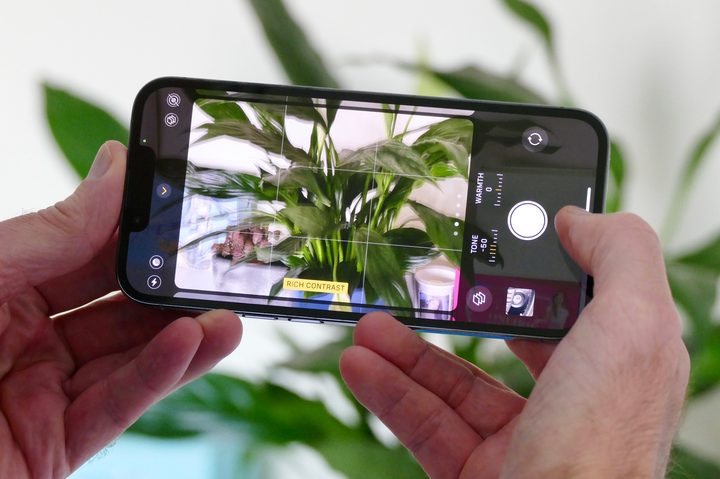
Photographic Styles are not filters — they are basically preset levels for Tone and Warmth in the camera app that let you personalize what your iPhone camera captures in real time. The default Photographic Style is always set to Standard, which is an overall balanced look. But there are four others that you can choose from: Rich Contrast, Vibrant, Warm, and Cool.
You can change the default to a different preset in the Settings app so that it always starts out on that option, or you can switch between them all while shooting in the Camera app. On top of that, while each preset has its own default levels for Tone and Warmth, you can further customize them to your own liking if you prefer. Doing so lets you create your own “style” every time you take photos.
However, it’s important to note that Photographic Styles cannot be applied post-capture, so they’re not filters. They’re also considered destructive because you cannot change the Photographic Style of an image once it’s captured; if you want to change to a different style, you’ll have to take the photo again with that style applied in real time.
Why Photographic Styles are so good
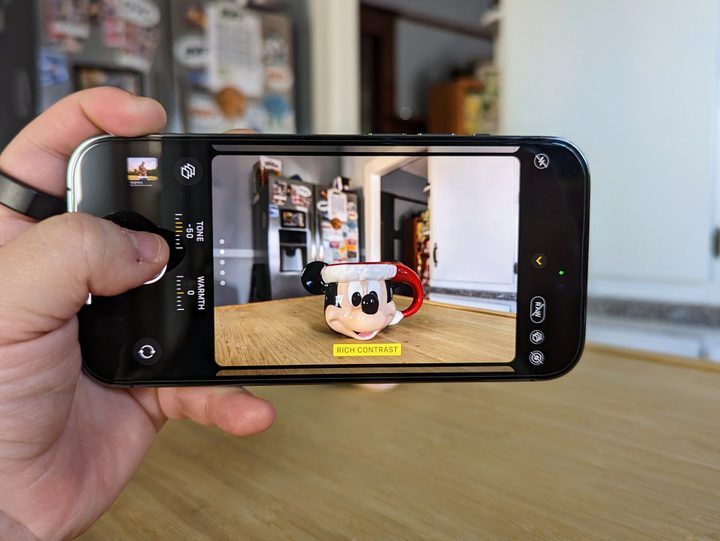
Though the Standard setting is usually fine for everyday photos, I notice that sometimes I’m not particularly happy with how iOS handles the color processing after capture. Because the Standard option is a “balanced” look, I feel some elements of a picture appear more washed out than I’d like. Photographic Styles helps alleviate that issue.
Out of the available presets, I think my favorite is Rich Contrast, offering darker shadows and richer colors for strong contrast in a photo. But Vibrant is also good if you want to get brighter and more vivid colors but still have a balanced look. Warm adds more golden undertones, while Cool adds blue undertones. I stuck with the default settings for each one, but again, you can personalize each preset to make the style stronger or more subtle.
If you are worried that the effects will be too much, fret not! I tested Photographic Styles out on my iPhone 14 Pro at Disneyland over the weekend, and honestly, the default settings are quite subtle. You’ll only really notice the differences if you do a comparison of all five presets, and again, you can always switch between the different Photographic Styles while in the Camera app.


The above shot was taken when I was waiting in the standby queue for “it’s a small world holiday.” It’s easier to see the differences between the different Photographic Styles during the day, and in the example above, the Standard and Vibrant ones are very similar, with Vibrant being a tad brighter and more vivid. Because of that, you can see a bit more of the finer details, like the texture on the wall. Rich Contrast adds more shadows and darker colors, giving everything a bit more depth and realism. The Warm and Cool styles add their respective undertones to make the image lean more toward one end of the spectrum, with each one evoking different feelings. I personally prefer warmer photos over cooler ones.


It can be harder to see the differences between the Photographic Styles at night, depending on the lighting situation you’re in. These shots were taken after it was dark in Cars Land at Disney California Adventure, which is known for its bright neon lights. There is not much of a difference between Standard and Rich Contrast, but the Rich Contrast slightly edges out Standard by having the rock appear a deeper, richer color, and the neon lights don’t appear as blown out. Vibrant looks a bit too artificial and washed out (in the lights) for my liking in this scenario, and both Warm and Cool are similar to Vibrant in this case, aside from the undertones.
At first, I was skeptical of using Photographic Styles because I didn’t like the destructive part of it — the fact that you can’t remove or change a style if you change your mind. But after giving it another chance, I think Photographic Styles is a great way to add a bit more pizazz to your photos without being too drastic (unless you want to). And though it’s a bit hidden away, it’s easy enough to switch between styles on the fly in the Camera app, so I recommend giving it a try if you haven’t used Photographic Styles already.
How to set up Photographic Styles
If you’re intrigued by Photographic Styles and want to try it out yourself, there are two ways to do so.
Set up a default Photographic Style
By default, the Standard style is on for everyone. But you can change that to one of the other presets so that it’s always ready to go whenever you launch the Camera app.
- Open the Settings app on your iPhone (must be an iPhone 13 or later).
- Scroll down and select Camera.
- Select Photographic Styles.
- Swipe between the different styles available: Standard (default), Rich Contrast, Vibrant, Warm, and Cool.
- Select Use “Style” on the one you want.
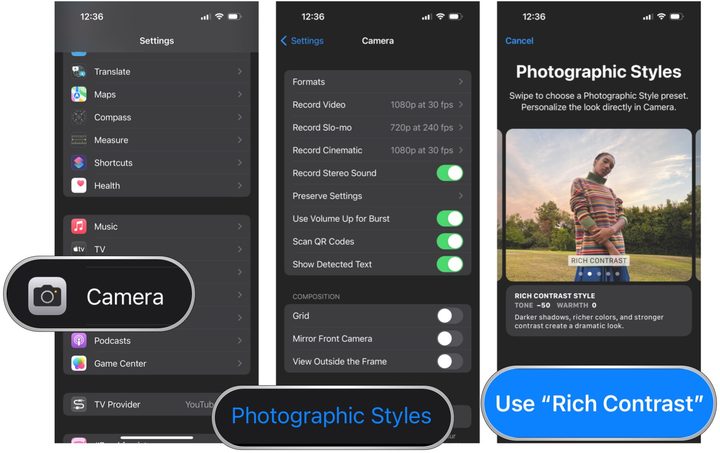
Now, each time you launch the Camera app, it will start on the one you have selected. However, if you change the style in the next step, then it will override your selection.
Set up a Photographic Style from the Camera app
You can also switch between all of the preset styles directly in the Camera app. Here’s how:
-
- Open the Camera app on your iPhone (must be an iPhone 13 or later).
- Swipe up from the bottom of the viewfinder (the space above the shutter button). Optionally, tap the arrow at the top of the screen to reveal the additional controls.
- Select the Photographic Styles button. It looks like three overlapping squares.
- Swipe between the different styles: Standard, Rich Contrast, Vibrant, Warm, and Cool.
- If you want to adjust the Tone or Warmth of each style, you can do so with the sliders

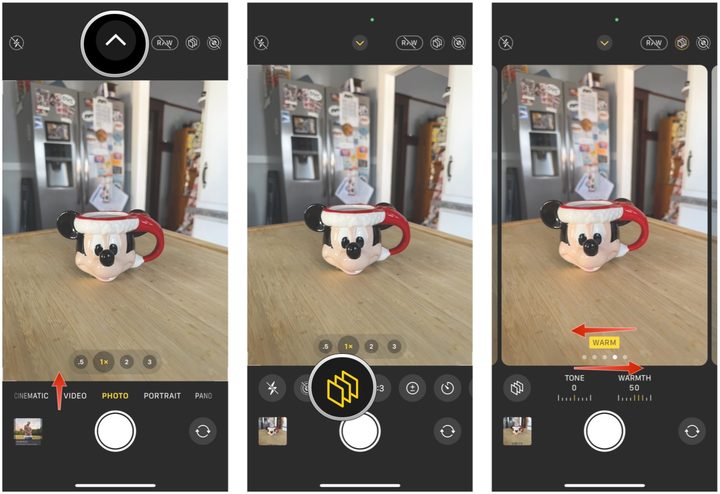
Again, keep in mind that though you can switch between them from the Camera app, whichever style you leave it on becomes the default, even overriding what you originally chose from the Settings app.
A subtle way to improve your photos without much work

Photographic Styles is not a new feature from this year — it launched with the iPhone 13 series and iOS 15. However, it’s not really talked about, and the feature itself is tucked away and hidden in both the Settings app and the Camera. But it can subtly improve the overall color and aesthetic of your photos, and without having to do a lot of post-editing (but you can continue to do that too!)
Yes, it’s a little annoying that Photographic Styles is destructive in that you can’t change it after the fact, but it’s easy enough to switch between them that you can use multiple styles on a single scene. And with the ability to adjust the tone and warmth of each setting, it can really make your photos your own.


