

If you’ve got an Internet connection and a PC, laptop, smartphone, or tablet then there’s a huge collection of free music waiting for you at Spotify. You can find all your old favorites, see what’s trending, and follow others to discover great new tunes. It also lets you create playlists and share them with anyone, and if you don’t mind the odd ad, then the whole thing is free. Of course, the experience gets better if you are prepared to pay $10 a month to have those ads removed.
A good deal is a good deal, and that’s why Spotify has more than 83 million users. If you’re one of them, these helpful Spotify tips and tricks are just for you.
How to create or add to a playlist
It’s extremely easy to add music to a playlist in Spotify. First, if you want to create a new playlist, there are two ways to go about it. The first one is to go to the menu at the top and choose “New Playlist”.

The second way is to right-click on the song and choose “Add To Playlist–>New Playlist” in the right-click menu.

When you want to add a song to a playlist, right-click on it, as seen above. Choose “Add To Playlist” and then the playlist you want it added to.
How to use folders to organize your playlists

You’ll inevitably end up with loads (dozens and dozens) of playlists over time, so it’s worth creating folders to organize them. You can only create folders on the desktop PC app for Windows or Mac. Go to File > New Playlist Folder… and type your desired name, then drag and drop playlists in there. You can also create a folder by pressing CTRL + N. You can also create sub-folders by creating another folder and drag and dropping it into an existing folder. If you want to play all the playlists in a folder then right click on it and choose Play.
How to import music MP3s that you own

If you’ve got an existing music collection then it’s pretty easy to import it into Spotify. Go to Edit > Preferences and scroll down to Local Files. It automatically sucks in tracks from Windows Music Library, Downloads, and Windows Media Player, but you can also tap Add Source … and choose any folder you want. You can also pull in your existing playlists from iTunes and Windows Media Player by going to File > Import Playlists.
How to privately listen to music you’re embarrassed about

The social side of Spotify is one of the best things about it, but you may not want to share what you are listening to all the time. If you want to dance around to JT, or something else, and don’t want your friends knowing about, click on your name at the top right and select Private Session. You’ll find more permanent options in Edit > Preferences under Activity Sharing at the top and further down under Social Network. If you’re using the app on Android or iOS then head into Settings and you’ll find the Private Session option there.
How to search for music more effectively

It’s pretty easy to find what you want by using the search box at the top left of Spotify’s Windows/Mac app, but you can set search modifiers for a little extra help in narrowing things down. Say you just want a few suggestions from a specific year and genre, you could type “year:1992 genre:alternative“ in there.
It also works with year ranges, so you could try “year:1992-1996”. You can even try things like “artist:nirvana”, “album:incesticide”, or “title:turnaround”, and if you know the record label of a track, something like “label:tuff-gong” will work. If you want to find a specific user to follow then try typing something like “Spotify: user:snoopdogg.”
How to share music with your friends

It’s easy to share your musical finds with friends. As we mentioned before, you’ll find the Activity Sharing and Social Network options in Edit > Preferences. You can also share playlists or individual songs directly by right-clicking and choosing Share … then posting it in social media or sending it directly to a friend.
You can also right-click on a playlist or song and choose Copy HTTP Link or Copy Spotify URI. If you’re going to send it through IM or email, the HTTP link is probably best because it will be a clickable link. The URI will be faster, as it should open in Spotify directly, but not everything auto-detects URIs.
If you want to go even further and share a specific point in a song then use the Copy HTTP Link or the Copy Spotify URI option and put the time at the end, like this “#1:32”. Here’s an example: spotify:track:7G7nUpG5KvkjjJtzvF1TLB#1:32
How to create Spotify radio stations

The radio feature is a good way to find new music or listen to something you like without having to choose specific tracks. Tap Radio and then Create New Station to get started. You can type in tracks, artists, albums, and playlists that you like and it will throw up songs it thinks you’ll enjoy based on those choices. (It works kind of like Pandora, but using computer algorithms instead of human song analyzing.)
You can also use one of your playlists to create a radio station, just right click on your playlist and choose Start Playlist Radio. In order to help it learn what tracks you like and don’t like, which will make it better at suggesting, use the thumbs up and thumbs down icons.
How to listen to Spotify for free on the Web
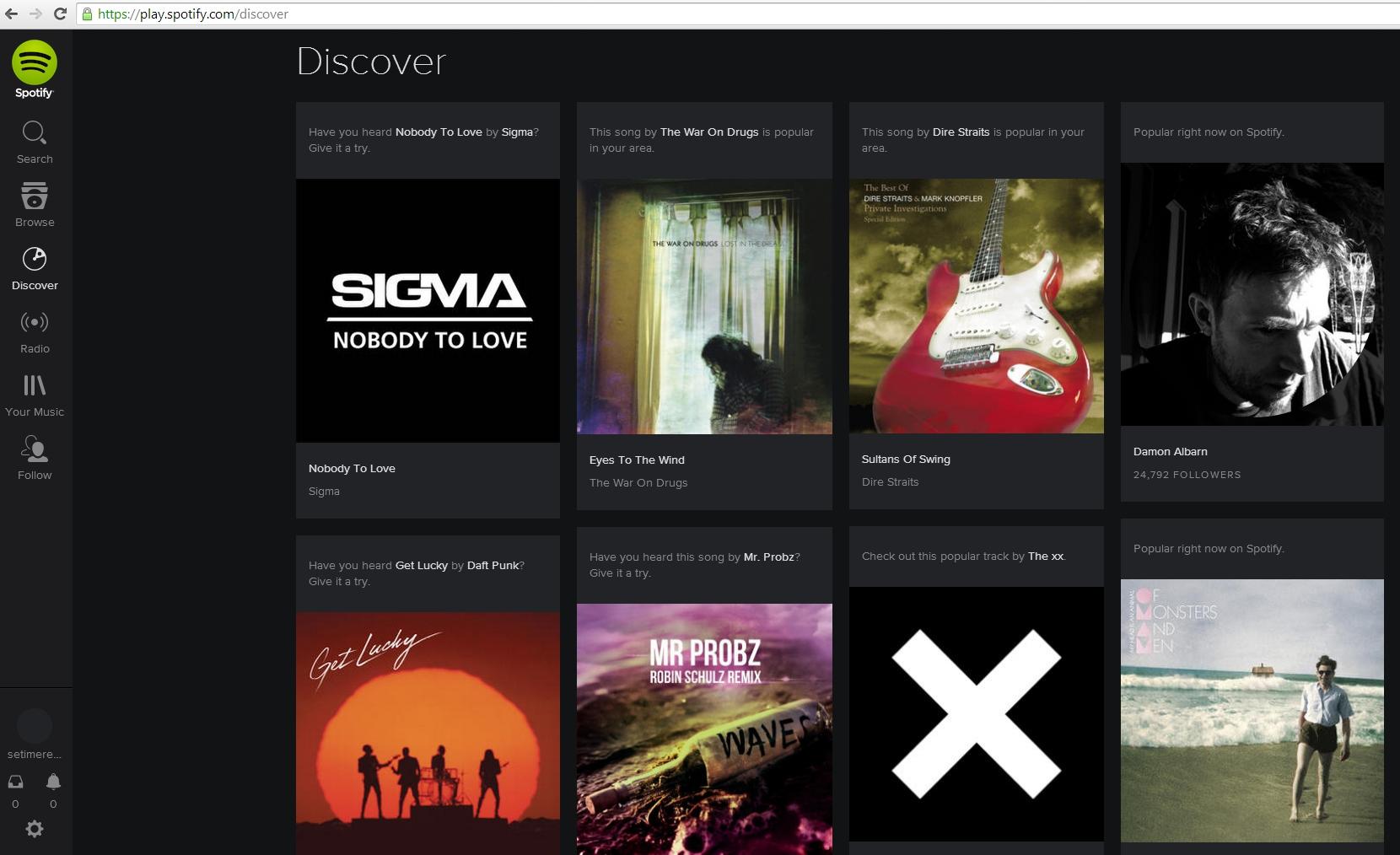
You don’t have to install Spotify to log in and start listening. If you’re out and about and you want to log in on another machine without installing it then just go to https://play.spotify.com/discover in your browser and you can access your account.
How to collaborate with someone else on a playlist

It can be fun to create a playlist with a friend or even a group of friends and it’s easy to do. Create a playlist or choose an existing one and right click on it to choose Collaborative Playlist and then use the Share option to send it to friends. When they tap Follow the playlist will be added to their account and they’ll be able to edit it too.
How to use keyboard shortcuts to speed up Spotify

We’ve mentioned a couple of keyboard shortcuts already, but there are loads of them available. A few of our favorites are Space to play or pause, CTRL + A to select all, CTRL + Up or CTRL + Down for the volume. You can get the full list for Windows or Mac at the Spotify support website.
How to get cool relevant music with the Discover playlist

Back in the pre-Internet days, how many of you made mixtapes for your friends? Now in the age of streaming music, Spotify takes the concept of the mixtape one step further, with the weekly Discover playlist. It is essentially Spotify looking at the music you have been playing in the past week, and then choosing a playlist of similar music that it thinks you will like.
The best part is that you don’t have to do anything. It is automatically done for you, and you can see the link in your list of playlist links.
How to add tracks to Spotify using the Shazam smartphone app
Do you use the fantastic Shazam app on your smartphone to identify music you are listening to? Well, you may not know that you can then add these songs directly to your Spotify playlists.
Once the Shazam app has identified the song, tap on the song title. Then in the top right-hand corner, you will see the hamburger icon with a “+” on it.

That will then bring up the following menu. Click on “Add to Spotify playlist” and thy will be done.

How to get lyrics for almost any song

Spotify has changed this one, so it is worth noting if you like to sing along to your songs. Previously, it was in TuneWiki under the App Finder. But Spotify has now scrapped the App Finder, so if you want your lyrics fix, you now need to look elsewhere. But no worries, it is very easy to find.
When a song has started, look to the bottom, and you will see a “Lyrics” link. Click on that and the lyrics will come up. If you want to look ahead to the full set of lyrics, click “Full Lyrics.” Otherwise, leave it off to only get one line at a time.
How to listen to music offline

If you have a Spotify Premium account, you can download music to your computer for when you are offline. You can sync a maximum of 3,333 songs per device and stay offline for a maximum of 30 days. Needless to say, if you ditch the premium account, you lose the songs.
To go offline with an album or playlist, go to the top of the album / playlist page and click “Available Offline.” The songs will then be downloaded and synced with your devices.

On a related note, you can also filter the song titles so you only see the offline ones.
How to get instant “touch” previews on Spotify’s iOS app
This is a really cool feature, although it is pretty much impossible to get a screenshot of it.
If you have the Spotify iOS app, run your finger along the album covers in your playlist. The songs in that playlist will begin playing. If you move your finger along left and right, it will skip to the previous or next song. If you slide your finger to the next playlist, it will immediately jump over and start playing those.
With so many playlists out there to choose from, this is a really good way to skim through and find the ones you like, without needing to open them all individually.
Control music playback with your headphones

When you have headphones plugged in, you can use them to control music playback in Spotify. Control the volume with the up and down buttons, press once in the center to pause the music and again to play. You can double tap to skip to the next track, and triple tap to go back one track.
How to embed a Spotify widget on your website/blog
If you have carefully curated a great playlist, you can show it off on your website or blog, with the aid of a widget.
Go to the playlist page and click the button with the three horizontal dots. Choose “Copy Embed Code” and you will be given the code to copy and paste into your webpage. It will actually be copied to your clipboard, so you would need to do CTRL + V (CMD + V on a Mac) to see the code.

If you save the code on your webpage, you will then see the interactive widget.
That’s all of our Spotify tips for now, but we’ll add more in future. If you’ve got any tips you want to share then please do post a comment.


