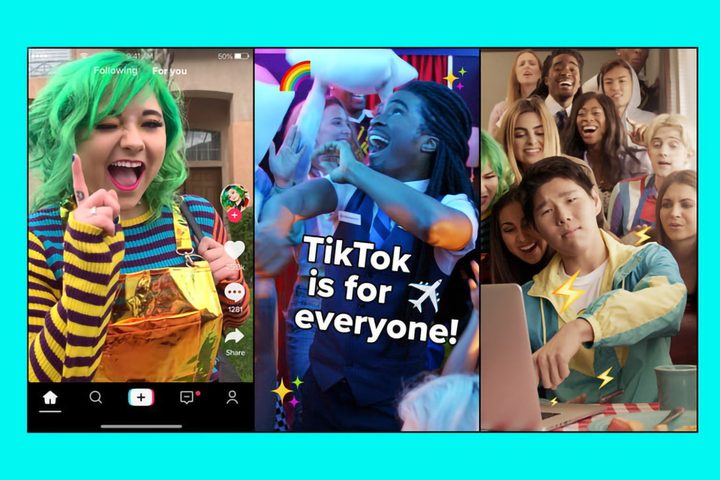
TikTok is the entertainment app that has Snapchat innovating to keep up, and is even inspiring the creation of a new phone. Somewhat reminiscent of the now-defunct Vine, the free app focuses on short, musical videos created by users. If you’re just in for the lolz, you can scroll through millions of videos uploaded by other users, or you can get creative and make your own. Here’s how to get started with TikTok.
Getting started

If you are a video connoisseur but not necessarily a creator, getting started is easy. Simply download the TikTok on iOS and Android. Then open the app. On the main screen will be a popular video to watch. If you don’t like the offering, swipe up to go to the next video. You can also rate, comment on, and share the video using the icons on the right side of the screen. You can also browse trending videos and search keywords or hashtags to find videos you like by tapping the Search icon at the bottom of the screen.
Feeling creative? Tap on the Me icon on the bottom right of the screen and then create an account using the on-screen directions. Now you can create videos by tapping the + icon on the Me screen. Also on the Me, screen you can see how many likes and followers you have.
Creating a video
 All videos on TikTok are 15-60 seconds long (you can choose the time limit by selecting the option underneath the recording button), so you may want to plan your video a little before you get started. When you’re ready, tap the + icon on the Me screen. From there, the video filming screen will pop up. You may notice that other than the red recording button, there are a lot of other icons. Here’s what they do:
Effects icon: This icon is a square smiley face on the left bottom side of the screen. Tap it and choose from a menu of special effects that can be used in your video, like glittery snow, black and white film effects and interactive effects that change when your body moves during filming.
Photo Templates: Found underneath the recording button, this option lets you upload your photos into a creative video gallery, complete with music. Choose your template by swiping left and then tap on the Select photos button to upload your photos.
Add a Sound: At the top of the screen, you’ll find the Add a Sound option. Tap it to find a song to add to your video. You can also use this option to save songs for later videos. Have no idea what song you want to use? Tap the Discover a Sound button in the middle of the Add a Sound screen for inspiration.
Flip: Flip does just what it says, it flips the camera between front-facing and rear-facing.
Speed: The Speed icon allows you to control how fast or slow your video is. Jack it into high speed or slow it down to maximize laughs.
Beauty: This icon allows you to add a beauty filter to your video. Tap on the icon to turn it on and tap on it again to turn it off.
Filters: The Filters icon allows you to add filters to your video, just like with any other video app.
Timer: Want a shorter video? The timer lets you customize just how long you want your video to be. Use the slider to choose how many seconds the video will record before automatically shutting off.
Flash: Tapping the Flash icon with turn the flash on your camera on and off.
When you’re done filming, tap the red checkmark. You’ll then be taken to an editing screen. Here you can add filters, stickers, switch out effects and sounds, and add text to the video. After editing, tap the Next button. On this new screen, you can describe your video, add hashtags, tag friends, turn comments off, share the post, change the privacy settings, and save it as a draft.
Advanced tricks
Once you’re used to the basics, you can get more creative. For example, there is a Duet feature where you can combine your video with friends. All you need to do is have your friend send you their video. Open it in the Inbox screen, then tap the Share icon and the Duet icon.
If you’re into special effects, you’ll probably like the Green Screen tool. Choose the Effects icon on the video screen and under the Trending section, tap the #greenscreen icon. From there, you can add any photo from your phone to use as the background in your video. One user used the green screen effect to pose with a shark, for example.

How to change the privacy of your videos
Sometimes you don’t want people looking at your videos, especially when you’re just starting out. You can change who can see each video pretty easily. For videos you’ve already uploaded, tap the Share icon and then Who Can View This Video and choose Private. If you want to choose who sees it before you post the video just choose Who Can View This Video and then tap Private on the saving and sharing screen when you’re posting the video. If you’re curious about TikTok privacy issues and protection here’s everything you need to know.