
Windows and Surface tablets have always been in an uncomfortable position. Microsoft pushes Surface as its premium devices but has neglected its decrepit Windows 10 tablet mode. Despite features like detachable keyboards and 360-degree hinges, you’d find that most people spend their time using Windows tablets as a traditional laptop thanks to the poor software optimization.
Windows 11 seeks to change that. The leaked version of Microsoft’s next-generation operating system we checked out has a lot of changes that might just revolutionize Windows tablets as we know it. Here are five reasons why.
Better gestures
The first thing on our list is a set of new gestures. These largely build on what already existed in Windows 10. In that version of Windows, you could already do things like drag a window down to the taskbar to close it or drag an app from the top to the side to multitask.
Windows 11 tweaks that a bit to make it more intuitive. In Windows 11, you can drag an app with four or three fingers to minimize it to the system tray. You can then drag that app back up with the same gesture. Then, for navigating through your open apps, you can just tap the task view button and summon an active view like you would in Android or iOS. Or you can just choose it from the Taskbar while still seeing all your pinned and open apps.
You even can even get to your virtual desktops more easily. No more need to dig through menus — just hold down your screen with four fingers and then swipe between open desktops.
Easier Start Menu for touch
One of the biggest changes in Windows 11 is the Start Menu itself. It moves to the middle of the screen and ditches the Live Tiles for static icons. If you’ve ever used an iPad or an Android tablet, then this should feel familiar. The way the icons are arranged at the top of the Start Menu, and right in the center, means your hands and eyes will naturally want to touch there.
You won’t need to drag your fingers all over the screen to get to your most frequented apps. Getting to what you need most is never easier, with little distractions along the way.
Better window management
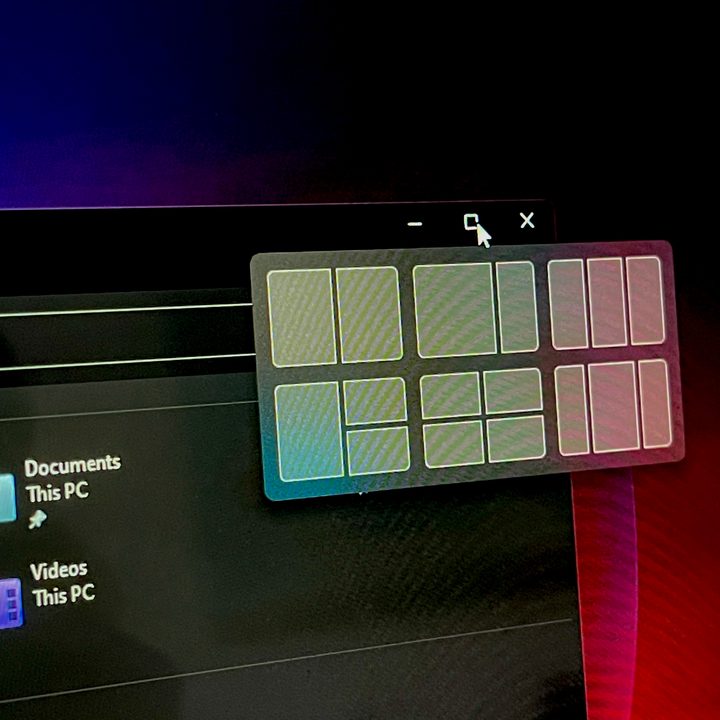
We touched on gestures above, but another piece of Windows 11 is improved window management. In Windows 11, when you tap your finger at the top of an open window, you’ll see a glass layer beneath it. That glass layer will help you see where the window is moving and give you extra room to grab the window without losing total control.
It’s a nice little touch that makes a huge difference in day-to-day tasks when holding a PC as a tablet.
No more separate tablet mode
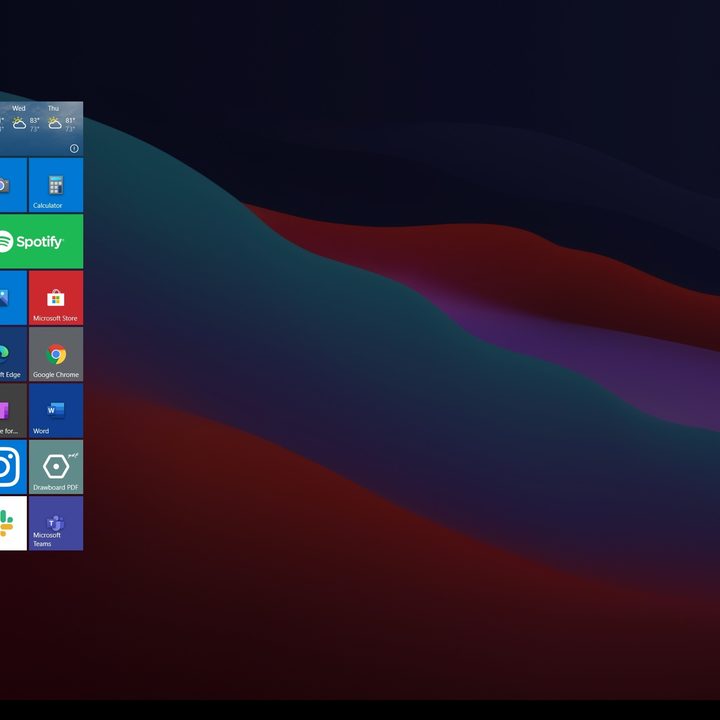
Microsoft had hidden away the dedicated tablet mode in Windows 10, but Windows 11 now removes it entirely. There’s a good reason for that. The original tablet mode was hard to understand and wasn’t necessarily easy on the eyes with a vertical left-facing list of apps and tiles. That’s why the October 2020 Update just kept your regular desktop as the default. When you switch into tablet mode, you’ll see some more spacing between icons and other text and bigger buttons, but no more full-screen tablet mode.
Windows 11 keeps to that philosophy. In Windows 11, when you flip a device to use it as a tablet, icons become bigger and more spaced out. You also get access to a more touch-friendly keyboard, which has shortcuts for your clipboard, GIFs, and other content. It’s a small step, and even more changes can be on the way as the leaked Windows 11 build isn’t final. But removing the tablet mode is a start.
Improved inking experience
Our list ends with a note on inking. Windows 11 finally adds some new options to the Windows Ink workspace. If you’re using an app like Photoshop or Fresh Paint, you can add it to the workspace area on your own. It helps make getting to the apps for your pen much easier. This opens up the opportunity for app developers to better showcase their apps, too.
More could be on the way
As we have mentioned, the recently leaked Windows 11 build is not final. There are many changes that can still come. We hope that the changes cover tablet mode, as it would add extra value to Surface, Windows 2-in-1s, and other Windows detachables. Time will tell, but for now, we’re waiting until June 24, when Microsoft is officially set to talk about “what’s next for Windows.”


