
iPadOS is the newest Apple operating system on the block, but with a year under its belt, it’s not as unfamiliar as it might once have been. iPadOS is basically a tablet-tuned version of iOS, with a few additional features to take advantage of the increased screen size. It’s an exceptional piece of software and one of the reasons Apple continues to dominate the tablet space.
But the future is on the way now — iPadOS 15 is coming, and while you can’t access it yet unless you’re willing to download the iPadOS 15 beta, it’s on the way and rapidly putting iPadOS 14 in the shade. However, iPadOS 14 is still the latest stable version of Apple’s iPadOS software, and you’ll still have to download it if you want to get a slice of iPadOS 15 in the future. Here’s how you can download and install iPadOS 14 onto your iPad.
Compatible devices

First, you need to be sure your iPad is capable of accessing iPadOS 14. As is tradition, Apple has extended its upgrades to a large number of devices from its back catalog, so iPadOS 14 is available on a large number of tablets. Make sure you have one of the following iPads before you start the process of downloading and installing iPadOS 14.
- iPad Pro 12.9-inch (4th-generation)
- iPad Pro 11-inch (2nd-generation)
- iPad Pro 12.9-inch (3rd-generation)
- iPad Pro 11-inch (1st-generation)
- iPad Pro 12.9-inch (2nd-generation)
- iPad Pro 12.9-inch (1st-generation)
- iPad Pro 10.5-inch
- iPad Pro 9.7-inch
- iPad (7th-generation)
- iPad (6th-generation)
- iPad (5th-generation)
- iPad Mini (5th-generation)
- iPad Mini 4
- iPad Air (3rd-generation)
- iPad Air 2
Back up before you get started
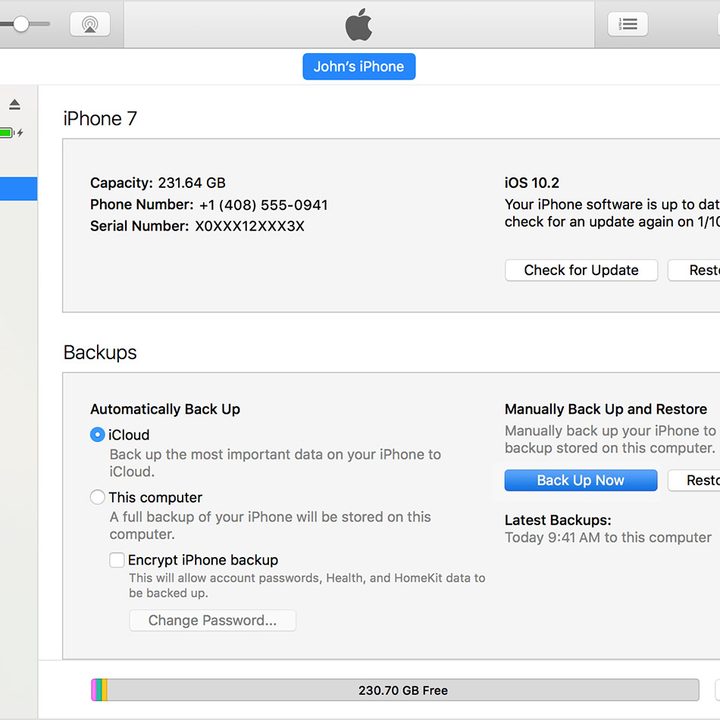
It’s always a good idea to back up any device before a major update. Though final releases are less troublesome than beta builds, problems can arise. There are a number of ways to back up your iPad — simply choose whichever of the following is best for you.
Backing up using iCloud
Apple’s own iCloud is definitely the easiest way to back up an iPad. Here’s how to do it:
- Connect to a Wi-Fi network.
- Head to your Settings app, select your name, and tap iCloud.
- Scroll down and tap iCloud Backup > Back Up Now.
You can check whether the backup is complete by heading back to Settings, hitting iCloud > iCloud Storage > Manage Storage, and tapping on your device on the list.
Backing up on a Mac running MacOS Catalina
iTunes may have been officially killed off in MacOS 10.15 Catalina, but you can still back up your iOS device on the newer versions of MacOS. Here’s how:
- Connect your iPad to your Mac, and make sure your Mac is fully up to date.
- Follow on-screen instructions to enter your device passcode, or choose Trust This Computer.
- Open your Finder app, and select your iPad from the sidebar.
- Hit the General tab, then hit Back Up Now to manually back up.
Backing up on a Mac or PC with iTunes
Older Macs or Windows PCs are also down to clown with your iPad, and you can use iTunes on one of them to back up your iPad:
- Make sure your iTunes is up to date, and connect your device.
- Follow any on-screen instructions if you need to enter your device passcode, or choose Trust This Computer.
- Select your iPad in iTunes.
- Hit Back Up Now to save your data.
Downloading and installing iPadOS 14
Of the entire process, this has to be the easiest part. Updating iPadOS is as simple as heading to Settings > General > Software Update and waiting for the system to check whether an update is available. If it isn’t, check back again later — it may be that the update hasn’t released in your area yet. If an update is available, just tap Download and Install to start the update.
Once the update has been downloaded and prepared, you’ll need to confirm you want to update. You may have to insert your passcode, and in some cases, you may need to agree to new terms and conditions. Once this is done, your iPad will begin installing the update. Eventually, your iPad will restart, and after a (hopefully) short period of time, you’ll be running iPadOS 14.


