
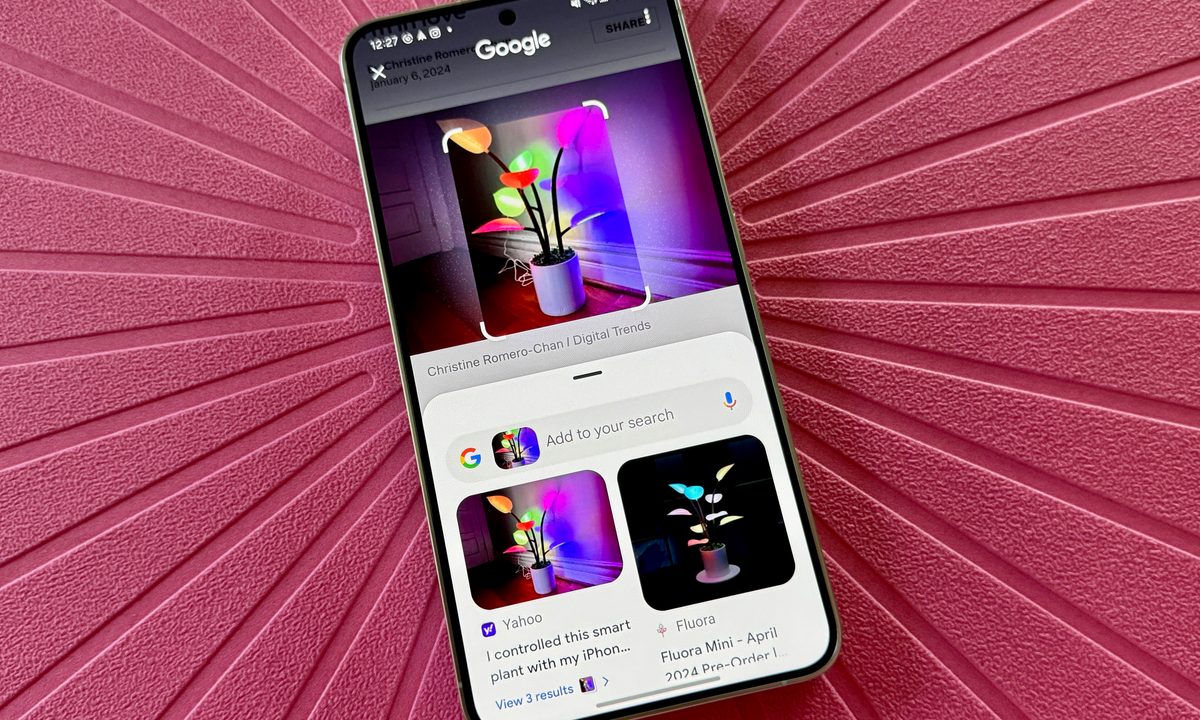
When Samsung unveiled its Galaxy S24 series, including the Galaxy S24 Ultra, it also introduced several new features in its Galaxy AI suite. One of these new features was Circle to Search, which allows you to easily search for anything on the screen with a simple gesture. This feature works by drawing a circle on the screen, which will prompt the AI to then search for items within that circle.
Think of Circle to Search as a combination of Google Lens and a screenshot search. You can activate Circle to Search no matter what you're doing. Whether you're on your home screen, in a web browser, or using an app, you can always use Circle to Search. This feature enhances the overall user experience by providing quick and easy access to information on the screen.
Since Google is behind this feature, it’s not exclusive to just Galaxy S24 devices. It's also available on other, older Samsung phones, in addition to many Google Pixel handsets, and has now expanded to even more Android phones from other brands.
Ready to use Circle to Search for yourself? Here's everything you need to know.
What phones is Circle to Search available on?
Originally, Circle to Search launched mostly on Samsung and Google devices, but it has now since expanded to many more models. Here's the full list:
Samsung
- Samsung Galaxy S24, S24 Plus, and S24 Ultra
- Samsung Galaxy S23, S23 Plus, S23 Ultra
- Samsung Galaxy S23 FE
- Samsung Galaxy S22, S22 Plus, S22 Ultra
- Samsung Galaxy S21, S21 Plus, S21 Ultra
- Samsung Galaxy S21 FE
- Samsung Galaxy A55
- Samsung Galaxy A54
- Samsung Galaxy A35
- Samsung Galaxy A34
- Samsung Galaxy Quantum 4
- Samsung Galaxy Z Fold 6 and Flip 6
- Samsung Galaxy Z Fold 5 and Flip 5
- Samsung Galaxy Z Fold 4 and Flip 4
- Samsung Galaxy Z Fold 3 and Flip 3
- Samsung Galaxy Tab S8, S8 Plus, and S8 Ultra
- Samsung Galaxy Tab S9, S9 Plus, and S9 Ultra
- Samsung Galaxy Tab S9 FE and FE+
- Samsung Galaxy Tab S10, S10 Plus, and S10 Ultra
- Google Pixel 9, Pixel 9 Pro, Pixel 9 Pro XL, and Pixel 9 Pro Fold
- Google Pixel 8 and Pixel 8 Pro
- Google Pixel 7 and Pixel 7 Pro
- Google Pixel 6 and Pixel 6 Pro
- Google Pixel 8a, 7a, and 6a
- Google Pixel Fold
- Google Pixel Tablet
Honor
- Honor 200
- Honor 200 Pro
- Honor Magic V3
Lenovo
- Lenovo Idea Tab Pro
Motorola
- Motorola Edge 50 Ultra
- Motorola Razr 2024
OnePlus
Tecno
- Tecno Phantom V Flip 2
- Tecno Phantom V Fold 2
Xiaomi
- Xiaomi 14T
- Xiaomi 14T Pro
- Xiaomi MIX Flip

How to enable Circle to Search
Before you can start using Circle to Search, you need to make sure that the feature is enabled first. When setting up your Galaxy S24, for example, there is a prompt when you do a long press on the home button or navigation bar (depending on if you use buttons or gesture navigation) with two options: Google Assistant or Circle to Search. Make sure that Circle to Search was selected during that prompt to make it the default option.
If you made Google Assistant the shortcut for long pressing on the button or bar, don’t worry — you can manually change the setting.
Step 1: Open Settings on your phone.
Step 2: Scroll down and select Display or Display & touch.

Step 3: Scroll down and select Navigation bar or Navigation mode.
Step 4: Select the toggle for Circle to Search and make sure it’s in the ON position.
If you have a Google Pixel 8 or Google Pixel 9 series phone, Circle to Search should be enabled by default. If not, check to make sure you're running the latest software.

How to use Circle to Search
Since Circle to Search works pretty much anywhere, you don’t even need to be in your preferred web browser to use it. You could be browsing Facebook, Instagram, Threads, a news app, or whatever else — Circle to Search is accessible anywhere.
Step 1: Make sure the subject you want to look up is on the screen of your phone.
Step 2: Long press on your home button or navigation bar to activate Circle to Search.
Step 3: A transparent, blue tinted overlay will appear on the screen, along with a Google search bar at the bottom.
Step 4: Tap, draw, or circle whatever you want to search for.
Step 5: Relevant text and image based search results will appear at the bottom.
Step 6: Not satisfied? Make the selection again or search for something else.

How to add to searches
You can further add context and even ask for more specific details about what you selected in Circle to Search. This is very useful if you want to dig deeper into whatever it is you’re looking for, such as price of tickets for a venue or the like.
Step 1: When you have made a selection for Circle to Search and have results, select the Search input field.
Step 2: Type or dictate what context you want to add. Yes, it's that simple!

How to translate with Circle to Search
Google has added some new features to Circle to Search. One of those changes is the ability to instantly translate text with Circle to Search. Here’s how to do it.
Step 1: Make sure the text you want to translate is on the screen of your phone.
Step 2: Long press on your home button or navigation bar to activate Circle to Search.
Step 3: A transparent, blue-tinted overlay will appear on the screen, along with a Google search bar at the bottom.
Step 4: Tap, draw on, or circle the text you want to translate.

Step 5: Select Translate from the small pop-up contextual menu.
Step 6: If you want to translate the entire screen, select the Translate button next to the Google search bar at the bottom.

How to identify songs with Circle to Search
In addition to translate, you can use Circle to Search to identify a song. Think of it as a systemwide integrated Shazam. Here’s how to use it.
Step 1: Long press on your home button or navigation bar to activate Circle to Search.
Step 2: A transparent, blue-tinted overlay will appear on the screen, along with a Google search bar, musical note button, and the translate button at the bottom.
Step 3: Select the Musical note button.

Step 4: Then play, sing, or hum a song and follow the on-screen prompts.
Step 5: Once it finds a match, you get results.
How to exit Circle to Search
Once you’re done searching, you’ll want to get out of the Circle to Search overlay. It’s easy to do.
Step 1: If you use Button navigation, just select the Back button to go back to your app.
Step 2: If you use Swipe gesture navigation, just swipe inward from either side of the screen to get back to your app.


