
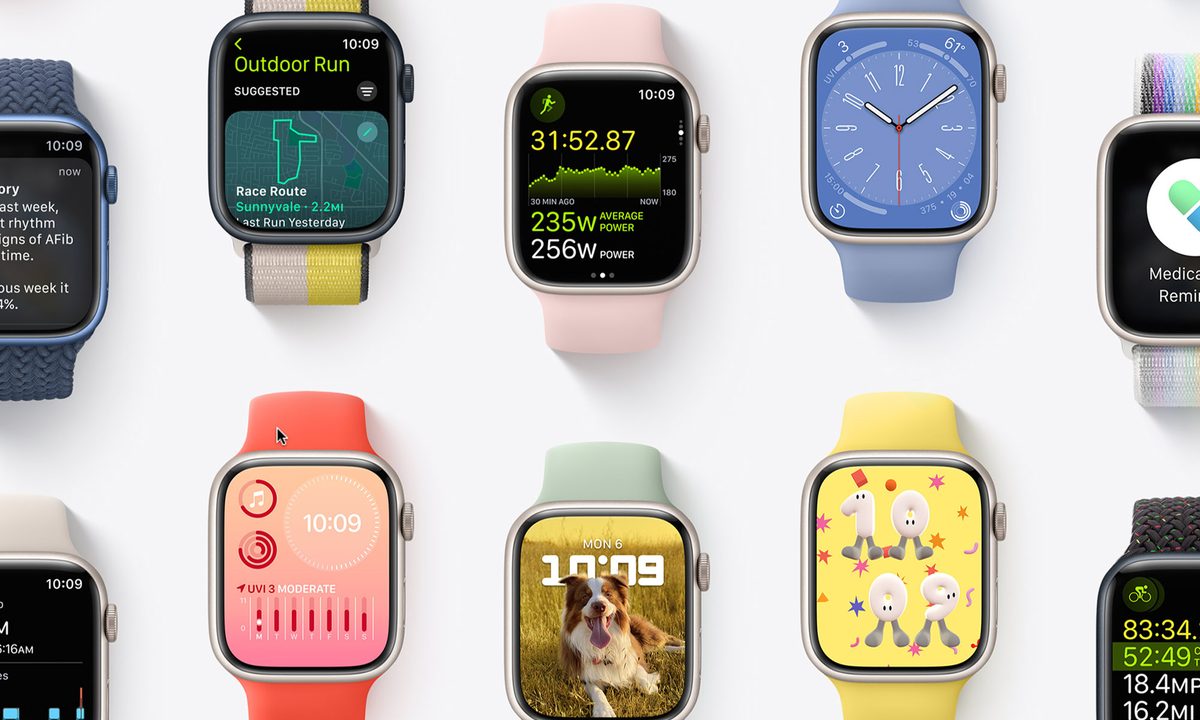
Apple has officially released WatchOS 9, its latest major update for the operating system of the Apple Watch. As usual, the new wearable OS brings a handful of new watch faces, plus improved sleep tracking, medication tracking, and enhanced workout options for runners.
While Apple's newest Apple Watch models — the Series 8, second-generation Apple Watch SE, and Apple Watch Ultra — will all ship with WatchOS 9, you can also install the latest release on any Apple Watch released since 2018, including the Apple Watch Series 4 or newer and the first-generation Apple Watch SE. Sadly, the Apple Watch Series 3 drops off the list this year, but it's also fair to say four years of software updates is a pretty good run for a wearable.
Note you'll need to update your iPhone to iOS 16 before you can install WatchOS 9 on your Apple Watch, so make sure you've done that first.
Back up your Apple Watch
Before installing any new release of WatchOS, it's always a good idea to have a current backup of your Apple Watch. While most of Apple's public software releases are pretty stable, it's still possible for things to go wrong during the update process.
Typically, your Apple Watch gets backed up to your iPhone automatically in the background. This data is then included when your iPhone gets backed up to iCloud, your Mac, or your PC. If you've used Apple's Family Setup for a family member without an iPhone, their Apple Watch will be backed up directly to their iCloud account whenever their Apple Watch is on a Wi-Fi network.
You can find more information and instructions on how to manage your Apple Watch backups in our article on how to back up your Apple Watch.
Install WatchOS 9 from your iPhone
Once you've updated your iPhone to iOS 16 and backed up your Apple Watch, you're ready to install WatchOS 9 on your device. This can be done either from the Watch app on your iPhone or directly on your Apple Watch. Here's how to do it from your iPhone.
Step 1: Open the Watch app on your iPhone.
Step 2: If you're installing WatchOS 9 for a family member's Apple Watch that's been configured using Family Setup, select All watches in the top-left corner and choose the appropriate Apple Watch from the list.
Note you can't update a family member's Apple Watch remotely; the other person's wearable will need to be near your iPhone.
Step 3: Select General.
Step 4: Choose Software update. After a few seconds, WatchOS 9 should appear.
Step 5: Select Download and install to begin the process.
It may take anywhere from a few minutes to an hour or more to download WatchOS 9 to your Apple Watch, prepare it, and install it on your device. You can download the update while you're going about your day, but the Apple Watch will need to be on its charger and charged to at least 50% capacity before WatchOS 9 will begin installing.
Note that once you've begun downloading WatchOS 9, you can close the Watch app and continue using your iPhone and Apple Watch normally. The update will install automatically once your Apple Watch is placed on its charger and has sufficient battery capacity to begin.
Install WatchOS 9 from your Apple Watch
If you're already running WatchOS 6 or later, you can install WatchOS 9 directly from your Apple Watch without using an iPhone. This is especially handy for folks using Apple Watch Family Setup who don't have an iPhone of their own.
Step 1: Make sure your Apple Watch is connected to a Wi-Fi network by swiping up on your watch face and looking for a blue Wi-Fi symbol.
Your Apple Watch should automatically link up with any Wi-Fi network your iPhone already knows about. However, if you're not connected to Wi-Fi, long-press on the Wi-Fi button to bring up a list of available Wi-Fi networks and select the name of the network you want to connect to.

Step 2: Open the Settings app on your Apple Watch.
Step 3: Select General.
Step 4: Select Software update.

Step 5: Select Install and follow the on-screen instructions to begin installing WatchOS 9.
You'll need to place your Apple Watch on its charger and leave it there to complete the update process, and it must be charged to at least 50% before WatchOS 9 will begin installing.


