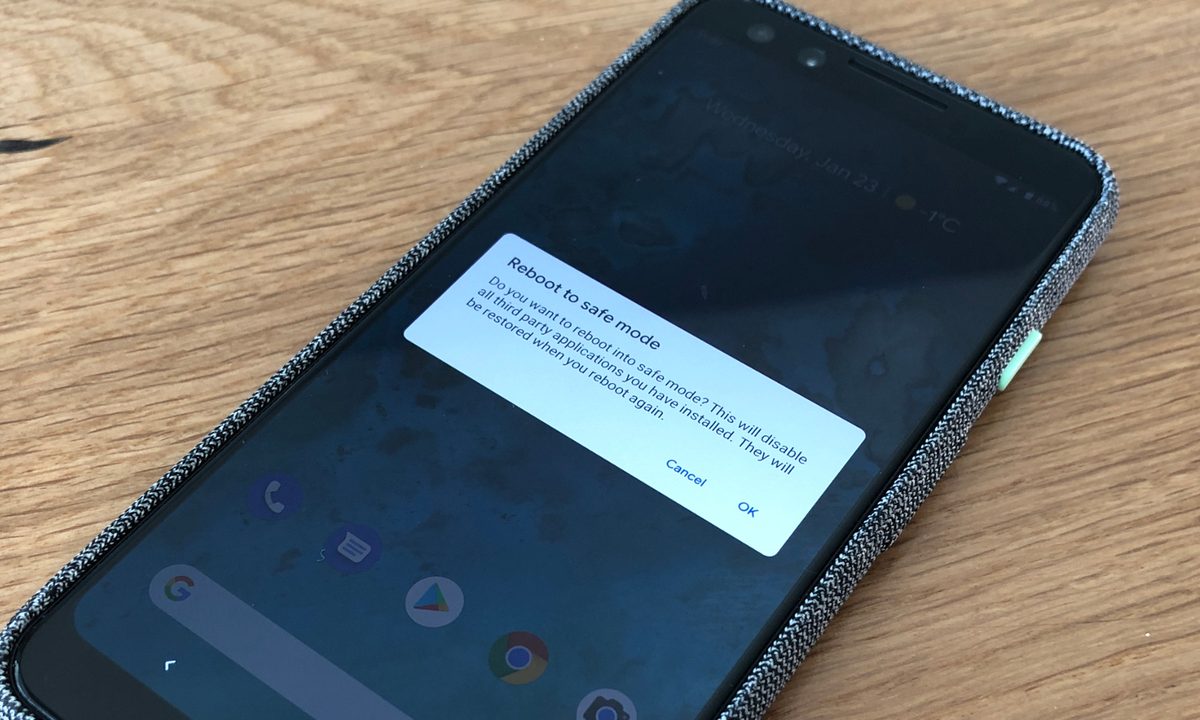
Safe Mode is one of Android‘s most useful troubleshooting tools. It temporarily disables third-party apps so you can figure out what’s causing crashes, slowdowns, or unusual behavior. It allows you to isolate problems without deleting data or resetting your phone. If your device works normally in Safe mode, a recently installed app is likely the culprit behind the issues.
Knowing how to exit Safe Mode is just as important. Many users get stuck and assume something is broken when the fix is usually simple. If your phone is acting up or you’ve accidentally enabled Safe Mode, here’s how to turn it on or off quickly.
Difficulty
Duration
What You Need
-
An Android device
How to turn off Safe Mode on Android (quick answer)
If your phone is already in Safe Mode, try these first:
- Restart your phone
- Tap the “Safe Mode enabled” notification, if available, and select Turn off
If that doesn’t work, follow the detailed instructions below.
What is Safe Mode, and why is it important?
Safe Mode starts your Android phone with only essential system apps running. All third-party apps you’ve installed are temporarily disabled. This makes it easy to identify whether a problem is caused by an app or by the system itself.
Having your phone work normally in Safe Mode usually means a third-party app is causing issues. If the problem continues even in Safe Mode, the cause is more likely to be a system bug or hardware issue. This distinction makes Safe Mode one of the simplest and most effective troubleshooting tools on Android.
You can use Safe Mode to diagnose a wide range of problems, including:
- Apps crashing repeatedly
- Sluggish performance
- Excessive battery drain
- Random restarts
By isolating third-party apps, Safe Mode helps you narrow down the cause quickly without needing advanced tools.
How to turn on Safe Mode on Android
There are a couple of ways to turn on Safe Mode on your Android device, and the simplest one lets you enable it with just a few taps.
Method 1: Using the power menu
Step 1: Scroll down twice on the notification shade to open Quick Settings and tap the power button in the bottom-right corner to open the power menu.

Step 2: Tap and hold the Power off button. This will bring up a Reboot to safe mode pop-up.

Step 3: Tap OK to confirm. Once your phone restarts, you should see Safe Mode at the bottom of the screen.
Method 2: Using hardware buttons
If the first method doesn’t work, you can follow the steps below to turn on Safe Mode using the hardware buttons.
Step 1: Turn off your phone by navigating to the power menu and tapping the Power off button once.
Step 2: Press and hold the power button to turn on your phone.
Step 3: When the Google logo appears, release the power button and press and hold the Volume down button.
Step 4: Keep holding the Volume down button until your phone finishes booting, and you should see Safe Mode at the bottom of the screen.
How to turn off Safe Mode on Android
In most cases, exiting Safe Mode is simple:
- Scroll down twice on the notification shade to open Quick Settings and tap the power button in the bottom-right corner to open the power menu.

- Tap Restart, and your phone should boot normally.
Alternatively, some devices show a Safe Mode notification. Tapping it may also let you exit the mode.
How to fix a phone stuck in Safe Mode
If your phone won’t exit Safe Mode, try these steps:
- Restart your device again
- Check stuck buttons, especially Volume down
- Remove recently installed apps
- Check for system updates
- Factory reset (last resort)
Safe Mode offers a quick and reliable way to isolate problems on Android. If your device isn’t behaving as expected, it’s often the fastest way to determine whether an app or the system is to blame. While you may not need it often, knowing how to use it can save you time and frustration when something goes wrong.