

There are few things more frustrating than experiencing a poor signal on your cell phone. From dropped calls to messages that won’t send and streaming services that stutter and die, a lack of solid signal can cause all kinds of inconveniences. Worst of all, even the best smartphones can suffer from bad reception from time-to-time. So what’s to be done?
Sadly, building personal towers to get more bars isn’t an option — but don’t worry. There are plenty of things you can do to avoid poor cell service interfering with your day-to-day life. Take a closer look at our expert tips on how to boost your cell signal, starting with something simple you may have not even thought would have made a difference.
Use a cell signal booster
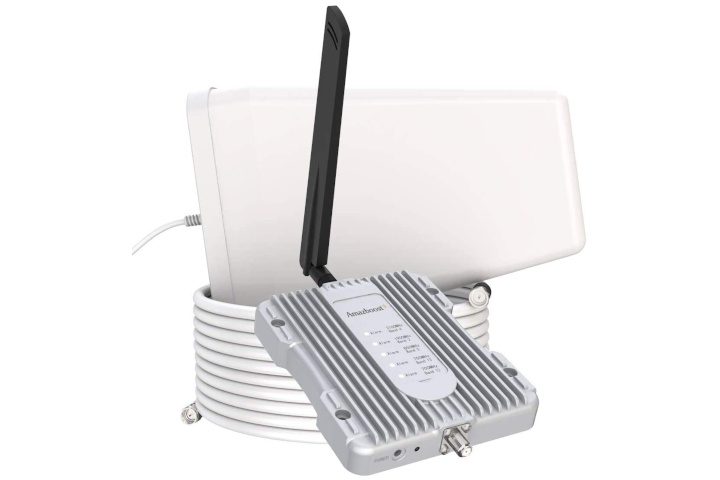
A repeater (also known as a signal booster) is designed to collect and rebroadcast incoming signals, which supplies your reception with a necessary boost. This device can be a fantastic solution to limited wireless signals in your home or vehicle. You can plug it in and use it anywhere you want, as all you need is access to an electrical outlet. Nevertheless, we recommend that you choose a location that can successfully obtain a signal. For instance, you won’t want to put your repeater in a basement, as it presumably won’t get much signal at all down there. A window sill is a safe place for a repeater. Another thing to remember is that boosters can be expensive, so waiting for deal periods like Black Friday or Prime Day can be a good idea.
Buy at AmazonPerform a signal refresh

Typically, your phone requires a simple signal refresh when it’s fighting to establish a stable connection from a nearby cell tower. There’s no need to stress; this process is easy. All you need to do is shut down your phone entirely and then start it back up. Another option is to switch on airplane mode for a few seconds or so and then turn it back off.
Remove your case

A phone case is a great step to take if you’re worried about your phone’s durability. Phone cases range in protection and thickness, from thin gel cases to thick rugged cases with metal inserts to improve shock-resistance. But of course, bigger thicker cases can have downsides, and your phone case could well be interfering with your signal strength. This could be especially true if it’s a rugged case with metal, or is a battery case.
Thankfully, this is an easy diagnosis. Try removing the case to see if that helps improve reception or call quality, and if it does, consider investing in a thinner case for everyday use, and reserve the rugged case for when it’s really needed, like if you go hiking.
Keep your battery charged
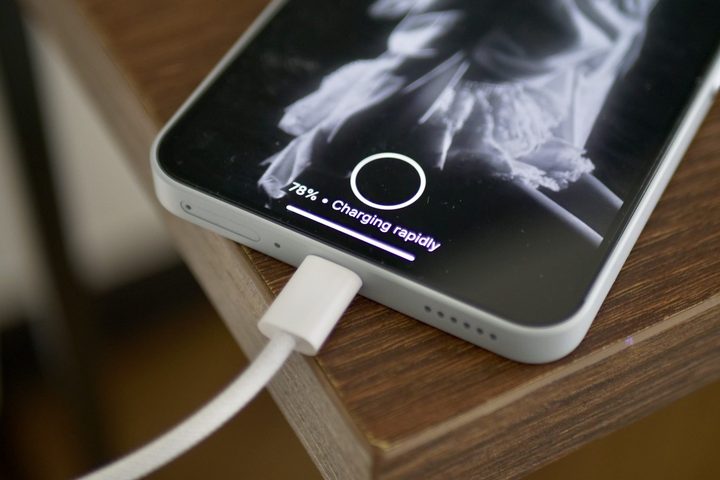
Your phone’s battery keeps everything powered up, and your phone signal is no exception to that. A low phone battery can affect your phone’s ability to receive a strong signal, and it can also affect performance. So if you’ve noticed a sporadically bad signal, check your phone battery level and make sure it couldn’t do with a top-up.
Where’s the sweet spot? Well, that’s a complicated answer, but on the whole, try to keep your battery above 25%. If you do notice battery life is an issue, consider carrying a portable charger with you so you can keep your phone charged on the go, and check out our tips on how to save smartphone battery life.
Use Wi-Fi calling
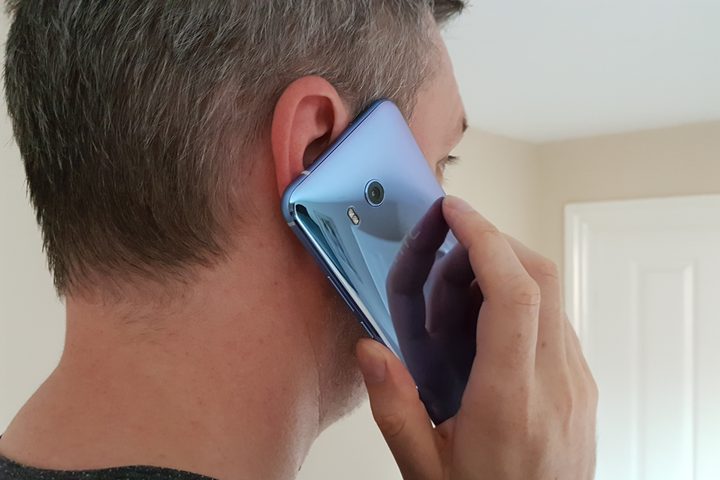
There’s a strong chance you have a Wi-Fi network in your home or office, so why not use that to make and receive calls? Wi-Fi calling is widely available now and it may be as simple as changing a setting on your phone. On an Apple iPhone, go to Settings > Cellular > Wi-Fi calling and make sure that it’s toggled on. The setting can be located in different places on different Android phones so open up your Settings and use the search at the top to look for Wi-Fi calling. You will also have to check in with your carrier to find out what their policy on Wi-Fi calling is. Some carriers may expect you to pay extra money or jump through a few hoops to activate it.
If you’re unable to get Wi-Fi calling to work with your usual number and carrier, you can still use an app or service to make and receive Wi-Fi calls. Many of the best messaging apps also allow you to make calls over your Wi-Fi connection, although the person you’re calling will also need to have the same app.
Check your settings

Sometimes, your network settings can be at fault, so make sure your network settings look correct. You’ll want to make sure you’re connecting to the right carrier and that voice and data are switched on. You may want to change your network preferences and test to see if it makes a difference.
On an iPhone go to Settings > Cellular. On an Android, it will be Settings > Network & internet or maybe if you have a Samsung it will be Settings > Connections > Mobile networks. If you can’t see any issues it may be worth resetting to see if that helps. On an iPhone, it’s Settings > General > Reset > Reset network settings, but bear in mind this will also reset your Wi-Fi networks and passwords so you’ll have to set them up again. On an Android phone it will differ from device to device, but searching for “reset” or “reset network” in the Settings app will often find it.
Change your location

Your surroundings can have a bigger impact than you think. If you have poor reception inside your home or office, but it drastically improves whenever you go outside, there’s a good chance the building is impeding your signal.
If you’re outside and still can’t get good reception, try moving away from tall buildings, trees, and anything else that could cause interference. If you’re in a rural area, try moving to a higher elevation. It’s also common that crowds such as concerts, music festivals, or even downtown areas with major events in town can create stress on the wireless towers, limiting signal and data speed on your smartphone.
Check your carrier’s coverage, or change your carrier

We recommend doing this before moving into a new home or switching to a new cell phone provider. Major carriers like Verizon, AT&T, and T-Mobile offer coverage maps on their websites, so you can see if your location is spotty before additional trouble-shooting. If the coverage in your area isn’t the best, we recommend switching your network. We suggest using a helpful website called Cell Mapper, which provides crowdsourced locations for cell towers. All you have to do is select your carrier, and you’ll be on your way to discovering the closest cell tower. This is especially important where 5G is concerned.
If you discover your current carrier has issues in your area, then it’s time to switch. We have a guide to help you switch carriers with minimal hassle.
Check for coverage issues in your area
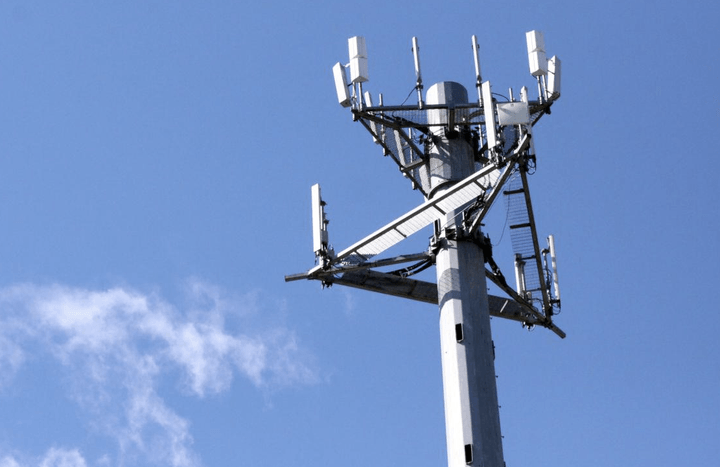
Of course, it could be nothing to do with you at all. So before you drive yourself nuts trying all these steps, reach out to your carrier and ask if there are any coverage issues such as a downed tower or one under maintenance in your immediate area. You could also check your carrier’s X account, Facebook page, or status webpage to see if others are experiencing similar issues.


