Android phones include a hidden menu called Developer options that unlocks advanced tools like USB debugging, animation controls, and other system-level tweaks. While it’s primarily designed for developers, anyone can enable it in a few taps.
Difficulty
Duration
What You Need
-
Android device
Enable Developer options on Android (quick answer)
To enable Developer options on Android:
- Open Settings
- Go to About phone
- Tap Build number seven times
- Enter your PIN or password
- Go back to Settings, and you should see Developer options
What are Developer options on Android, and why are they important?
Developer options give you access to features that aren’t available in the standard Android settings. It’s a hidden menu designed mainly for developers, but it has a few settings that may be useful for regular users as well.
These settings include tools for debugging apps, testing features, and adjusting how your phone behaves. For example, you can turn on USB debugging to install a custom ROM, speed up system animations, or force certain visual modes.
The menu is hidden by default to avoid accidental changes, since some options can affect performance or stability if misused. Overall, Developer options matter because they give you more control over your device, whether you want to fix issues, improve performance, or explore advanced features.
Step-by-step: Enable Developer options
The steps below are demonstrated using a Google Pixel 7 Pro running Android 16. The process is largely the same across most Android devices, but the exact menu names and locations may vary slightly depending on the manufacturer.
Step 1: Open the Settings app and select the About phone option.
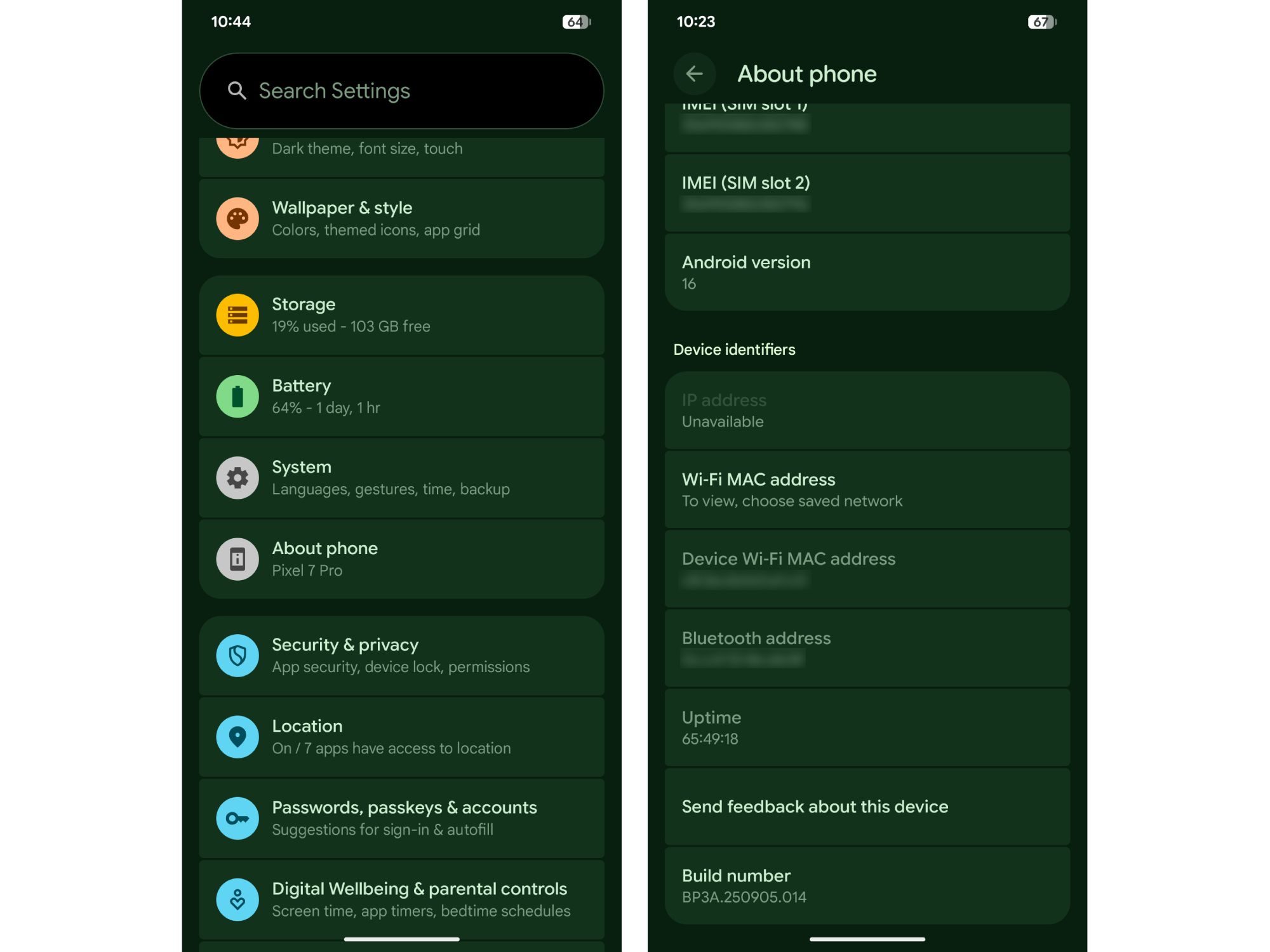
Step 2: Find the Build number option and tap it seven times quickly. You should see a pop-up saying “You are X steps away from being a developer.”
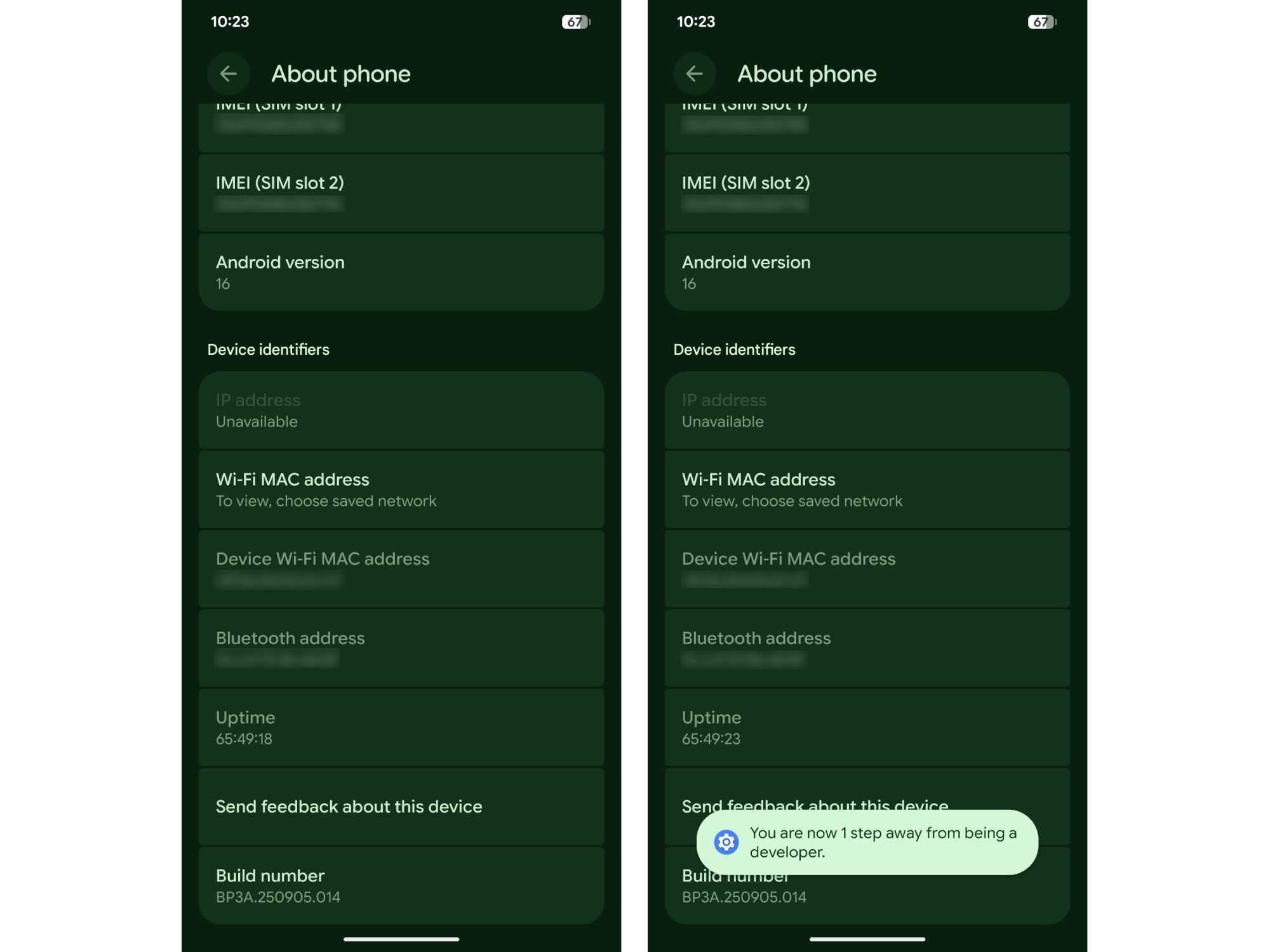
Step 3: Enter your PIN or password on the following screen, and you’re done. You’ll see a pop-up saying “You are now a developer.”
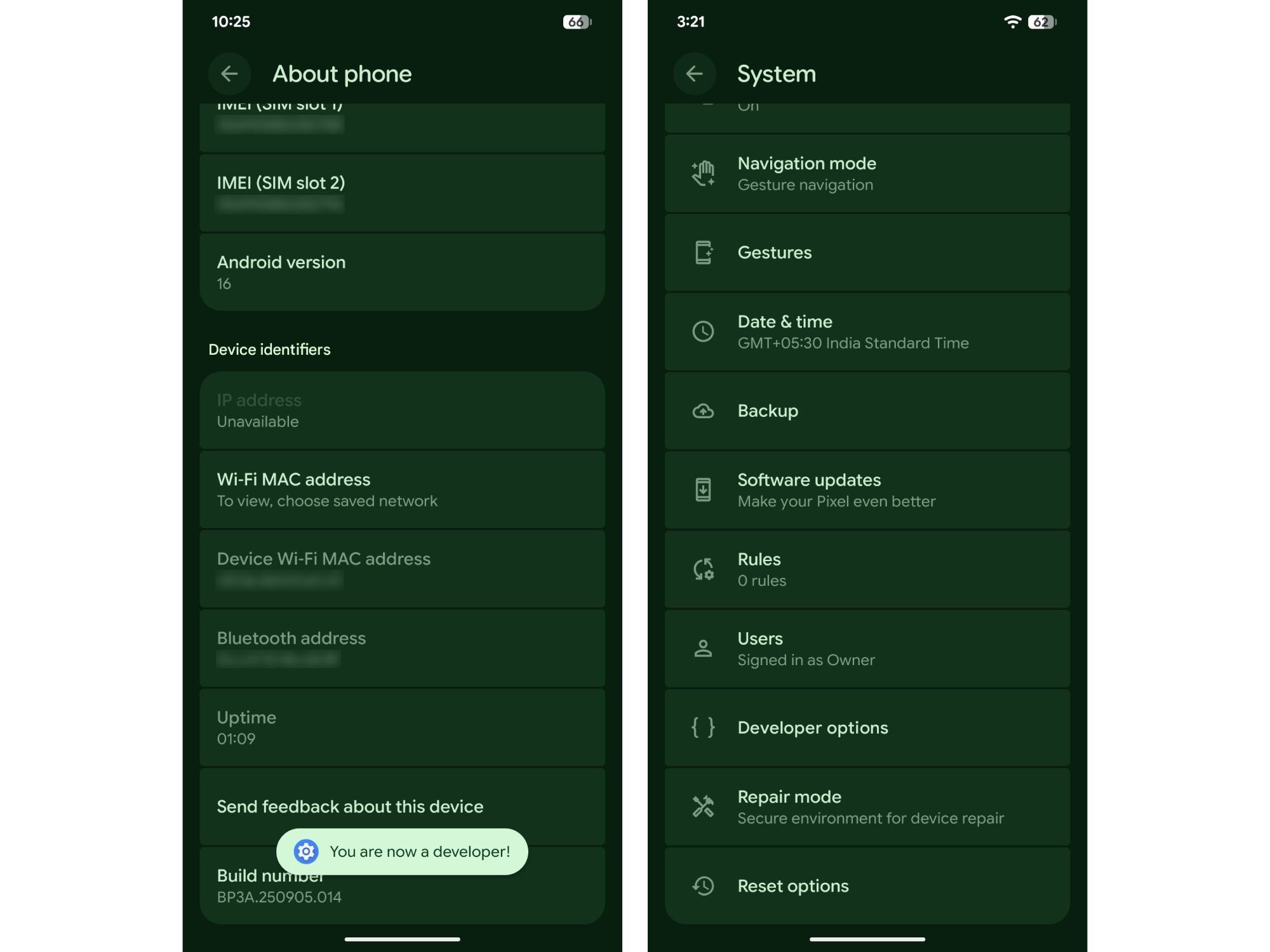
Step 4: To access Developer options, head back to the main Settings menu, select System, and you should see it at the bottom of this page.
Differences across Android brands
While the core process remains similar across devices, some Android brands place these options in slightly different locations. If you have a Samsung phone, you’ll find the build number within the Software information option in the About phone menu. Once enabled, Developer options will appear within the General menu in the Settings app.
On OnePlus phones running OxygenOS 16, the build number is listed as Version No., and you can find it by navigating to Settings > About device > Version. Once enabled, Developer options will appear in the System & update menu.
Most Android skins include a built-in search tool in Settings, so if you’re having trouble locating the build number or developer options on your device, you can simply search for them from the main settings page.
Useful Developer options tools you can try
- USB debugging: Connect your phone to a computer for advanced tasks like sideloading apps, changing system settings with commands, rooting the device, or recovering data.
- Animation scale: Make your phone feel snappier by reducing animations.
- Stay awake: Keep the screen on while charging
- Show taps: See visual feedback for taps to diagnose touchscreen issues.
Is it safe to enable Developer options?
Yes, enabling Developer options itself is safe. However, changing certain settings can adversely affect your phone’s performance and may cause apps to misbehave. So, if you’re unsure what a setting does, it’s best to leave it unchanged.
It’s also worth noting that certain banking and finance apps may restrict access if Developer options or features like USB debugging are enabled. In most cases, the app will notify you, and you can regain access by turning Developer options off with a few taps.
How to turn off Developer options on Android?
Turning Developer options off is much more straightforward than turning it on. If you no longer need it, you can:
- Go to Settings and navigate to Developer options.
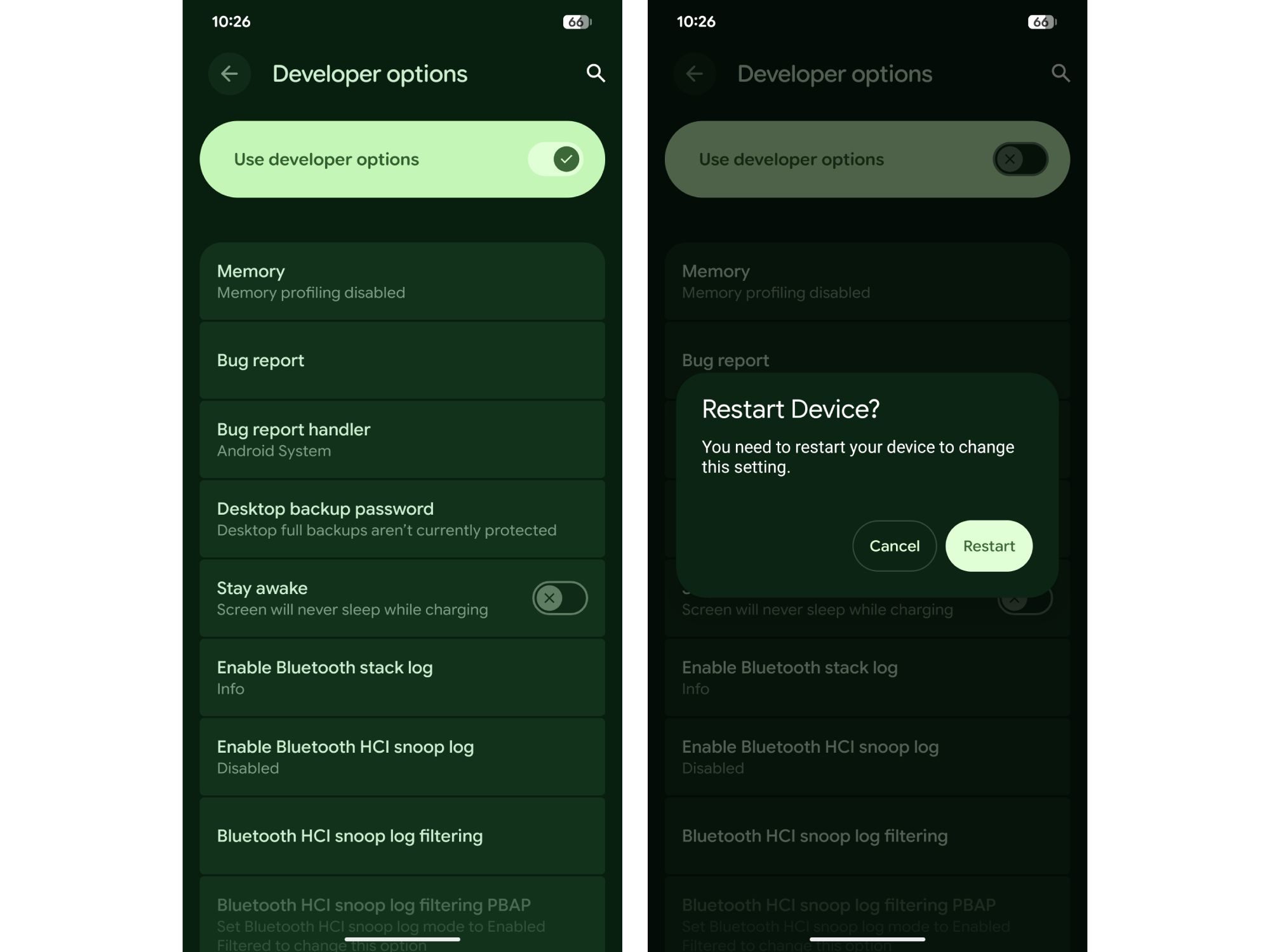
- Tap on the “Use developer options” toggle at the top.
- Your phone may prompt you to restart to change the setting.
After the reboot, the Developer options menu will no longer appear in Settings. Keep in mind that while the menu is turned off, some settings you previously changed may remain active until you manually reset them.
Enabling Developer options on Android is quick, safe, and unlocks a set of powerful tools that go beyond everyday settings. While most users won’t need it regularly, it can be useful for troubleshooting, customization, and squeezing extra performance out of your device.