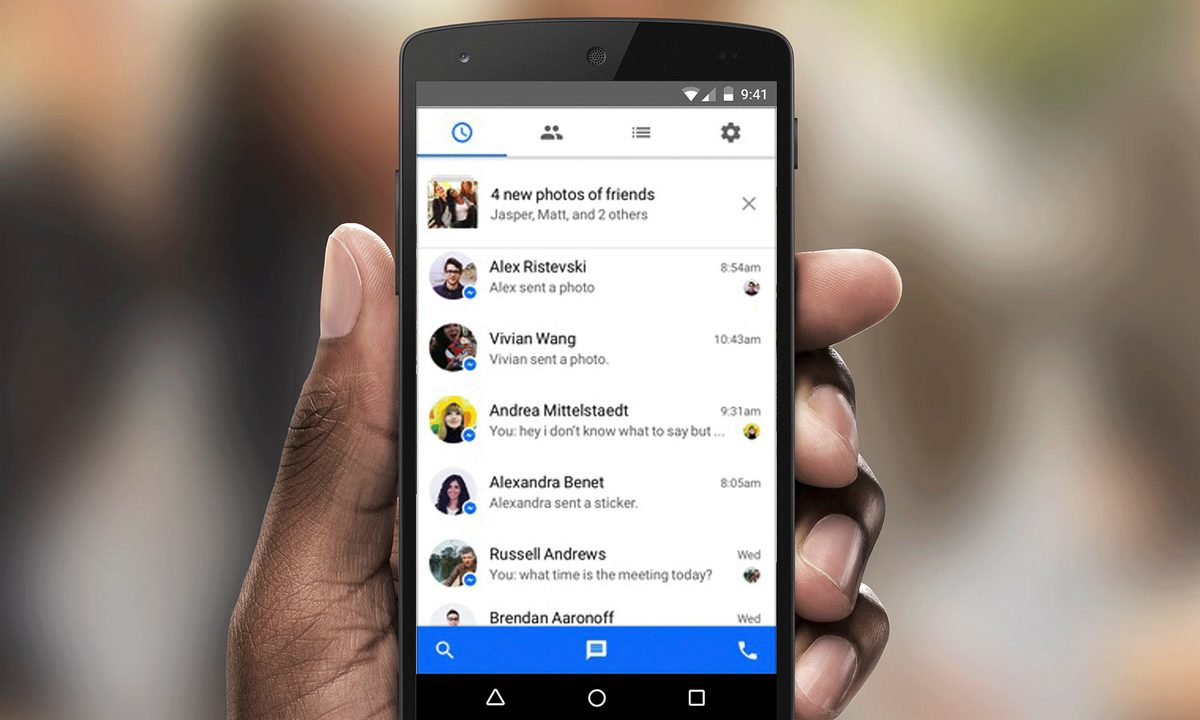
Facebook Messenger is one of the most widely used messaging services, and you probably know at least a few people who use it exclusively. Some people are moving away from Facebook, but still want to use the Messenger app. It once was possible to use Facebook Messenger without having a Facebook account at all. All you needed was a phone number to sign up. In December of 2019, Facebook quietly phased out that option. Now, you must have a Facebook account to make a Messenger account. There’s a sweet little loophole to get around this fact, though. Here’s what you need to know.
See more
- How to make a Facebook avatar
- Best messaging apps for Android and iOS
- Facebook Portal vs. Amazon Echo Show
How to use Facebook Messenger without a Facebook account
It turns out that you can still use Messenger after you deactivate your Facebook account. This means if you hate Facebook, you can deactivate your account and still use your favorite messaging app, no problem. It also means that if you don’t have Messenger, but want it, you can get it without keeping an active account up. You get what you want without needing Facebook. Now, you just need to set everything up.
Getting a Facebook account
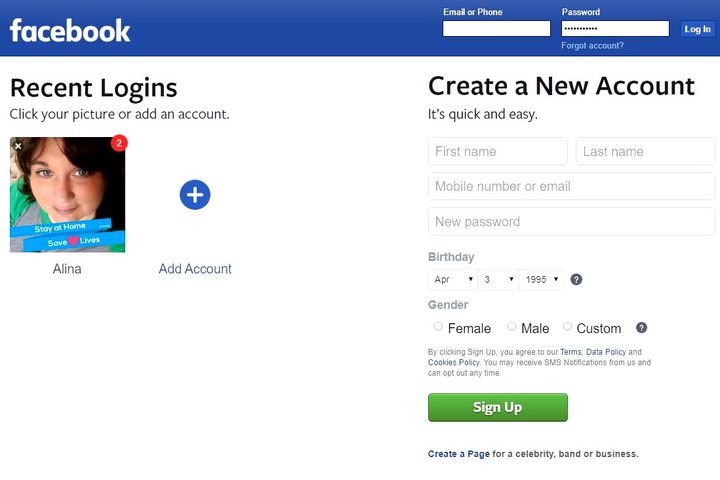
If you’re super anti-Facebook, don’t worry. You don’t need to set up a full-blown profile to get access to Messenger. Just go to Facebook.com and fill out the boxes under Create a New Account. If you don’t want Facebook to have your real phone number, create an alternate phone number using Google Voice and have it forward to your phone. Then click the Sign Up button and confirm your phone number. Skip over all of the other things like adding a profile photo or adding friends.
Set up Messenger
Now that you have your shell Facebook account, you can set up your Messenger. Download the Facebook Messenger app to your Android or iOS device. Open the app. Tap the Create new account button and sign up using your name and the phone number you used for your Facebook account.
How to deactivate your Facebook account and keep Facebook Messenger
Now you can deactivate your Facebook account. On desktop, open the menu and click Settings, choose Your Facebook Information, and tap the Deactivate and Deletion option.
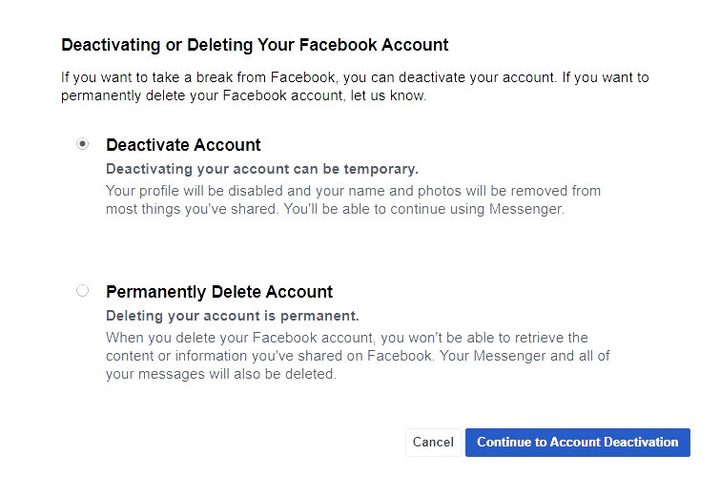
Choose Deactivate from the options on the new page. Be sure not to choose the Permanently Delete Account option, because you won’t be able to use Messenger if you totally delete your account. Click Continue to Account Deactivation and enter your password.
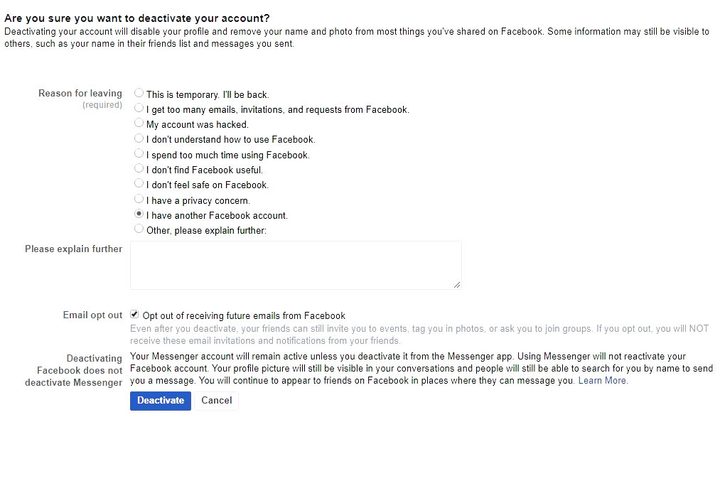 To finish up, complete the survey and deactivate your Facebook account. Your Facebook account will now be deactivated and you’ll be able to continue using Facebook Messenger. That’s all there is to it. You should now be able to use Facebook Messenger just as easily as anyone else. Through Messenger, you can upload photos, videos, start group chats, and more — all without a Facebook account. You can now download Facebook’s Messenger app to your desktop, too.