
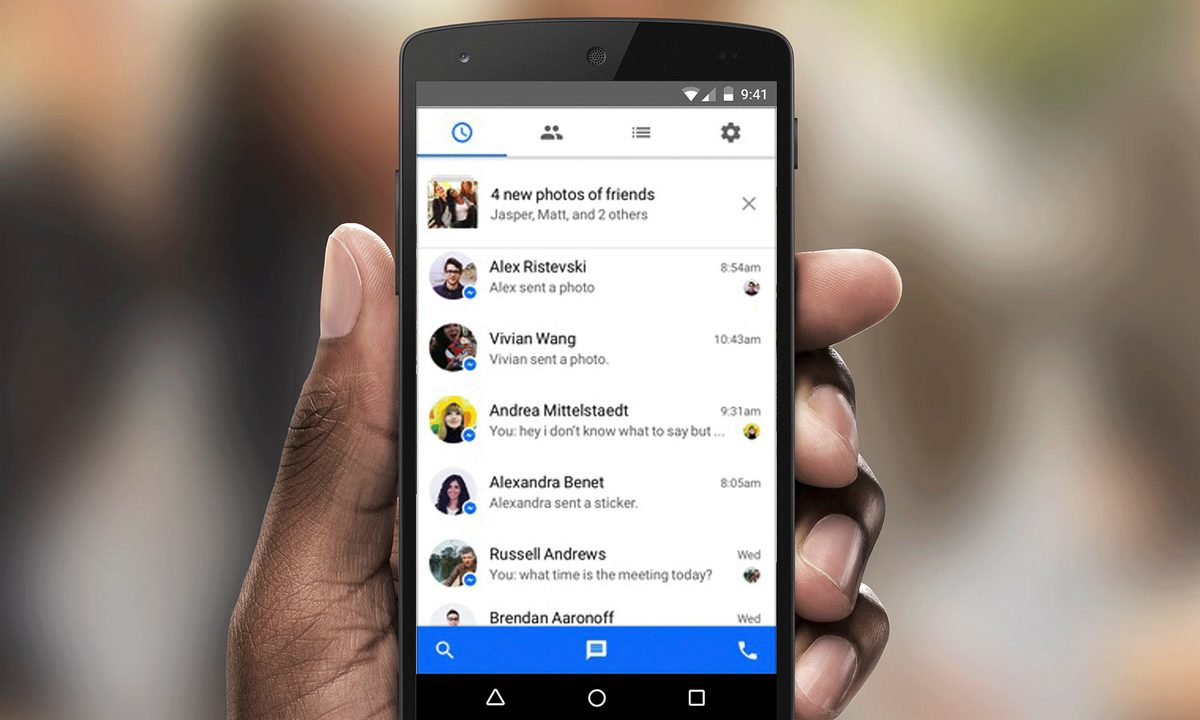
Facebook Messenger is one of the social media platform’s most popular features, and while it’s a great way for users to have private conversations, it’s also used by many as a way to start a fight or say things they don’t really mean. It’s not uncommon to make a mistake on Messenger or instantly regret sending a message.
Previously, when these mistakes happened, we just had to let them sit there, preserved in Facebook Messenger for all eternity. Now this is no longer the case.
Further reading
You can also archive and delete entire threads you no longer wish to look at. Deleting Facebook messages on your desktop or mobile device takes mere seconds, but deleting whole threads only applies to your own inbox, not your friend’s. Here’s how to do it:
Deleting messages on your desktop
Step 1: Log into Facebook like you normally would.
Step 2: Click the Chat Bubble in the upper-right corner, followed by See All in Messenger. The latter option is located in the bottom-left.
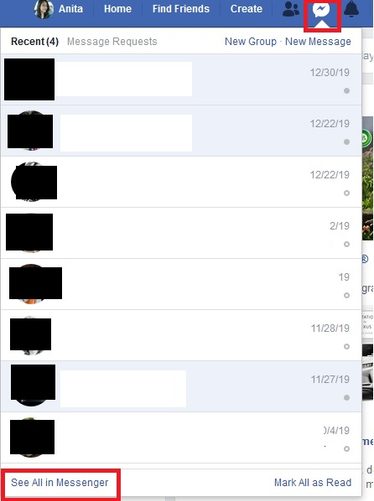
Step 3: To delete an entire message thread, hover over the conversation and click the Three Horizontal Dots icon on the right side of the message in your inbox. Afterward, select Delete from the menu that pops up.
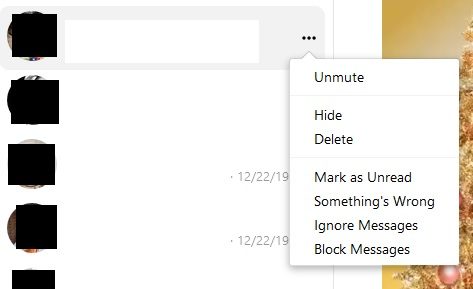
Step 4: You will then be presented with three options: Cancel, Delete, or Hide Conversation. Click Delete to continue.
Step 5: To delete a part of your conversation, click into the conversation, and hover over the message you would like to delete. Then, click the Three Horizontal Dots and press Remove.
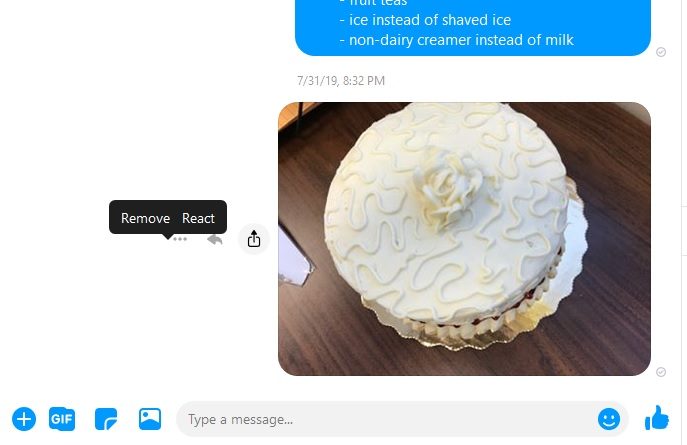
Step 6: If it’s been less than 10 minutes since you’ve sent the message, you will then be given the option to remove the message for everyone or just for yourself. Once you’ve made your selection, press Remove.
The person on the other end of the conversation will be able to see that you removed a message if you chose the “for everyone” option, but the content will no longer be available. If it’s been more than 10 minutes, you’ll only be able to remove the message for yourself.
Deleting messages on your mobile device
Step 1: If you haven’t already, download the Messenger app for either iOS or Android, and log in as you normally would.
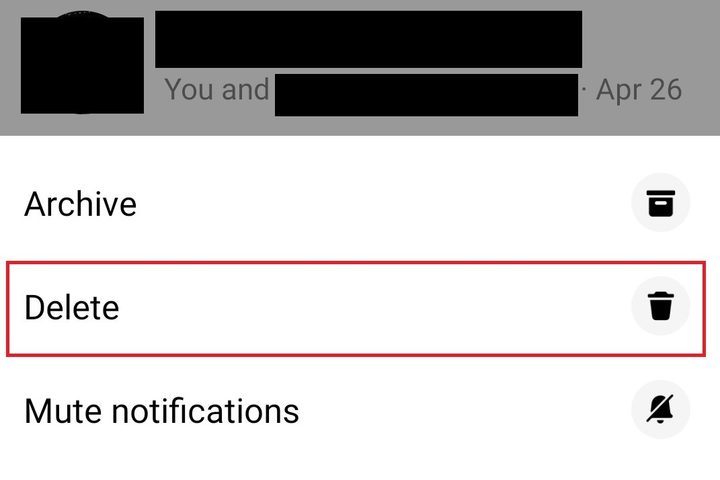
Step 2: If you want to delete an entire conversation, press and hold down the conversation, or if you’re an iOS user, swipe the conversation to the left and select the Red Trash Can. We know it’s easy to do this by mistake, so don’t stress about losing anything valuable. Your phone will always ask you to confirm before deleting. This is true for both Android and iOS.
Step 3: If you want to delete a single message, go into the conversation, hold down the message you want to delete, and tap Remove at the bottom. Then select Remove for You. If you have an Android, you will need to select Remove again to confirm. iOS users won’t see this final prompt, so be sure you want to select Remove for You.
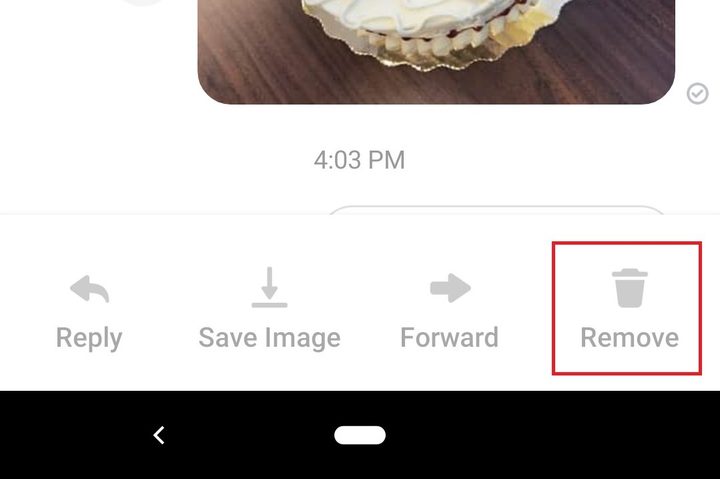
You’ll be able to remove the message for everyone if you take action within 10 minutes of sending it. Your phone will give you the choice to remove for everyone or just yourself. Once you’ve made your selection, press Remove. While the intended recipient will be able to see that you removed a message if you selected “for everyone,” they won’t be able to see the message’s content. If it’s been more than 10 minutes, you’ll only be able to remove the text for yourself.


