
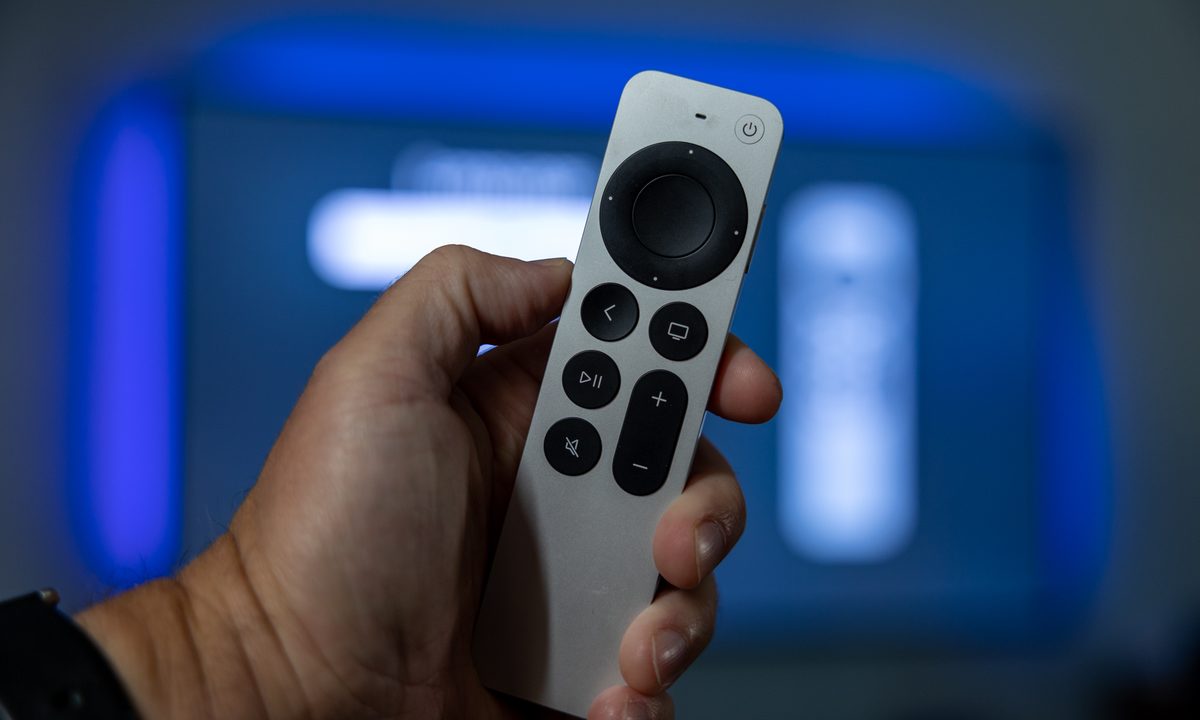
Apple TV 4k is one of the best streaming devices on the market right now, delivering access to the most popular streaming services, games, music, and more. You can even connect your AirPods for a private jam session, without waking up the kids, or bothering your roommates.
While this set-top box doesn't take up much space, its got the power to deliver your favorite shows and movies from the likes of Disney+, Netflix, and more ... once you've gotten everything set up properly. Setting up your Apple TV 4K should only take a few minutes, and we've got everything you need to know to get started below.
But while Apple’s intelligent voice assistant is capable of handling just about any task you can imagine, there’s one thing it can’t help with: the setup process. So if you hit a bump in the road to streaming bliss, you can always turn to this guide on how to set up an Apple TV.
Let's dig in.

Plug it in
First things first. Take the Apple TV out of the box and make sure it's in working order. You should have the Apple TV itself, a power cable, and the Siri remote. If you have the second generation of the Apple TV 4K (2021), it will come with a USB-A-to-lightning cable for charging the remote. But the latest third-gen Apple TV 4K (2022) comes with a Siri remote that now uses USB-C, but this time out Apple has not included the cable.
Step 1: Plug the small end of the power cable into the appropriate spot on the back of the Apple TV and the other end into a wall socket or power bar. The Apple TV will begin to power on.
Step 2: Plug the HDMI cable into the Apple TV and the other end into your TV, soundbar, or receiver. Be sure you're using at least an HDMI 2.0 cable for your TV that supports 4K and/or HDR. If you have the gear that supports Dolby Atmos sound, you'll need an HDMI cable that supports it. We won't get into all of that here, but we have a great explainer on how to know if you're getting Dolby Atmos sound.
Step 3: Plug in the Ethernet cable if you don't want to use Wi-Fi. We recommend this for best performance, but be aware that only the Apple TV 4K (2021) and the 128GB version of the Apple TV 4K (2022) have ethernet ports.

Turn on your TV
Now that everything is plugged in, it's time to boot things up.
Step 1: Turn on your TV and change its input selection to whatever the Apple TV is connected to. If you’re going through a receiver or soundbar instead, make sure that's what the TV is looking for.
Step 2: You should see the Apple TV setup screen once everything has booted up.
Step 3: On newer versions, the Siri remote is paired with the Apple TV automatically. If for some reason it's not, you can do it manually. For second-generation Siri remotes, press and hold the Back button and the Volume Up button for two seconds.
For older first-gen remotes, press and hold the Menu and the Volume Up buttons for two seconds.
A few steps to follow will appear on-screen, such as language and country selection, but then things get easy as the system will ask if you want to use an existing iOS device to do the setup. Yes, you do, it's dead easy.


Use your iOS device to set it up
If you've got an iPhone or iPad, the rest of the setup is extremely easy as the Apple TV can use your geographical, network, and account settings from either of those devices. Make sure you're running the latest version of iOS, you're signed in to iCloud with your Apple ID, and then follow the instructions on the screen when prompted.
Step 1: Unlock your device.
Step 2: Make sure it's connected to your home Wi-Fi network.
Step 3: Make sure Bluetooth is turned on.
Step 4: Hold the iPhone or iPad fairly close to the Apple TV for it to connect.

Step 5: When prompted, enter the authentication listed on the TV screen.
Finish up with some specifics
If you don't use this automated setup process, you'll be asked to enter your network and account information manually, which is a lot less fun. Otherwise, here's what will happen to complete the process.
Step 1: Your Apple TV will say that it's activating, connecting things like your iCloud account and HomeKit. You'll have access to a remote on your iOS device. Continue to follow the prompts on that and your TV screen.
Step 2: You'll be asked if you want to require a password for purchases. There are three options — always require, require after 15 minutes, and never require. If you've got kids who lack appreciation for things like income and bank accounts, now is a good time to set up a little protection. (You can always change the settings if you want.)

Step 3: Your Apple TV may also automatically switch display types depending on your TV, such as 4K Dolby Vision at 60Hz. If you like what you see, select OK and keep going. Again, this is a setting you can change later if you want.
Step 4: Other options will be presented like the transfer of settings from your iPhone or iPad (like Siri settings, location permissions, and analytics sharing), entering your TV provider, and screensaver, and setting it so that any other Apple TVs connected to your Apple ID will have the same settings and home screen.

And that's it for the main setup process. Anything you do here can be changed in the settings, including additional options for the Siri remote, audio, video, and any other devices you may connect.


