  1. Home
  2. Tablets
  3. Mobile
  4. How tos

How to share a Wi-Fi password on iPhone or iPad

Add as a preferred source on Google
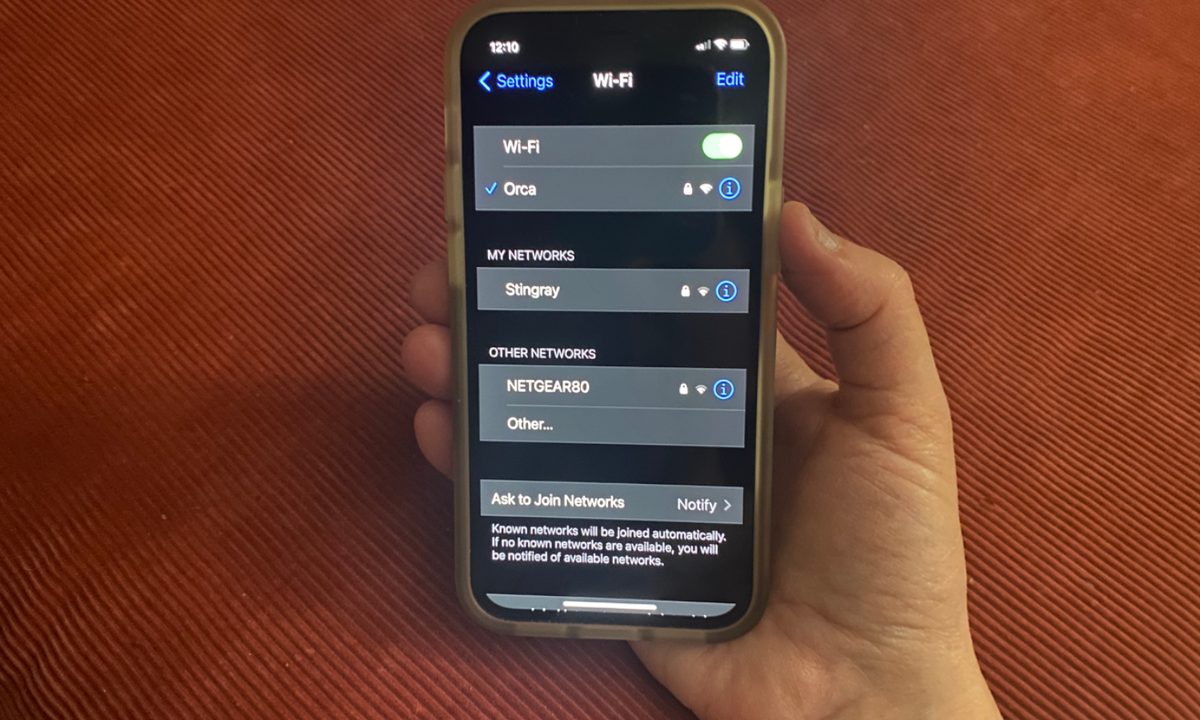
iPhone in hand with Wi-Fi interface feat image.
Digital Trends

A little-known Wi-Fi connectivity shortcut can make life easier for everyone while maintaining your privacy if you want to share your home password with guests. The Wi-Fi sharing feature, which debuted in the fall of 2017 with iOS 11, can connect any visitor to your home using an iPhone, iPad, iPod Touch, or even your Mac running macOS High Sierra or later, without specifically revealing it or forcing your guests to type it in. Just keep in mind that you'll both need to be using an iPad or iPhone for this to work, or it's back to entering the password manually.

Recommended Videos

Difficulty

Easy

Duration

5 minutes

What You Need

  • Apple iPhone or iPad

A little-known Wi-Fi connectivity shortcut can make life easier for everyone while maintaining your privacy if you want to share your home password with guests. The Wi-Fi sharing feature, which debuted in the fall of 2017 with iOS 11, can connect any visitor to your home using an iPhone, iPad, iPod Touch, or even your Mac running macOS High Sierra or later, without specifically revealing it or forcing your guests to type it in. Here's how to do it.

Prepare both devices

Prepare your phone by making sure your personal hotspot is off and the Apple ID of the person with whom you wish to share your Wi-Fi password is already in your Contacts list. Your two devices should be in fairly close physical proximity. Both devices should have the latest iOS or iPad OS version installed.

Step 1: Make sure your visitor is already in your Contacts using their specific Apple ID email address, and if they're not, add them now via Contacts > Add > Enter data > Done.

iPhone with Contact pane.
Image used with permission by copyright holder

Step 2: Switch Bluetooth on for both your iPhone and your visitor's iOS device via Settings > Bluetooth (toggle on).

Two iPhone screens with Bluetooth settings.
Image used with permission by copyright holder

Step 3: Position both devices near each other to let your visitor hop on to your Wi-Fi network by tapping Settings > Wi-Fi > Your Wi-Fi network name.

Wi-Fi pane on iPhone.
Image used with permission by copyright holder

Step 4: When your visitor taps your network's name, a password box appears on your phone. When the card appears on your iPhone, tap Share password. The connection takes place on your visitor's device automatically.

Share Password interface on iPhone.
Apple

Step 5: When the connection is accomplished, you'll get a notification on your iPhone. Tap Done.

Share Password interface on iPhone.
Apple

By successfully sharing your Wi-Fi password, you have spared your guests the stress of having to manually punch in a complex string of letters, numbers, and symbols. With people you know and trust, this is a surefire way to make them feel welcome in your home.

Jackie Dove
Former Contributor
Jackie is an obsessive, insomniac tech writer and editor in northern California. A wildlife advocate, cat fan, and photo app…
Boox’s palm-friendly e-reader will please bookworms with its stylus and cutesy looks
Boox has added stylus support to the Go 6 e-reader for note taking
Boox Go 6 (Gen II) e-reader with stylus

Boox has launched the Go 6 (Gen II), its new 6-inch E Ink reader and the successor to the 2024 Boox Go 6. The new model keeps the small, lightweight format that made the original popular, but adds one major upgrade in the form of note-taking support.

The Go 6 (Gen II) is now available for pre-order through the official Boox shop for $199.99, with shipping expected to begin around June 17. It is still very much a compact travel e-reader, but the stylus support gives it a bit more flexibility than the 2024 model.

Read more
AT&T per-day plans put cellular services on your iPad, even if you’re not a customer
AT&T is selling cellular data like a one-day gym pass now
iPad

AT&T has introduced a new wireless offering called Unlimited Day Pass, giving eligible iPad users access to 24 hours of unlimited cellular data for a flat daily fee of $3 - even if they are not AT&T customers. The new service is designed for Wi-Fi + Cellular iPad models with eSIM support and marks one of the first major attempts by a U.S. carrier to offer truly on-demand tablet connectivity without contracts, subscriptions, or long-term commitments.

According to AT&T, the first Unlimited Day Pass is free for customers, limited to one iPad per person. After that, users can purchase additional passes directly from their iPad using a debit or credit card. The company says activation can be completed directly through the iPad’s settings menu without requiring an app or even an active Wi-Fi connection. Users simply need to open the Settings app, navigate to Cellular Data, and add the AT&T Unlimited Day Pass. Once activated, the 24-hour unlimited data session begins shortly afterward.

Read more
You can now buy the most affordable Kindle Scribe on Amazon
The Kindle Scribe without Front Light is now available for $70 less than the standard model
kindle-scribe-without-front-light

If you have been holding off on getting a Kindle Scribe because of the price, Amazon just gave you a reason to reconsider. The Kindle Scribe without Front Light is now available for purchase on Amazon for $429.99, making it $70 cheaper than the standard Kindle Scribe.

Amazon first announced this model back in 2025, and it has finally arrived. However, the one catch is right there in the name. There is no front light, which means reading or writing in dim environments will be trickier than on the pricier model.

Read more