
Apple’s Shortcuts app has been on iOS for years, but in MacOS Monterey, it finally makes its way to the company’s computers. This powerful app is right at home on the Mac, as it lets you simplify complex tasks and run powerful operations with just a click — or even with your voice.
Today, we are going to show you everything you need to know to create and use effective shortcuts on your Mac. Download the MacOS Monterey public beta, open the Shortcuts app, and follow our instructions to start automating tasks that will make your life a little easier.
How to create your first shortcut
The Shortcuts app contains a range of pre-made shortcuts ready to be used. Many of these are excellent tools, but you might want to make your own shortcut and tailor it to your needs. Here’s how to do it.
Step 1: Add components to the canvas
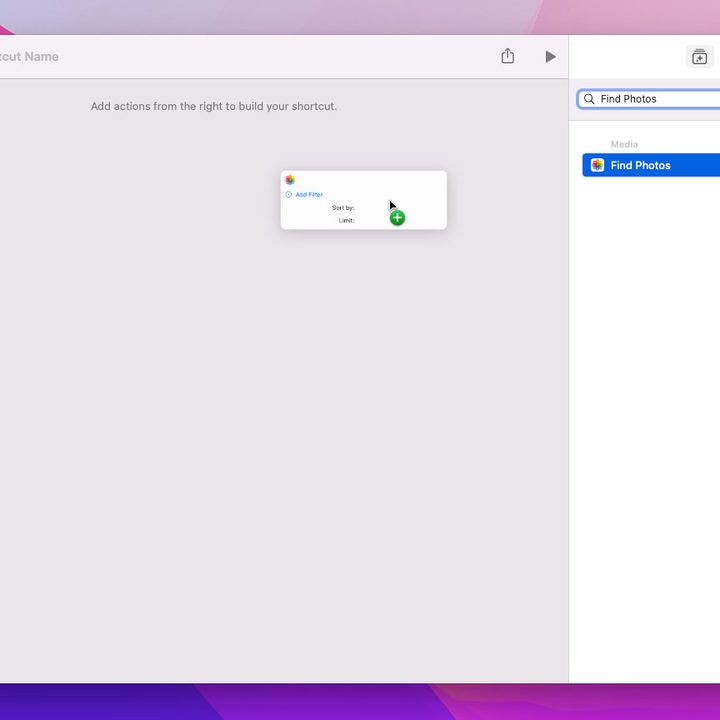
In Shortcuts’ Top Menu, click the Plus button. This opens the shortcut creator window. We will choose the components that make up a shortcut from the menu on the right. You can find components sorted into categories or look for one associated with a particular app. Above these options is a search box.
Here, we will create a simple shortcut that lets you change your desktop wallpaper. In the search box, type Find Photos, then click and drag the resulting component onto the shortcut canvas.
Step 2: Define some behaviors
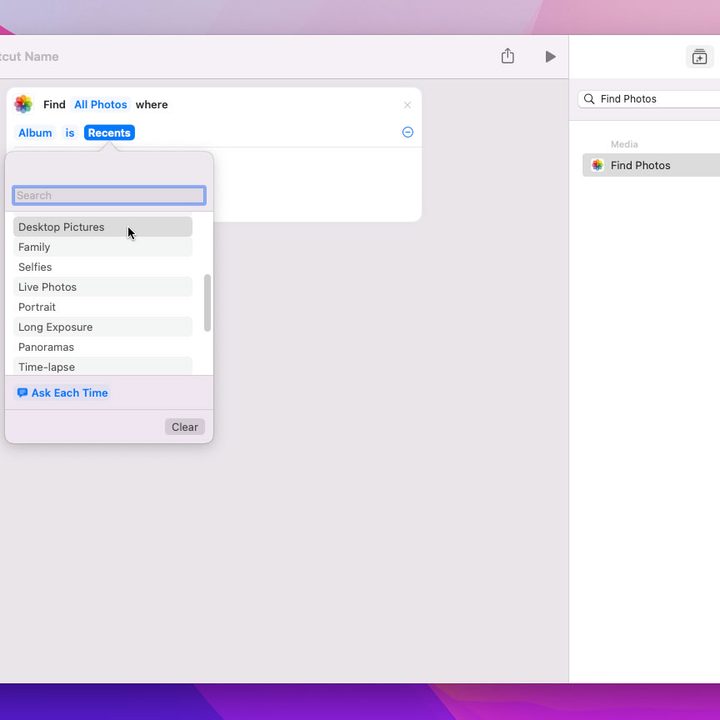
Some shortcut components offer customizable options. The Find Photos one, for instance, lets you add filters, sort the results, and limit them to a defined number.
Click Add Filter. This adds the phrase “Album is Recents” to the component. Notice that each word is highlighted in blue — this means it is a variable that can be changed. Click Recents, and a pop-up window appears. In the list, pick a folder from the Photos app that you want to use as a wallpaper repository. Shortcuts will use this folder to show you images you can set as your background picture. Leave the other options as they are.
Type Set Wallpaper in the right-hand search box and drag the resulting component underneath Find Photos on the canvas. This step tells your Mac to use the photo you chose as your computer’s desktop image.
Step 3: Take it for a spin
Click Shortcut Name at the top of the canvas window and give your shortcut a new title. Click the Icon to the left to change the shortcut’s icon and icon color.
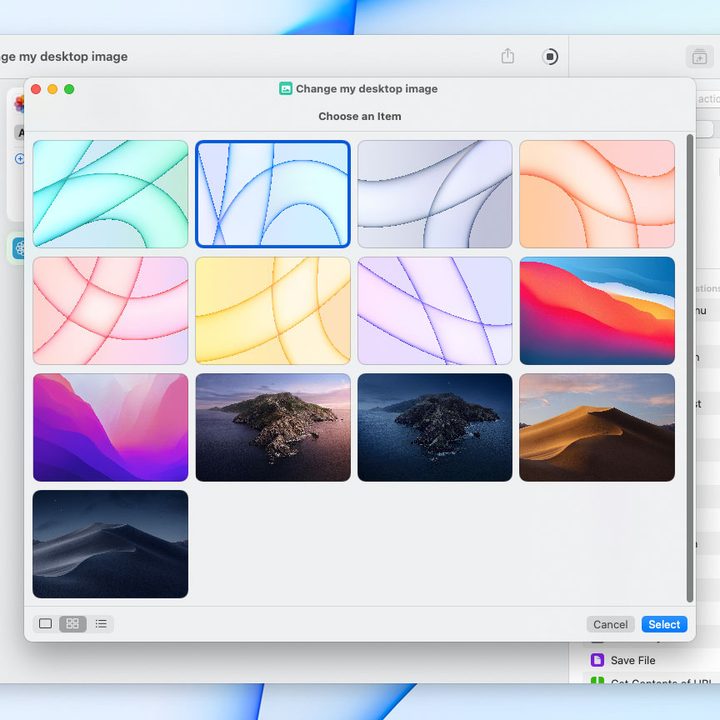
Now, click the Play icon. A window will appear showing images in your defined wallpaper folder. Choose one and click Select. The first time this runs, you might have to allow the shortcut to run in a subsequent window; this time, click Always Allow.
And just like that, your wallpaper has been changed!
How to run a shortcut
The beauty of the Shortcuts app is there are so many ways to launch your creations. Let’s look at some of the most useful ones.
Inside the Shortcuts app
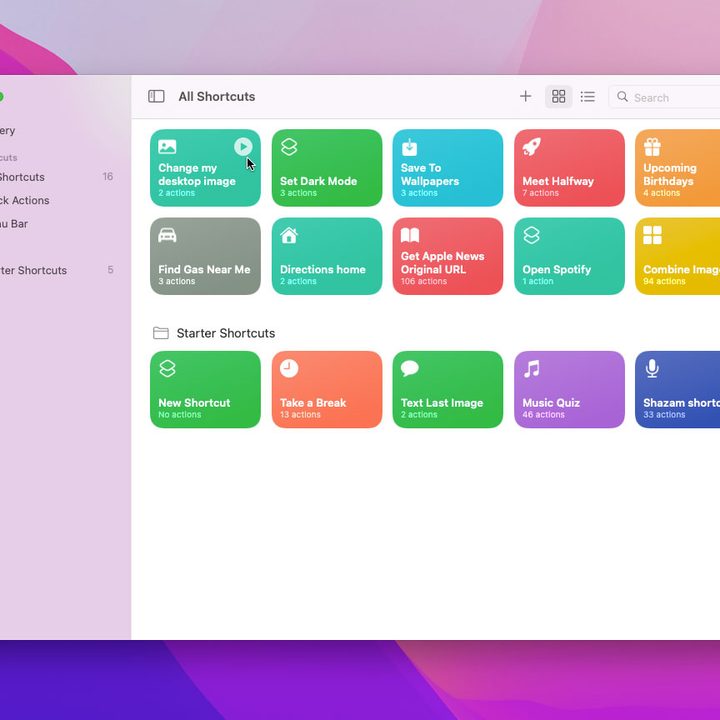
The simplest way to run your shortcuts is to do so from the Shortcuts home page. In the left-hand sidebar, click All Shortcuts under the My Shortcuts header. To run a shortcut from here, hover your mouse over it and click the Play icon that appears (or double-click it to edit its settings).
Shortcuts you have added to the quick-actions menu or the menu bar will appear in their own sections in this sidebar for easy access (more on these functions later).
Speak to Siri
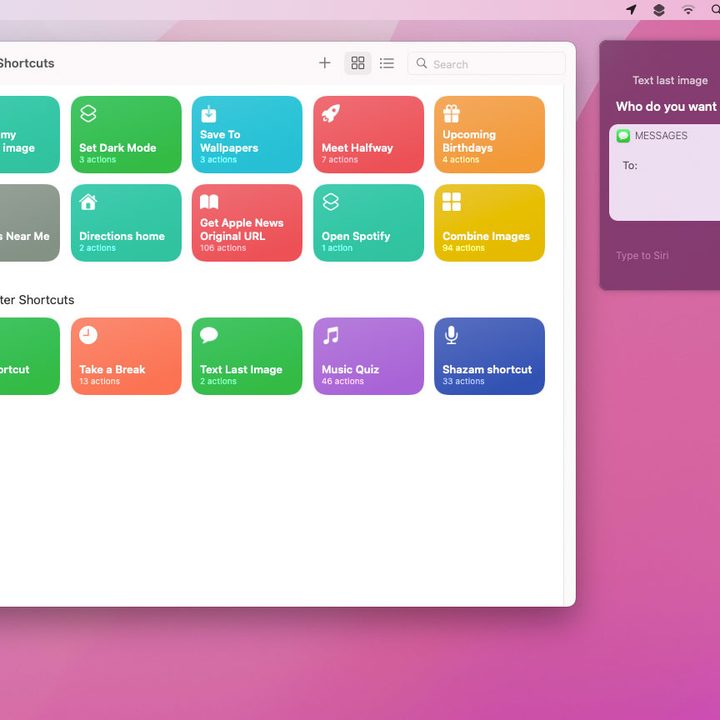
Shortcuts’ greatest strength is its ability to make complicated, multi-step processes much easier to carry out. Siri is a great ally in this endeavor. Instead of delving through menus and settings to get to even the first step in your shortcut, just talk to Siri.
On your Mac, the trigger phrase is the shortcut’s name, so make it something descriptive. Click the Siri icon in your menu bar or say “Hey Siri,” followed by the shortcut name. For example, “Hey Siri, change my desktop image,” or, “Hey Siri, text last image.”
Use Quick Actions
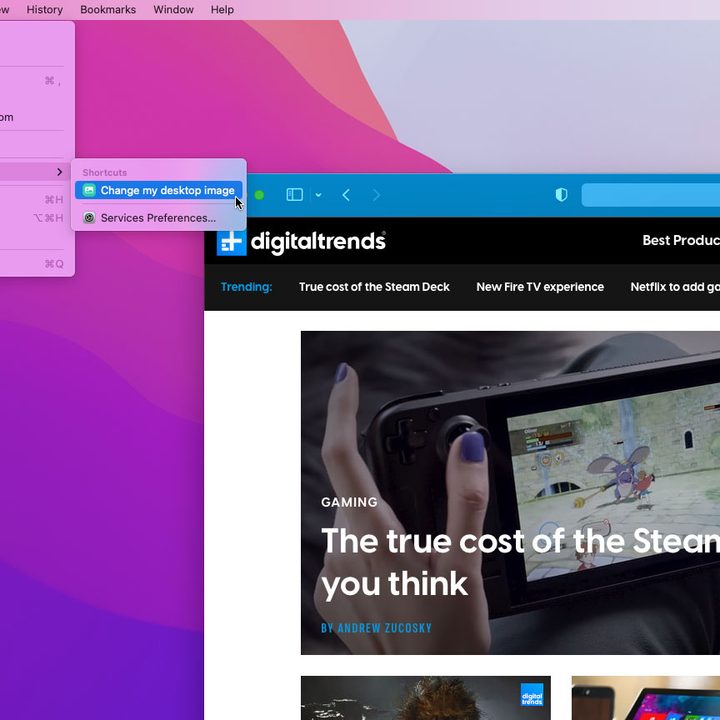
Open a shortcut, then open the Settings menu in the top-right. Tick the Use as Quick Action checkbox. The Services Menu checkbox automatically gets ticked. Now open any app and click its name in the menu bar, then hover over the Services menu item. You will see the shortcut has appeared. This is a quick way to access shortcuts no matter which app is running.
Tick the Finder checkbox, and the shortcut will be added to the right-click menu. Whenever you right-click in Finder, you will find the shortcut under a section at the bottom of the menu titled Quick Actions.
Alternatively, press Command + Space to open Spotlight, then type the name of your shortcut, and press Return to launch it.
Extra tips
There are even more great features in the Shortcuts app. Here are some of our favorites.
Add a shortcut to the menu bar
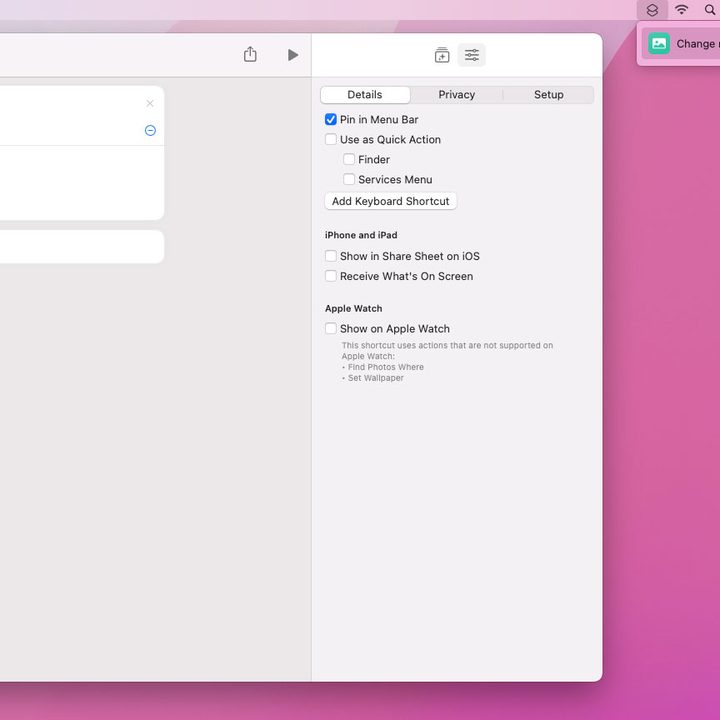
A great option is to add your most-used shortcuts to your Mac’s menu bar. From the All Shortcuts page, double-click your chosen shortcut. In the top-right, click the Settings slider icon, then click Pin in Menu Bar. Click the Shortcuts menu bar icon, and you will now see your shortcut. You can add multiple shortcuts to this menu, giving you quick access to your favorites.
Use a keyboard shortcut
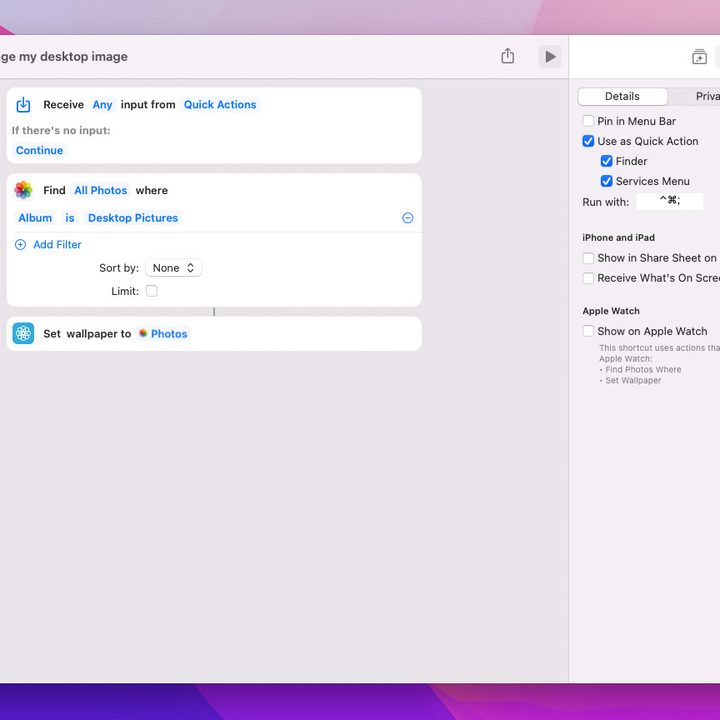
An even quicker way to trigger your shortcut is to give it a keyboard shortcut. From the Settings menu in the previous instruction, click Add Keyboard Shortcut. In the box that appears next to Run With, enter your preferred key combination.
Don’t worry, you cannot overwrite existing keyboard shortcuts. If you pick one that is already in use, nothing will be entered in the box. If the keyboard shortcut is available, its component keys will be shown in the box. Press Return, and it will be saved.
Note that this was a little buggy in the MacOS Monterey beta when we tested it. We expect Apple will tweak it as more updates are released.
Sync your shortcuts
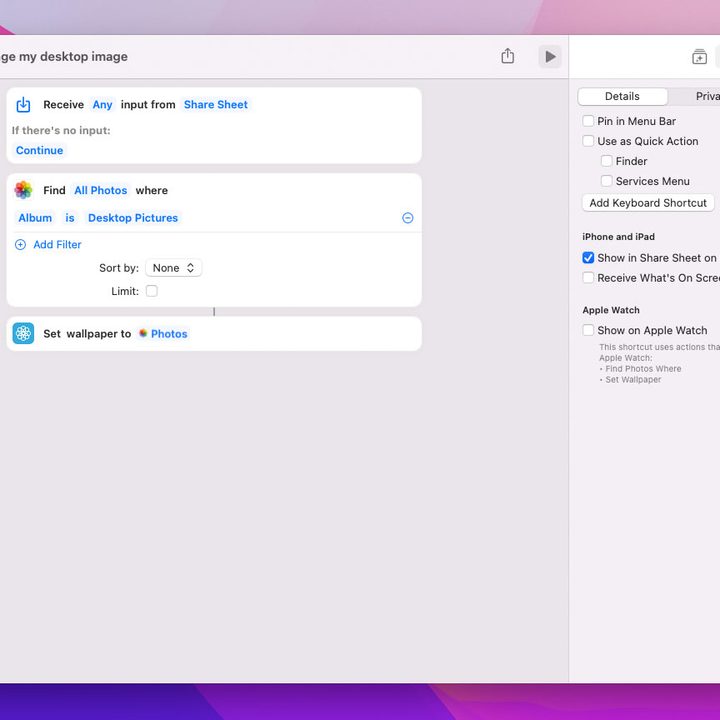
Some shortcuts work just as well on your iPhone or Apple Watch as they do on a Mac. All your shared shortcuts will be synced to your other devices automatically, but there are ways you can make them a little more visible.
In the settings menu, tick the checkbox next to Show in Share Sheet on iOS. Now, whenever you click the Share button on your iPhone or iPad screen, the shortcut will appear.
Or, you can tick the checkbox next to Show on Apple Watch to place it on your Watch home screen. If the shortcut is not compatible, the Shortcuts app will give you a warning.


