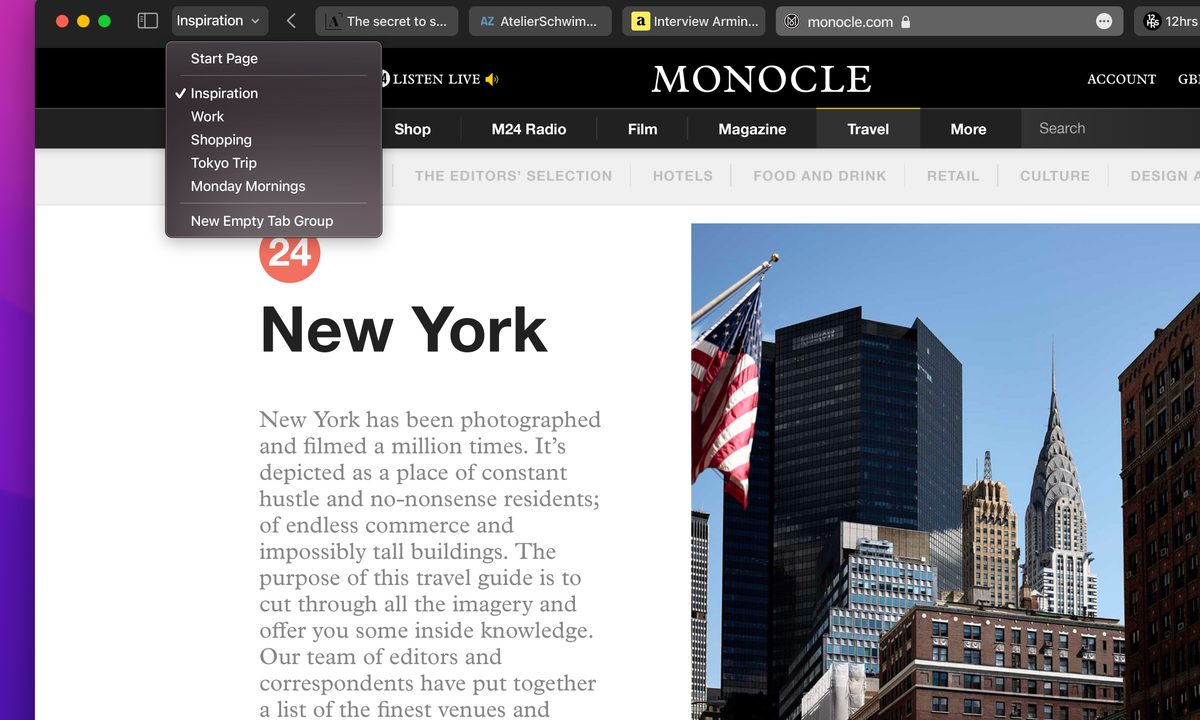
With MacOS Monterey, Apple has updated Safari’s tab management system with a new look, more customization options, and the ability to form tab groups for managing especially busy online sessions.
We’re big fans of these changes, as they make work and research easier to manage over the long term, but the extra features will take some practice to get comfortable using. Here’s how to get started with tab groups so you can make the most of them.
How to use tab groups in Safari
First, make sure everything is updated and you are using the latest version of Safari.
Step 1: Collect the sites you want to save.
Open Safari and start opening new tabs to visit the websites you want to collect in a group. If you are doing research on Einstein, for example, you would want to collect a number of tabs including biographies, common Einstein myths, a list of his major theories and works, and so on.
Don’t leave any blank tabs when you are finished. There doesn’t appear to be a limit to how many tabs you can put in a group, but at a certain point, too many browser tabs can become cumbersome — you may want to keep it under 20 or so.

Step 2: Turn your tabs into a tab group.
When ready, select File from Safari’s upper-left menu, then look for the option that says New Tab Group With X Tabs, where X is the number of tabs you currently have open. Select it.
Now you can name your tab — something like “Einstein,” for example — and it will automatically be saved. Any work you do in this Safari window will still count as the tab group, and the group will be updated accordingly. Close your Safari window to save your tab group for later.
When you want to access the tab group again, pop open Safari and select the Sidebar icon, just to the left of the Favorites menu. This drop-down menu will include all the groups you have created under Tab Groups. When you select the group you want, Safari will open all tabs in a single window for you to use and change Favorites to the name of your tab group.
Note the Small Grid icon to the right when you hover over a tab group — this opens up all tabs in a grid view that makes it easier to scan for the webpage you had in mind.
Alternative: Create a new tab group from scratch
You don’t have to collect your tabs first before turning them into a tab group. If you prefer to set up and name your tab group ahead of time, this is easy to do as well.
Open Safari, select File in the upper-left corner, and select New Empty Tab Group. Now, any tabs that you create while you work will be automatically added to the tab group you have made.

Step 3: Rename or delete your tabs.
Don’t let your tab groups get cluttered over time! Instead, reuse them by renaming them, or delete them when you are finished with that particular project or plan. Open Safari, then select the Sidebar icon right next to the Favorites menu.
Hover over the Tab Group, then right-click to open a menu with several choices. Here, you will see an option to Rename the group or to Delete it entirely when you are finished. Keep these options handy when your tab groups start to pile up.

Step 4: Share tab groups as needed.
In the Sidebar menu, when you right-click on a Tab Group, you’ll notice another option that says Copy Links. Choose this, and it will allow you to paste an outline-like section with the tab group as the title and a bulleted list of the web links. This makes it easy to share or email the tab group as needed.

How to create tab groups on iOS
We’ve been talking about the MacOS version of tab groups, but there’s good news: With iOS 15 updates, iPhones and iPads have very similar capabilities. Safari’s syncing capabilities will also stay in place, allowing you to access tabs you created on your Mac on other devices.
If you want to create tab groups on iOS, long-press the Tab button on Safari and select the arrow for Move to Tab Group to open the option for Tab Groups.
Don’t forget to keep updated on the latest Mac news for more information.