
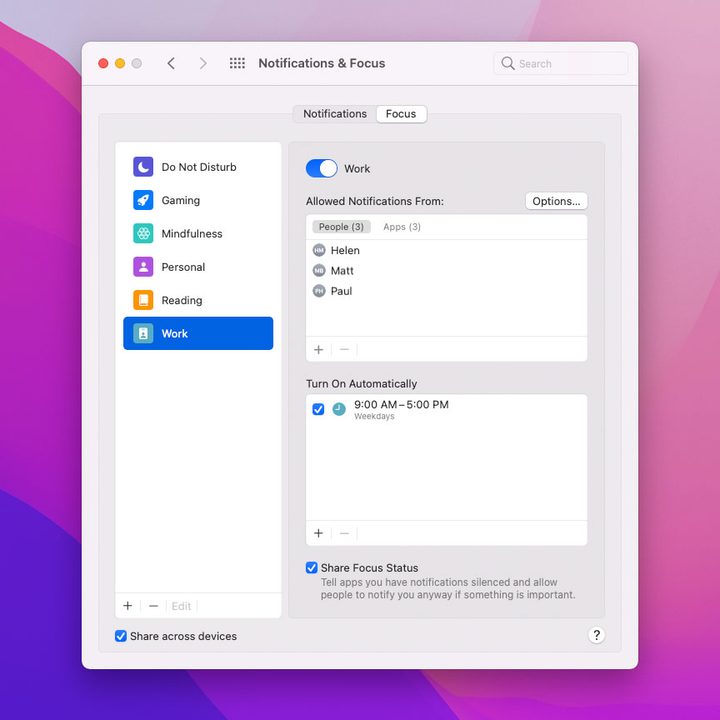
It’s very easy to get bombarded with emails, notifications, messages, and more while using your Mac. Luckily, MacOS Monterey includes a new feature called Focus. This lets you set a notification-blocking regime that cuts out distractions and helps you stay on track.
Focus modes are highly customizable. You can choose which people and apps to allow and which to block, when Focus mode operates, and whether it syncs to your other devices. You can even create multiple Focus modes for different situations.
And don’t worry — any messages and notifications sent while your Focus mode is on are not lost. Just open the notification center on your Mac and you’ll see all your alerts.
With a well-crafted Focus mode or two at your disposal, losing your concentration while using your Mac will be a thing of the past.
Create a new Focus mode
To get started with Focus mode, open System Preferences and click Notifications > Focus, then click the Focus tab. There is a Do Not Disturb preset that blocks all notifications except those from people you have allowed. You might find it’s a bit heavy-handed. Focus mode is much more nuanced.
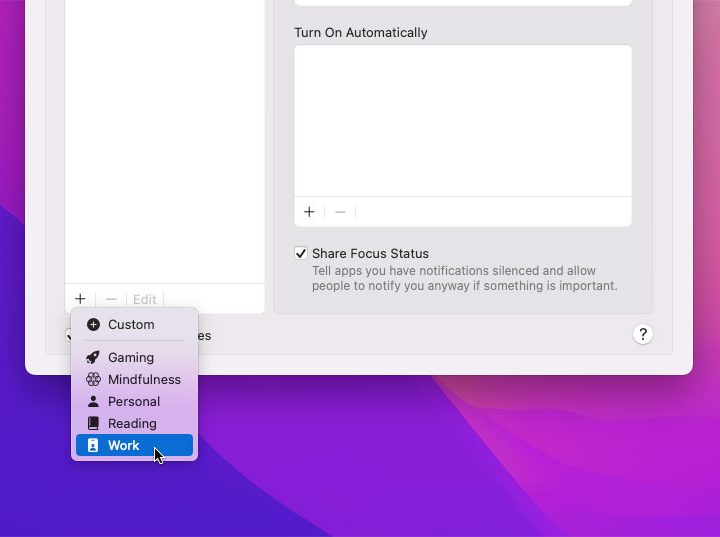
In the Focus tab, click Plus Sign at the bottom of the left-hand column. You can choose from a few suggested Focus mode names, including Gaming, Mindfulness, Personal, Reading, and Work. Select one, or click Custom and give your Focus mode a name, color, and icon. Then click Add.
Control notifications
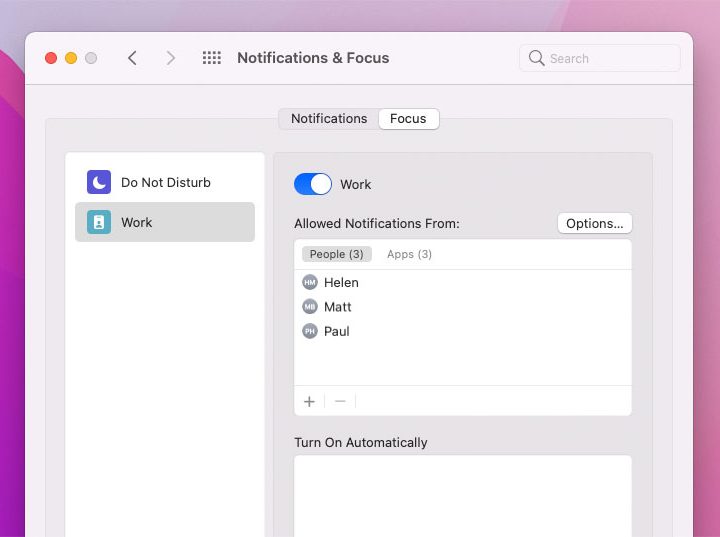
Click the new Focus mode in the left-hand column. Under Allowed Notifications From, click the Plus button. Choose people from your contacts list, and click Add to permit them to contact you. Click the Apps tab under Allowed Notifications From to do the same for apps. This will allow your specified Mac apps to send you notifications but block all others.
Next to Allowed Notifications From, click Options. Here, you can choose who to allow calls from (such as your favorites or all contacts) and whether repeated calls will be allowed through. Finally, you can tell your Mac to allow time-sensitive notifications even while your Focus mode is running. This means you can still be alerted about a calendar event that is due to start soon, for instance.
Run Focus mode automatically
At the top of the Focus tab in System Preferences is a toggle — turn this on to manually enable the selected Focus mode. When this happens, you will notice your Focus mode’s icon appears in your Mac menu bar. Click this to switch to a different Focus mode or manually decide if it should run for one hour or until later in the day. There is also a Focus option in the Control Center that lets you manually turn on one of your Focus modes.
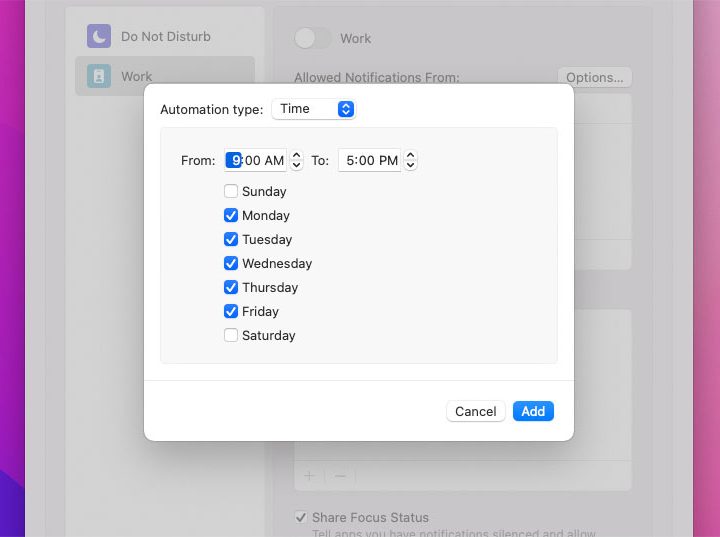
If you want a more hands-off approach, you can set your Focus mode to start automatically. Under Turn On Automatically, click the Plus button, then click Add Time Based Automation. Choose the days and time ranges the Focus mode is active.
You can also set a location-based automation that will activate your Focus mode when you arrive at a certain place (for example, your local coffee shop where you like to work). Note that at the time of writing, we were using the MacOS Monterey beta, where location-based automations were not working. This feature will likely be enabled by Apple at a later date.
There is a third option for app-based automations, which will start your Focus mode as soon as you launch a specified app.
Extra options
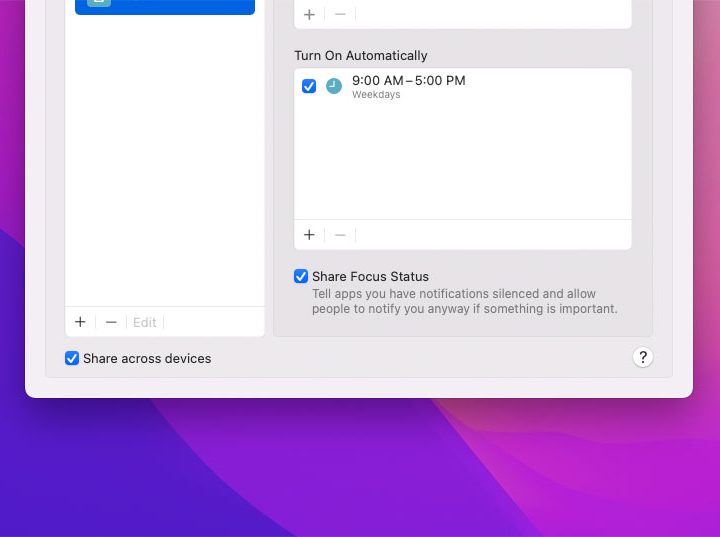
Got other Apple devices and want them to use the same Focus mode rules? Make sure the Share Across Devices checkbox in the bottom-left corner is ticked to sync everything to other devices running on the same Apple ID. Alternatively, if you just use your Mac as a work-only machine, for example, and don’t want your Work Focus mode to affect your personal iPhone, make sure this box is unticked.
When you have Focus mode switched on, your Mac can automatically tell people who try to contact you that you’re unavailable. At the bottom of the Focus tab in System Preferences, enable Share Focus Status. This will show a message to people saying you are busy and give them an option to break through and contact you anyway if something is particularly important.


