MacOS Big Sur brings some big changes, and one of the best is the introduction of the Control Center. As in iOS 14, this puts common system controls at your fingertips for easy access. You no longer have to go digging around in System Preferences — everything you need is right at the top of the screen.
In this guide, we will show you all you need to know about this handy MacOS Big Sur feature, including a few nifty tricks to get the most out of the Control Center and customize it to your liking.
Step 1: Basic controls
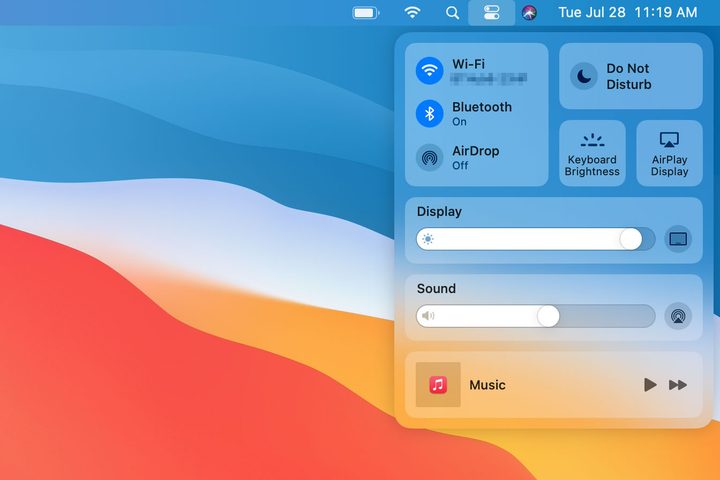
You will notice that, like in older versions of MacOS, there are some icons in the menu bar by default. Click on one of them to get basic controls and information for things like your Mac’s battery level and Wi-Fi details.
On the right-hand side of the menu bar is the Control Center icon (it looks like a couple of sliders). Click it to see an iOS-style palette of controls and options. There are sliders here for Display and Sound, which give you much more fine-grained control than the standard MacOS keyboard shortcuts do for these settings.
Step 2: Go deeper

On the Control Center palette, you can click on a widget to get deeper controls. For example, click Do Not Disturb and you will see options to turn it on for one hour, until the evening, until the next day, or to turn it on permanently. There is also a shortcut to the Do Not Disturb options in System Preferences. To return to the main Control Center panel, click the Control Center icon in the menu bar.
Step 3: Drag and drop Control Center widgets

One of our favorite features of the new Control Center is how easy it is to customize. If you find yourself frequently opening Control Center and returning to a certain setting, you can make it easier to access by moving it to the menu bar at the top of your Mac.
All you have to do is click and drag the widget from the Control Center onto the menu bar. When you drag it over, the other icons on the menu bar will make a space for the one you are moving from the Control Center. Release your mouse button to drop the icon into place.
Step 4: Rearrange your menu bar icons

Once you have dropped a widget onto the menu bar, you can move it to a new position by holding the Command key and clicking and dragging it. This can be done with any icon on the menu bar (except Siri and the Control Center icon).
You can also remove an icon from the menu bar entirely, which is useful if you feel the space is getting a little too crowded. To do so, simply hold Command and drag and drop the desired icon from the menu bar onto the desktop space. It will disappear from the menu bar.
Step 5: Customize with System Preferences
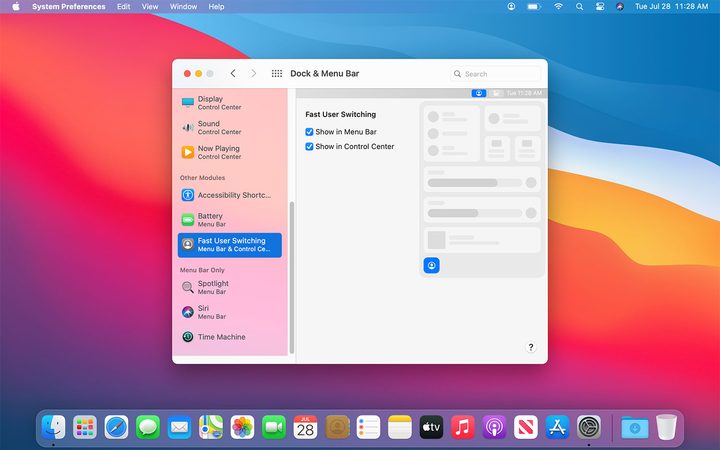
There is another way to alter the Control Center and the menu bar and customize your Mac’s appearance. Open System Preferences and click Dock & Menu Bar. Here you will see various options in a column on the left-hand side, all sorted into various sections.
Click on a setting in the Control Center section. The widget’s position in the Control Center will be highlighted, along with an option to show it in the menu bar. Simply tick the checkbox and it will appear at the top of the screen.
In the Other Modules section are widgets that can be added to both the Control Center and the menu bar. Tick the checkbox next to Show in Menu Bar or Show in Control Center and they will appear, with their position highlighted in System Preferences. Some, like Battery, have additional options here too.
Finally, the Menu Bar Only section houses icons that will not appear in Control Center. You can add them to the menu bar, however.