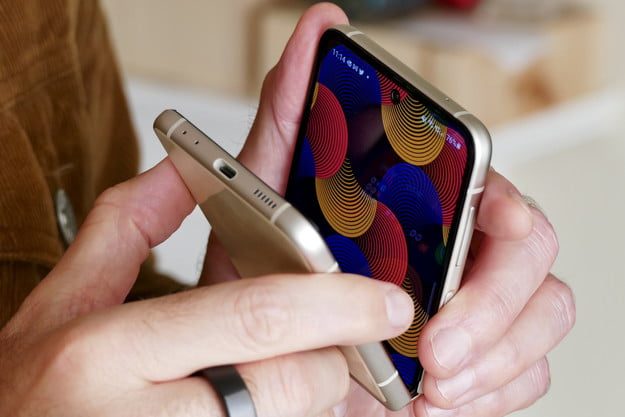
The boom of foldable and flexible displays marks the revival of flip phones for anyone who is over the unstimulating block design. Brands like Motorola and Samsung are bringing flip phones to the fore, and the category of folding phones is once again set to upswing with forecasted sales of $29 billion by 2025. If the layout piques your interest, the Samsung Galaxy Z Flip 3 is definitely one of the best devices.
While the first-gen Galaxy Z Flip — both LTE and 5G variants — felt primitive because of the tiny and monochrome outer display and a fragile design, the Z Flip 3 brought a major upgrade with a more rigid inner foldable display, a bigger and colorful outer screen, and better performance. Interestingly, the Galaxy Z Flip 3 also offers you one of the most satisfying experiences of the now-archaic flip phones — the natural way to take and end calls.

What is the natural way?
Anyone who has ever owned or used a flip phone while phones with a keypad were still in vogue will remember the swanky gesture that made them iconic pieces of mobile phone history. Back when people still used phones to make calls a lot, you could flip open a folding phone to pick up a call and fold it to end the call. This gesture was more than just a utility; it was a statement marked by a dapper attitude and unmatched style.
The reincarnated Motorola Razr supports the natural way to take and end calls by default. Likewise, the Galaxy Z Flip 3 also supports it but it is disabled by default. In this guide, we will learn how to activate it.
How to pick up and end calls on the Galaxy Z Flip 3 using the natural way
Since the gesture to pick up and end calls by flipping it open or shut is disabled by default on the Galaxy Z Flip 3, we need to enable it.
Step 1: Open the Settings app on your Galaxy Z Flip 3 and go to Apps > Samsung app settings > Call settings.
If you use Samsung's Phone app as your default dialer, you can also access these settings by selecting the Three-dot button in the dialer app and then choosing Settings.

Step 2: Inside Call settings, select Flip options.
Step 3: On this page, enable the toggle next to Open phone to answer calls. This will automatically pick up calls on the Galaxy Z Flip 3 when you flip it open.
Step 4: Next, enable the toggle for Close phone to end calls. This will automatically end or reject a call when you shut the Galaxy Z Flip 3.
Step 5: You may also enable the toggle for Turn off speakerphone when phone opens and/or Turn off speakerphone when phone closes.
When the former is active, the call will automatically switch from the speaker to the earpiece when you open the phone. In the latter case, the call will automatically switch from earpiece to speakerphone when you flip the phone shut. However, note the second option only works if you have disabled the option to end calls by closing the phone.
Step 6: Note that none of these gestures affect your calls when you use a wired or wireless Bluetooth headset.
Step 7: However, you may still want to dismiss and end calls without having to swipe on the display while you are using a headset for something like listening to music or watching something. To achieve this, you can activate the gesture to end calls by pressing the power button.
To enable the option, head over to Settings > Apps > Samsung app settings > Call settings. Go to Answering and ending calls and enable the toggle next to Press side key to end calls.

How to disable the natural way on the Galaxy Z Flip 3?
In this step, we will visit the steps needed to deactivate this feature.
Step 1: Start by opening the Settings app and go to Apps > Samsung app settings > Call settings. Alternatively, you can go to the Samsung Phone app and choose the Three-dot button on the top-right and then select Settings.
Step 2: Tap Flip options.
Step 3: Disable the toggle next to Open phone to answer calls to stop picking calls by opening the phone. This may be necessary if you third-party caller ID apps such as Truecaller or even another default Dialer such as Google Phone because the Galaxy Z Flip 3's outer display does not show the recipient's phone number or ID.
Step 4: Disable the toggle next to Close phone to end calls to stop ending calls by shutting the phone.
Step 5: To disable the option to end calls using the power button, go back to Call settings. Select Answering and ending calls and then disable the toggle next to Press side key to end calls.
Note that this trick also works on the Galaxy Z Flip and the Z Flip 5G. It should also be applicable to any upcoming vertically flipping phones from Samsung such as the eventual Galaxy Flip 4. Unless Samsung decides to enable the setting by default, you can enable the feature to connect and disconnect calls simply by opening and closing the phone and continue to impress everyone around you with your style.