  1. Home
  2. Wearables
  3. Mobile
  4. How tos

WatchOS 10: how to add widgets to your Apple Watch

Add as a preferred source on Google
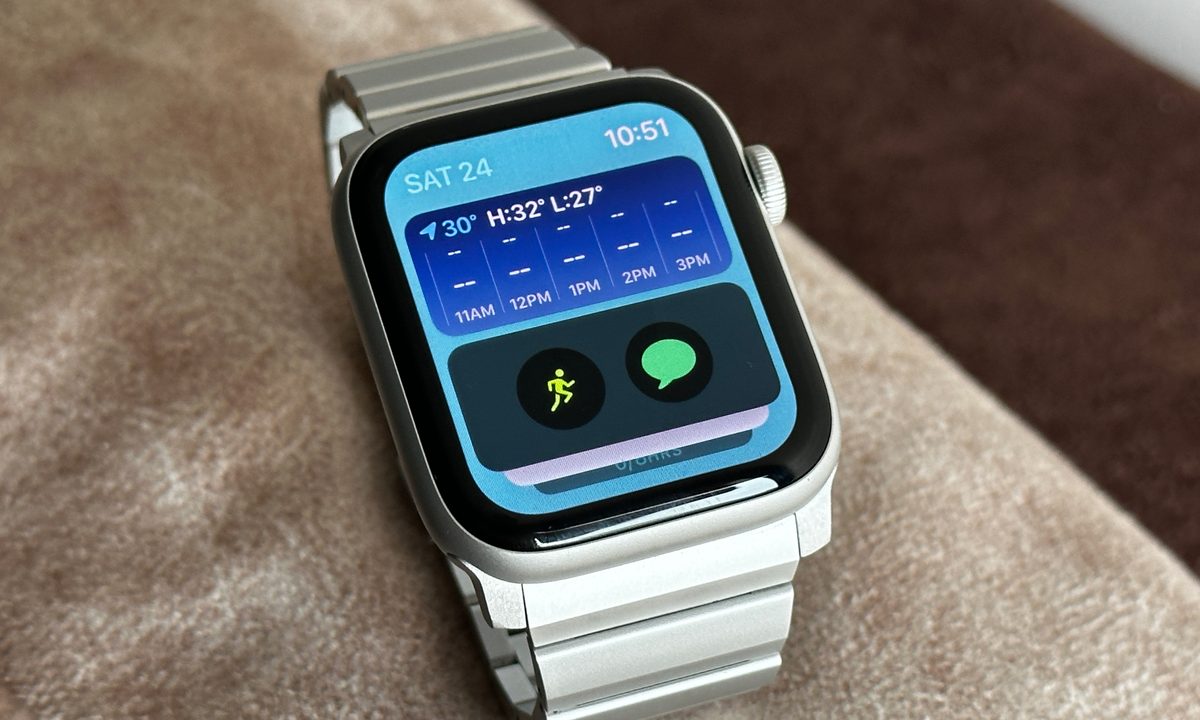
Apple Watch SE with widgets screen.
Prakhar Khanna / Digital Trends
Promotional logo for WWDC 2023.
This story is part of our complete Apple WWDC coverage

WatchOS 10 is a welcome update for Apple Watch users. It not only adds new good-to-have features but also gives more functionality to the Apple Watch. One of these features is widgets that allow you to see information like the weather, calendar appointments, and more at a glance on your Apple Watch. These are immensely useful when you need to see such information on the go without needing to pick up your iPhone.

Recommended Videos

Difficulty

Easy

Duration

5 minutes

What You Need

  • An Apple Watch running watchOS 10

As mentioned above, Apple Watch widgets are part of Apple's watchOS 10 update. You can download watchOS 10 now if you want, but the software is currently a developer beta — and that means it's very buggy. You're probably better off waiting for the public beta later in the summer or the full release this fall, but if you do download watchOS 10 now and want to use the new widgets, this is how they work.

How to add watchOS 10 widgets to your Apple Watch

When you install watchOS 10, you get access to Weather, Compass, Activity, and Workout app widgets by default. But you can add more with a few taps. Here's how you can add widgets to your Apple Watch.

Step 1: Unlock your Apple Watch.

Unlock your Apple Watch.
Prakhar Khanna/Digital Trends

Step 2: Swipe up to access the widgets menu, and you'll see the pre-installed widgets.

Swipe up to access the Widgets menu and you'll see the pre-installed widgets.
Prakhar Khanna/Digital Trends

Step 3: Long press on one of the pinned widgets.

Long press on one of the pinned widgets.
Prakhar Khanna/Digital Trends

Step 4: You will see a new menu with a + icon and a list of widgets.

You will see a new menu with "+" icon and list of widgets.
Prakhar Khanna/Digital Trends

Step 5: You might need to remove one of the pre-installed widgets to add a new one. To do this, tap on the top right corner of the widget to unpin it and tap on the - sign in the top left corner to remove it.

You might need to remove one of the pre-installed widgets to add a new one. To do this, tap on the top right corner of the widget to unpin it and tap on the "-" sign on the top left corner to remove it.
Prakhar Khanna/Digital Trends

Step 6: Tap on the + icon to add a new widget.

Tap the "+" icon to add a new widget.
Prakhar Khanna/Digital Trends

Step 7: Tap on the widget you want to add. Reposition it by holding and dragging it, and tap on Done at the top right corner.

Tap on the widget you want to add and tap Done.
Prakhar Khanna/Digital Trends

All the widgets available in watchOS 10

With watchOS 10, you get access to a lot of widgets. You can choose from the following:

  • Activity
  • Alarms
  • Astronomy
  • Audiobooks
  • Calendar
  • Compass
  • Heart Rate
  • Medications
  • Mindfulness
  • Music
  • Noise
  • Now Playing
  • Podcasts
  • Reminders
  • Shortcuts
  • Sleep
  • Stocks
  • Stopwatch
  • Timers
  • Tips
  • Wallet
  • Weather
  • Workout
  • World Clock

This list is bound to keep growing as more developers support the feature, but even this early on, it's a very strong start.

Your Apple Watch is now more powerful with watchOS 10. But Apple Watch Series 3 won't get the upcoming watchOS update, and Apple Watch Series 4, Series 5, and first Generation SE will miss out on the Time in Daylight feature to help parents to keep track of their kids spending time in the sun.

Other than that, most of the new features will roll out to Apple Watch Series 4 and later — including the new widgets.

Prakhar Khanna
Prakhar Khanna is an independent consumer tech journalist. He contributes to Digital Trends' Mobile section with features and…
Apple wants you to verify your identity before you get Education discount on products
Apple moving the US Education Store off the honor system also seems about making a globally consistent verification infrastructure that could eventually support more aggressive Education Store expansion.
Computer, Electronics, Laptop

Getting an Apple Education discount in the United States used to be as simple as claiming you’re a student or a teacher; it didn’t need a formal verification. That era is officially over. 

Starting May 8, 2026, Apple now requires formal identity verification for all Education Store purchases in the US, ending the informal honor system that was in place for years (via MacRumors). 

Read more
You can finally avail an education discount on the Apple Watch
It's Apple broadening its ecosystem play into a segment that previously had no wearable entry point, and that could meaningfully accelerate Apple Watch adoption among younger first-time buyers.
Side view of Apple Watch Series 11.

Apple’s Education Store has always been a reliable shortcut to cheaper Macs and iPads for students and teachers. However, for years, Apple Watch wasn’t allowed into the story, making people wait for third-party sales or discounts to get their hands on the smartwatch. 

That’s changing, with effect from May 8, 2026. Apple has quietly added the Apple Watch to its Education Store for the first time. The Watch Series 11, SE 3, and the Ultra 3 are now available at discounted education pricing across 21 markets, including the US, UK, India, Canada, and Australia. 

Read more
Whoop’s response to Fitbit Air and Google Health is real doctors, not just an AI chatbot.
In the race to own your health data, Google chose an AI, and Whoop chose a doctor. That single decision may define which fitness tracker serious health users reach for in 2026 and beyond.
A person wearing the Whoop 5.0.

Recently, Google launched the Fitbit Air as a direct rival to the Whoop screenless fitness band, rebranded the Fitbit app to Google Health, and released a Gemini-powered AI coach. Exactly one day later, Whoop has responded with on-demand video consultations with licensed clinicians for US users. 

The contrast is hard to ignore. While Google is betting on AI as your general health advisor, Whoop is doubling down on real, licensed doctors, and making the case that they can serve its fitness-focused users considerably better (via CNBC).

Read more