
After three years in early access, Baldur’s Gate 3 is out on PC. It’s a beautiful, dense RPG with a lot of detail, but you’ll need the best settings to optimize your performance on PC.
The game runs well based on my 10 or so hours in it, and the graphics menu offers a lot of bandwidth to optimize your performance. However, the game also includes several unique settings that are hard to decipher, as well as a slew of upscaling options. In this guide, I’ll walk you through all of them, as well as the best settings to get the highest performance.
Best settings for Baldur’s Gate 3

Baldur’s Gate 3 has a fairly dense graphics menu, and although there are descriptions for the various settings, they don’t fully describe what each setting does. This is a problem because there are some unique settings to the game that you won’t find in other releases. Because of that, I have a brief description of what some of the more opaque settings do along with the best settings I’ve found for the game.
- V-Sync — Off — I recommend using Variable Refresh Rate (VRR) if you have a monitor that supports it. Otherwise, use Triple Buffering for V-Sync. It will increase input lag, but that’s not a major problem in this game.
- Model Quality — Medium — Model Quality refers to the overall quality of geometry, as well as its level of detail at distances. Even at the highest settings, models will pop in as you get closer to them. This setting impacts not only the quality you see up close but also the level of detail at a distance. I recommend sticking with Medium, but definitely bump the setting up to High if you have some performance headroom.
- Detail Distance — Low — Detail Distance impacts the detail of elements like shadows and reflections the further they are from the camera. Large shadows and reflections will still appear, so you can safely bump this setting down to Low without impacting the look of the scene too much.
- Instance Distance — High — The Instance Distance is the level of detail for smaller objects, such as rocks and shrubs. You can bump this setting down to Medium, but I didn’t notice a large impact on performance.
- Texture Quality — High — This has the largest impact on image quality, but there is less of a difference between High and Ultra than there is between the lower two settings.
- Texture Filtering — Anisotropic x16 — Texture Filtering has basically no impact on performance.
- Slow HDD Mode — Off — This setting can help if you’re running a spinning hard drive. I explain more on this setting later.
- Dynamic Crowds — On — Impacts how busy crowds act. Turn it off if you have an older, slower CPU.
- Shadow Quality — Medium
- Cloud Quality — Medium
- Fog Quality — Low
- Nvidia DLSS — Balanced — Change this depending on your performance target. Only supported on Nvidia RTX GPUs.
- AMD FSR 1.0 — Off — Leave this off in all but the most desperate of cases. It looks bad.
- FidelityFX Sharpening — On
- Anti-Aliasing — TAA — Baldur’s Gate 3 really needs anti-aliasing, and TAA looks best. There’s also Nvidia’s Deep Learning Anti-Aliasing (DLAA) if you have an RTX graphics card.
- Depth of Field — Off
- God Rays — Off
- Bloom — Off
- Subsurface Scattering — Off
That’s a lot of settings, and there’s definitely room to tweak further from here. The game also includes an auto-detect feature that will optimize your settings based on the hardware you have. It’s not perfect, but it can point you in the right direction.
For my optimized settings, I saw nearly a 16% increase in performance compared to the Ultra preset. That’s not bad considering there’s a minor impact on visual quality, as you can see in the image below.
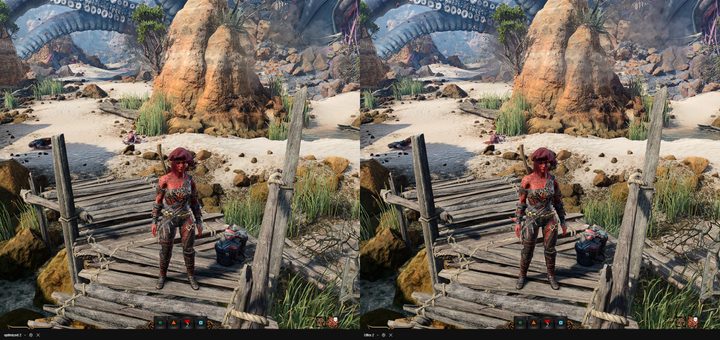
There are some standard areas to save performance, such as Detail Distance and Shadow Quality, but the bottom four settings are where I saw the biggest improvements. Depth of Field, in particular, has a big impact on performance. The bottom four settings definitely improve the look of the game, so you should turn them on if you have performance to spare. But for those strapped for frames, these post-processing effects can save you performance without sacrificing texture and model quality as much.
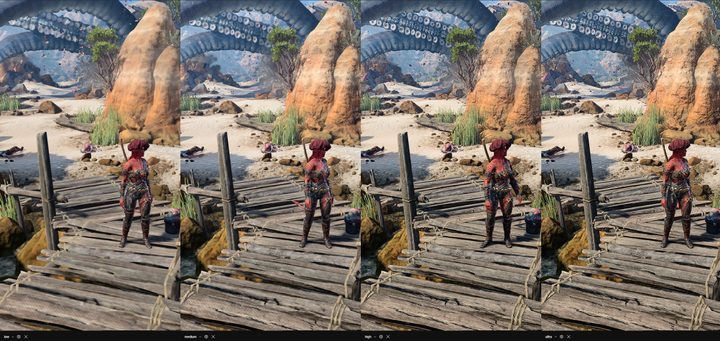
It’s certainly a better trade-off visually, too. As you can see in the image above, dropping down to the Medium and Low presets massively reduces the quality of Baldur’s Gate 3. You should avoid these presets if you can. Most rigs from the past few years shouldn’t have a problem, but if your components are multiple generations old and on the weaker side, you may have to use them.
Baldur’s Gate 3 system requirements
Like the developer’s previous games, Baldur’s Gate 3 is highly scalable. You can run it on a machine that’s nearly a decade old with the minimum specs, but, as I mentioned above, a newer PC will net much better visual quality.
| Minimum | Recommended | |
| Operating System | Windows 10 64-bit | Windows 10 64-bit |
| Processor | Intel Core i5-4690 / AMD FX-8350 | Intel Core i7-8700K / AMD Ryzen 5 3600 |
| Memory | 8GB | 16GB |
| GPU | Nvidia GTX 970 / RX 480 (4+GB VRAM) | Nvidia RTX 2060 Super / AMD RX 5700 XT (8+GB VRAM) |
| DirectX Version | DirectX 11 | DirectX 11 |
| Storage | 150GB SSD | 150GB SSD |
There are a couple of interesting notes here. First is the VRAM requirement. Several recent releases have stressed the VRAM capacity in modern GPUs, but thankfully, Baldur’s Gate 3 doesn’t have the same problem. It never consumed over 8GB at the Ultra preset, while my optimized settings dropped usage to around 5GB.
Otherwise, the system requirements say that an SSD is required. The game will still work with a spinning hard drive, but you should install it on an SSD if you can. I’ll dig into that more later.
DirectX 11 vs. Vulkan in Baldur’s Gate 3
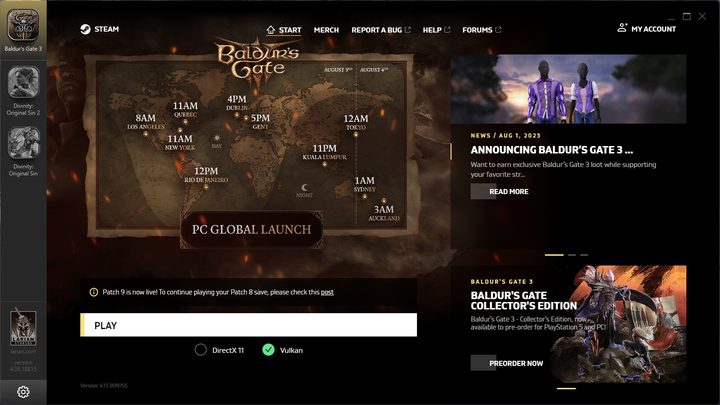
In the launcher, Baldur’s Gate 3 includes two options: DirectX 11 and Vulkan. It defaults to DirectX 11 on Windows, and it will use Vulkan on all other platforms. As I’ve written about previously, Vulkan almost universally offers better performance than DirectX. Baldur’s Gate 3, however, is a rare exception.
Based on my testing, DirectX 11 was around 2% faster than Vulkan. That’s well within the margin of error for a game like Baldur’s Gate 3, so it’s safe to say Vulkan and DirectX offer identical performance. However, Vulkan provided a better 1% low frame rate, indicating that it was more consistent overall. Again, it’s a minor difference, but I’ve been running the Vulkan version personally and I suggest you do the same.
DLSS vs. FSR in Baldur’s Gate 3
Baldur’s Gate 3 supports Nvidia’s Deep Learning Super Sampling (DLSS) and AMD’s FidelityFX Super Resolution (FSR), but there’s really only one option between them. You should use DLSS if you have an Nvidia RTX GPU. FSR is supposed to fill in the gap for other graphics cards, but it doesn’t look great in Baldur’s Gate 3.
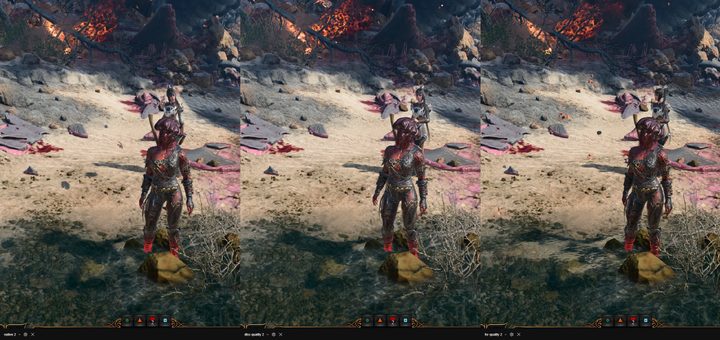
As you can see above, even at the Quality preset, FSR’s image quality is a clear step below native resolution and DLSS. It looks softer, like you’re running the game at a lower resolution, and if you turn off anti-aliasing, there’s a nasty shimmering. FSR is an option if you stick to the Quality or Ultra Quality presets, but DLSS still looks much better.
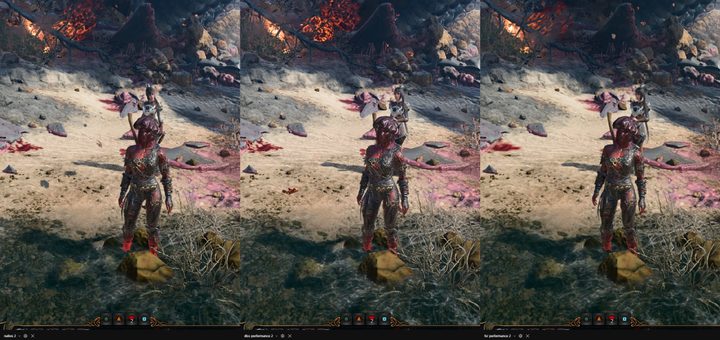
You should avoid the FSR Performance mode at all costs, though. As you can see above, it looks much softer than DLSS and native resolution, and it struggles with any fine detail. If you look at the blood stain on the beach, for example, it turns into a blocky mess with FSR, while native resolution and DLSS maintain the decal perfectly.
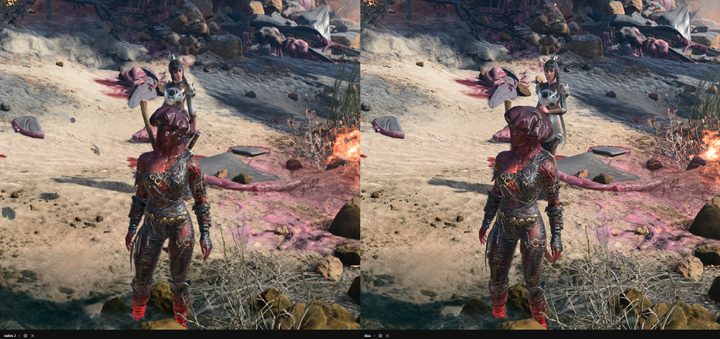
If you want to go in the other direction, Baldur’s Gate 3 also offers Nvidia’s Deep Learning Anti-Aliasing (DLAA). It, like DLSS, is only supported on RTX graphics cards, and it extracts slightly more detail out of the image. TAA is still the best option for most people, though.
Baldur’s Gate 3 Slow HDD Mode explained

Baldur’s Gate 3 requires an SSD per the system requirements. That makes the Slow HDD Mode in the settings menu a bit of an oddity. If you’re running the game off a spinning hard drive, you should turn the feature on. However, you may have lower performance, more pop-in, and lower image quality. You should install the game on an SSD if you can.
The reason why is that Baldur’s Gate 3 streams in a lot of assets while you play. Even at the highest quality preset, you can spot geometry and textures loading in as you pass them. It’s not noticeable on an SSD, but it can be a big problem on a spinning hard drive where you’ll see hitching and stutters as the new data is read off your hard drive.
That’s where the Slow HDD Mode comes in. It offloads that loading by storing more data in your system RAM and your graphics card’s VRAM. The game doesn’t normally stress these components, but the Slow HDD Mode can push them to their limits, resulting in pop-in and stutters. I recommend avoiding the Slow HDD Mode if you can. Install the game on an SSD.


