


AI technology has surged in the past few years, and it has now even made its way to our smartphones. Samsung’s new Galaxy S24 series added Galaxy AI, a suite of powerful AI-powered tools to help make your life easier that inludes photo-editing features.
While AI photo editing may not be everyone’s cup of tea, the S24’s AI photo-editing tools are tastefully done and can really help you get closer to perfection. Plus, they’re pretty easy to use. Here’s how to make the most out of the Galaxy S24’s AI photo-editing features, which are found on the Galaxy S24, Galaxy S24 Plus, and Galaxy S24 Ultra.
Keep in mind that the photo-editing tools for Galaxy AI are only available in Samsung’s own Gallery app, not Google Photos. That also means these tools only work on photos that are in the Gallery app, which may be those restored from your previous Galaxy phone or new ones that you’ve just captured.
How to use Edit Suggestions on the Galaxy S24

Sometimes we take a photo and think we have captured the perfect moment, but maybe something just looks off, or you feel it could benefit from some tweaking. But what can you do to make the image better? There will be times when you may feel stumped at what to do next, but that’s where Edit Suggestions come in handy.
Getting to Edit Suggestions is a little tricky and not too obvious. Here’s how to use Edit Suggestions on the Samsung Galaxy S24.
- Open the Gallery app on your Samsung Galaxy S24 device.
- Select a photo that you want to edit by opening it.

- Select the Details icon (it’s the “i” in a circle).
- Once Galaxy AI analyzes your photo, it will provide some suggestions to enhance it. These will appear above the photo’s metadata.
- Results from Edit Suggestions will vary based on the photo. Some options that may come up are Remaster, Erase shadows, or Erase reflections.
- Select your desired Edit Suggestion, and then follow the on-screen instructions — you may need to tap or draw on objects in the photo or adjust a slider bar.


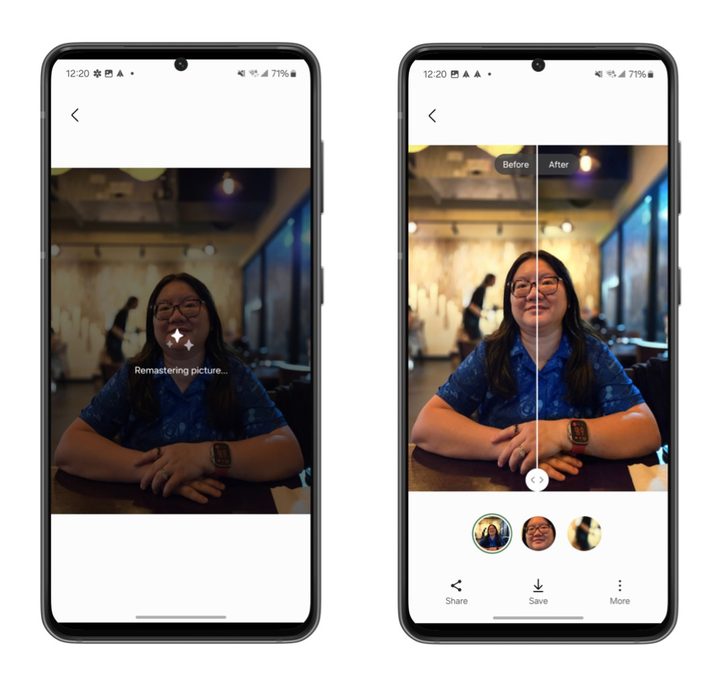
That’s all there is to it! Edit Suggestions happen locally on-device for all S24 models, meaning they don’t require an internet or data connection of any kind.
How to use Generative Edit on the Galaxy S24

The other AI photo-editing tool is Generative Edit. This lets you move objects in an image or remove them completely and then use generative AI to fill in the missing portion. You can also straighten or skew the image, and then generative AI can fill in the missing background. Here’s how it works:
- Open the Gallery app on your Samsung Galaxy S24 device.
- Select a photo that you want to edit by opening it.
- Select the Edit button (it looks like a pencil).
- Select the Generative Edit icon (the blue circle with three stars).
- Use your finger to outline a desired object that you want removed. If you make a mistake, select Deselect and start over.
- Use Touch and hold on that selected object to drag it to a different area of the image. Or select Remove (eraser icon) to erase the object. You can select Return (back arrow) to move that object back into its original position.
- If the image needs straightening, select Adjust the slider at the bottom.
- Once you’ve made your preferred adjustments, select Generate. Galaxy AI will then fill in missing backgrounds and make adjustments to moved objects.
- Select and hold the View original button if you want to see how this new image compares to the original.
- Select Done and then Save as copy. Any images saved this way will have a Generative Edit watermark.


Unlike Edit Suggestions, Generative Edit uses the cloud, so you’ll need an internet connection for Generative Edit to work. It also requires more time to process edits, especially if you make a lot, so don’t be surprised if it takes a few seconds to see your end result.
Examples of what the Galaxy S24’s AI photo editing can do

We tried out the Galaxy AI photo-editing tools on a few of the photos we’ve taken so far. The results are pretty good, for the most part. Here are a few examples of the results you can expect from both Edit Suggestions and Generative Edit.


- 1. Before Generative Edit
- 2. After Generative Edit
Let’s take a look at this plate of various nigiri ordered from a sushi restaurant. I wanted the focus to be on the nigiri, but there were other plates in the way of the photo that I couldn’t quite get rid of due to the table size. I used Generative Edit to remove the empty plate on the left and get rid of the rice on the right edge.
Galaxy AI did a decent job of cleaning up the image, but it did leave some digital artifacts behind instead of just filling it in with a dark wooden surface like the rest of the table. Still, it removed the unnecessary elements from the image, which was the goal.


- 1. Before Generative Edit
- 2. After Generative Edit
This is a photo that my husband took of me while we were waiting for our dinner. When he took the image, the waiter was in the background, and kind of distracting, even with the blur from portrait mode. Using Generative Edit, I removed him from the background, and Galaxy AI filled it in with something indecipherable. You can still tell that there’s something there, but you can’t tell what it is.


- 1. Before Edit Suggestions
- 2. After Edit Suggestions
I saw a squirrel at the park the other day and I love taking photos of those critters. I grabbed the S24 and zoomed in so I could capture it without disturbing it. But there was a dark shadow from the tree it was next to. With Galaxy AI, I used the Edit Suggestion of removing shadows, and it worked pretty well here. The shadows in the grass and even the tree trunk are gone, and the squirrel appears a bit lighter too. It became easier to spot the squirrel.


- 1. Before Generative Edit
- 2. After Generative Edit
Here’s a photo of a quaint little spot in the city. It’s a great little place to relax and enjoy the scenery. I love how this little spot looks, so I snapped a photo. With Galaxy AI, I rotated it a bit and had it fill in the background. It generated a random tree trunk on the left and more bushes on the right. You couldn’t really tell that the tree trunk is AI, except that a little blurry spot in the brush next to the trunk makes you wonder.


- 1. Before Edit Suggestions
- 2. After Edit Suggestions
Lastly, this is a photo I took of a gorgeous sunset as I was walking down my street. Due to the lighting from the sunset, everything else is incredibly dark. Using the remastered Edit Suggestion, it brightened up the deep blacks and shadows so you can see the sidewalk and cars in the distance.
A fun way to edit your photos

Our testing with Galaxy AI’s photo-editing tools shows that you can get some pretty decent results from it.
Edit Suggestions are nice if you just want to make the photo look a bit better than it actually is without too much extra work. It’s perfect for touching up something before you post it on the social media. The Generative Edit tool does require a bit more work on your part if you want good results.
Galaxy AI features, including these photo-editing tools, are currently only available on Samsung’s Galaxy S24 devices. This includes the base model S24, S24 Plus, and S24 Ultra.


