  1. Home
  2. Computing
  3. How tos

How to set up Windows 11 without a Microsoft account

Add as a preferred source on Google
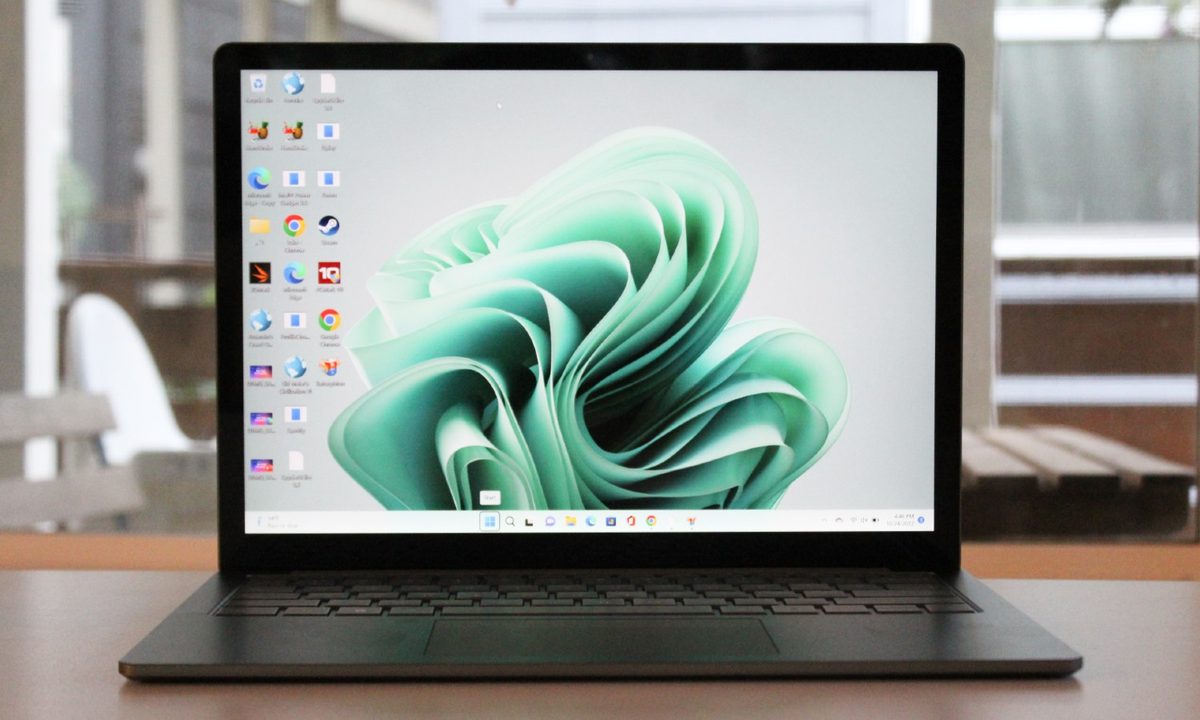
microsoft surface laptop 5 review 04
Image used with permission by copyright holder

The best way to use Windows 11 is with a Microsoft account. You can sync different settings, use the Microsoft Store to download apps, and restore Windows by using backups from OneDrive. All of this is part of the reason why prompts to use a Microsoft account with Windows 11 will show up during initial setup of the operating system.

Recommended Videos

Difficulty

Moderate

Duration

5 minutes

What You Need

  • Keyboard and Mouse during initial setup

But we understand that it is not for everyone, especially if you're worried about your Microsoft account being used to track you and want to set up Windows the traditional way with a local account, we have some good news. Even though Microsoft doesn't make it easy to set up Windows without a Microsoft account, there is a workaround for it.

A screenshot of the Windows 11 Microsoft Account setup page
Arif Bacchus/ Digital Trends

As of the time of writing, it appears as though Microsoft has patched a Command Prompt trick where you'd disable internet at setup to avoid getting the Microsoft account sign-in page. Instead, you can now use a login for a false or non-existing Microsoft account to prompt Windows 11 setup with a local account instead.

Step 1: Set up Windows 11 like you normally would. When you get to the Unlock your Microsoft Experience screen choose Sign in.

Step 2: Enter in a false email. You can type gibberish like admin. Or, use sample emails like 1@1.com , and test@test.com. After that, choose Next.

A screenshot of the sign in with Microsoft Account page on Windows 11
Arif Bacchus/ Digital Trends

Step 3: Enter in a false password. Try something like test.

A screenshot of the Microsoft Account login page on Windows 11 showing a password
Arif Bacchus/ Digital Trends

Step 4: You'll see a prompt for Oops, something went wrong. Click Next to proceed.

A screenshot of Microsoft Account going wrong on Windows 11
Arif Bacchus/ Digital Trends

Step 5: You'll be prompted to set up Windows using a local account, as seen below.

A screenshot of the local account setup page on Windows 11
Arif Bacchus/ Digital Trends

Step 6: Enter a name and a password, and you'll be taken to the final parts of the OOBE.

That's all there is to setting up Windows 11 without a Microsoft account. There's a chance Microsoft could patch this method too in the future, and if that happens, you'll probably be forced into setting up Windows with a Microsoft account anyway. If you're confident Windows 11 is worth using, then this shouldn't be a problem.

Either way, you can remove it after you set up your PC and convert your Microsoft account to a local one. Simply head into the Settings app, tap on your Profile icon or name. Then choose Your Info. You can then choose the Sign in with a local account instead option and follow the steps on the screen.

Arif Bacchus
Arif Bacchus is a native New Yorker and a fan of all things technology. Arif works as a freelance writer at Digital Trends…
Nvidia’s RTX Spark made me hate content creation a little less
Adobe's AI-powered demos showed me a future where masking, rotoscoping, and scene detection might finally stop being a chore.
NVIDIA RTX Spark for Creators Image Generation Demo Computex 2026

Every video editor has a list of tasks they'd happily outsource to someone else. Exporting isn't one of them anymore because modern laptops are already plenty fast. The real-time sinks are the boring bits: manually masking subjects, finding scene cuts in long recordings, rotoscoping frame by frame, or wrestling with tedious edits that require more patience than creativity.

That's exactly why NVIDIA's RTX Spark demo at Computex 2026 caught me by surprise. I walked into the booth expecting another presentation full of AI buzzwords and benchmark charts. Instead, I walked out thinking that for the first time in years, hardware might actually be changing the editing experience itself, rather than simply making renders finish a little sooner.

Read more
I tried Acer’s new 5K MiniLED Gaming monitor, and OLED kept popping into my head
After seeing it in action at Computex, I finally understand where MiniLED shines and where OLED still wins.
MiniLED vs OLED Hands On Computex 2026

If Computex 2026 taught me one thing, it's that monitor makers are no longer interested in building one-trick ponies. They want displays that can wear multiple hats, seamlessly switching between work and play without making users choose. Acer's new Nitro XV345CKR P is perhaps the best example of that philosophy, and after spending time with it on the show floor, I walked away impressed by its ambition while also questioning whether MiniLED is really the future for gaming monitors.

I've always had a slightly complicated relationship with MiniLED. On a massive living room TV, it works wonders because you're sitting several feet away, and the local dimming zones blend beautifully. Put the same technology on a monitor that's sitting barely two feet from your face, however, and suddenly you're no longer admiring the display, you're inspecting the physics behind it.

Read more
Ugreen’s portable monitor is utterly sharp, sleek, and costs a pretty penny
Computer, Electronics, Pc

Portable monitors have become the Swiss Army knives of modern tech. They travel with remote workers, expand cramped laptop screens, and occasionally double as gaming displays in hotel rooms. Most of them also follow a familiar formula: a basic Full HD panel, a foldable cover, and a price that stays comfortably under $250. Ugreen clearly looked at that formula and decided to ignore it.

The company's new AP16 portable monitor has officially landed in the U.S., bringing a feature list that feels more like a premium desktop display than something designed to slip into a backpack. The catch is that it costs $350, placing it well above many rivals.

Read more