  1. Home
  2. Audio / Video
  3. How tos

How to cancel your Peacock TV subscription

Add as a preferred source on Google
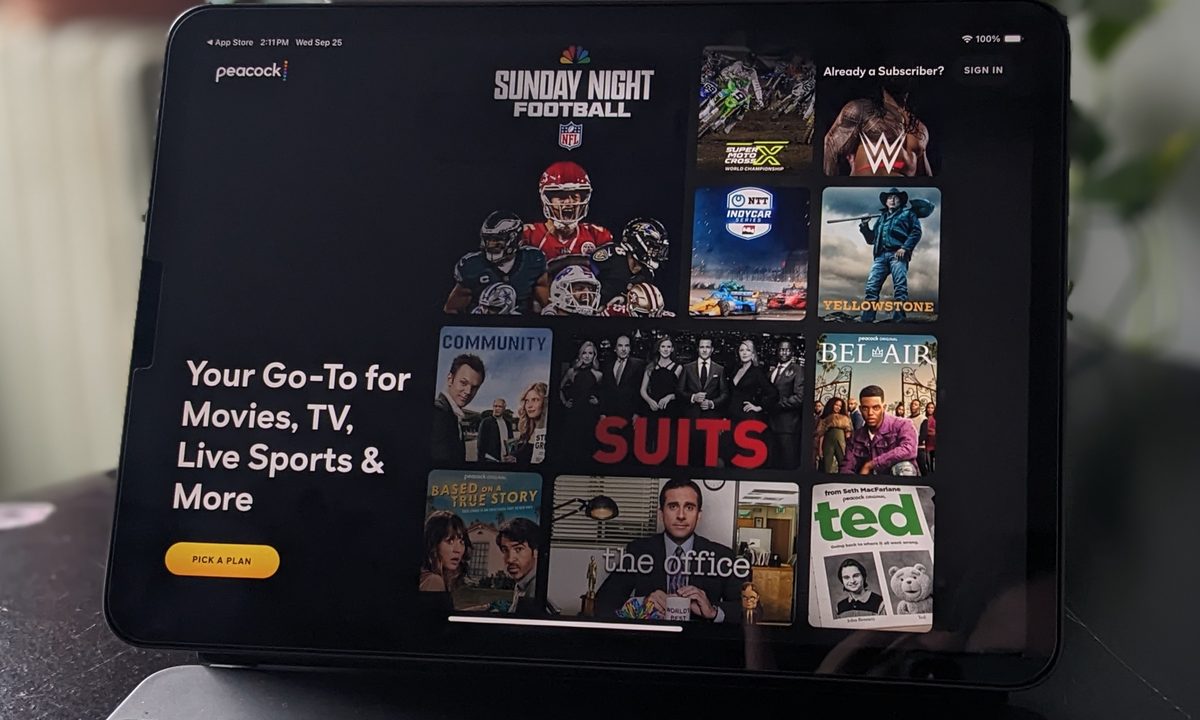
The Peacock TV page on an iPad 11 Pro.
Jen Karner / Digital Trends

You probably have several of the most popular streaming servicesin your arsenal for getting your TV and movie fix, and if you're reading this then Peacock TV is likely one of them.

Whether you're trying to balance your budget, or you've run through the programming available, there are plenty of reasons to cancel your Peacock subscription. We've got the details for you here on how to cancel the service without any hassle.

Recommended Videos

Difficulty

Easy

Duration

5 minutes

What You Need

  • Peacock subscription

  • Internet connection

Peacock TV shown on a Browser.
Jen Karner / Digital Trends

Cancel Peacock TV on your web browser

This method is for anyone who signed up through the main Peacock TV website. It's a simple process.

Step 1: Head to the Peacock login page and log in with your account information.

Step 2: Select your profile icon in the upper-right corner of the Peacock screen.

Step 3: Select account in the upper-right corner of the Peacock screen.

Step 4: Select cancel account under Plans & Payments.

Step 5: Select the reason for cancelling your account in the form, and select continue.

Step 6: Select cancel plan to cancel your Peacock account.

ESPN+ subscription on iOS device.
Screengrab

Cancel Peacock on an iPhone or iPad

If you signed up for Peacock through Apple's interface on an iOS device, it's easy to cancel the subscription in the same way. We have a full guide to canceling Apple subscriptions this way, but if you want to do it quickly, here's what to do.

Step 1: Open the settings app on your iOS device.

Step 2: At the top select your name to see your Apple ID settings. If you aren't already signed into your Apple account on the device, you will need to do it at this point.

Step 3: Select Subscriptions from the first menu at the top of your profile.

Step 4: Select Peacock TV from your list of current subscriptions.

Step 5: Select Cancel Subscription and confirm that's what you want to do.

The Google Play Store homepage on a Chromebook.
screenshot / Digital Trends

Cancel Peacock with the Google Play Store

Did you download and subscribe via the Peacock app from the Google Play Store, or sign up through your Android device? Here's how to get it done quickly.

Step 1: Open the Google Play Store through your Android device.

Step 2: Select your profile icon in the upper-right corner of the screen.

Step 3: Select Payments & subscriptions.

Step 4: Select Subscriptions.

Step 5: Select Peacock TV from the list of current subscriptions.

Step 6: Select cancel subscription to end the service and stop payments.

The email you get if you try to log in to your Roku account.
Phil Nickinson / Digital Trends

Cancel Peacock on Roku

Anyone who signed up through a Roku streaming device can cancel their subscription in the same way. Here's how to do it.

Step 1: Head to the Roku login page and log in with your information. It's easiest to do this with your computer, but subscriptions can also be managed from the Roku platform on your TV.

Step 2: Select manage subscriptions from the menu.

Step 3: View your subscriptions and their terms to find Peacock TV. Select unsubscribe next to the app.

Step 4: Select confirm to cancel your Peacock TV subscription.

Jen Karner
Former Contributing Writer
Jen Karner joined the team as contributing writer for the home theater section of Digital Trends in 2024, where she writes…
Sony’s True RGB technology is aiming for the best of OLED and Mini LED
Sony’s new display technology is designed to combine OLED level color with Mini LED brightness
Sony Bravia 9 II (

The battle for premium TV buyers has largely revolved around two technologies in recent years: OLED and Mini LED. OLED has earned a reputation for delivering exceptional contrast and viewing angles, while Mini LED has pushed brightness levels to new heights. The tradeoff has often been deciding which compromise makes more sense for your room and viewing habits.

Sony believes that conversation may be about to change. During a private media briefing in New York City, the company unveiled a new display technology called True RGB, which rethinks how a TV backlight works and aims to combine some of the biggest strengths of both OLED and Mini LED.

Read more
Alienware’s upgraded gaming monitors offer higher brightness and refresh rate starting at $300
Alienware’s four new 30-inch-plus screens bring higher brightness, faster refresh rates, and cheaper 240Hz options.
Computer Hardware, Electronics, Hardware

Alienware has four new screens coming out of Computex 2026, and the lineup cuts across almost every tier that serious PC gamers care about. Its latest Alienware gaming monitors put brighter OLED, faster ultrawide refresh rates, and $299.99 240Hz QHD gaming into one launch window.

The range includes a 39-inch 5K OLED flagship, a 34-inch 280Hz QD-OLED ultrawide, and two 240Hz QHD LCD options at 32 inches and 34 inches. That spread gives Alienware a high-end halo product while pushing fast QHD screens closer to mainstream upgrade territory.

Read more
New Apple TV and HomePod mini are apparently ready for a fall launch
Apple finally remembered the HomePod mini exists
HomePod

Apple’s smart home hardware lineup may finally be getting refreshed after years of relative silence. According to a new report from Mark Gurman, Apple is preparing updated versions of both the Apple TV set-top box and the HomePod mini, with launches currently planned for later this fall.

The timing is notable because Apple’s home-focused products have largely remained unchanged while rivals like Amazon and Google aggressively expanded their smart home ecosystems with AI-powered assistants and connected devices. Apple now appears ready to reposition its home products around the company’s next-generation Siri and Apple Intelligence strategy.

Read more