It’s no surprise many computer gamers consider gaming on a Mac to be a second — or hell, a third — fiddle compared to gaming on a Windows-based machine. In the past, insufficient specifications, lack of developer support, and a limited game selection suggested that Apple’s rigs would never achieve true gaming nirvana. But these days, Macs have never looked better for gaming, and the people that make the games are responding in kind.
New things to play means more demand for console-style controls as opposed to a mouse and keyboard. So we’ve put together a simple guide to help you connect a PlayStation 3 controller to your Mac. All you need is a wired or wireless PS3 controller, a Bluetooth-capable Mac, and a mini USB cord.
Note: We recommend completely powering down and unplugging your PS3 system prior to beginning this walkthrough. This helps to avoid accidentally turning on the console while syncing the controller to your computer.
Step 1: Turn on your Mac’s Bluetooth
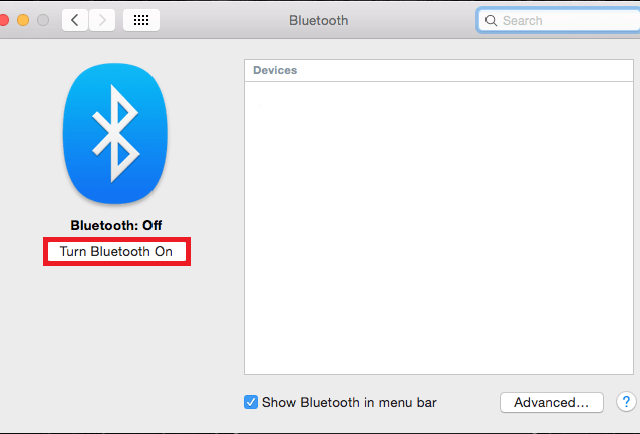
Before connecting the controller to your Mac, activate the computer’s Bluetooth capabilities. To do this, click the Apple logo in the upper-left corner of the desktop, select System Preferences, and choose Bluetooth when the associated window opens. Once that’s done, click the Turn Bluetooth On button to activate your Mac’s Bluetooth functionality. We also recommend keeping the Bluetooth settings window open while attempting to connect the PS3 controller to your Mac, so you can better track your progress.
Step 2: Connect the PS3 controller to your Mac
With Bluetooth now activated on your Mac, plug your PS3 controller into your computer via a mini USB cable. You can pick one up at your local electronics store or order one through Amazon — — but you probably have one if you own a PS3. The controller will then appear as PLAYSTATION(R)3 Controller under the device listings in the Bluetooth settings menu.
Step 3: Pair the PS3 controller via Bluetooth
Once your Mac recognizes the PS3 controller as an active device, the Bluetooth settings window lists it as Not Connected, and the four red lights on top of the controller start blinking. If the controller you wish to pair has only a small amount of battery life left, we recommend letting it charge for at least a half hour before continuing with this step.
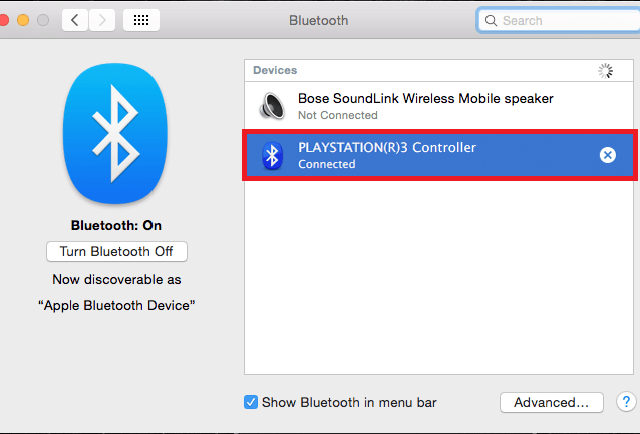
Next, press the circular PS button located in the middle of the controller, wait a few seconds, and unplug it from the mini-USB cable. The lights on top should start blinking faster as the controller attempts to pair itself with your Mac via Bluetooth. As soon as the controller syncs, you’ll notice the device in the Bluetooth settings window now shows as Connected. Your computer may also ask you to input a password depending on which OS your Mac utilizes; if so, type “0000” before clicking Pair. Once synced, you can use the PS3 controller for any gamepad-compatible games on your Mac.
Note: Most games feature differing controller configurations once you begin playing. Before starting any new game, we recommend manually setting up the controller’s settings and configurations via the game’s options, settings, or preferences menu.