Your Mac can do a lot, but some of its best features are hidden away and not well known. Once you have mastered them, though, you can take your Mac experience to the next level.
These tips, tricks, and time-savers greatly expand what you can do with your Mac and will do wonders for your workflow.
Need more Mac tips? Try our guides to Mac keyboard shortcuts and the best trackpad gestures.
How to digitally sign your documents
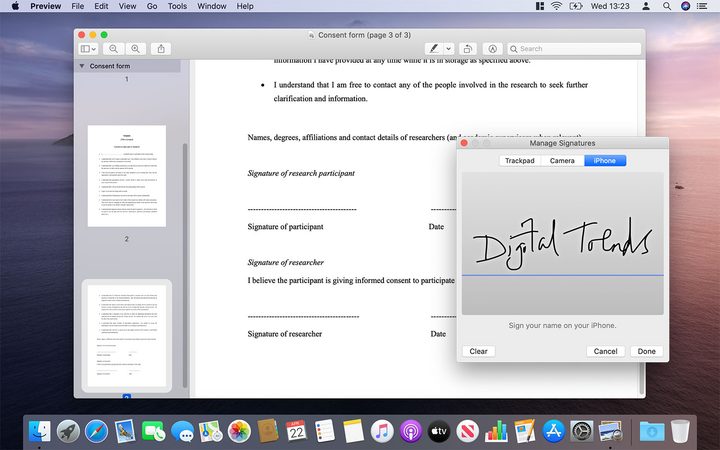
With so many of us working from home, signing documents on your Mac has become more important than ever. But there is a much easier way to do it than printing the document, signing it, then scanning it back to your Mac.
Open Preview, then in the menu bar click Tools > Annotate > Signature > Manage Signatures. In the pop-up box, click Create Signature. You can now use your trackpad or iPhone to write your signature, or your Mac’s camera to capture your signature written on a piece of paper. Any time you want to sign a document, just open it in Preview, then click Tools > Annotate > Signature and click your signature to drop it in place.
How to customize the Finder sidebar
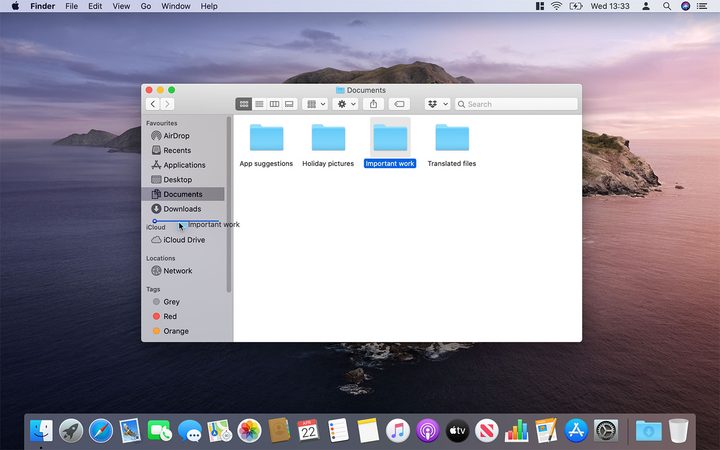
Finder is the default file browser on MacOS. It is highly customizable and can be shaped to your needs with a few quick clicks. For instance, if you have a folder you access all the time, you can add it to the Finder sidebar for quick access. Just navigate to the folder, then click and drag it over to the sidebar. For apps, hold the Cmd key then drag their icon over. You can remove items using the Sidebar tab in Finder > Preferences.
You can also change what buttons appear at the top of the Finder window. Click View > Customize Toolbar, then add, remove, or rearrange the buttons as required.
How to rename groups of files in Finder
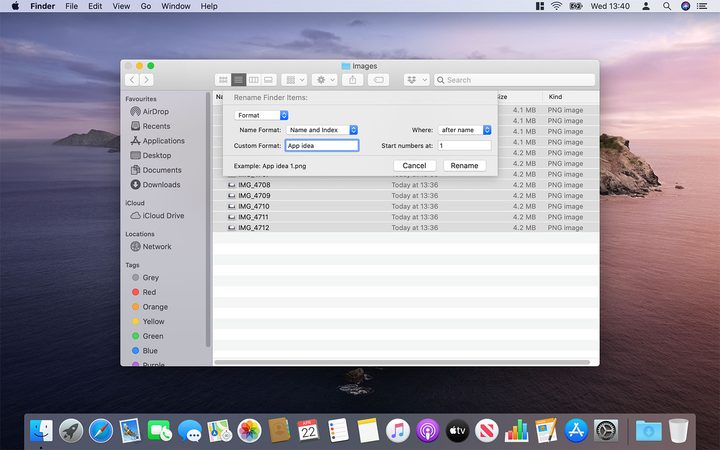
Batch renaming groups of files on MacOS is easy, but you get a lot of advanced options if you need more control. To get started, highlight all the files you want to rename, then Cmd+click them and click Rename x items (where x is the number of files you have highlighted).
A pop-up window with several options will appear. You can choose to rename the files by replacing their current names, appending text to the end of their names, or renaming them based on various factors, such as their name and date. You can use a name base, too. At the bottom of the pop-up window is a preview so you can see how the renamed files will look.
How to use Stationery Pad
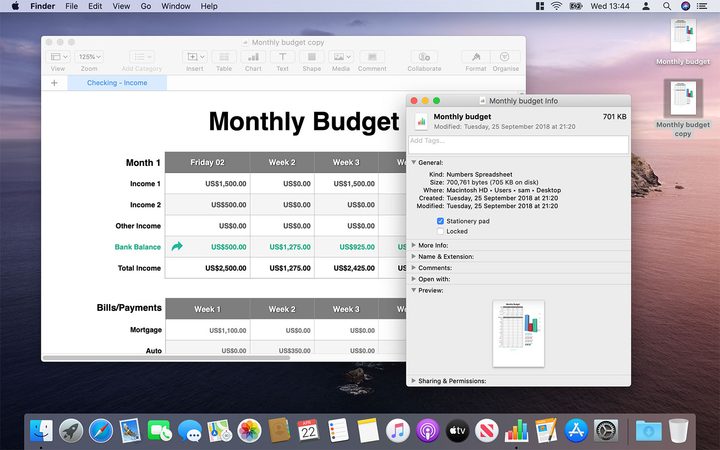
Want to use a file as a template for subsequent documents? There is a little-known method called Stationery Pad that does the hard work for you.
Find the file you want to use as a template, then Ctrl+click it and click Get Info. From here, tick the Stationery Pad checkbox. Now, every time you double-click this file, MacOS will open a duplicate of the original for you, allowing you to make changes without altering the template document.
How to use Spaces for multiple desktops
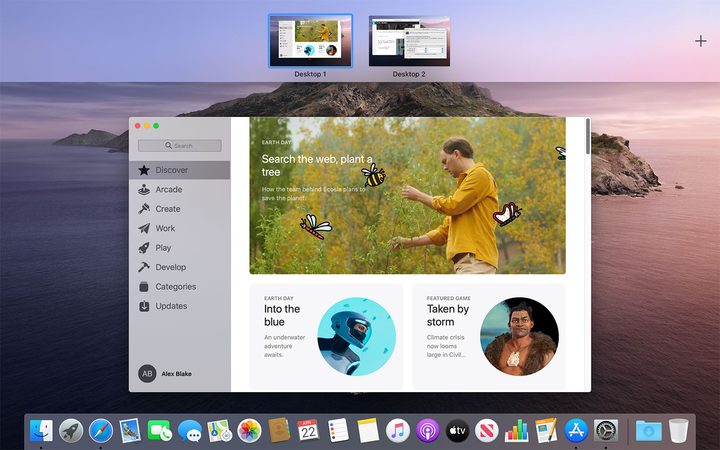
Like to keep work and play separate? Use Spaces. This MacOS feature allows you to have multiple desktops, each with different windows and files open. It’s ideal for when you need to separate out your projects and focus on one at a time.
To open the Spaces menu, swipe up with four fingers on your trackpad, press the Mission Control button, or press Ctrl+Up arrow. Click the “+” icon to add a new desktop. Move between desktops by swiping with four fingers or pressing Ctrl+Left arrow or Ctrl+Right arrow. To move files or windows onto a different desktop, click and drag it to the top of your screen until the Spaces menu appears, then drop it on your desktop of choice.
How to assign shortcuts to your window corners
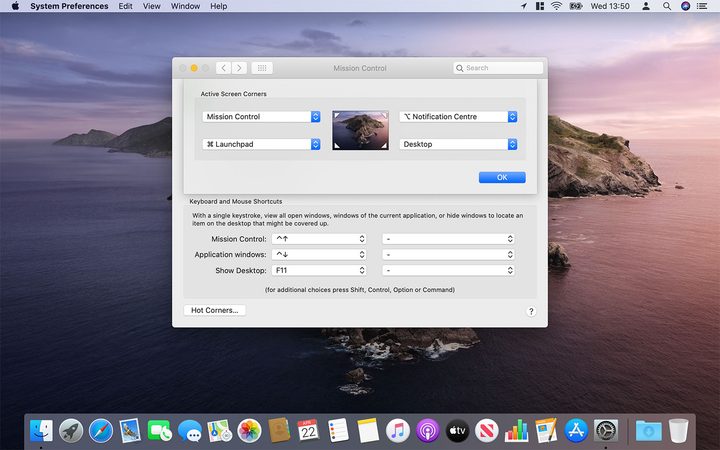
Windows 10 has Peek, which temporarily shows the desktop when your mouse moves to the bottom-right corner of the screen. MacOS goes one better with Hot Corners, which lets you assign controls to each corner of your display.
Open System Preferences > Mission Control > Hot Corners. Here, you can choose an action for each corner, including showing Notification Center, locking the screen, starting the screen saver, and more. You can add keypresses into the mix and assign the same action to multiple corners at once, too.
How to use Mac’s hidden window-resizing tricks
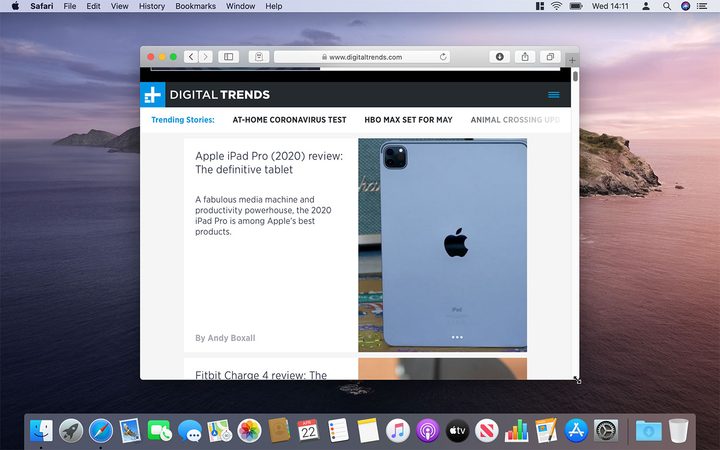
Resizing windows might seem straightforward — you just click and drag the window corners, right? But in MacOS, you get some handy extra options.
Hold Shift as you resize the window and it will maintain its current aspect ratio. Hold Alt, meanwhile, and the opposite side or corner will resize in an equal amount to the side you are resizing. Hold both Shift and Alt at the same time and you can combine both features.
How to share contact information in Contacts
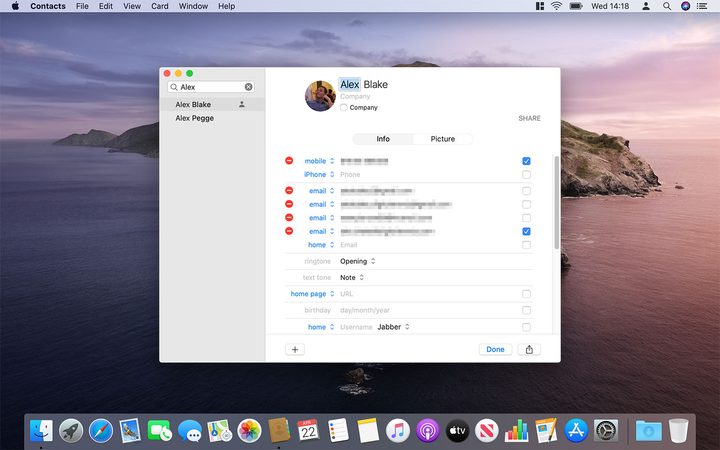
The Contacts app lets you share your details with other people, but sometimes you may only want certain information to be sent out — your work email address but not your home street address, for example.
To do this, you first need to define your own card by selecting it in Contacts, then clicking Card > Make This My Card. Now, open Contacts’ preferences and click the Card tab, then tick the “Enable private me card” checkbox. Click Edit on your card and untick the boxes next to any item you do not want to share, then click Done.
How to add spacers to the Dock
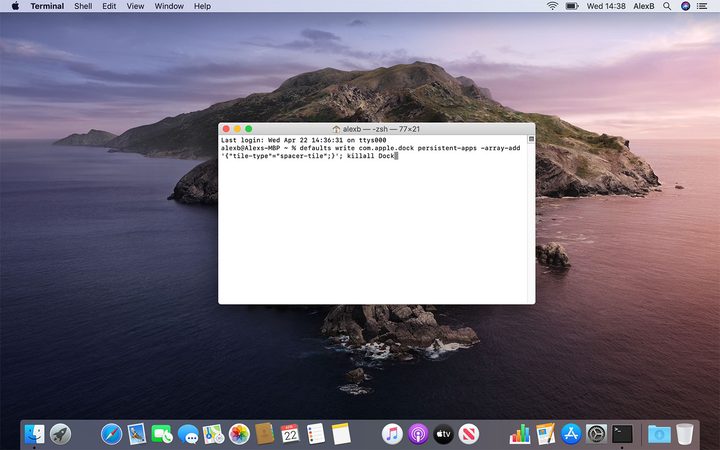
You can add some handy spacers to your Mac’s Dock with just a couple of Terminal commands, giving you a new way to organize your app icons. Open Terminal from Go>Utilities, then type the following: “defaults write com.apple.dock persistent-apps -array-add ‘{“tile-type”=”spacer-tile”;}’; killall Dock” and press Return (the command is case-sensitive).
The Dock will disappear, then reappear with a spacer tile on the right-hand side. Type “exit” into Terminal and press Return, then quit Terminal. You can now drag the spacer tile to wherever you want in the Dock. Repeat for as many spacers as you want.
How to unlock your Mac with your Apple Watch
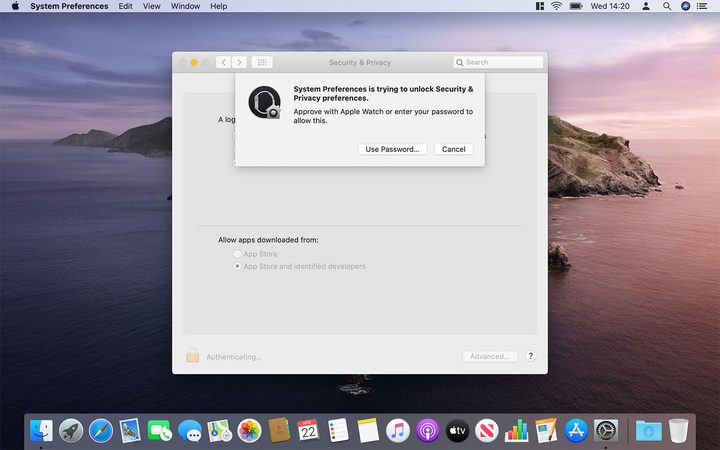
One of the best examples of how the Apple ecosystem works is setting your Apple Watch to unlock your Mac. When both devices are using the same Apple ID, you just need to wake your Mac by pressing any button and your Watch will automatically unlock it.
To set up this feature, open System Preferences, then click Security & Privacy. Tick the checkbox next to Use your Apple Watch to unlock apps and your Mac (you might be prompted to enter your Mac’s password). If you are using MacOS Catalina and watchOS 6, this also works anywhere else you would normally enter your Mac password.