
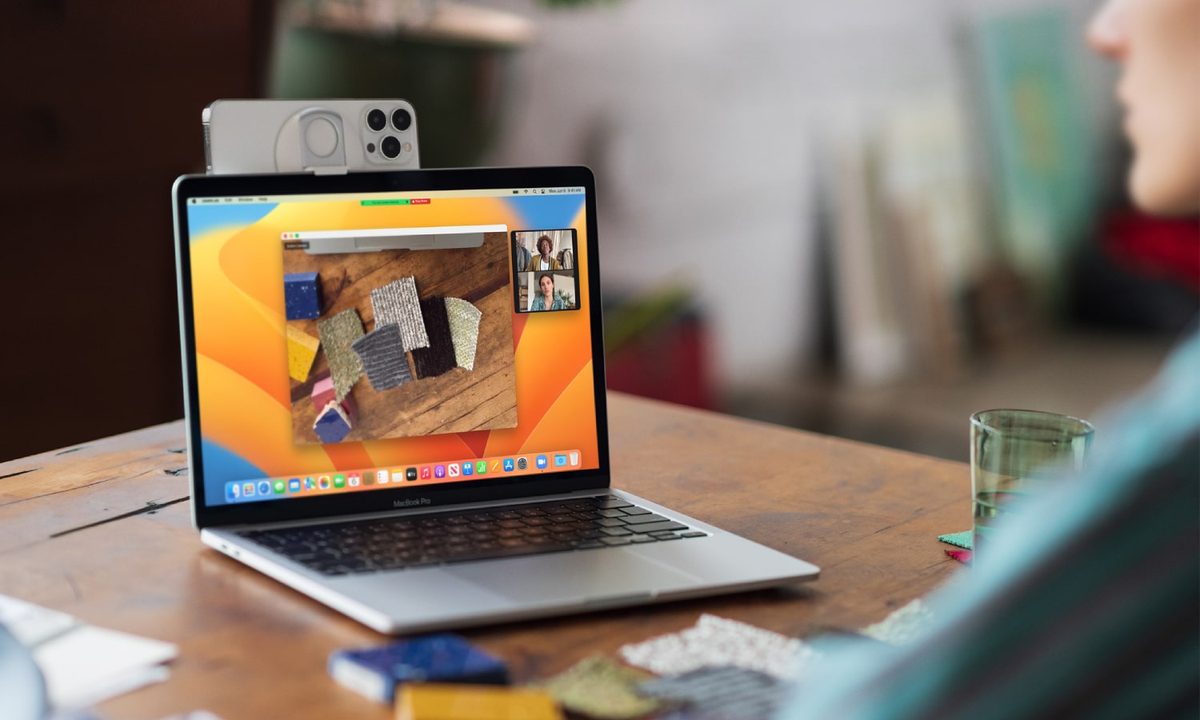
When you connect your iPhone to your Mac computer, you’ll be able to access several features and settings, and sometimes new ones thanks to the latest macOS update.
Whether you’d like to upload or offload media from your Mac to your iOS device, or you’d like to download a firmware update for your iPhone, you’ll be able to do so by connecting your smartphone to your Mac with a Lightning or USB-C cable. You can also link your iPhone to your Mac wirelessly, and our guide will provide you with detailed instructions for both wired and wireless connection methods.
Here’s a guide on how to connect your device to a Mac, with or without a USB-C or Lightning cable attached.

Connect an iPhone to Mac using a cable
To sync content, remove data and settings, or update your iPhone, you can use a cable to connect it to your Mac. You’ll simply use the charging cable for your iPhone to make the connection. However, depending on which device models you own, you may need an adapter.
If your iPhone uses a Lightning to USB cable and your Mac has a USB port, you can simply plug it right in. But if your Mac only has a USB-C port, for instance, a MacBook Pro 2021, you’ll need an adapter. On the other hand, if your iPhone uses a USB-C to Lightning cable and your computer only has a USB port, like with the MacBook Air M1, 2020, it's recommended that you utilize a Lightning to USB cable to make the connection.
The bottom line is that unless you have an iPhone cable and a Mac port with matching connectors, you’ll need to grab an adapter (or the appropriate cable) to physically connect it.
If you’re able to make this connection, whether with an adapter or not, you can use Finder on macOS Catalina or later to work with your data as well as update your iPhone. You’ll find these steps below.
If you’re running an older version of macOS, before Catalina, you’ll use iTunes to perform these actions.
Step 1: Plug your phone into your computer and open Finder.
Step 2: In the sidebar, select your iPhone in the Locations section.
Step 3: You may be asked to Trust the device or update your iPhone to the latest iOS version if you haven’t already. Simply follow the prompts for these actions.
Step 4: Then, use the various tabs at the top, directly below your iPhone details, to work with the content you need in Finder.

Step 5: Plugging in your iPhone every time that you want to sync data can be exhausting. That's why Apple has added a method to switch to Wi-Fi syncing after your first big setup.
In Finder, check that your iPhone is still selected, and that you are in the General section. Under Options, select Show this iPhone when on Wi-Fi. Choose Apply. Now you can visit the syncing menu in Finder without needing a cable connection.

Step 6: When you finish and want to disconnect your iPhone, click the Eject icon to the right of it in the Finder sidebar. You can then safely unplug the cable from your iPhone and Mac.

Connect an iPhone to Mac via Bluetooth
To make a wireless connection from your iPhone to your Mac and take advantage of features like Handoff, AirPlay, AirDrop, Continuity Camera, Instant Hotspot, and Universal Clipboard, make sure the following are in place.
Step 1: Check that your iPhone and Mac are connected to the same Wi-Fi network.
Step 2: Connect your iPhone to your Mac via Bluetooth. If you haven't paired the devices before, select the Bluetooth symbol in the upper-right menu of macOS and select Bluetooth preferences. Keep your iPhone near and turned on, and wait for your macOS to detect it so you can pair the devices by choosing Connect. Enter any necessary authentication.

Step 3: On your iPhone, go to Settings > General > AirPlay & Handoff. Make sure Handoff is enabled. Now, with any app that works with Handoff, you can see a Handoff icon in your Mac's dock that you can use to switch to your iPhone.

Step 4: If you want to use AirDrop, you don't have to worry about connecting a Bluetooth device to your Mac. Just make sure your devices are on the same Wi-Fi network. Then choose the Share option on a device like your iPhone, and you should see all available options appear. AirDrop will have its radar-like icon next to compatible devices.
Step 5: To use Continuity Camera features, open a compatible app and Control-click on the spot where you want to place content. This will open an insert menu: Select the option that says Import from iPhone or iPad.
You will now see several options available depending on what devices are connected. Take photo will open the Camera on your iPhone so you can snap a photo that will then be inserted on your Mac. Scan documents will do something very similar but save it as a PDF.

What about using Sidecar with my iPhone?
Sidecar is only designed for iPads, and at this time, cannot be used with iPhones. Sidecar is meant to provide a second screen for your Mac work, and iPhones aren't quite big enough to be very useful here. Likewise, Universal Control is designed to work with iPads or MacBooks.
What is the Trust This Computer alert?
The very first time you connect your iPhone, iPad, or iPod touch to a Mac, you should see an alert that will ask you if you trust the computer you’re connecting to. Granting permission will allow your Mac to access iPhone’s photos, videos, contacts, and other media. If you’re using an iPhone running iOS 16 or later, this message will also appear whenever you back up your device.
Apple allows you to manage your iPhone’s trusted devices. To do so, simply launch Settings, then tap General > Reset> Reset Location & Privacy. The next time you plug your iPhone into a once-trusted Mac, you should be asked to trust the computer again.
What do you do if your Mac doesn’t recognize your iPhone?
In the event that your Mac doesn’t recognize your connected iPhone, there’s a few things you can do to troubleshoot. For starters, you should make sure you can’t find the device logged anywhere on the sidebar in the Finder app. For older macOS versions, check in the iTunes app instead.
Next, confirm that both your Mac and iPhone are running the latest firmware versions. New Macs should be running macOS 15 Sequoia, while the iPhone XR/XS and later should be running iOS 18.1.1.
If both devices are up to date, you may want to try restarting both your Mac and iPhone.
Whether you need to connect a physical cable to work with data in Finder or want to connect wirelessly to use the Continuity features, it’s easy to connect your iPhone to your Mac. Incidentally, if you're thinking about getting a new iPhone, you have a choice between the iPhone 15 Pro and iPhone 15 Plus models.


