With HomeKit and the Apple Home app, you can turn your house into a smart home – maybe even the smartest home on the block. Turn lights on and off, lock and unlock your door, toggle the TV on or off, and more without touching a switch, knob, or remote.
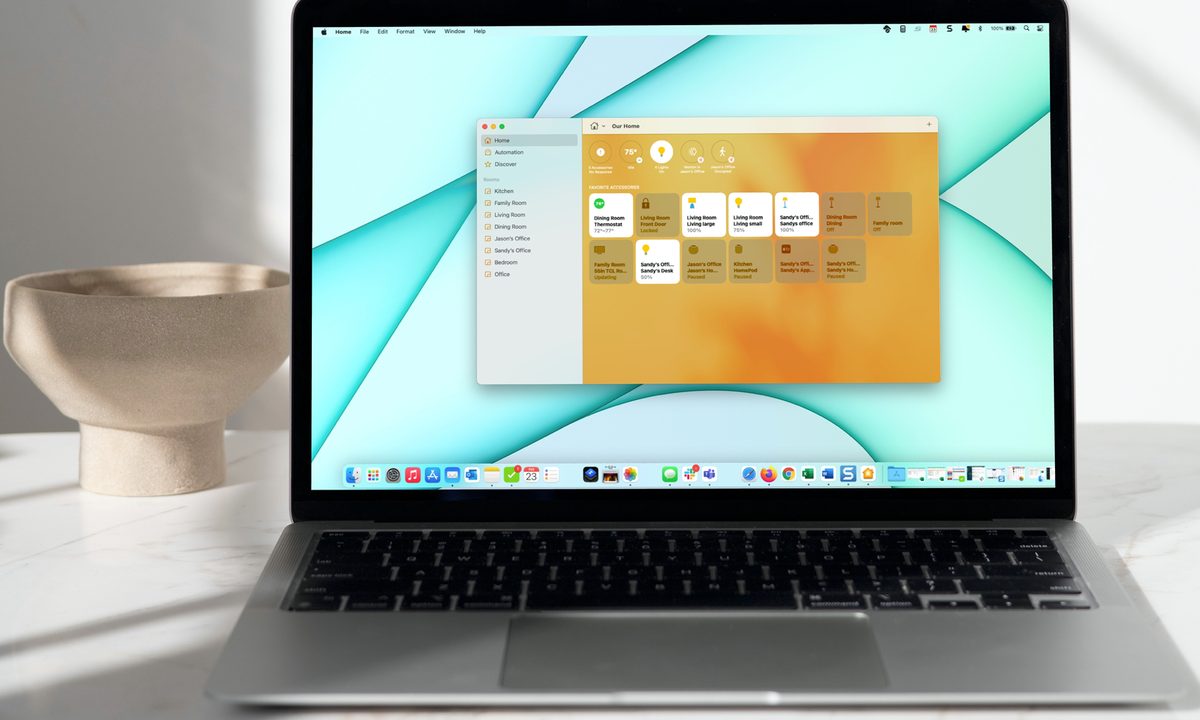
The Home app on iPhone, iPad, and Mac lets you control your smart home devices easily. From tapping an icon to engage an accessory to setting up automations, you can control all the smart devices in your home from the comfort of your couch.
Add an accessory to the Home app
While the Home app is available on MacOS, you can only add accessories on iPhone or iPad. Once you add the accessory, you can manage and control it on your other Apple devices, including Mac.
Before you begin, check the instructions for the accessory for any additional actions before connecting it to the Home app. Also, make sure the accessory is turned on and nearby.
If you use an additional third-party app – for example, Hue Phillips for smart light bulbs – you may need to connect the device using that app and then sync with the Home app.
Step 1: Open the Home app on iPhone or iPad and select the Home or Rooms tab at the bottom.
Step 2: Tap the Plus Sign at the top and pick Add Accessory.


Step 3: Use your device’s camera to scan the eight-digit HomeKit code or QR code that came with your accessory. With certain accessories, you can hold your device near the item to connect it.
You can also tap More Options for additional help, such as entering a setup code manually.


Step 4: When you see the accessory, select it. You may be prompted to add the accessory to your network. If so, choose Allow.
Step 5: Give your accessory a name and assign it to a room so that you can keep track of it easily or use Siri to control it.


Manually control accessories in the Home app
The way in which you control your smart devices in the Home app depends somewhat on the type of accessory it is. Let’s take a look at some common examples.
- To turn a smart light bulb on or off, tap or click its Icon. To adjust its brightness, tap and hold the Icon on iPhone or iPad, or right-click and choose Show Controls on Mac. Then drag the Brightness Indicator up or down.
- To lock or unlock a smart lock, tap or click its Icon.
- To adjust a smart thermostat, tap or click its Icon and then use the circular slider to increase or decrease the temperature.
- To turn a smart TV on or off, tap or click its Icon.
You’ll know when an accessory is active or turned on by looking at its icon in the Home app. If it’s bright and highlighted, it’s active or on. If it’s dimmed, it’s inactive or off.
Some accessories will remain bright, such as a smart thermostat. Others may only appear bright while processing your request, such as locking or unlocking a smart lock.
Set up a scene to control accessories
Another way to control your smart devices with the Apple Home app is to set up scenes.
You can create a scene for the morning that turns on the lights, adjusts the temperature, and turns on the TV. Or, create one for nighttime that turns those accessories off.
Then, turn on a scene by tapping or clicking it in the Home app or asking Siri.
Step 1: Tap or click the Plus Sign at the top of the Home app and choose Add Scene.

Step 2: Select one of the suggested scenes or create your own by picking Custom.

Step 3: Use the recommended accessories to set the scene. For example, to turn a light on or off for the scene, tap or click it.
To add different accessories or remove a recommended one, select Add or Remove Accessories at the bottom.

Step 4: When you finish, tap or click Done.
Your newly added scene will appear below Favorite Scenes on the Home tab. Simply tap or click to run the scene.
Create an automation to control accessories
One more way to control your accessories is to create automations.
Similar to scenes, automations control your accessories for you. The difference is that you can have an automation run at a certain time of day, when someone arrives home, or when everyone leaves.
Step 1: Go to the Automation tab, tap or click the Plus Sign on the top-right, and choose Add Automation.

Step 2: Select the event that you want to trigger the automation. You can also review the suggestions for some common automations.

Step 3: Set up the details for the event, which will vary depending on the one you pick. For instance, if you use a time of day, you can choose sunrise, sunset, a specific time, and certain days of the week.
Tap or click Next.

Step 4: Mark the accessories you want to include in the automation and tap or click Next.

Step 5: Configure the accessories for the automation. For example, to turn a light on or off, tap or click it to show what you want it to do.
Tap or click Done.
Your automation will run based on the event you set up. You don’t have to tap or click anything or ask Siri; the automation handles it all.

Instruct Siri to control accessories
You can also use Siri on any of your devices, including a HomePod, to control your accessories. So not only can you stay seated, but you don't even have to reach for your mobile device or keyboard.
Try phrases like these:
- “Hey Siri, turn off the living room light.”
- “Hey Siri, lock the front door.”
- “Hey Siri, change the thermostat to 75 degrees.”
- “Hey Siri, turn up the brightness on my office light.”
- “Hey Siri, turn the bedroom TV off.”
Whether you’re just starting to put together your smart home or are trying out new accessories, the Apple Home app has you covered.