

With Windows 10 support ending in October this year, upgrading to Windows 11 is not only crucial, but it is also the easiest way to stay secure and continue receiving new features. Microsoft continues to encourage eligible devices to make the move, and for most Windows 10 PCs that meet the requirements including TPM 2.0 and Secure Boot, the upgrade to Windows 11 is free.
You can also get Windows 11 at no extra cost when you buy a new PC, or install it on a fresh build using Microsoft’s official tools.
Whether you’re upgrading an existing Windows 10 machine, performing a clean install, or starting a brand-new build, here’s how to get Windows 11 for free today.
Check that your PC is compatible
Before you try to upgrade your PC to Windows 11 for free, make sure that it is compatible. You’ll need a PC that supports Trusted Platform Module (TPM) 2.0 and has the Secure Boot option in your BIOS. It must also meet some basic hardware requirements.
To find out whether your PC is capable of running Windows 11, search for ‘PC Health Check’ in Windows search, and run the corresponding application, or check Microsoft’s Windows 11 specs page and cross-reference it with your system. If you’re not sure what hardware you have, follow our steps to check your PC specs.
Free Windows 11 upgrade
If you have a Windows 10 PC or laptop that’s ready for Windows 11, you can upgrade to Windows 11 for free just by running the update tool.
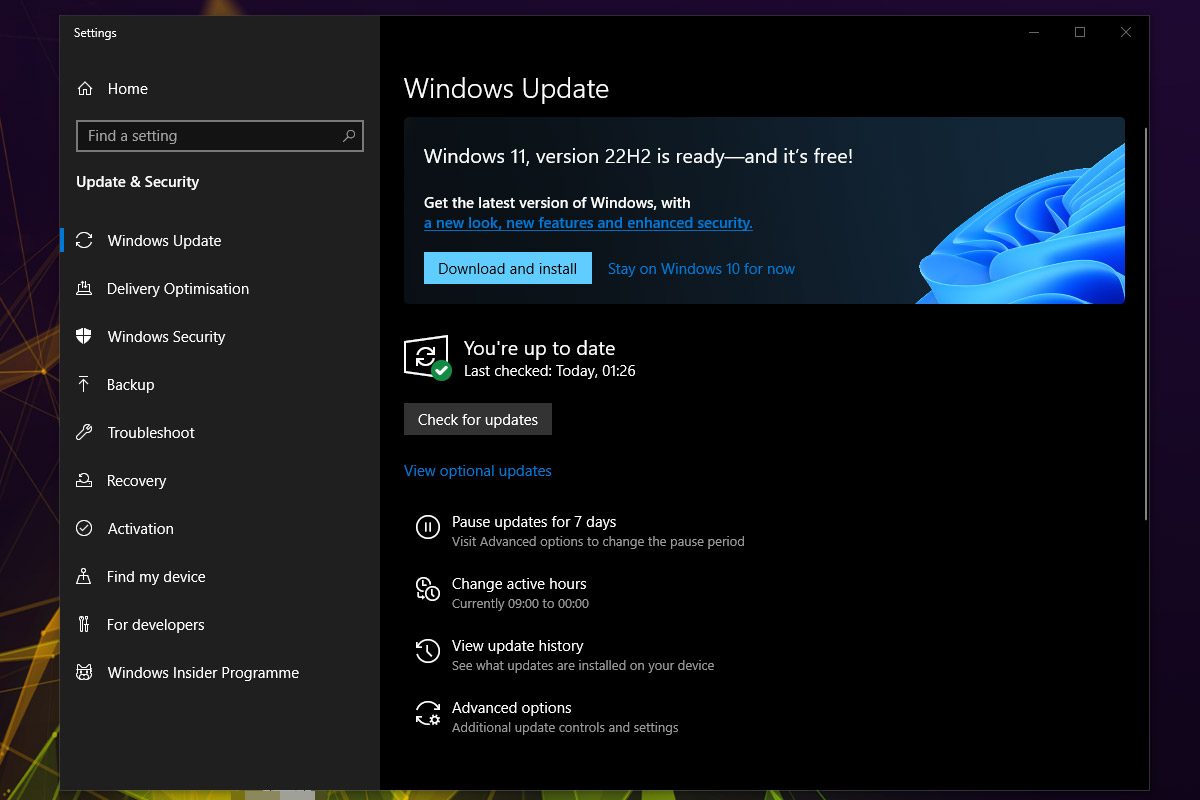
Step 1: Search for Windows Update in the Windows search bar and select the relevant result.

Step 2: If your PC is fully up to date, there’s a good chance it will already be pushing the Windows 11 update on you. All you have to do is select the blue Download and Install button to get started. Then just follow the on-screen instructions to complete your Windows 11 installation.
How to manually upgrade to Windows 11 for free
If Windows Update isn’t giving you a quick option to upgrade to Windows 11, you can use the Windows 11 Installation Assistant.
Step 1: Visit the Windows 11 download website and look for the Windows 11 Installation Assistant. Select the blue Download now button.
Step 2: When it’s finished downloading, run the Windows11InstallationAssistant.exe and give administrator approval, if requested.
Step 3: Select Accept and install to accept the terms and conditions, then begin the Windows 11 update process.
Step 4: The installation will then proceed without much input from you. It will download the Windows 11 installation media, then run the update. This could take up to 30 minutes, so you may need to wait, but when it’s complete, you should have a free update to Windows 11 installed.

How to download Windows 11 for free
If you are starting a new PC build, or want to install Windows 11 on a new drive for your existing Windows 10 PC, the Windows Update tool and Installation Assistant won’t work so well. What you can use instead is the Media Creation Tool, which will help you download Windows 11.
Step 1: Head to Microsoft’s Windows 11 upgrade page and under the heading Create Windows 11 Installation Media, select the blue Download Now button. This will download mediacreationtool.exe file to your PC.
Step 2: Launch the Media Creation Tool like you would any other program, and give administrator approval, if requested.
Step 3: Accept the Microsoft terms and conditions, then choose your language and the version of Windows 11 you want to install, if necessary. Otherwise, leave the default recommended options. Select Next when you’re ready to proceed.
Step 4: Find a USB drive with at least 8GB of free space and plug it into your PC or laptop. Then select the USB Flash Drive option in the Media Creation Tool setup process. Select Next. Alternatively, if you want to virtually mount the Windows 11 installation media, you can select ISO file and follow the on-screen instructions to create it for later mounting.
Step 5: Select the USB drive you want to use for the installation. Then, when ready to setup the drive, select Next. Wait for the setup process to complete.
Step 6: Once the installation media is created, you can reboot your PC and boot to the USB drive to begin upgrading to Windows 11. Follow our guide on how to install Windows 11 for tips on the installation process and, if prompted, input your Windows 10 key to activate.
Get Windows 11 for ‘free’ when you buy a new PC
If you’re buying a new PC, you’re almost certainly going to get it with Windows 11 included, so if you don’t want to buy a Windows license and don’t have an upgradeable PC, this might be the best way. Alternatively, you can look for Windows 10 PCs and use their valid key to update to Windows 11 for free using the above methods.
Unfortunately, you can’t update from Windows 8 or Windows 7 straight to Windows 11, but if you have an older system with a valid key, you can always upgrade to Windows 10 first. Follow these steps on downloading Windows 10 for free, then see if you can update to Windows 11 for free afterwards.


