Do you need access to your computer from afar? We have good news for you: Today’s remote desktop solutions are much easier to implement than the remote tools of the past — and a lot more reliable. Whether it’s for business or school, having remote desktop access should make your life much easier.
Let’s go over how to use Remote Desktop functions, step by step. We have recommendations for Mac solutions below as well.
Remote Desktop on Windows
Microsoft makes it easy to enable remote desktop features on Windows 10, as long as you follow the right instructions. Here’s what to do to get started:
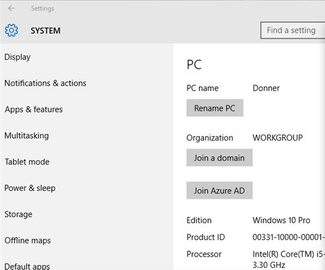 Step 1: Head to the computer that you want to control — the one that will be “remote” in this setup. Go to the Menu window and search for (or open directly) Settings. Once in Settings, choose “System” and make sure you are in the “About” section. Look for the PC name. Write down the name or otherwise make sure that you will remember it later on. It will be a specific code, so it’s smart to make a note!
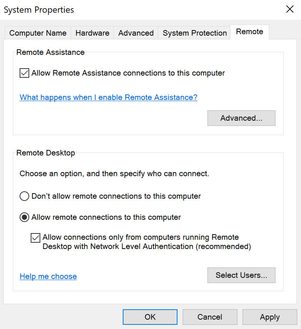
Step 2: Look again to the left side menu in the System window and choose the “Advanced system settings” option (if you don’t see it, type in “view advanced system settings” into the search bar and select the Control Panel result). This should open the “System Properties” box. From here, navigate to the “Remote” tab, and look for the heading that says “Remote Desktop.” Make sure the option to “Allow remote connections to this computer” is enabled.
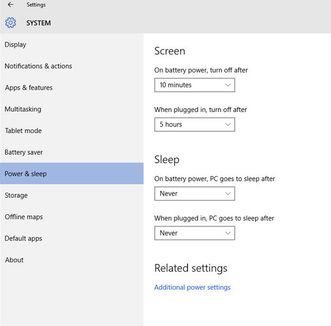 Step 3: Now your remote computer is ready to be controlled from a distant login. However, there’s one more important thing that you need to do. Head back to Settings and go to the “Power & sleep” tab. Here, make sure that the “Sleep” is set to “Never” on all accounts. The last thing you want is for your remote computer to shut off when there’s no one around — then remote desktop functions won’t work at all.
Step 4: Okay, it’s time to switch over to your “local” PC that you will be using to control the other computer. If you’re thinking, “Wait, I want to control a remote computer with my mobile device instead,” then fear not! Microsoft provides a remote desktop app for both iOS and Android devices (and also other less compatible Windows devices) that you can download to do the same thing as a Windows 10 computer.
The app isn’t quite as reliable or speedy, but it will get the job done, so download those if you need to, and open them up. If you remain on a computer, then head over to the search box and search for “Remote Desktop Connection,” which should bring up the option to open a new window.
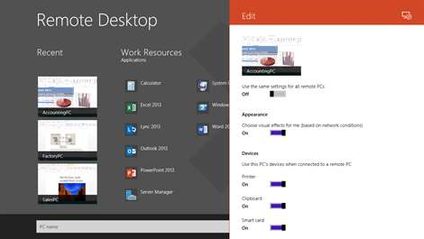
Step 5: Both the app and the “Remote Desktop Connection” tool on the computer will have an option to add a new desktop. In the app, it’s a plus sign in the upper right corner. On a computer, the Remote Desktop Connection window will have a single fill-out bar next to “Computer:” with a drop-down option for any names you’ve previously used. In either case, you need to enter that PC name that you noted in the first step.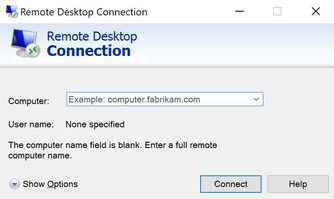
Step 6: Check to make sure the name is accurate, then select “Connect.” Now wait for the connection to complete, and a window should open into the OS of the remote computer, allowing you to use it. Keep in mind that there may be some delays, especially if you have a slow internet connection or are trying to do something complicated. Be patient, and carefully test out the features you want to use remotely to make sure they work.
What if I have a Mac?
Apple offers its own remote desktop solution (also called Remote Desktop) for those of us who may have Macs instead of PCs. The good news is that it’s compatible with Windows and can be used to control either type of operating system as you need, as long as you have the right information. The bad news is that the Apple Remote Desktop app is… not popular. It has a painfully low 1.6 rating on the Mac App store, and dozens of complaints about bug problems, glitches, and failures. Thus, we are hesitant to recommend it.
But, if nothing else will do, then we suggest that you download the app and take a look at Apple’s fairly clear instructions on how to set up the remote desktop, add clients, and get started. It’s primarily geared at administrators, but it can work in many different scenarios. Just make sure that everything is updated first.