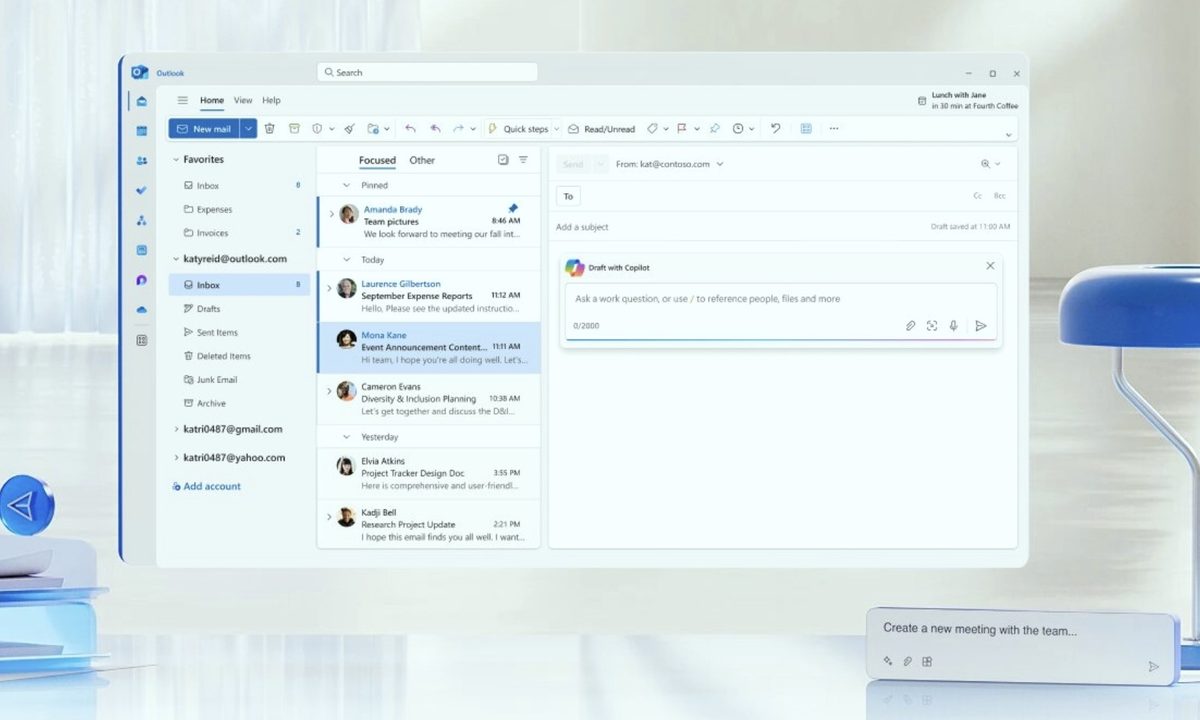
I’ve tried just about every form of artificial intelligence there is on offer to consumers, from AI companions down to video generation software. I’ve been sure to give a range of different tools a try and something that has left a lasting impression on me lately is Copilot in Outlook,
I spent a whole working week, five glorious mornings, with Copilot as my inbox-slaying sidekick, and let me tell you, my inbox went from a war zone to a zen garden faster than you can say “artificial intelligence.” If you’re drowning in emails, buckle up, because I’m about to drop some serious knowledge bombs that’ll change your email game forever.
Before this week-long experiment, my inbox was a chaotic mess. Hundreds, sometimes thousands, of unread emails. Important communications buried under newsletters I never opened and meeting invites I’d already forgotten.
It was a source of constant stress, and honestly, a productivity black hole. I’d spend the first hour of every day just trying to get a handle on it, often feeling defeated before I even started on my actual work.
Then came Copilot. It’s like having a hyper-efficient personal assistant who not only understands what you need but also anticipates it. The way it summarizes long email threads, drafts replies that sound exactly like me, and even identifies action items is nothing short of miraculous.
It’s not just a tool; it’s a transformation. It didn’t just help me clear my inbox; it helped me reclaim my mornings. Gone is the feeling of dread every morning before I start work, well… to some extent.
While I’ve found that Gemini can do the same thing for Gmail – something that made me never want to try another AI tool again – for those who use Outlook as their primary email inbox, Copilot does a fantastic job too.
My Top 5 Tips for using Copilot in Outlook
Here’s the juicy stuff, the strategies I refined over five days of pure, unadulterated email domination.
1. Leverage “Summarize” Ruthlessly
This is your secret weapon against those epic email threads where everyone has an opinion and no one gets to the point.
Instead of wading through 50 replies, hit “Summarize.” Copilot condenses everything into digestible bullet points, highlighting key decisions and action items. I used to dread those threads, now I just breeze through them. It’s a game-changer for getting up to speed in seconds.
2. Don’t Be Afraid to “Draft with Copilot” for Quick Replies
For common questions, confirmations, or even just saying “thanks,” Copilot’s drafting feature is a lifesaver.
Give it a few keywords or a simple instruction, and it whips up a professional-sounding reply in a flash. I found myself using this for scheduling, acknowledging receipt of documents, and even declining non-essential meetings politely. It cut down my reply time significantly, letting me move on to more important tasks.
3. Use “Coach Me” to Refine Your Tone
Sometimes you need to deliver tough news or provide constructive feedback. This is where “Coach Me” comes in handy.
It analyzes your draft and suggests improvements to tone, clarity, and conciseness. I used it to ensure my emails were always professional and impactful, even when I was delivering a difficult message. It’s like having an executive communications coach built right into Outlook.
4. Create a “To-Do” List from Your Inbox with Copilot’s Help
Copilot is brilliant at identifying action items within emails. While it doesn’t create a literal “to-do” list within Outlook (yet – but fingers crossed it’ll be soon), I found that by asking Copilot to “extract action items from this email,” I could quickly copy and paste them into my personal task manager (also known as my mess of a Trello Board).
This ensured nothing fell through the cracks and helped me prioritize my daily tasks right from the inbox. It essentially streamlines the process of turning an email into a task.
5. Schedule Dedicated “Copilot Clearing” Time
Even with Copilot, a little discipline goes a long way. I dedicated 15-20 minutes at the very start of my workday to solely focus on clearing my inbox with Copilot’s assistance.
This wasn’t about responding to everything immediately, but about processing, summarizing, and drafting initial replies. This focused approach, powered by Copilot, meant I started every day with a clean slate and a clear mind, ready to tackle the real work.
The Future is Now
Honestly, I can’t imagine going back to my pre-Copilot inbox days. It’s not just about efficiency; it’s about mental well-being.
The stress of a constantly overflowing inbox is gone, replaced by a sense of calm and control. If you have access to Copilot in Outlook, you owe it to yourself to dive in and unleash its power. You won’t regret it. The future of email management is here, and it’s absolutely fantastic!
How to enable Copilot in Outlook
If you want to give Copilot in Outlook a try then you need to ensure you have a Microsoft 365 Copilot subscription – which is a paid for license. Once you have this subscription, then head over to Outlook, whether its in a browser windows or through the dedicated app on PC or Mobile and Copilot should automatically appear.
It’s an integrated software meaning you can’t turn it on and off if you have the Copilot subscription – unsubscribing will remove it.