What is a hard drive? It’s a common question and one that we’re more than happy to answer. Whether you are looking for ways to upgrade your hard drive, trying to buy a computer with the right hard drive, or just trying to figure out what everyone is talking about, read on. We’ll explain everything and give you tips on which hard drive properties are essential.
The hard drive’s purpose
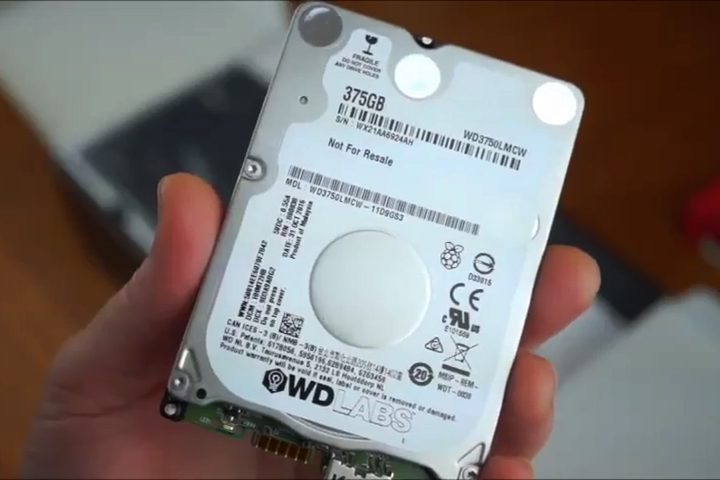
The hard drive is where a computing device stores data for the long term — not just the things you save, but all the code required for the operating system, the framework browsers use to access the internet, drivers for accessories, and everything else. When referring to computer storage, “hard drive” (or solid-state drive, see below) is typically used.
Every hard drive has a specific amount of space. Some of that space is automatically consumed by the OS and backup installations. However, the rest can be filled with data you download and save, whether it’s a new app or a funny cat picture someone shared.
Hard drive space isn’t as important now as it once was. That’s because cloud-based software doesn’t require local storage. Data can be stored in the cloud as well, freeing up precious space on the hard drive.
This cloud-based dependency — which relies on remote servers and their hard drives in data centers — originally fueled Google’s Chrome OS platform. Chromebooks have very little physical storage space due to their reliance on streaming and cloud solutions. That’s changing to some degree, thanks to growing support for Google Play Android apps.
Birth of the hard drive
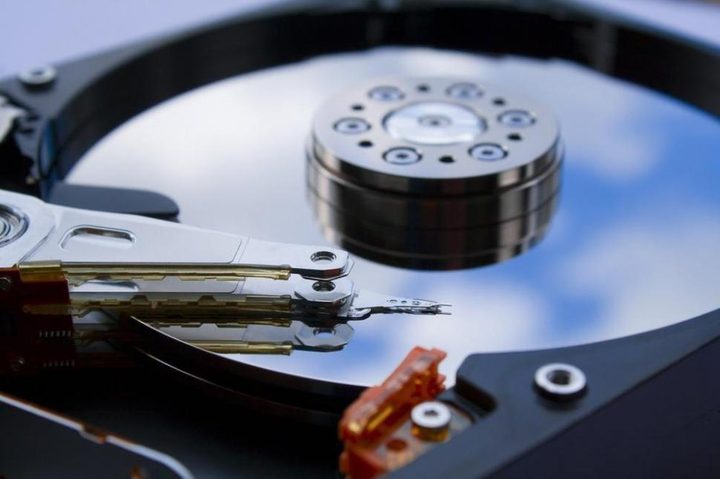
Reynold B. Johnson developed the first real hard drive at IBM in 1956. Johnson’s team originally experimented with other methods to store data on things like magnetic tape.
However, his team discovered ways to store information (in the form of bytes) on metal, magnetic disks, which could overwrite with new information as desired. This led to the development of an automated disk that read itself like a record player — except much larger. The first commercially-available version, RAMAC, had a hard drive nearly the size of a kitchen pantry.
Later, IBM developed floppy disks in the late 1960s to easily load code into their mainframes. These disks initially measured 8 inches in diameter, packing read-only data. The first commercially-available read/write drive didn’t appear until 1972 when the team’s head — Alan Shugart — migrated to Memorex.
Overall, these two parts — the automated magnetic disk and the smaller, transferable “floppy” disk — became the backbone of the early hard drive. For many years, the method of storing data remained the same, while great improvements were made in how the hard drive could store, read, and eventually write data on the disk.
Two types of drives
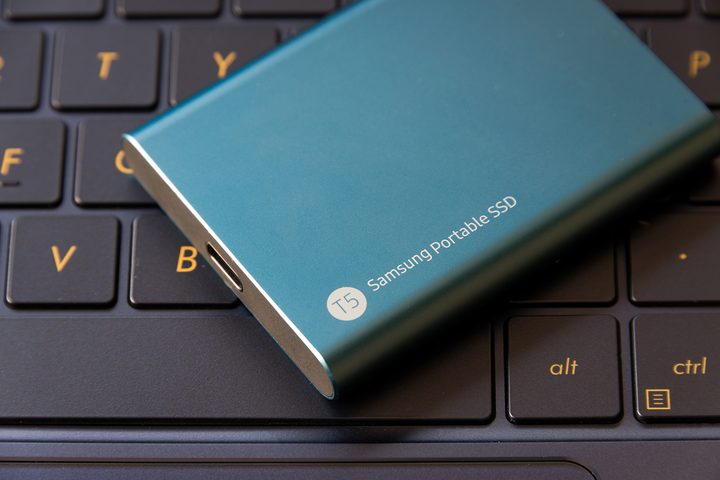
A hard drive can be internal or external.
Internal means a hard drive is located inside a computing device and directly connects to the motherboard, but it’s not always upgradable. For instance, a desktop side can be easily removed to disconnect the old drive and connect the new drive. It’s a quick, simple upgrade.
On laptops, however, the upgrade process may not be quite so simple. Typically there is a door along the bottom providing access to the drive. Other laptops, like Apple’s MacBooks, don’t have removable storage. Read the specifications on the manufacturer’s websites on how to change a laptop’s drive properly.
External means a hard drive is located outside the PC and typically connects through a USB or Thunderbolt cable. This option is typically slower due to the connection, but it can also be detached from the parent PC without any major issues.
Besides internal and external, a hard drive can be a hard disk drive (HDD) or a solid-state drive (SSD). There’s a huge difference between the two that we explain in a separate article, SSD versus HDD. However, here are the shorter explanations:
HDD: Hard drive disks use a spinning magnetic disk that holds information inscribed in very tiny tracks — a bit like a record player. This requires moving parts, specifically heads to read and write data to the disk as needed and propulsion to spin the disk. It’s a simple method, making HDDs very inexpensive to purchase, especially when creating extensive storage setups.
SSD: There are no moving parts in SSDs. Instead, these drives use semiconductors that store information by changing the electrical state of very tiny capacitors. They are much faster than HDDs and can store information more easily without the risk of parts wearing out. SSDs are why modern PCs boot up so fast.
Important hard drive qualities

Speed: The speed of a hard drive depends on how fast it can read or write data. The connection to the PC also factors in. A poor connection can bottleneck the data flow and, ultimately, impact the machine’s performance. For mechanical hard drives, the spin speed is also essential: 7,200RPM drives, for example, are faster than 5,400RPM drives. Both are far slower than SSDs.
Physical security: Hard drives need to be able to resist the occasional jolts and bumps. That’s what physical security is all about — your device’s resistance to damage that could result in data loss. Physical security is primarily about durability, and it’s an important consideration for both internally-mounted and external hard drives.
Environmental factors, such as extreme heat or cold, are an essential consideration. Also, some manufactures include features that help prevent hacking or discourage theft.
Connections: Choose a hard drive with ports that fit your computer, like PCI Express, Thunderbolt, USB, or SATA. Check out our guide to know more about SATA. Make sure you know your computer connection types.
Different hard drives affect speed differently. An external solid-state drive connected to an old port will significantly restrict data flow by 60 megabytes per second.
Know your available connections and choose the best option to work with the hardware you currently have.