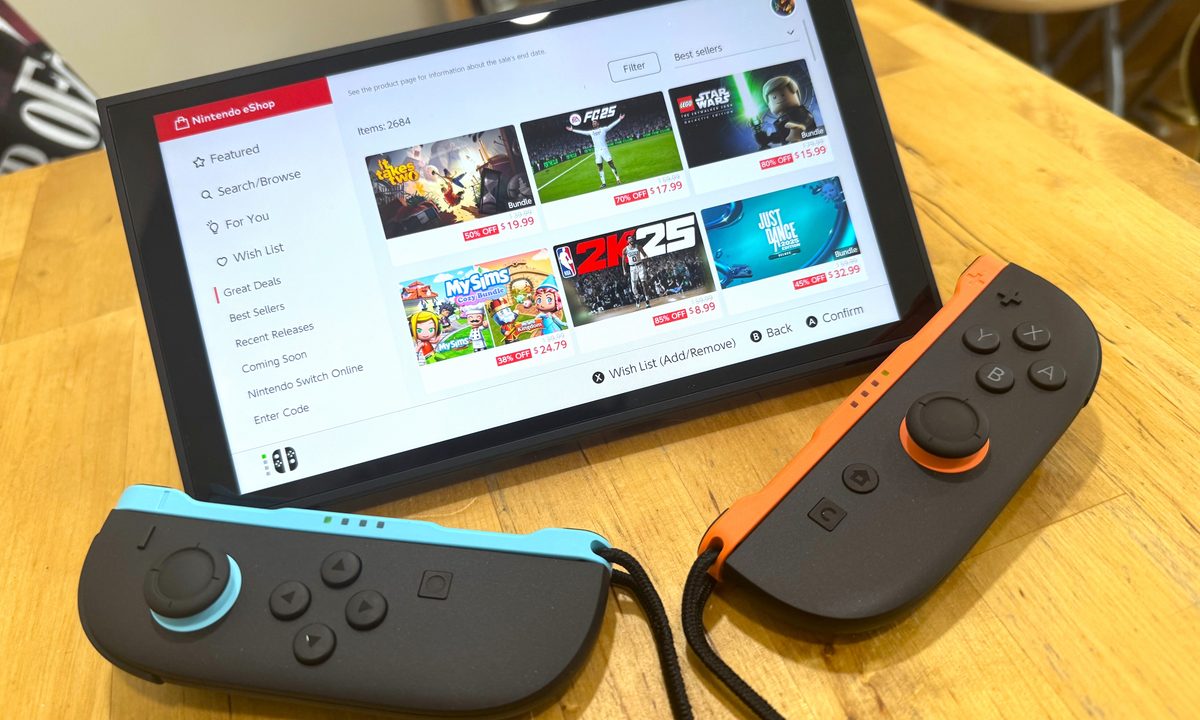
Everyone who is just coming home with a brand new Nintendo Switch 2 will be racing to get the system open, transfer their Switch data, and jump into Mario Kart World or any other new title to start playing. We felt the same way, but there are a few bits of housekeeping to be done with every new console. It may not be the most glamorous thing, but diving into the Switch 2’s settings now can make the rest of your time with the console far more enjoyable than if you put it off. There are a lot of settings to sift through, and most of them aren’t ones you will need to ever touch, but we found the most essential Switch 2 settings you should change on day one.
Limit your battery charging
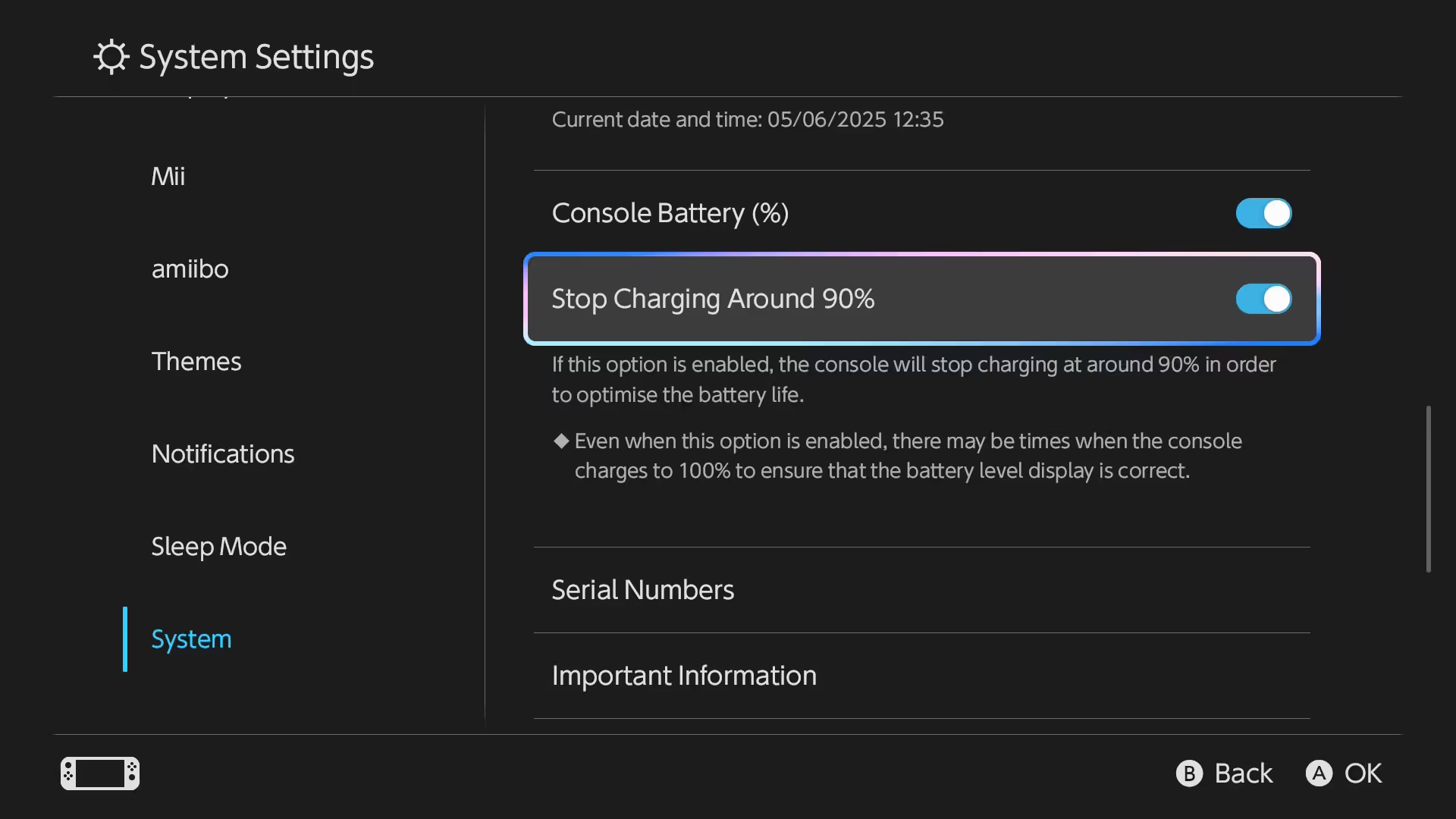
Just like the original, the Switch 2 pulls double-duty as a home and handheld console, meaning it has an internal battery to consider. By now, most of us have heard the advice to never charge our devices up to 100% to help preserve the battery, and that advice is sound. What was tricky about this on the original Switch was that you had to pay attention and unplug your console at the right time, which was very inconvenient. The Switch 2 has a handy feature that automatically stops charging at 90% even if you leave it plugged in overnight. While you will lose out on a little bit of playtime on each charge, you will get much more out of it in the long run by keeping your battery healthy.
To turn this feature on, go to System Settings -> System -> Stop Charging Around 90%.
Remap your buttons

Whether you’re using the new Joy-cons or improved Pro Controller, not all default button layouts are exactly comfortable for everyone. Each console has some form of button remapping system, including the original Switch, but they’re always buried so deep in menus that it is a pain to change them between games. The Switch 2 has two ways you can remap your controls, with the first being found in Settings -> Accessibility -> Button Mapping. This way works fine, but there’s an even better way.
In that same menu, turn on Button Mapping in Quick Settings. Now you will have the option to access full button mapping via the Quick Settings, which you can pull up at any time by holding down the Home button. Combining this feature with the ability to save presets and you can swap between all kinds of button layouts based on what game you’re playing at the time.
Text-to-speech and speech-to-text
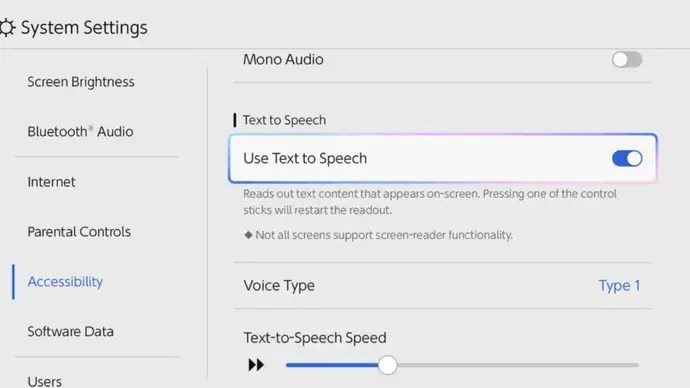
The Switch 2 has a lot of great accessibility features, including text options, zooming in the screen, and mapping your buttons like we talked about above. But one that a lot of people should take advantage of is the various text-to-speech options. These all live in the System Settings -> Accessibility menu.
The first is a basic Use Text to Speech toggle that reads out text in the Switch 2 UI to make navigation easier. What we were very impressed with, and find very useful ourselves, are the GameChat Voice Text-to-Speech Audio and GameChat Voice Speech-to-Text options. These do exactly as they describe; the former turns text you enter into audio in GameChat, while the latter turns what others are saying into text for you to read.
Set up parental controls
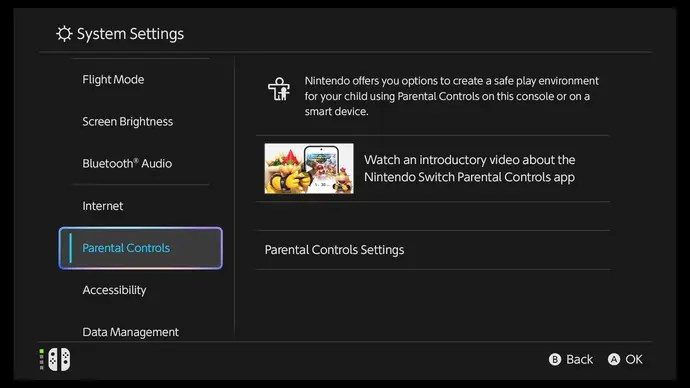
If you’ve got a youngster playing the Switch 2, setting up the parental controls can help keep them safe while gaming. To view all the parental controls, go to System Settings -> Parental Controls Settings. Here, you will have various options on how restrictive you want the system to be, as well as let you use the Nintendo Switch Parental Controls app to be able to change settings from your phone.
Some key settings to consider are restricting software based on age rating or content rating, the ability to post screenshots or videos to social media, and turning off free communication. That last one might be the most important now that GameChat with built-in microphones and optional cameras are in play.
Turn on dark mode
Some would argue that dark mode isn’t an essential setting to change, but it is a godsend for us. If you find the natural white of the Switch 2 to be a bit harsh on the eyes, especially when doing some late-night gaming, swapping over to dark mode can make using the system far more comfortable. You can swap by heading into System Settings -> Themes and changing from white to black.