Playing video games with friends is a necessity in the gaming world. Each platform offers different ways to play with friends, particularly online. The Nintendo Switch allows for players to add their gaming buddies to their friends list and play together no matter the distance. While most methods for adding friends on different platforms are pretty straightforward, they can also be a little difficult to navigate sometimes, especially for those who may not be familiar with these processes.
An important note is that you’ll only be able to add 300 people to your Switch’s friend list. However, with the friend cap in mind, adding friends on the Nintendo Switch is pretty simple.
Further reading
- The most common Nintendo Switch problems and how to fix them
- Nintendo Switch vs. PS4
- Best free games on Nintendo Switch
- How to guarantee you get the Nintendo Switch username you want
Using Friend Codes
Although former Nintendo of America President Reggie Fils-Aime promised they wouldn’t be part of the Switch’s online infrastructure, the Switch still uses a modified version of the “Friend Code” system seen on previous Nintendo consoles. Used on the Wii and, most recently, the 3DS family of systems, a friend code is a 12-digit password you can send to friends outside of the console, which they can then punch in to send a friend request.
Find your Friend Code
On the home page, click on your account icon in the upper left-hand corner, represented in the image below as “Steve’s Page.”
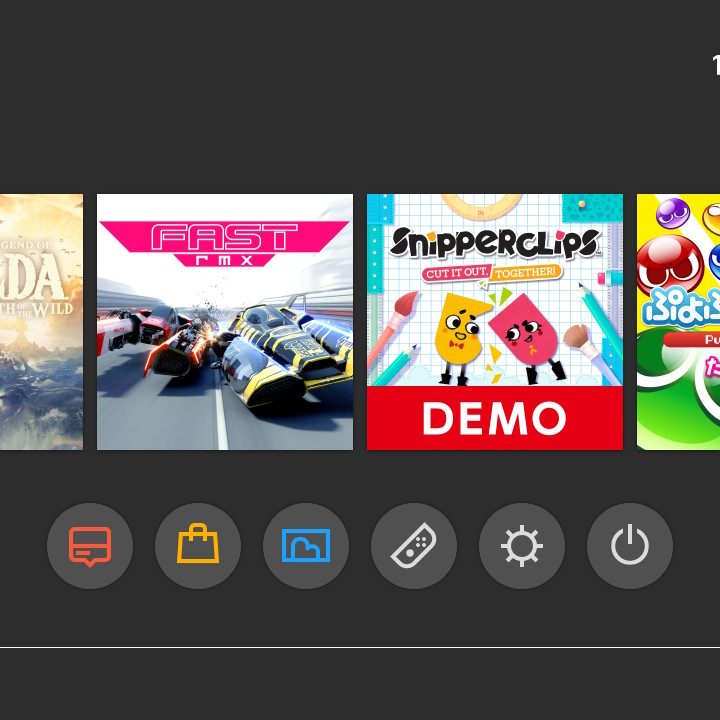
Your friend code is available in two places: On the landing menu (Profile), and under the Add Friend menu. This is the code you should send your friends so they can find you.


How to add a friend
On the user page, click Search with Friend Code and type a user’s 12-digit code to send a Switch friend request.
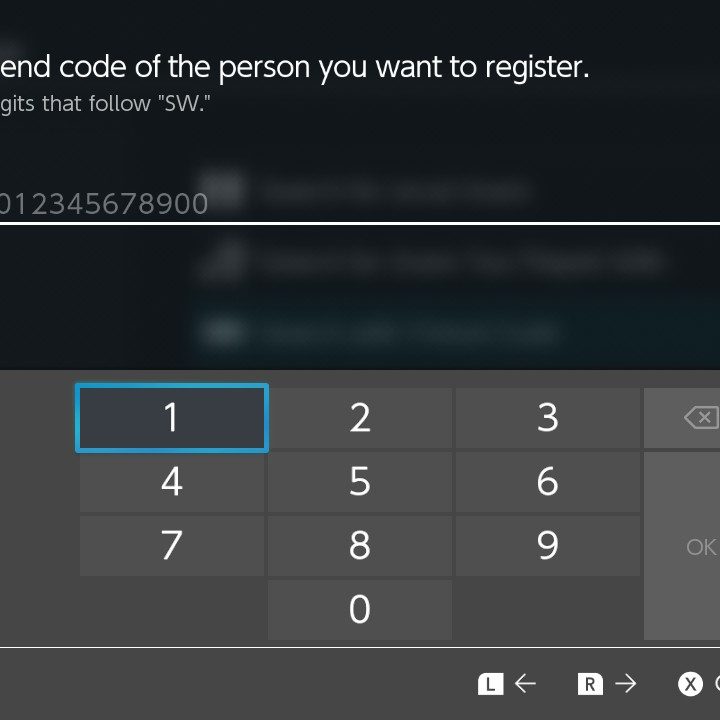
If entered correctly, your friend’s nickname and user icon will pop up, and you can confirm that you want to send the request.
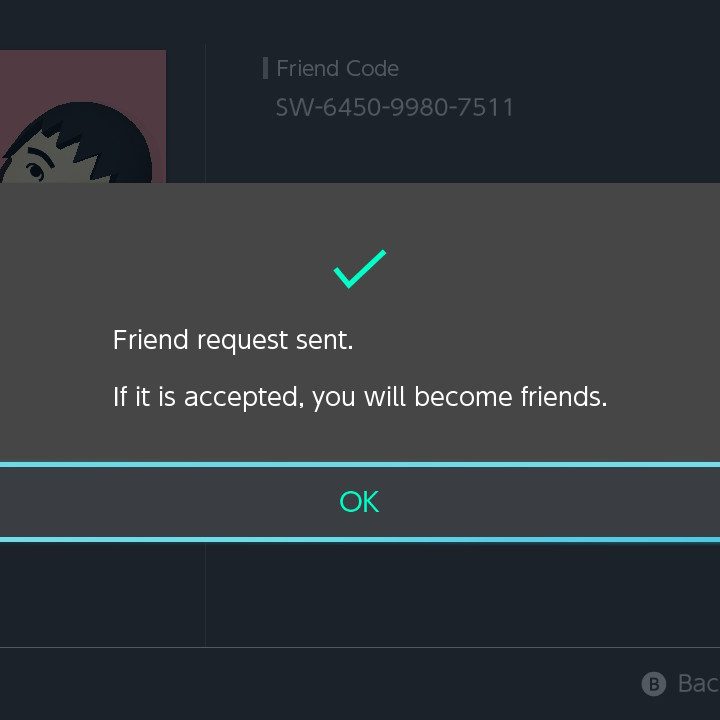
Back at the Add Friend menu, you can check on your pending requests under Sent Friend Requests.
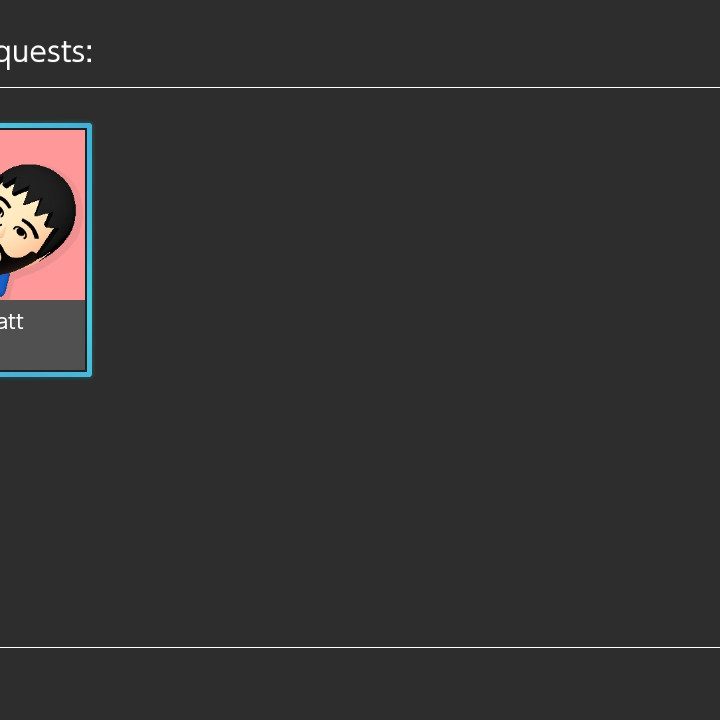
Unlike previous friend code systems, the user on the receiving end of the request does not need to know the sender’s friend code to become friends. Once accepted, the user will show up in your Friend List on the user page.
Accepting a friend request
When someone sends you a friend request, a notification dot will show up next to the Add Friend section of the user page. The Friend Requests inbox at the top of the menu lets you know that someone has added you.
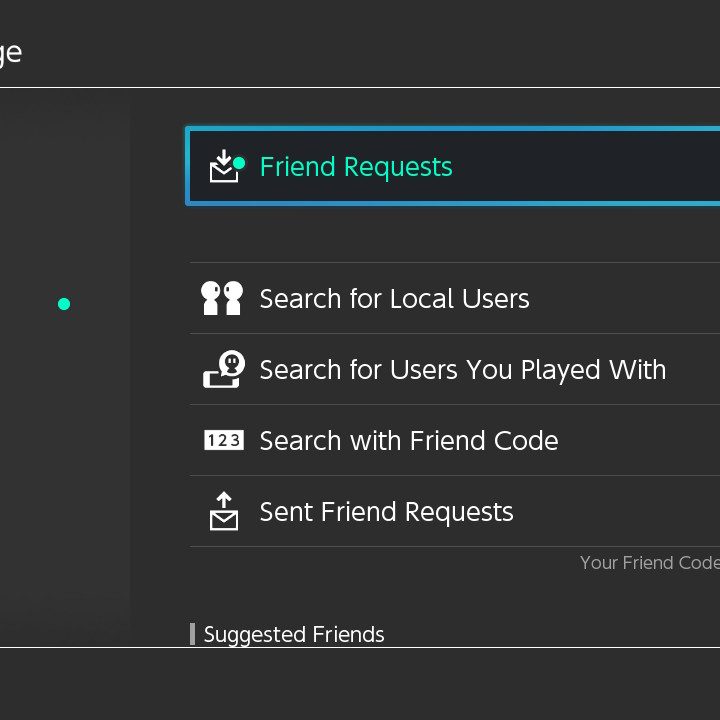
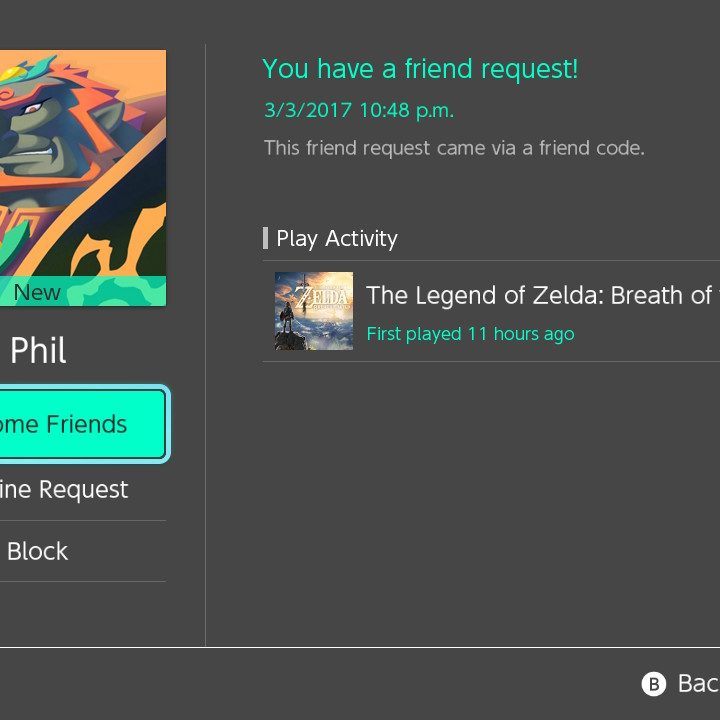
Click Friend Requests to see the requesting user’s icon and nickname. From here, you can either accept, reject, or block the user.
Adding friends locally
If you’re having a few friends over, you won’t have to bother with friend codes to add new pals.
You can search for nearby Switch players under Search for Local Users on the Add Friends menu of the user page. To find one another, you each have to click the same symbol. Our best guess is that this is a parental control feature, albeit not an incredibly sophisticated one.
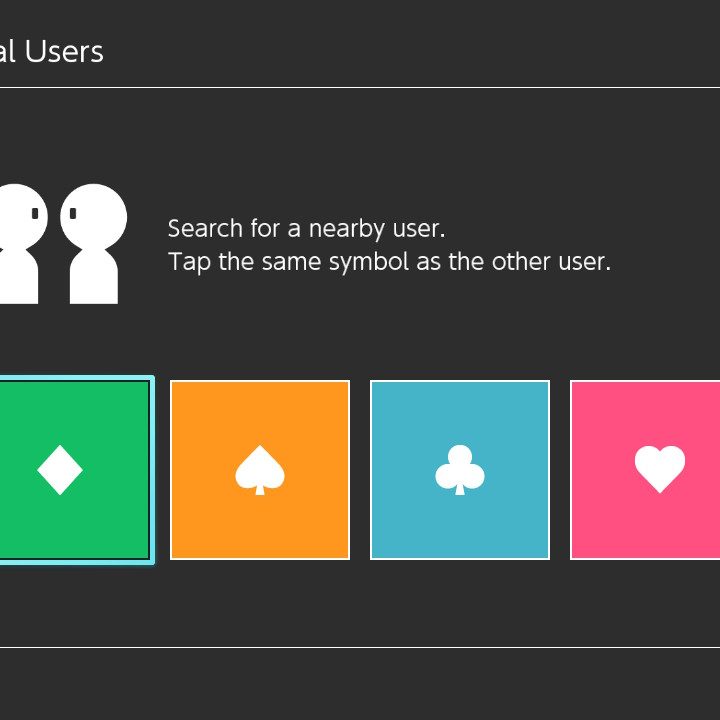
After agreeing on a symbol, find the user’s nickname and icon, then send a request.
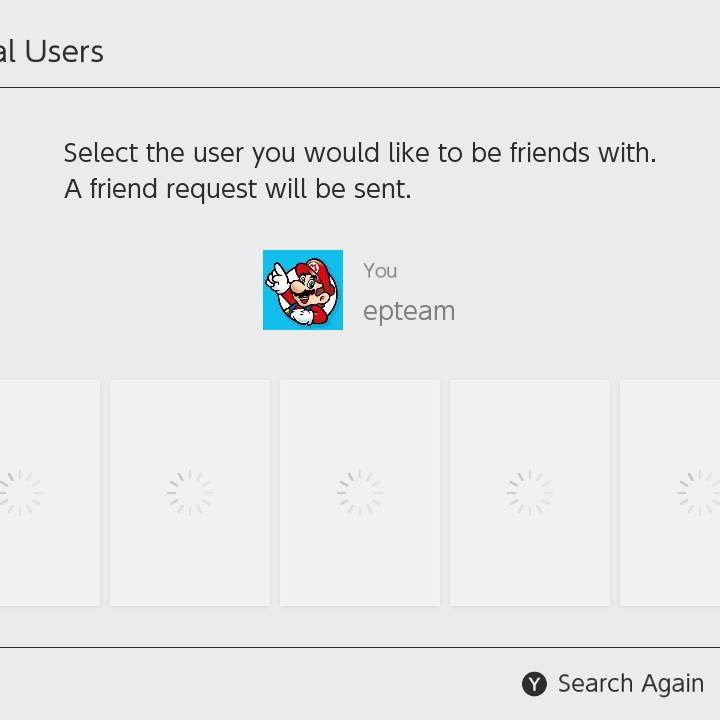
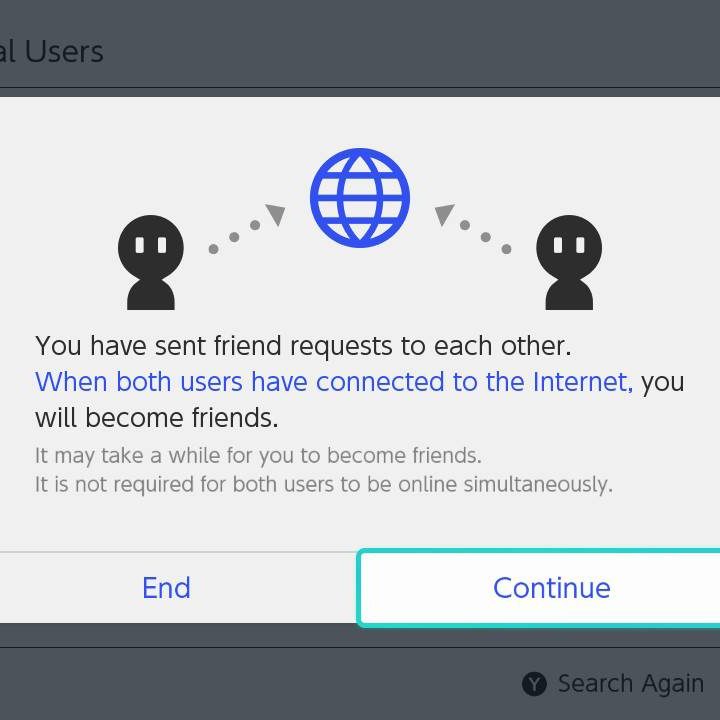
Note that adding friends locally doesn’t go into effect until both users have logged onto the online service.
Adding friends you’ve played with
Out of the gate, the Switch seemingly lets you add users that you’ve played with before. After playing a multiplayer game online, head over to the Add Friends section on the user page. Here, click on Search for Users You Played With.
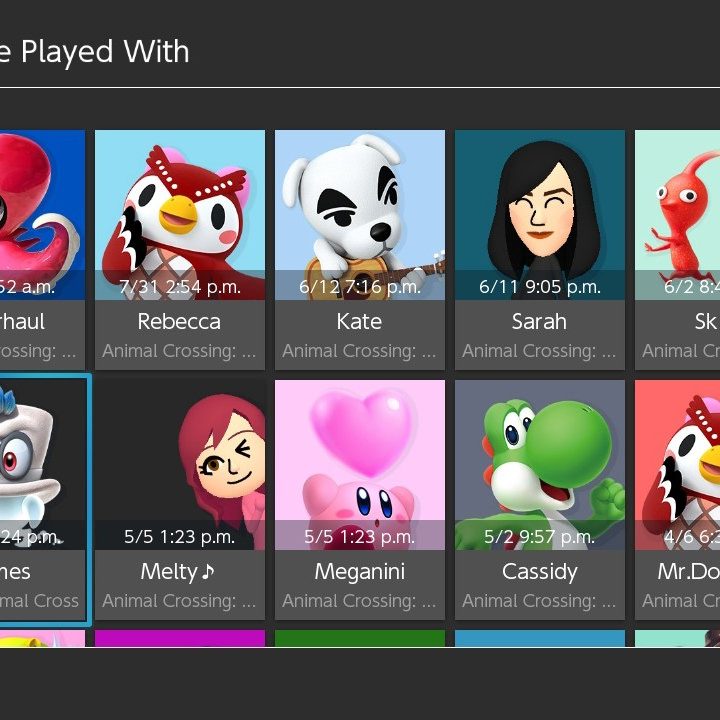
From here, simply select the person you want to add and hit the Send Friend Request button.
Adding friends through Nintendo apps
Friends from official Nintendo apps — Super Mario Run, Miitomo, Fire Emblem Heroes — linked to your Nintendo account will show up under Suggested Friends in the Add Friends menu of the user page. From here, you can skip the friend code process by clicking on a user and sending a request.
Share your experiences on social media
While this doesn’t technically net you more friends, you could end up exchanging friend codes by sharing images over social media. The Switch has a rather nice share feature that allows you to add image captions and create memes to upload to Facebook and Twitter.
On the user page, click on User Settings and scroll down to Posting to Social Media to link your Switch to your Facebook and Twitter accounts.
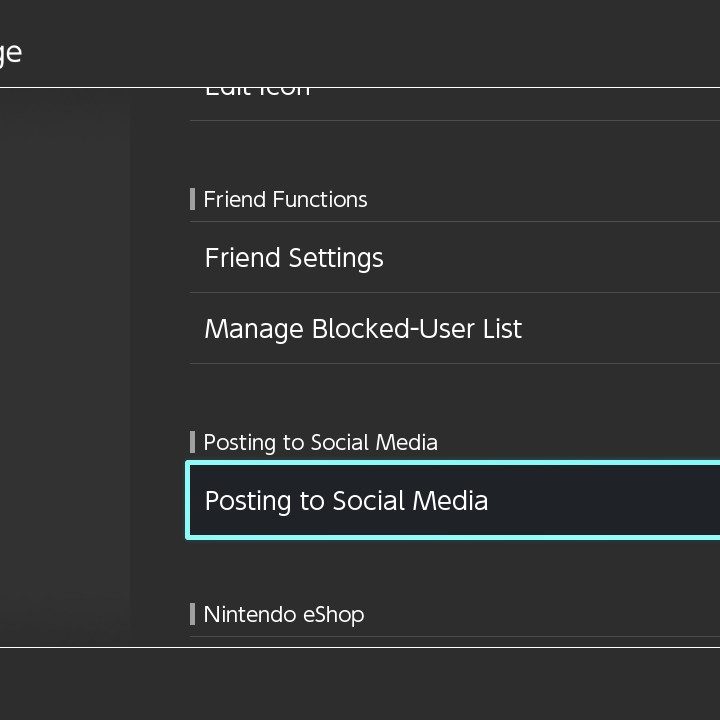
Once linked, go to the home page and select Album.
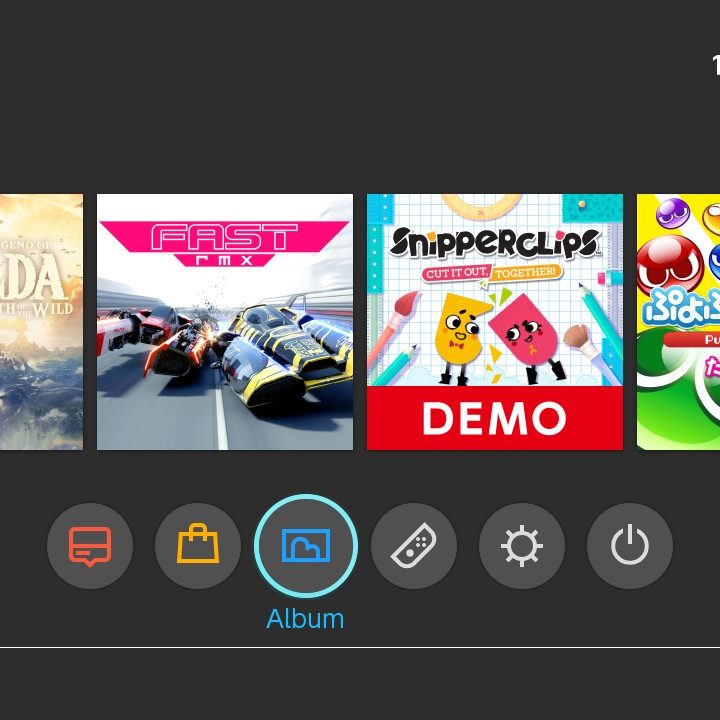
Unfortunately, the Switch doesn’t allow screen captures inside the album, but you can select an image, add a caption, and click Post to blast it across social media.
Adding Best Friends
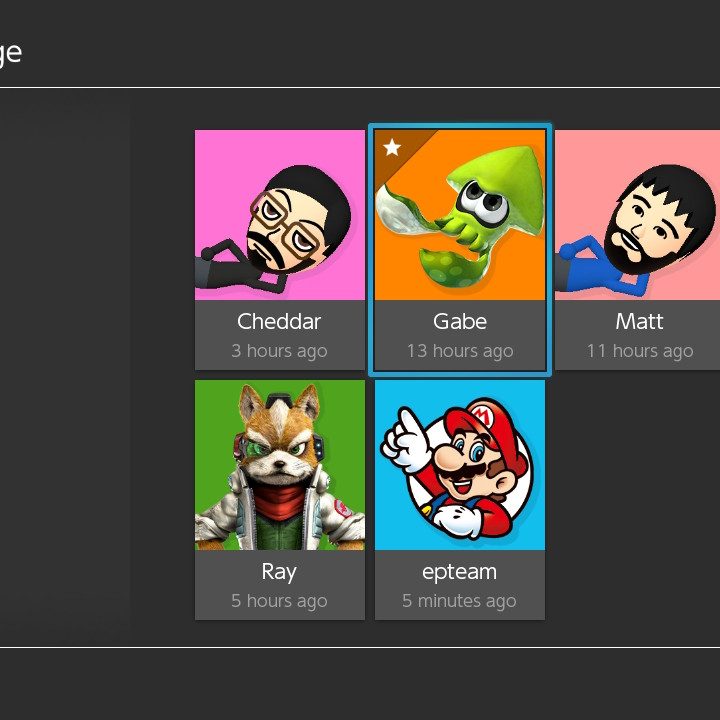
If you’re particularly fond of a certain friend, you can elevate them to Best Friend status. Navigate to your friend list and choose one of your favorite pals. Click the Best Friends option.
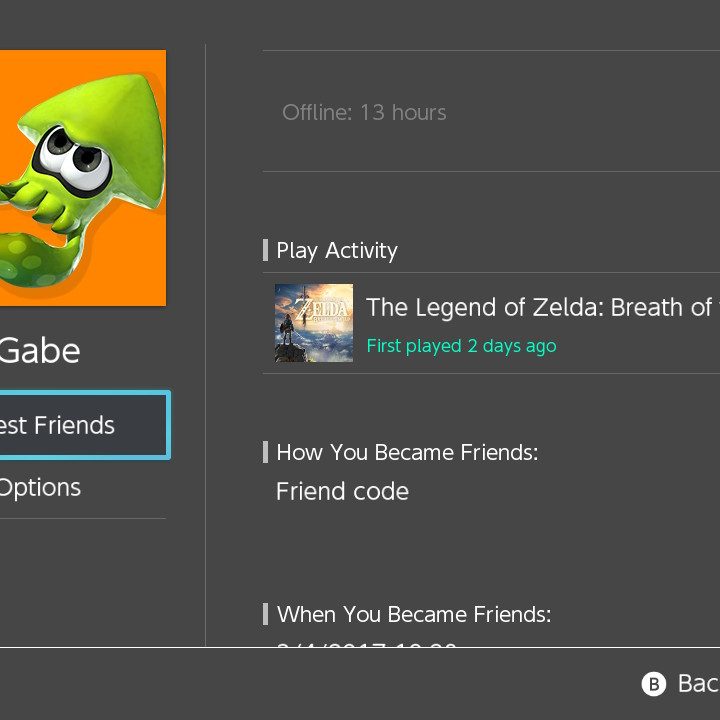
That user will now have a star in the upper left-hand corner of their icon. Sadly, your bestie won’t get notified of their newfound importance in your life as marking best friends is a one-way street, but the star could come in handy if you have a plethora of friends with the same avatar.
Remove/block friends
If you no longer want to be friends with a particular user, you can unfriend them. You can take it a step further by blocking the user, which prohibits them from adding you again.
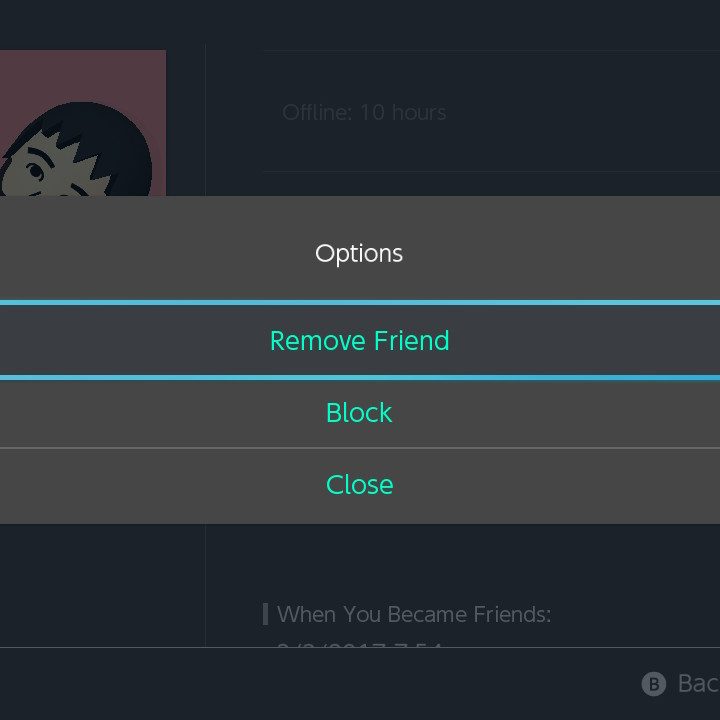
Head over to your Friend List and select the friend that you want to remove.

Click Options.

Either pick Remove Friend or Block. If you change your mind later, you can go into User Settings and choose Manage Blocked-User List to open the door for becoming friends again.
In the future…
As we discussed earlier in this article, Nintendo has announced that more modernized techniques for adding friends are currently in process. There may come a time when you may be able to add friends using Nintendo Network IDs — user-selected names that are much more manageable to remember and share than the 12-digit friend codes. You may also be able to connect your Nintendo account to your social media platforms. According to Nintendo’s claims, specific titles will also have in-game friend request operations to make the connection process more straightforward.
There’s also the unique topic of User IDs, a separate username assigned to your Nintendo account that became open a few weeks before the Switch’s released. In the beginning, it appeared that User IDs would replace NNIDs, but reflecting on the fact that Nintendo has declared its ideas for NNIDs in the near future, we’re not entirely sure if these new usernames will be applied when adding friends on Switch.