  1. Home
  2. Audio / Video
  3. How tos

Apple Music’s lossless audio on Apple TV isn’t enabled by default. Here’s how to fix that

Add as a preferred source on Google
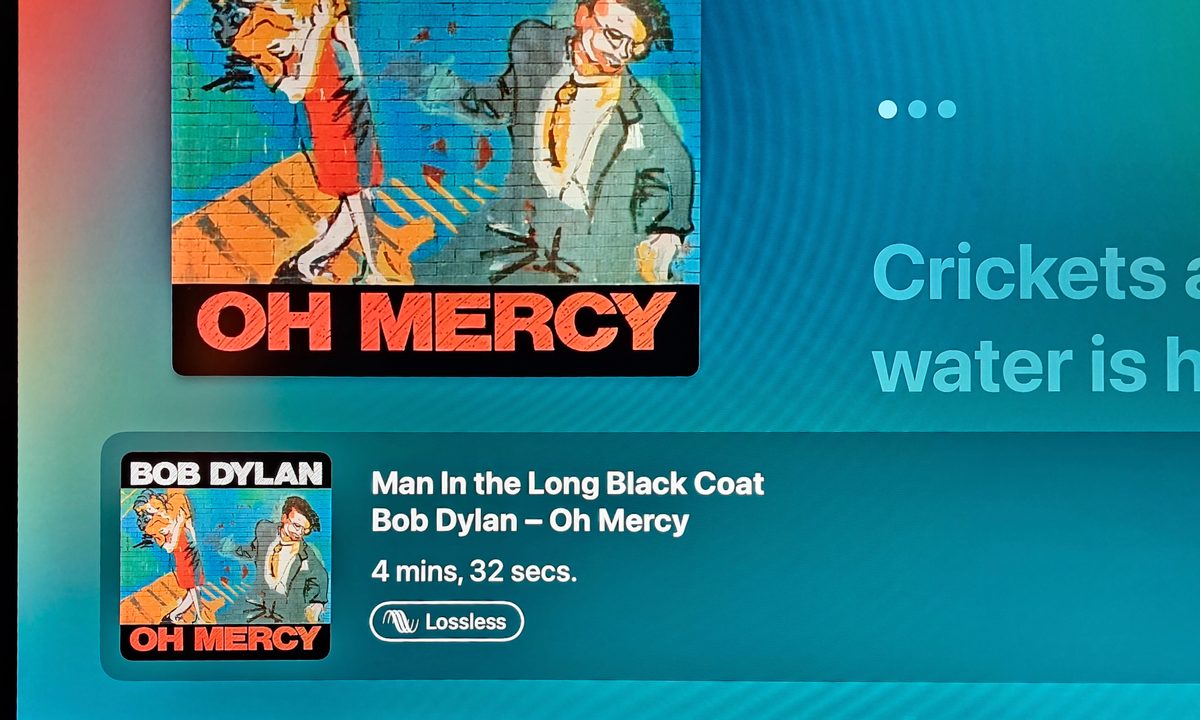
Apple TV 4K: Apple Music now playing screen with Lossless audio format displayed.
Simon Cohen / Digital Trends

Apple TV is one of the best streaming devices available today, delivering a home entertainment hub where you can watch shows from the most popular streaming services, listen to music, and even connect your AirPods for private music jams.

While Apple TV comes with preloaded, you might not realize it isn't delivering the best possible quality of music. That's because while there is lossless audio from Apple Music, it isn't automatically enabled on Apple TV. Thankfully, it only takes a few click of your Siri remote to fix this and start listening to music at the best possible quality without needing to do anything drastic like resetting your Apple TV to factory settings.

Let's dig in.

Recommended Videos

Difficulty

Easy

Duration

5 minutes

What You Need

  • Apple TV 4K

  • Apple Music subscription

It's important to note that these steps only apply to Apple TV 4K. Lossless audio from Apple Music isn't supported on older Apple TV models.

Apple TV 4K: Apple Music now playing screen with Lossless audio format displayed.
Simon Cohen / Digital Trends

Switch the Apple Music audio quality setting from High Quality to Lossless

To get lossless audio from Apple Music on an Apple TV 4K, follow these five easy steps using your Apple TV remote or the Remote app on your iPhone.

Step 1: From the Apple TV 4K's home screen, open the Settings app.

Apple TV 4K: Home screen with Settings app highlighted.
Simon Cohen / Digital Trends

Step 2: Scroll down and select the Apps menu item.

Apple TV 4K: Settings menu.
Simon Cohen / Digital Trends

Step 3: Scroll down and select Music under the App Settings heading.

Apple TV 4K: apps settings.
Simon Cohen / Digital Trends

Step 4: Take note of the current setting for Audio Quality under the Audio heading.

If it says "Lossless," you're already getting lossless audio quality from Apple Music, congrats!

If it says "High Quality," move on to the next step.

Apple TV 4K: Apple Music settings.
Simon Cohen / Digital Trends

Step 5: Scroll down and select Audio Quality from under the Audio heading.

Apple TV 4K: Apple Music audio quality settings.
Simon Cohen / Digital Trends

Step 6: Highlight, then select the Lossless option.

The check mark should move from the High Quality option to the Lossless option. If it doesn't, select the Lossless option again.

To confirm that the change worked, use the back button to return to the Music screen. You should now see "Lossless" in the Audio Quality field.

Apple TV 4K: Apple Music audio quality settings.
Simon Cohen / Digital Trends

Now that you've got lossless audio for Apple Music enabled on your Apple TV, we should point out one small caveat for audiophiles. While the steps above ensure that you're getting the best possible audio quality from Apple Music on Apple TV, lossless audio isn't actually Apple Music's top quality level.

Included with every Apple Music subscription is access to the service's collection of "hi-res lossless" tracks. These tracks are streamed in 24-bit/96kHz or higher resolution, but unfortunately, the Apple TV 4K is currently limited to regular Apple Music lossless quality of up to 24-bit/48kHz.

As DellaSala points out, there's absolutely nothing wrong with 24-bit/48kHz. In fact, in many circles this resolution is considered the entry level for hi-res audio. Still, if you want to hear the very highest quality from Apple Music, you'll need to use a hi-fi or headphone DAC that's compatible with iPhones or Android phones. These will let you decode hi-res lossless tracks from the Apple Music mobile app.

Simon Cohen
Former Contributing Editor, A/V
Simon Cohen obsesses over the latest wireless headphones, earbuds, soundbars, and all manner of related devices and…
tvOS 27 is finally getting this iOS accessibility feature, and your eyes will thank you for it
Squinting at your TV screen just became a thing of the past.
Apple TV new accessibility feature demo

tvOS updates tend to be hit or miss each year. Sometimes WWDC delivers a genuinely exciting set of Apple TV features, and sometimes you're left wondering why you even tuned in. With tvOS 27 set to be unveiled next month, the rumor mill has been unusually quiet. That said, Apple did confirm at least one new feature this week, and it's a useful one.

So what's coming to tvOS 27?

Read more
Spotify adds verified podcast badges so you know you’re listening to the real host, and not an AI clone
Spotify is cracking down on AI voice fakes and giving real creators their badge of honor.
Spotify verified podcast

Soon after adding verified artists badges for music creators, Spotify has not announced verified podcast badges, so you can be sure you are listening to your favorite hosts and not some AI impersonator. 

The badge will appear as a light green checkmark on show pages and in search results, signaling that the show has been reviewed for authenticity. Not every show will get the badge right away. Spotify is starting with select shows and will expand over the coming months.

Read more
YouTube gets Gemini Omni for free, but its best AI search features stay behind a paywall
Google I/O 2026 gave YouTube users a free AI-powered creative studio in one hand and a paywalled search upgrade in the other.
Text, Person, Machine

At the I/O 2026, Google rebuilt two of YouTube’s core experiences from the ground up, and the results look genuinely useful. First, YouTube search is getting a new feature called Ask YouTube, which is more like AI Mode, but for the vast library of videos on the platform.

Then there’s Gemini Omni, Google’s “create anything from anything” tool, which will be available in the YouTube Shorts Remix and Create app, the most disruptive announcement for creators. However, while Omni remains free for now, Ask YouTube is locked behind a paywall. 

Read more