
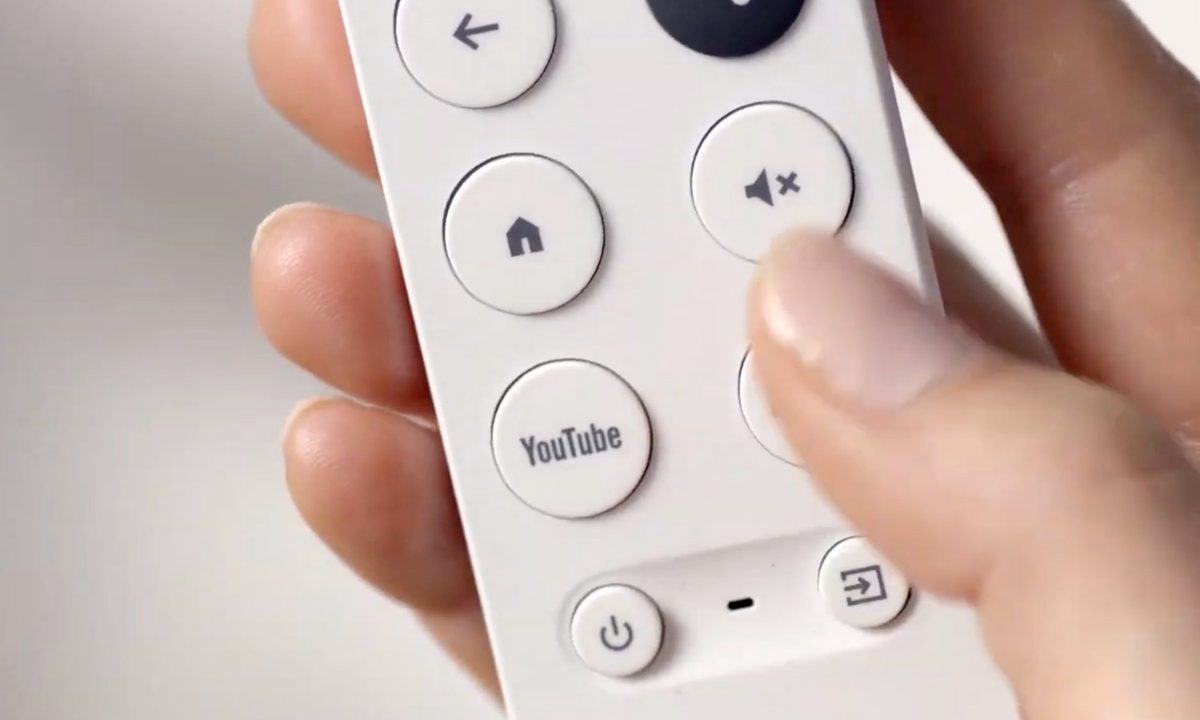
After launching in 2020, the Chromecast with Google TV quickly became a hot commodity. The affordable device made it easy to turn any TV into a smart TV, providing access to apps like Netflix, YouTube TV, Spotify, and other popular services. Google continues to update the service as we roll into 2024, ensuring the device works as well today as it did four years ago. You'll also now find both a 4K and HD model on the market, giving you the option to pick whichever is best for your home theater.
Part of what makes the Chromecast with Google TV so compelling is its Voice Remote. This lets you control your TV in a variety of ways, and it's essentially how you operate the entire setup. However, like all electronics, the Voice Remote doesn't always work as intended. A common problem is that the Voice Remote will disconnect from Chromecast, preventing you from using it with your TV and turning it into a fancy paperweight. The issue seems to occur randomly — but thankfully, there's an easy solution.
Note that this also work with the newer Google TV Streamer, which is replacing Chromecast. It's just that the buttons are in different locations on the remote.
Here's how to reconnect the Chromecast with Google TV Voice Remote and get back to enjoying your shows.

How to re-pair a Google TV remote that won't connect
When the Chromecast is powered on, it typically pairs with the remote automatically without hassle, but that is not always the case. The remote and the Chromecast communicate with each other via Bluetooth. If your Chromecast can’t find the remote, your TV will play a chime. This chime is an indication that the Chromecast has stopped scanning for Bluetooth devices and therefore cannot pair with the Voice Remote.
If your remote is not paired with your Chromecast and is not responsive, you have to manually pair them.
Step 1: First, make sure that the batteries in your remote are not dead and are installed correctly.
To put the Chromecast back in pairing mode press the button on the back of the Chromecast, and it will open up the pairing mode on the device, which will notify you via your TV screen.
Step 2: If this doesn't pair with the device automatically, next, on the remote, press and hold the Back + Home buttons simultaneously, not letting go until you see the LED light at the bottom of the remote pulsating. This will put the remote in pairing mode.

Step 3: When you see the LED, press the Home button on the remote. The remote should now be paired.
Reboot the Chromecast with Google TV
You can try a regular reboot of the Chromecast, which will restart the remote pairing process.
Step 1: Unplug the power cable from the Chromecast and wait for three seconds. (Ensure that you leave the Chromecast plugged into the TV’s HDMI port.)
Step 2: Plug the power cable back into the Chromecast. The Chromecast should begin searching for the remote.
Step 3: To ensure that your remote is working, press a few buttons on the remote.
Step 4: The Chromecast will begin the initial setup process as a new device. Follow through with this process.

Factory resetting the Chromecast with Google TV
If these steps do not work, try the following process instead. Factory resetting does not mean you will lose your data, but it means that the Chromecast with Google TV initial setup will happen again from scratch.
Step 1: To begin the reset process, locate your Chromecast’s physical reset button.
While powered, press and hold the button on the back of the Chromecast. The light will start blinking yellow.
Step 2: Continue to hold the button until it turns solid white, and then release it. The Chromecast will restart and the reset is complete. You are now ready to set up your Chromecast once again. Once the Chromecast resets, it will initiate the remote setup process again. Follow the same remote pairing process from above.
You should now have reconnected your Chromecast with Google TV remote and everything should be working properly. If you are still having issues, you can check out the Google Support page for more information.


