  1. Home
  2. Audio / Video
  3. How tos

How to find your lost Apple TV remote with iOS 18

Add as a preferred source on Google
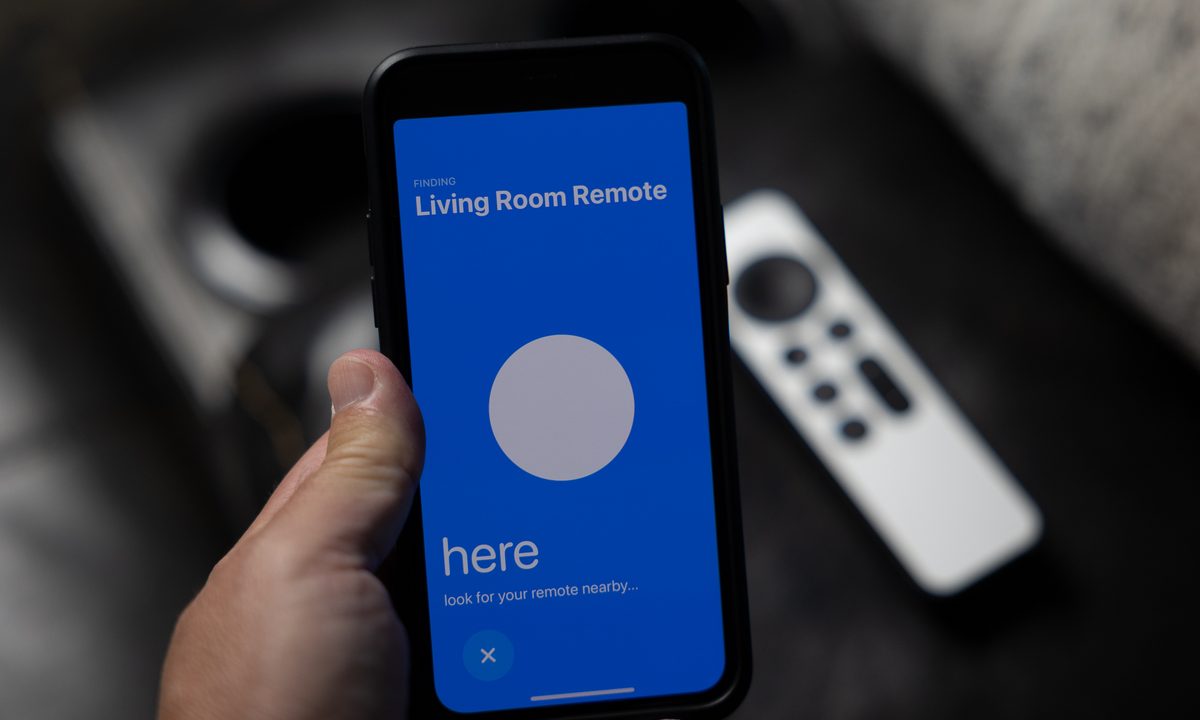
An iPhone searching for an Apple TV remote and displaying "Here" on the screen.
Phil Nickinson / Digital Trends

Apple TV is one of the best streaming devices available to purchase today, delivering access to the most popular streaming services, live streaming, and connecting to Apple HomeKit. However, if you've misplaced your remote, you might be in a bind.

Thankfully, Apple TV has made it easy to recover your remote if the kids have hidden it, or the couch has eaten it. With iOS 18, you can use an iPhone or iPad to find your lost Apple TV remote.

Recommended Videos

Difficulty

Easy

Duration

5 minutes

What You Need

  • Apple TV 4K running tvOS 18

  • An iPhone or iPad on iOS 18

  • Second-gen Siri remote

Apple, of course, is no stranger to finding things. Its "Find My" feature has helped track down wayward devices for years. And more recently, AirTags have made it easier than ever to keep track of — and find — virtually any non-Apple device thanks to the quarter-sized trackers.

What you'll get with the new remote-control finder is something in between. It's not as good as finding something with an AirTag. But it also doesn't cost you any extra money, which is nice.

Here's how to find a lost Apple TV remote in iOS 18.

Lose your Apple TV remote

This is sort of obvious, but it's worth stating. If you haven't lost your Apple TV remote — also referred to as a Siri Voice Remote — you don't need to find it.

Don't hunt for a remote control that isn't lost. You'll just look silly.

The Remote app on an iPhone showing two Apple TV devices and the lost remote control finder.
Phil Nickinson / Digital Trends

Use your phone to find a lost remote

If you've misplaced your Apple TV Remote — and it will happen at some point, because it's still a little skinny and slippery — here's how to use your phone to find it.

Step 1: Open the Remote app on your phone. You can get to it in Spotlight (just search "Remote"), or use the shortcut in the Control Center. (Swipe inward from the top-right corner of the screen.)

Step 2: At the top of the Remote app you'll either see Choose a TV, or your active Apple TV hardware. Either way, select this and look for the remote find option. Select it, and it'll start the process of actually finding your remote control.

An iPhone searching for an Apple TV remote and displaying "Here" on the screen.
Phil Nickinson / Digital Trends

Step 3: This is where the real work begins. Move around a little bit and you'll see the finder change between Far, Near, or Here as you get closer or farther from the remote control.

The whole thing evokes memories of that classic Sesame Street clip.

The lost Apple TV remote finder showing that it's far from the remote.
Phil Nickinson / Digital Trends

That's all there is to it. Unfortunately there's no more fidelity than that. If you've ever used an AirTag, you're accustomed to better directions and distance, telling you with far more certainty how close you are to the missing device. AirTags also have the option to make an audible chirp — the remote control doesn't have that.

It's also worth reiterating that none of this is in the Find My app, which arguably could make a little more sense.

The bottom line is that if you're really worried about losing your Apple TV remote (and also want to make it a little easier to grab), you might want to consider a case and an AirTag. But this new feature in iOS 17 is a nice backup — and a free one at that.

Phil Nickinson
Former Section Editor, Audio/Video
Phil spent the 2000s making newspapers with the Pensacola (Fla.) News Journal, the 2010s with Android Central and then the…
tvOS 27 is finally getting this iOS accessibility feature, and your eyes will thank you for it
Squinting at your TV screen just became a thing of the past.
Apple TV new accessibility feature demo

tvOS updates tend to be hit or miss each year. Sometimes WWDC delivers a genuinely exciting set of Apple TV features, and sometimes you're left wondering why you even tuned in. With tvOS 27 set to be unveiled next month, the rumor mill has been unusually quiet. That said, Apple did confirm at least one new feature this week, and it's a useful one.

So what's coming to tvOS 27?

Read more
Spotify adds verified podcast badges so you know you’re listening to the real host, and not an AI clone
Spotify is cracking down on AI voice fakes and giving real creators their badge of honor.
Spotify verified podcast

Soon after adding verified artists badges for music creators, Spotify has not announced verified podcast badges, so you can be sure you are listening to your favorite hosts and not some AI impersonator. 

The badge will appear as a light green checkmark on show pages and in search results, signaling that the show has been reviewed for authenticity. Not every show will get the badge right away. Spotify is starting with select shows and will expand over the coming months.

Read more
YouTube gets Gemini Omni for free, but its best AI search features stay behind a paywall
Google I/O 2026 gave YouTube users a free AI-powered creative studio in one hand and a paywalled search upgrade in the other.
Text, Person, Machine

At the I/O 2026, Google rebuilt two of YouTube’s core experiences from the ground up, and the results look genuinely useful. First, YouTube search is getting a new feature called Ask YouTube, which is more like AI Mode, but for the vast library of videos on the platform.

Then there’s Gemini Omni, Google’s “create anything from anything” tool, which will be available in the YouTube Shorts Remix and Create app, the most disruptive announcement for creators. However, while Omni remains free for now, Ask YouTube is locked behind a paywall. 

Read more